Missions
Types d’affectations
OpenEduCat provides the facility to configure assignment types to categorize course assignments (e.g., Homework, Project, Quiz).
Allez dans .
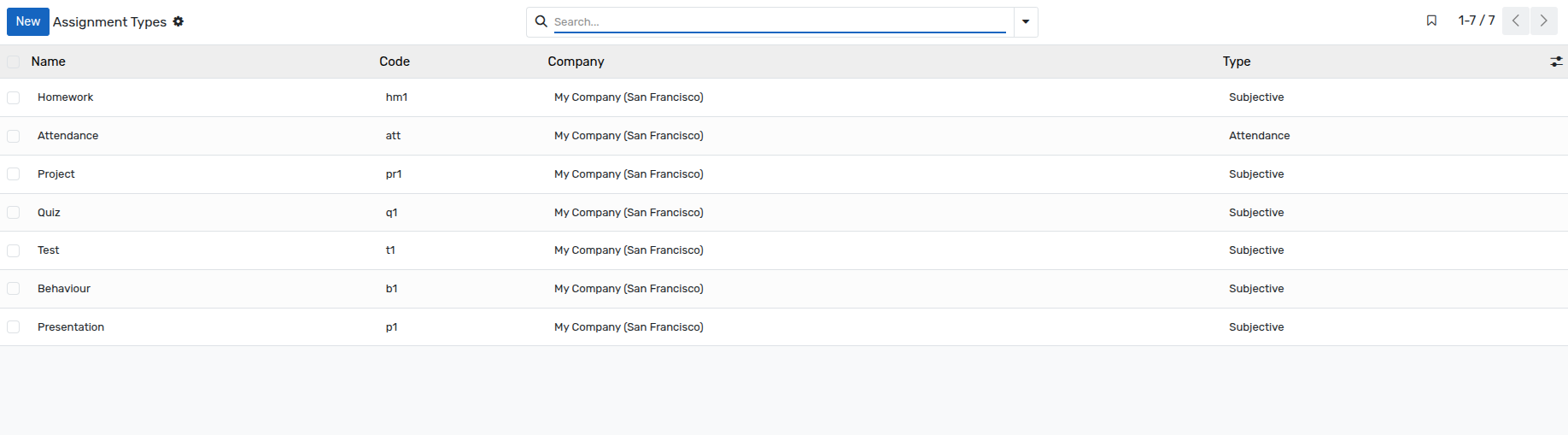
Détails des types d’affectation
Name :- Specify the descriptive name of the assignment type.
Code :- Unique identification code for the assignment type.
Company :- Company to which the assignment type belongs (multi-company support).
Assignments Management
Allez dans .
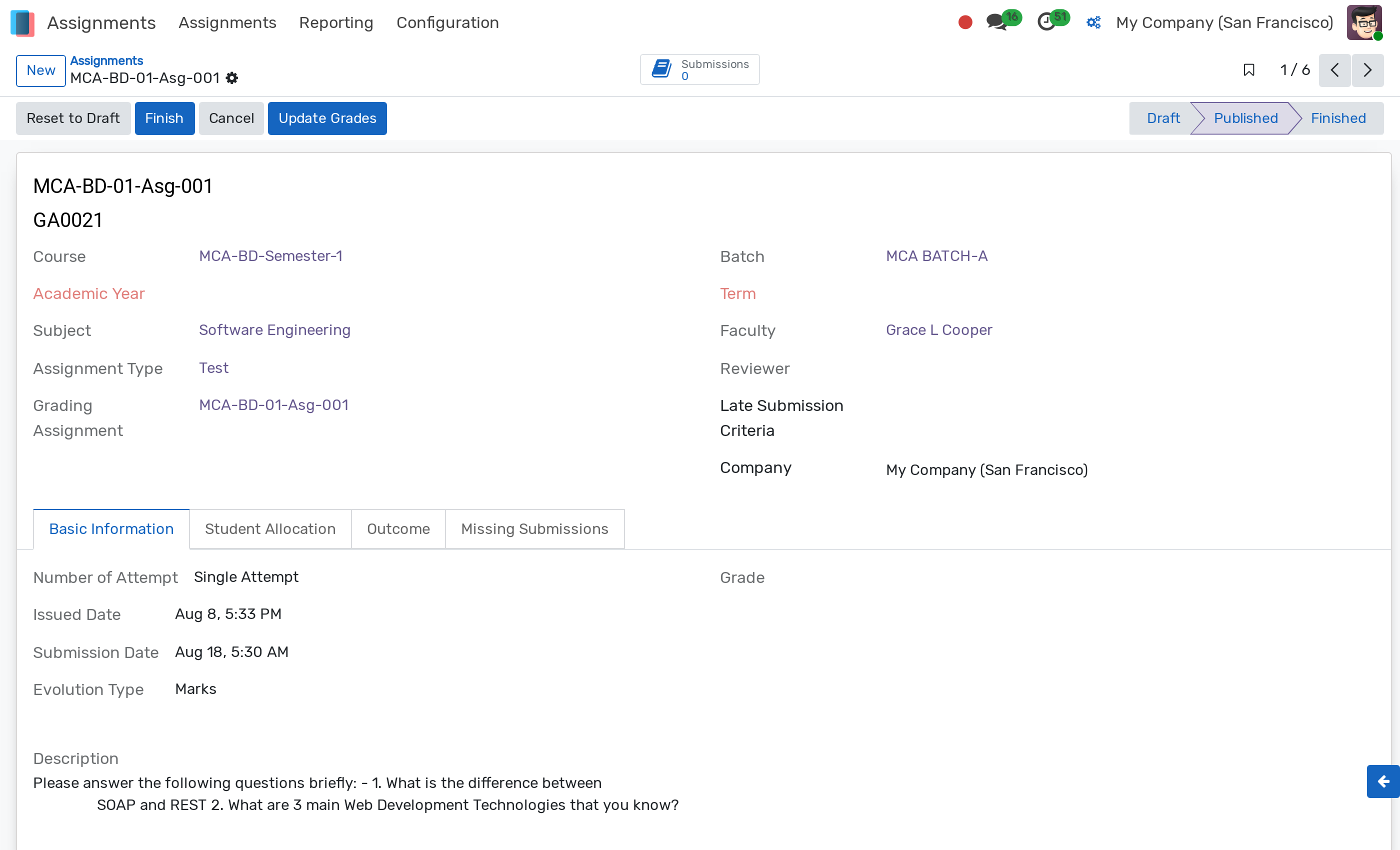
Détails des missions
Name :- Title or reference of the assignment.
Course :- Select the course for which the assignment is created.
Batch :- Select the batch associated with the chosen course.
Subject :- Select the subject for the assignment.
Faculty :- Faculty member responsible for creating and overseeing the assignment.
Assignment Type :- Classification type of the assignment.
Reviewer :- Designated evaluator or reviewer for submitted assignments.
Company :- Multi-company ownership of the assignment record.
Submissions (Smart Button) :- Direct link to all submitted assignment lines for evaluation.
Note
A Subject search panel is available on the left side of the Assignments list view to quickly filter records by subject.
Pages dans le formulaire d’affectations
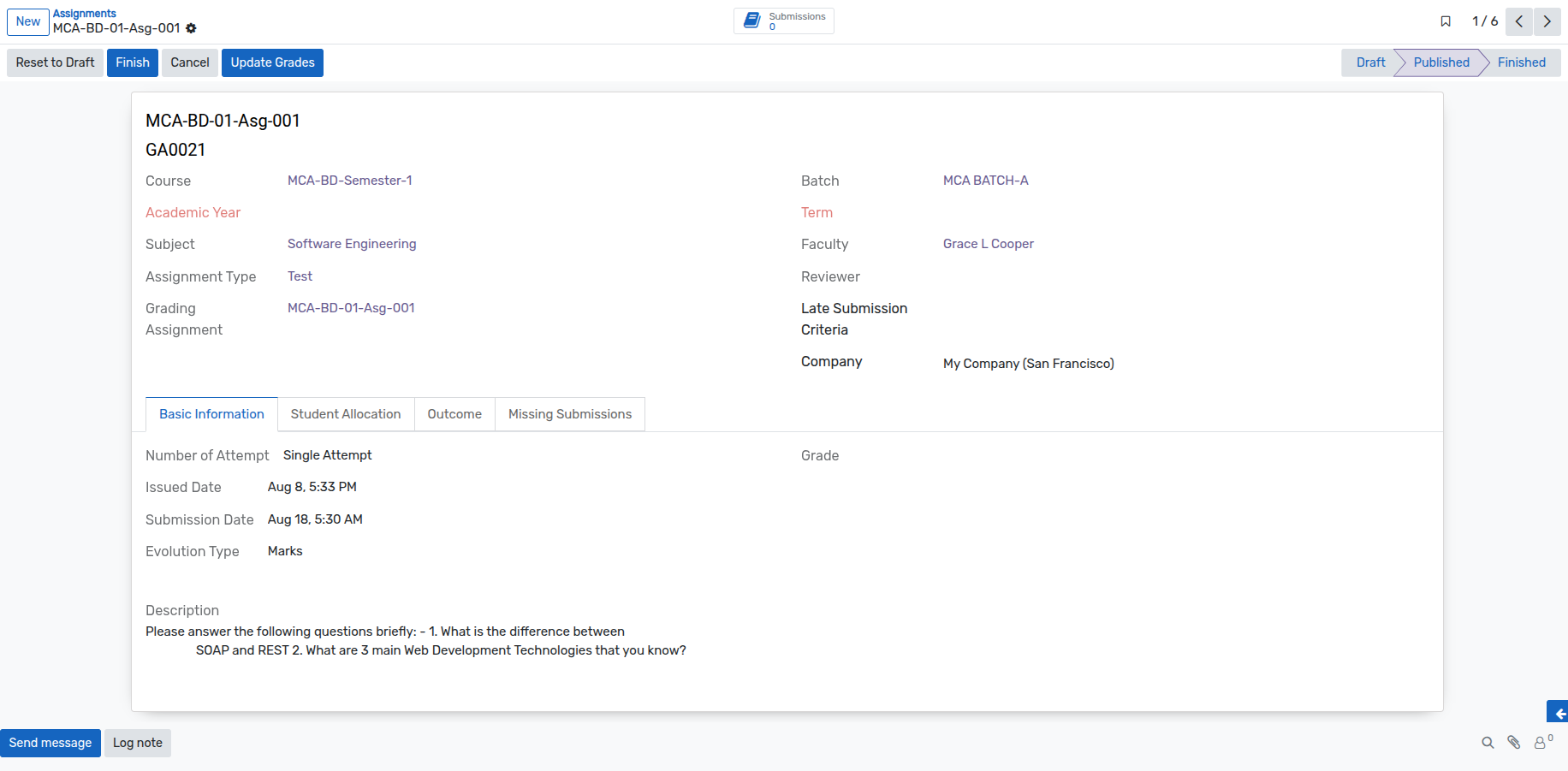
Informations de base
Number Of Attempt :- Determines whether students are allowed a
Single AttemptorMultiple Attemptsubmissions.Max Attempt :- Displayed when set to
Multiple Attempt. Defines the maximum allowed submission attempts per student. Editable only inDraftstate.Issued Date :- Date and time when the assignment is published and issued to students.
Submission Date :- Deadline date and time by which students must submit their work.
Marks :- Total maximum marks allocated for the assignment.
Description :- Detailed instructions or guidelines for the assignment.
Informations sur l’attribution
Specify the list of students to whom the assignment is allocated. If no specific students are listed, the assignment applies to all active students in the selected batch.
Student Additional Attempt
Displayed when Number Of Attempt is set to Multiple Attempt. Allows granting extra submission attempts to individual students beyond the standard Max Attempt.
Click Add a line to grant an additional attempt.
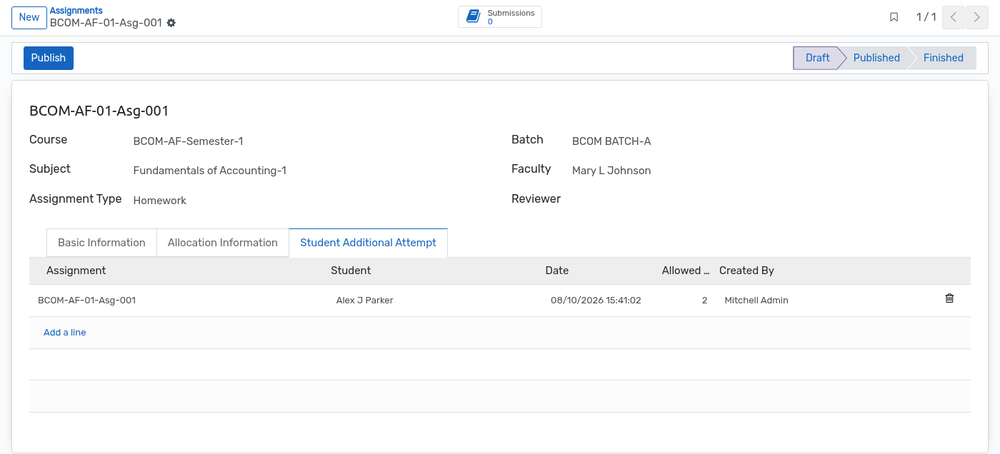
Assignment :- The targeted assignment record.
Student :- Recipient student granted the extra attempt.
Date :- Timestamp when the additional attempt was granted.
Allowed Additional Attempt(s) :- Count of extra submissions allowed for this student.
Created By :- User who granted the additional attempt.
Missing Submissions
When an assignment is published and unsubmitted students remain, a Missing Submissions tab automatically appears on the assignment form:
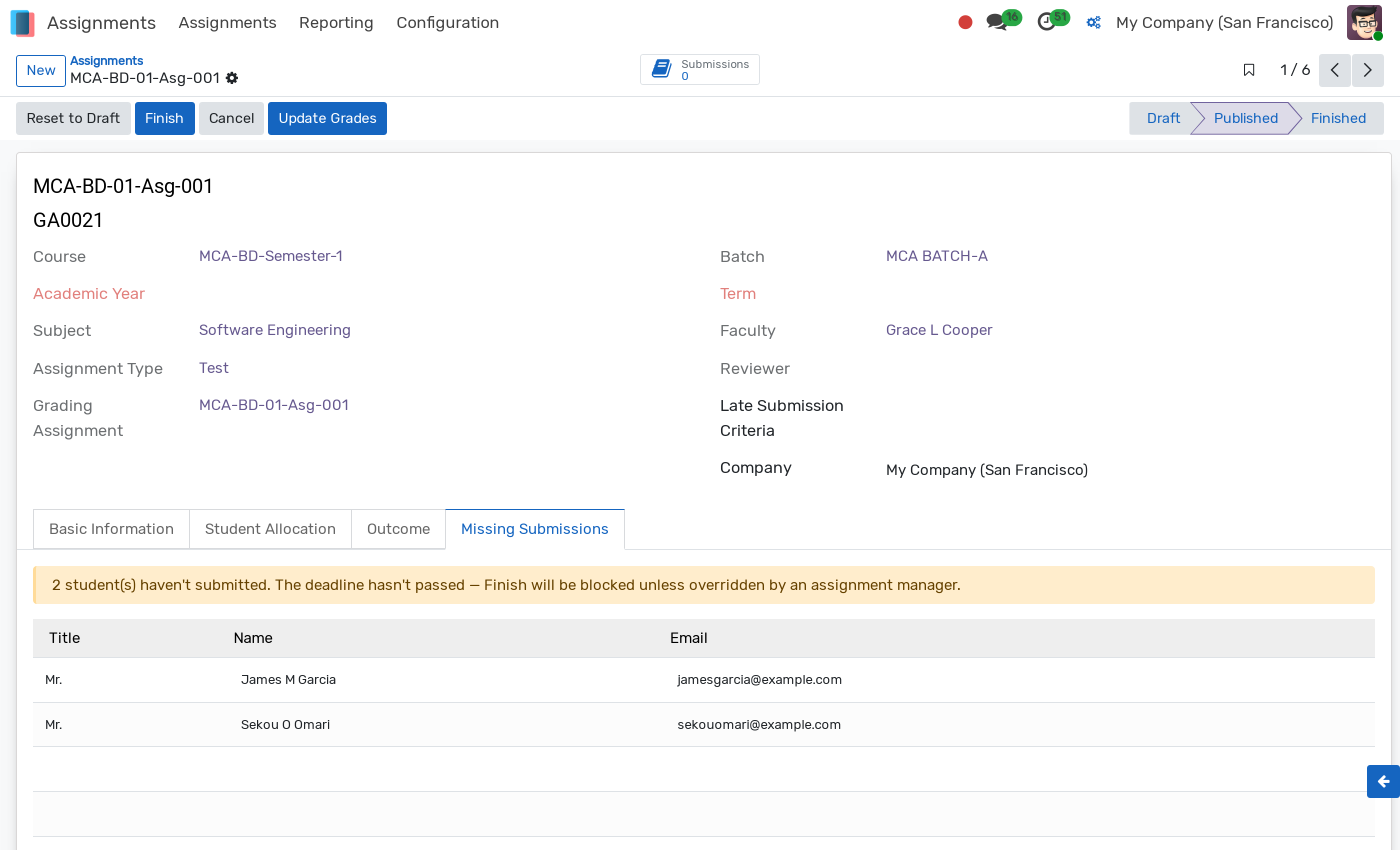
Warning Alert Banner :- Displays the count of missing student submissions before the deadline passes.
Danger Alert Banner :- Displays when the submission deadline has passed with unsubmitted students remaining.
Missing Submissions Table :- Lists student names, titles, and email addresses who have not yet submitted their assignment.
Workflow & Submission Gate
Draft :- Initial creation state. Settings and attempt limits can be freely edited.
Publish :- Click Publish to release the assignment. It changes the state to
Publishedand makes it visible on the Student & Parent portals from the Issued Date onwards.Finish & Submission Gate :- Click Finish to conclude the assignment and change state to
Finished.
Submission Gate Rules for Finishing Assignments
To ensure evaluation integrity, OpenEduCat enforces a Submission Gate when clicking Finish:
All Students Submitted :- If all expected students have submitted, clicking Finish immediately completes the assignment.
Submission Deadline Passed :- If the Submission Date deadline has passed, clicking Finish automatically completes the assignment and logs a summary of missing students in the chatter timeline.
Deadline Not Passed (Unsubmitted Students Exist) :- * Standard User / Faculty :- System blocks completion and displays an error message requesting to wait for the deadline or contact a manager. * Assignment Manager :- System opens a Reason for Manager Override modal wizard requiring a justification for early closure:
Enter the override reason and click Confirm and Finish to log the justification in chatter and mark the assignment as Finished.
Assignments from Course, Subject, and Faculty
An Assignment smart button is available at the top of Course, Subject, and Faculty records to view or create linked assignments.

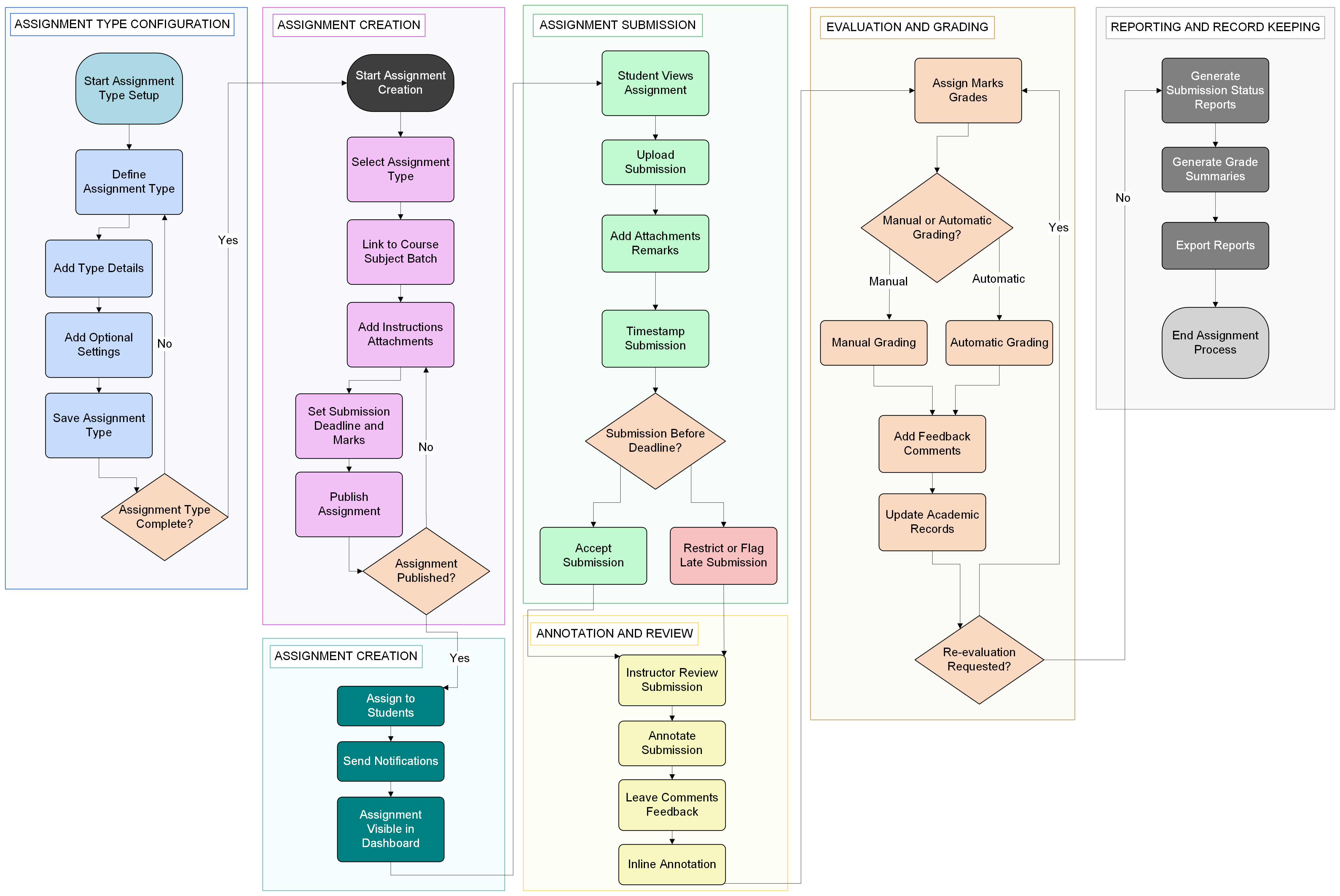
Activity Diagram