
Manual Sync Wizard
The Manual Sync wizard runs a synchronization outside the scheduled jobs. Use it for the first run after configuration, to recover after an outage, or to apply an urgent change without waiting for the next cron.
Opening the Wizard
Go to , or open an instance and click
Sync Wizard in the header. The wizard is available to the Moodle Manager group.
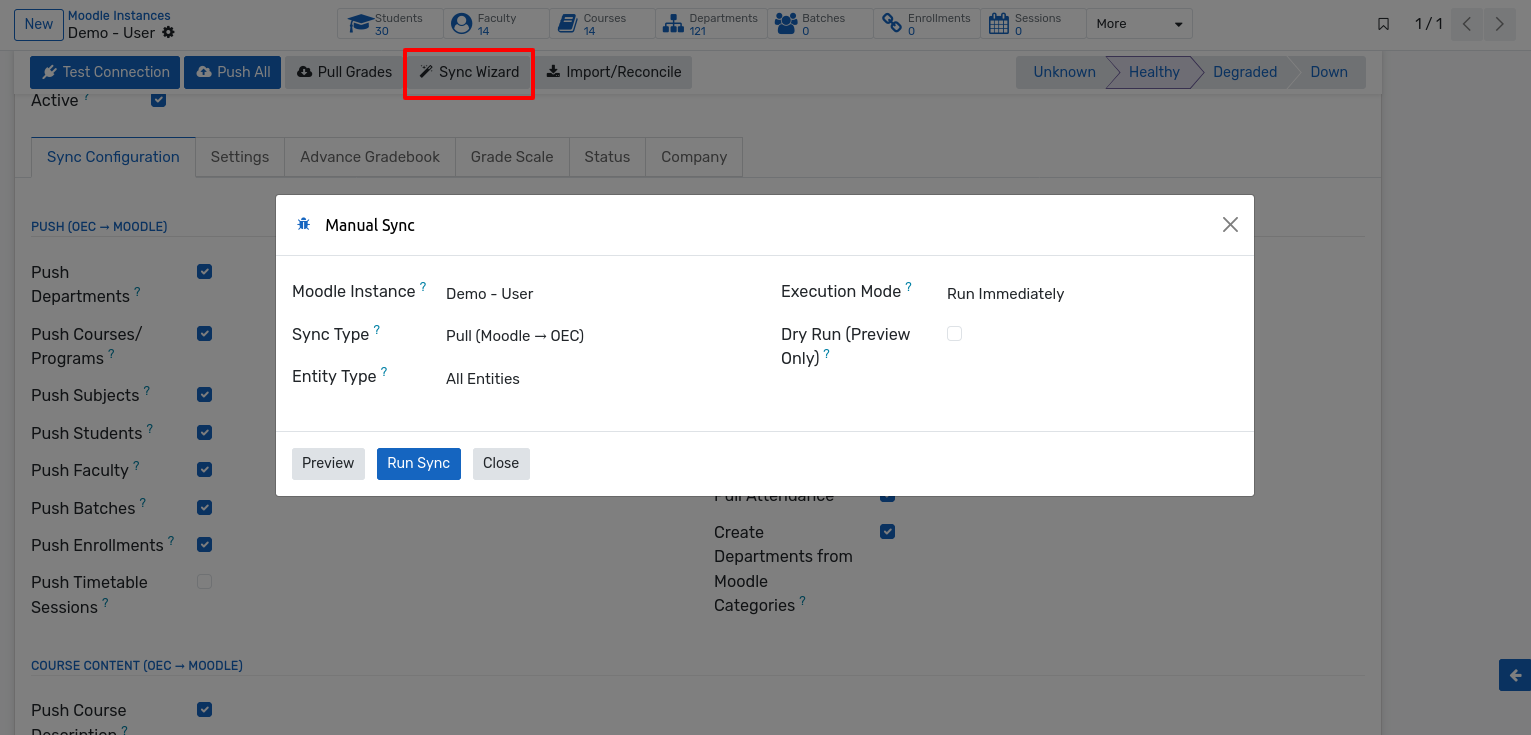
Options
Field |
Description |
|---|---|
Moodle Instance |
The site to synchronize. Pre-filled when opened from an instance. |
Sync Type |
Push (OEC → Moodle), Pull (Moodle → OEC) or Both Directions. |
Entity Type |
All Entities, Users Only, Courses Only, Enrollment Only, Grades Only or Attendance Only. |
Execution Mode |
Run Immediately processes the sync in the foreground; Queue as Background Jobs hands it to the job queue. |
Dry Run (Preview Only) |
Reports what would be synchronized without sending anything to Moodle. |
Previewing First
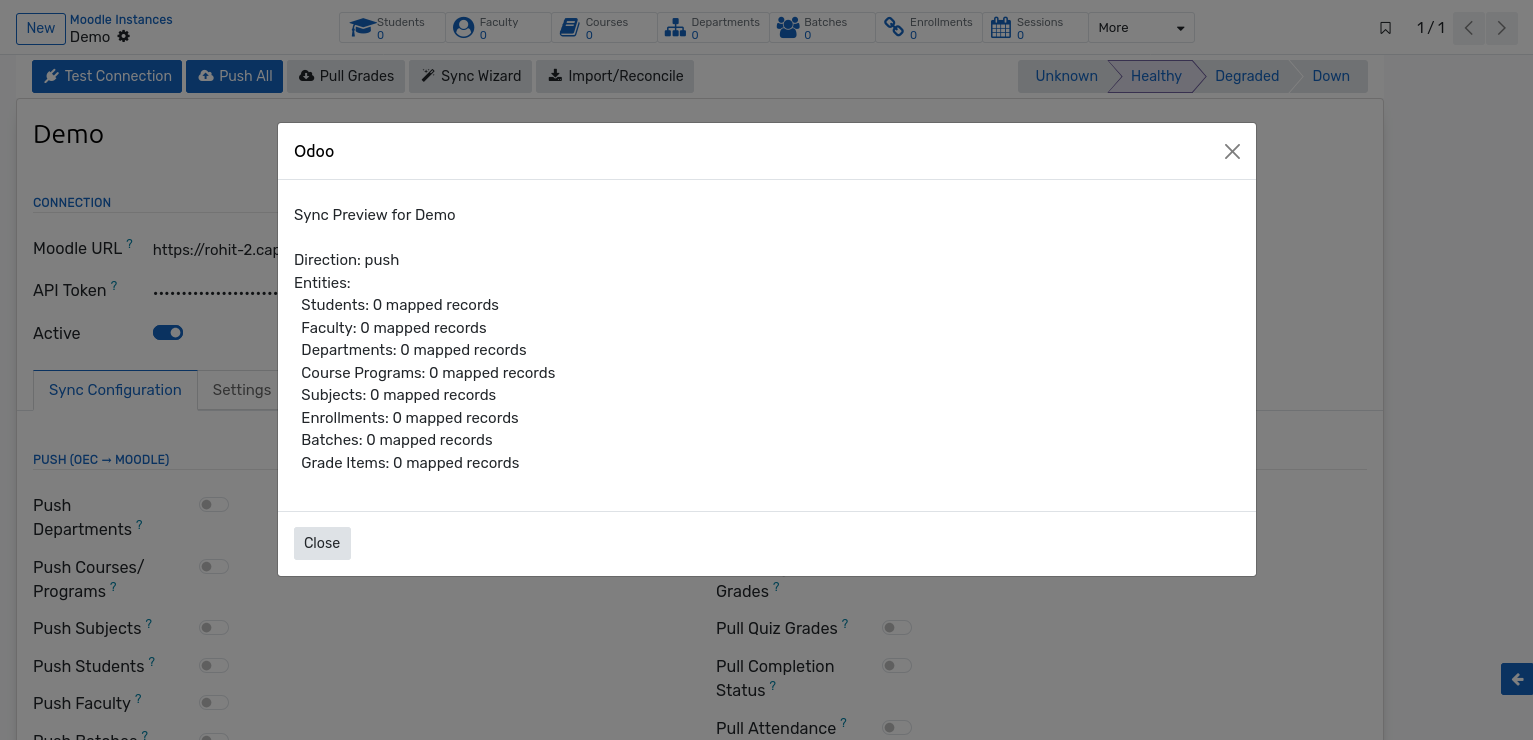
Click Preview to see a summary for the selected instance — the direction and, for each
entity in scope, how many records are currently mapped. Nothing is written to Moodle.
Ticking Dry Run has the same effect when Run Sync is clicked, which is a useful
safeguard before a large operation.
Running the Sync
Click Run Sync. The wizard reopens on a results screen listing the operations that ran,
for example Push sync completed or Grade pull completed. Full details of every record
are in the sync log.
Choosing an Execution Mode
Mode |
When to use it |
|---|---|
Run Immediately |
Small scopes and quick corrections. The screen stays busy until the sync finishes, so avoid it for a full push on a large database. |
Queue as Background Jobs |
Full syncs and large data sets. Jobs are queued on the |
Note
Background jobs require queue_job to be configured with more than one worker. Without
it the jobs stay pending — see the prerequisites chapter.
Recommended Sequence for a First Sync
Run the initial import if the Moodle site already has data.
Run the wizard with Push, All Entities and Dry Run ticked, and check the preview.
Run it again without dry run, in background mode, and follow the sync log.
Once the push is clean, run a Pull for Grades Only.
Enable Auto Sync Enabled on the instance so the scheduled jobs take over.