
Fees Refund
When a student cancels an admission, drops out, is terminated, leaves with a No Objection Certificate or graduates, part of the fees already paid usually has to be returned. The Fees Refund application manages that whole process :- the student raises a refund request from the portal, the institute calculates how much is actually refundable according to its own rules, two levels of approvers sign it off, and a credit note is generated for the accounting team.
The amount to refund is not typed in by hand. The institute defines Refund Rules that say how much is deducted depending on how long the student actually studied, and the request applies the matching rule automatically.
Dependencies
Fees Refund requires the Fees Plan application, because the refund is calculated from the fee plan lines of the student’s enrolment, and the Accounting application, because the refund is issued as a credit note.
A refund request can only be raised for an enrolment that already has a fee plan with fee lines. A student enrolled on a course for which no fees have been generated yet cannot request a refund.
Configure Refund Reasons
A Refund Reason describes why a refund is being asked for, and — importantly — decides who has to approve it.
Go to SIS ‣ General ‣ Fees ‣ Refund Reason.
Click on New to create a new refund reason.

Details of Refund Reason Form
Reason :- Name of the reason, as it will appear to the student. Required.
Refund Type :- Category of the refund. Required. One of :-
Refund.Admission Cancelled
Refund/Dropout
Termination
Exit/NOC
Graduation
Active :- Untick to hide the reason without deleting it.
Description :- Explains when this reason should be used. Required. It is on the Description tab.
Default Approvers :- The users who perform the first approval. Required.
Final Approvers :- The users who perform the second approval and generate the credit note. Required.
Both approver lists are on the Approvers tab.
Note
The approvers do more than enable buttons — they also control who can see the request at all. A user only sees a refund request if they are the student concerned, a Default Approver, or a Final Approver for the reason chosen on that request. Administrators see every request.
Configure Refund Rules
A Refund Rule states how much is deducted when a student leaves after a given number of days. By creating several rules with different day ranges, the institute builds a sliding scale — the longer the student stayed, the smaller the refund.
Go to SIS ‣ General ‣ Fees ‣ Refund Rules.
Click on New to create a new refund rule.
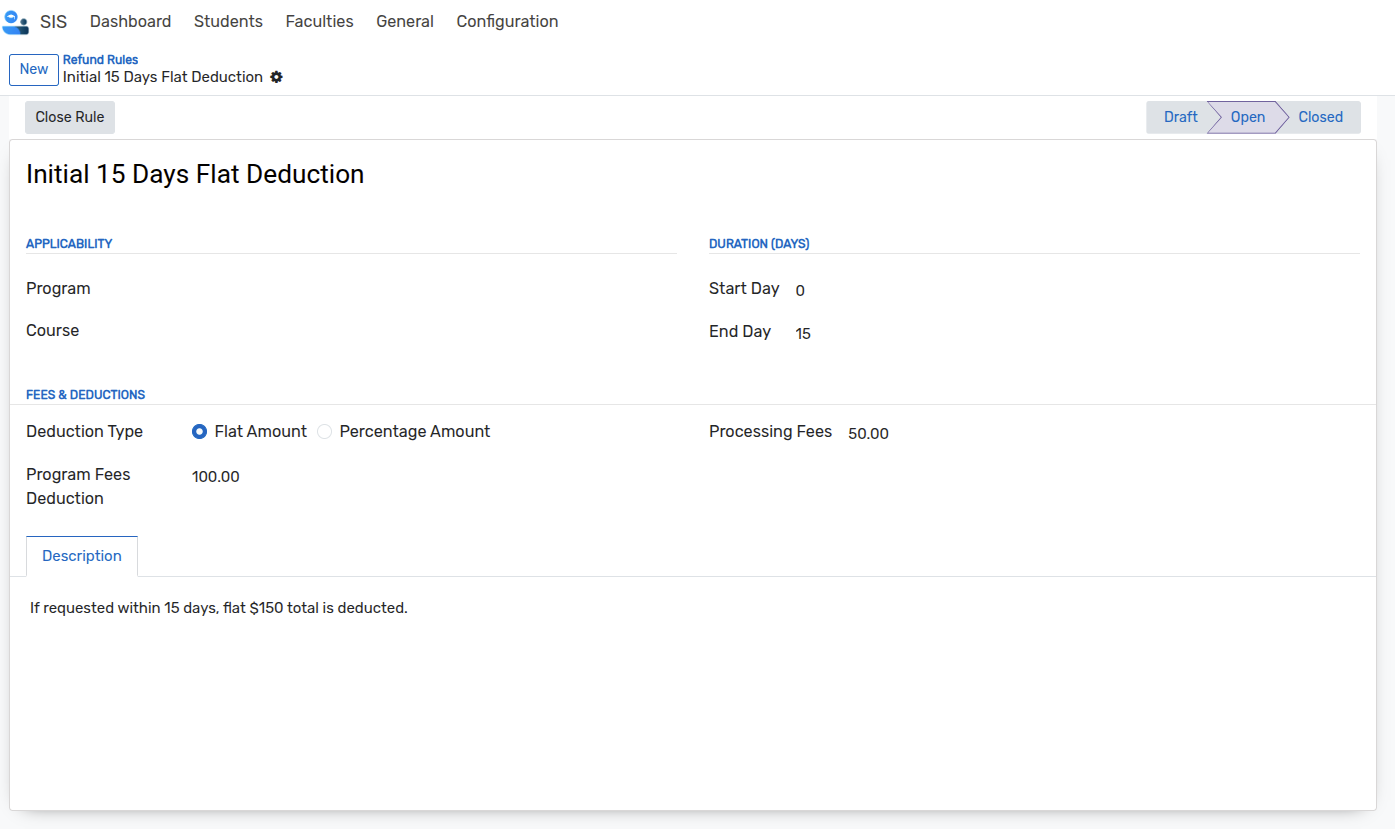
Details of Refund Rule Form
Name :- Name of the rule, for example
Early Withdrawal. Required.Program :- The program the rule applies to. Changing the program clears the course.
Course :- The course the rule applies to. Only courses of the selected program can be chosen.
Start Day / End Day :- The range of days this rule covers. A rule is applied when the student’s day count falls between these two values, both included.
Deduction Type :- Either Flat Amount or Percentage Amount. Required, Flat Amount by default.
Program Fees Deduction :- The amount deducted from the fees. With Flat Amount this figure is deducted as it is; with Percentage Amount it is read as a percentage of the amount the student has paid.
Processing Fees :- A fixed administrative charge, always deducted as an amount.
Description :- Free text describing when the rule applies.
Status :- Draft, Open or Closed.
Refund Rule Status
Open Rule:- Puts a Draft rule into Open.Close Rule:- Puts an Open rule into Closed.Reset to Draft:- Puts a Closed rule back into Draft.
Note
Only rules in the Open status are used. A rule left in Draft or moved to Closed is never picked up automatically and cannot be selected manually on a request, so closing a rule is the way to retire an old scale without deleting its history.
Create a Fees Refund Request
Go to Students ‣ General ‣ Student Fees Refund Request.
Click on New to create a new request.
The reference is generated automatically in the form RFR/00001.
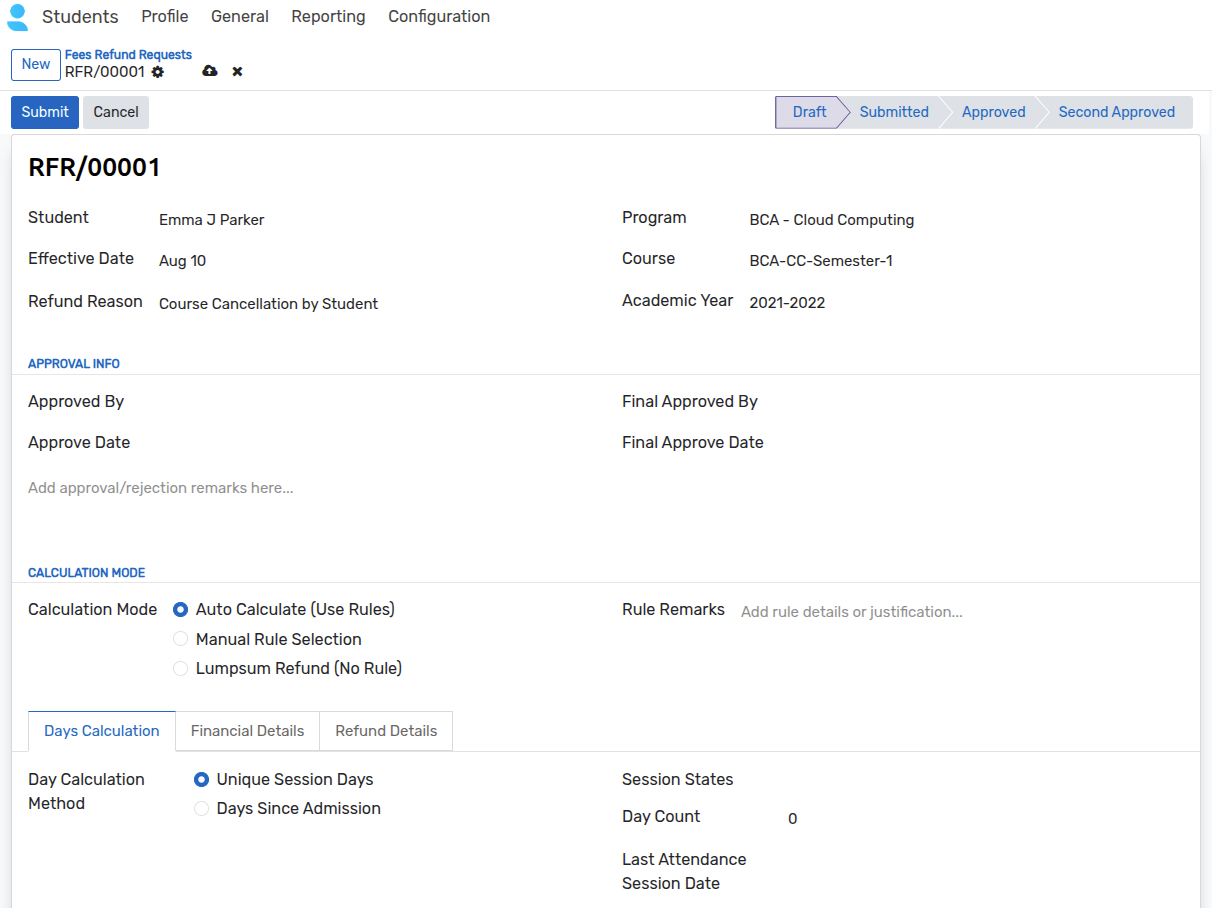
Details of Fees Refund Request Form
Student :- The student asking for the refund. Required.
Effective Date :- The date the refund takes effect, today’s date by default. Required. This date is what the day count is measured up to, so it directly affects which rule is applied.
Refund Reason :- The reason for the refund. Required. It determines the approvers.
Program / Course / Academic Year :- All required. Each list only offers the programs, courses and academic years the selected student is actually enrolled on, so an unrelated course cannot be chosen by mistake.
As soon as the request is created, the Total Fees, Paid Amount and Remaining Amount are filled in automatically from the fee plan lines of that enrolment. The paid amount counts only the fee lines whose invoice has been posted.
Calculation Mode
The Calculation Mode decides how the refundable amount is worked out :-
Auto Calculate (Use Rules) :- The system counts the days the student studied and then applies the Open refund rule for that program and course whose Start Day / End Day range contains that count. This is the default.
Manual Rule Selection :- You choose the Refund Rule yourself. Only Open rules of the selected program and course can be chosen.
Lumpsum Refund (No Rule) :- No rule is used. You enter a Lumpsum Amount and that figure becomes the refund, with no deductions.
Rule Remarks is available in every mode to record why a particular rule or amount was chosen.
Days Calculation
The Days Calculation tab only appears in Auto Calculate mode.
Day Calculation Method :-
Unique Session Days :- Counts the distinct dates on which the student’s batch had a session, up to the effective date. Two sessions on the same day count as one day.
Days Since Admission :- Counts the calendar days from the fees start date of the enrolment up to the effective date, whether or not any teaching took place.
Session States :- Required when the method is Unique Session Days. Choose which session statuses should be counted, so that, for example, cancelled sessions are excluded.
Day Count :- The calculated number of days. It is what the refund rule is matched against.
Last Attendance Session Date :- The date of the student’s last session.
If no Open rule covers the calculated day count, no rule is applied and no deduction is proposed — in that case switch to Manual Rule Selection or Lumpsum.
Financial Details
The Financial Details tab shows how the refund is built up.
Total Fees / Paid Amount / Remaining Amount :- Read-only. Taken from the fee plan of the enrolment.
Program Fees Deduction :- Taken from the applied rule. With a percentage rule it is calculated on the amount the student has paid.
Processing Fees :- Taken from the applied rule.
Total Deduct Amount :- Program Fees Deduction plus Processing Fees.
Applied Rule :- Read-only record of which rule was actually used.
Refund Amount :- Paid Amount minus Total Deduct Amount. It never goes below zero, so deductions larger than the amount paid simply result in no refund.
In Lumpsum mode the refund amount is the lumpsum you entered and no deduction is calculated.
Status of a Fees Refund Request
A request moves through the following statuses, shown on the status bar at the top of the form :-
Draft :- The request has been created but not submitted.
Submitted :- The student has submitted the request and it awaits the first approval.
Approved :- A Default Approver has approved it and it awaits the second approval.
Second Approved :- A Final Approver has approved it. The refund can now be issued.
A request can also end in Rejected or Cancelled.
Note
The status field also contains a Pending Approval value, but no button in the standard screens sets it. It is reserved for future use and can be ignored.
Workflow
The full cycle is
Configure Reasons and Rules ‣ Request ‣ First Approval ‣ Second Approval ‣ Credit Note.
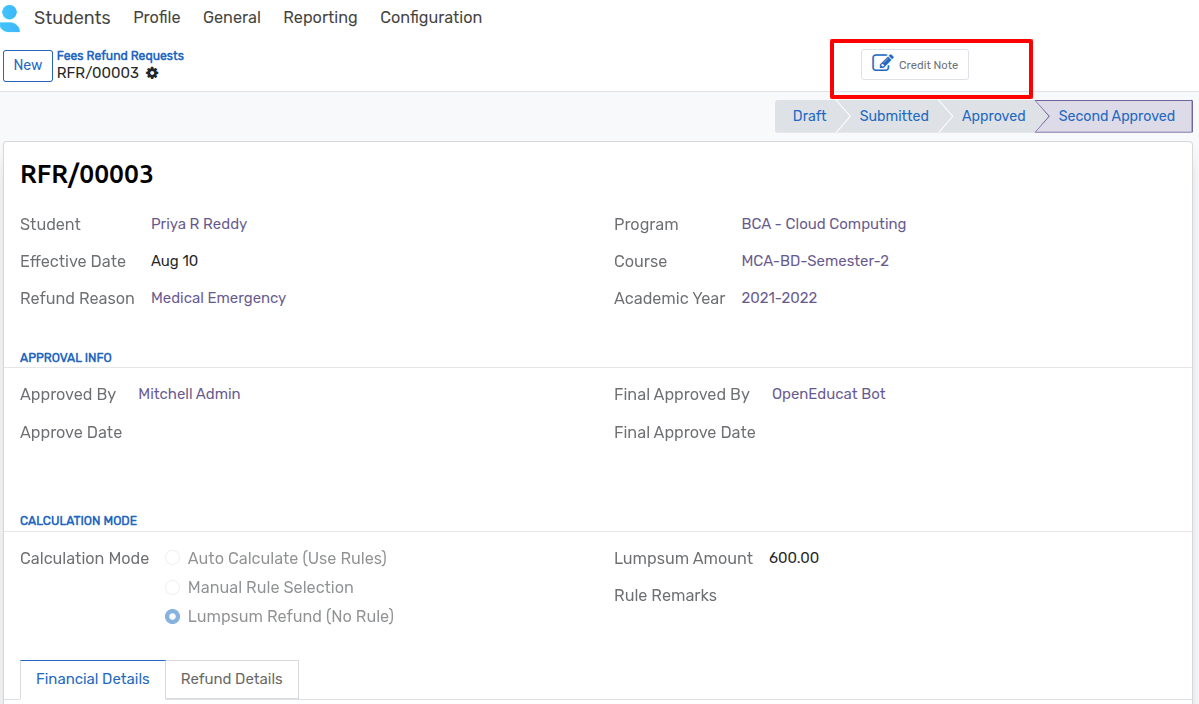
Submit:- Moves the request from Draft to Submitted. Available to the student concerned, to a Default Approver, and to administrators.Approve:- Moves the request from Submitted to Approved and records who approved it and on which date. Available to Default Approvers and administrators.Second Approve:- Moves the request from Approved to Second Approved and records the final approver and date. Available to Final Approvers and administrators.Create Credit Note:- Generates the credit note. Available once the request is Second Approved and no credit note exists yet, to Final Approvers and administrators.
Important
Second Approve also closes the student’s enrolment — the matching student
course record for that program, course and academic year is set to Finished.
This is not reversible from the refund request, so confirm the refund figures
before giving the second approval.
Credit Note
Create Credit Note produces a customer credit note for the student for the
Refund Amount, dated with the effective date of the request. The credit note
opens straight away and is linked to the request through the Credit Note smart
button, and the reference of the request is kept on the Refund Details tab.
The credit note is created as a draft so the accounting team can check it, add the correct account or journal if needed, and post it. The refund is not paid out by this button — posting and paying the credit note is done in Accounting as usual.
If the refund amount is zero, the button refuses to create anything and shows an error message instead.
Student Portal
Students raise their own refund requests from the portal.
The student opens Service Requests from the portal and uses the Fees Refund Request card, where
New Requestopens the form andView Historylists their previous requests.


On the form the student picks the course, academic year and refund reason and adds an explanation.
Save as Draftkeeps the request without submitting it;Submit Requestsends it for approval.

From the list, a request still in Draft can be edited or submitted. Once submitted it can no longer be changed by the student.
Only enrolments in the Running status that already have a fee plan with fee lines can be selected. Running enrolments with no fees generated yet are shown separately with a message explaining that a refund cannot be requested until the administration has created the fees. Finished enrolments only remain visible while they still have a refund request attached.
Permissions
Visibility of refund requests is controlled by the reason’s approver lists rather than by a dedicated group :-
A student sees their own requests.
A user listed as a Default Approver or Final Approver on a refund reason sees the requests that use that reason.
Users with Back Office Admin rights, and system administrators, see and manage every request.
The Refund Reason and Refund Rules menus sit under the Fees menu, which is reserved for Back Office Admin users, so ordinary staff cannot change the deduction scales.