
Quiz Proctoring
Quiz Proctoring provides a live invigilation and anti-cheating framework for online exams within OpenEduCat. It allows faculty and administrators to monitor student camera and screen feeds in real time using WebRTC P2P streaming, secure quiz environments with tab/screen restrictions, passcode-gated entry, and real-time proctor messaging.
Overview
The proctoring system operates around two key roles:
Proctor (Faculty / Admin) – creates proctoring configurations/sessions, assigns invigilators to student groups, and monitors them live during the exam from the Proctoring dashboard.
Student – attempts the proctored quiz from the website portal, entering an optional passcode, granting camera and screen-share access before questions are unlocked.
The typical end-to-end flow is:
Enable proctoring on a quiz.
Create a Proctor Configuration / Session linking a proctor user to a group of students and setting timing / passcode options.
The student starts the exam, enters the passcode (if required), and grants camera + screen-share permissions.
The proctor monitors live feeds, sends announcements or private messages, and can remotely finish/kick out students if needed.
Requirements
This module depends on OpenEduCat Quiz (
openeducat_quiz), OpenEduCat Enterprise Core (openeducat_core_enterprise), and standard Odoo web and bus modules.Live monitoring relies on browser WebRTC,
getUserMedia, andgetDisplayMediaAPIs. The exam must be taken over HTTPS (orlocalhost).Students must grant camera and screen-share permissions when prompted.
Configuration
Enable Proctoring on a Quiz
Proctoring is configured per quiz. Go to Quiz ‣ Quiz ‣ Quiz and select or create a quiz.
Under the Configuration tab, locate the Proctoring section:
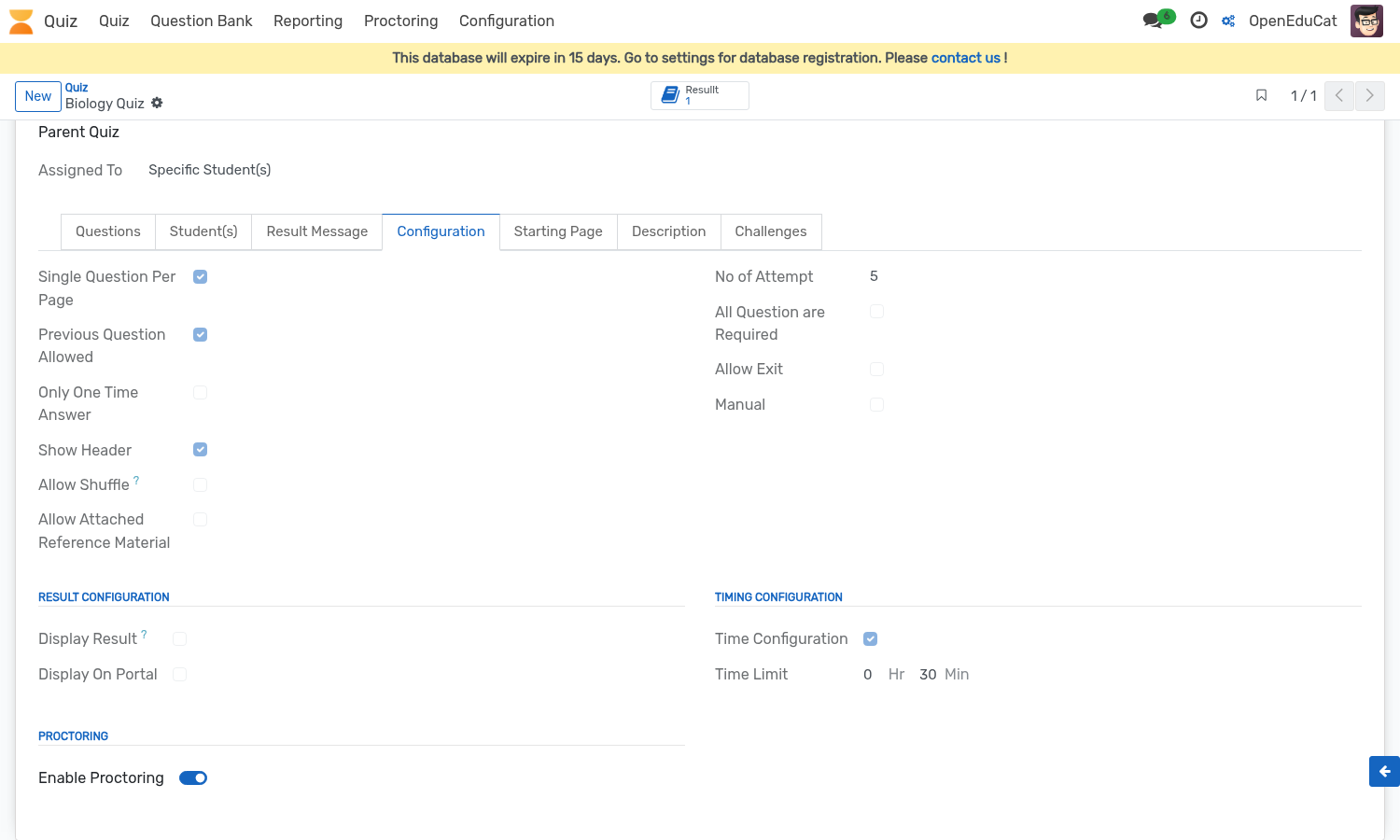
Enable Proctoring: When enabled, the quiz runs inside a Secure Quiz Environment. Students must satisfy all stream and passcode requirements before questions appear.
Proctor Configuration / Sessions
A Proctor Configuration maps an invigilator to a set of students and manages session constraints.
Go to Quiz ‣ Configuration ‣ Proctor Configuration (or Quiz ‣ Proctoring Session).
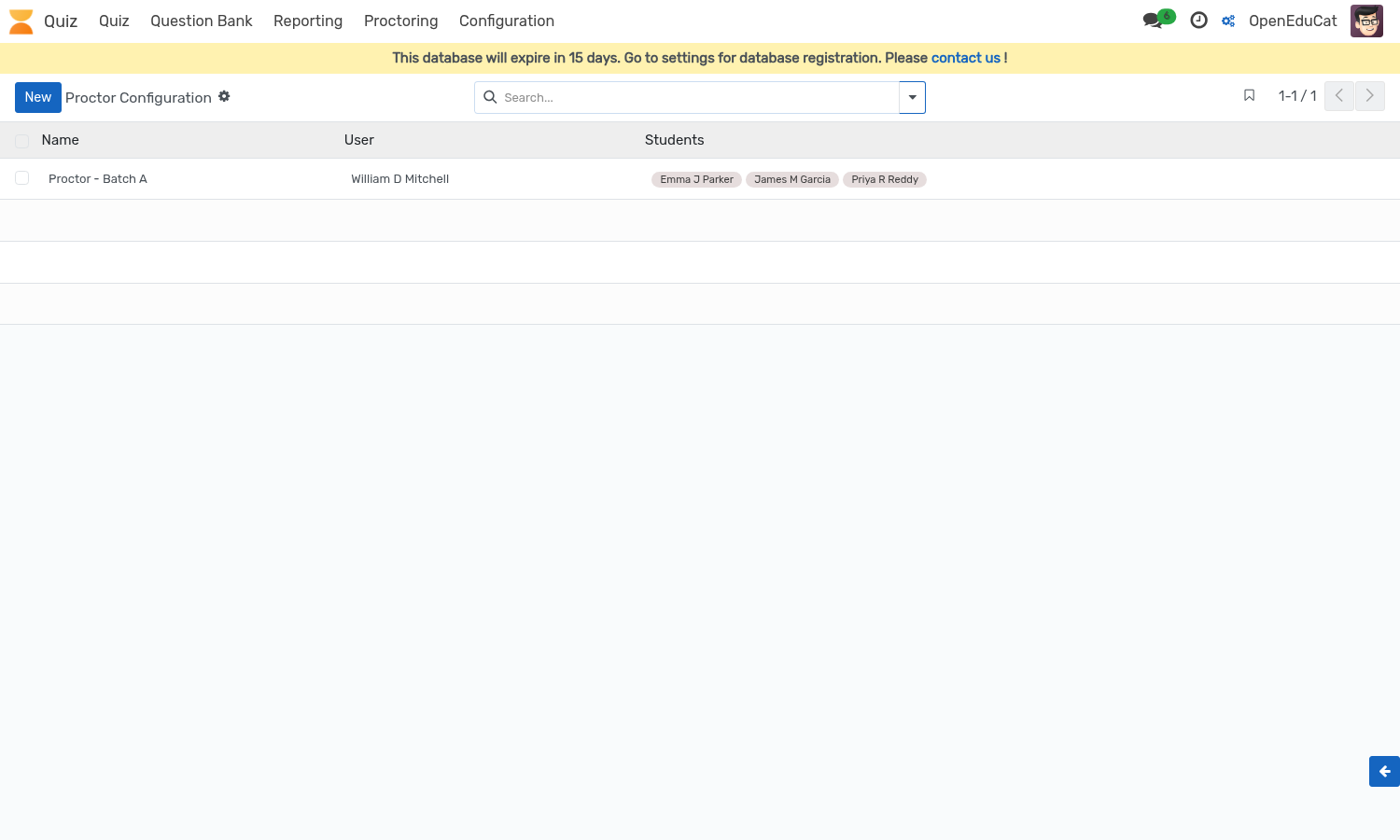
Click New to create a session:
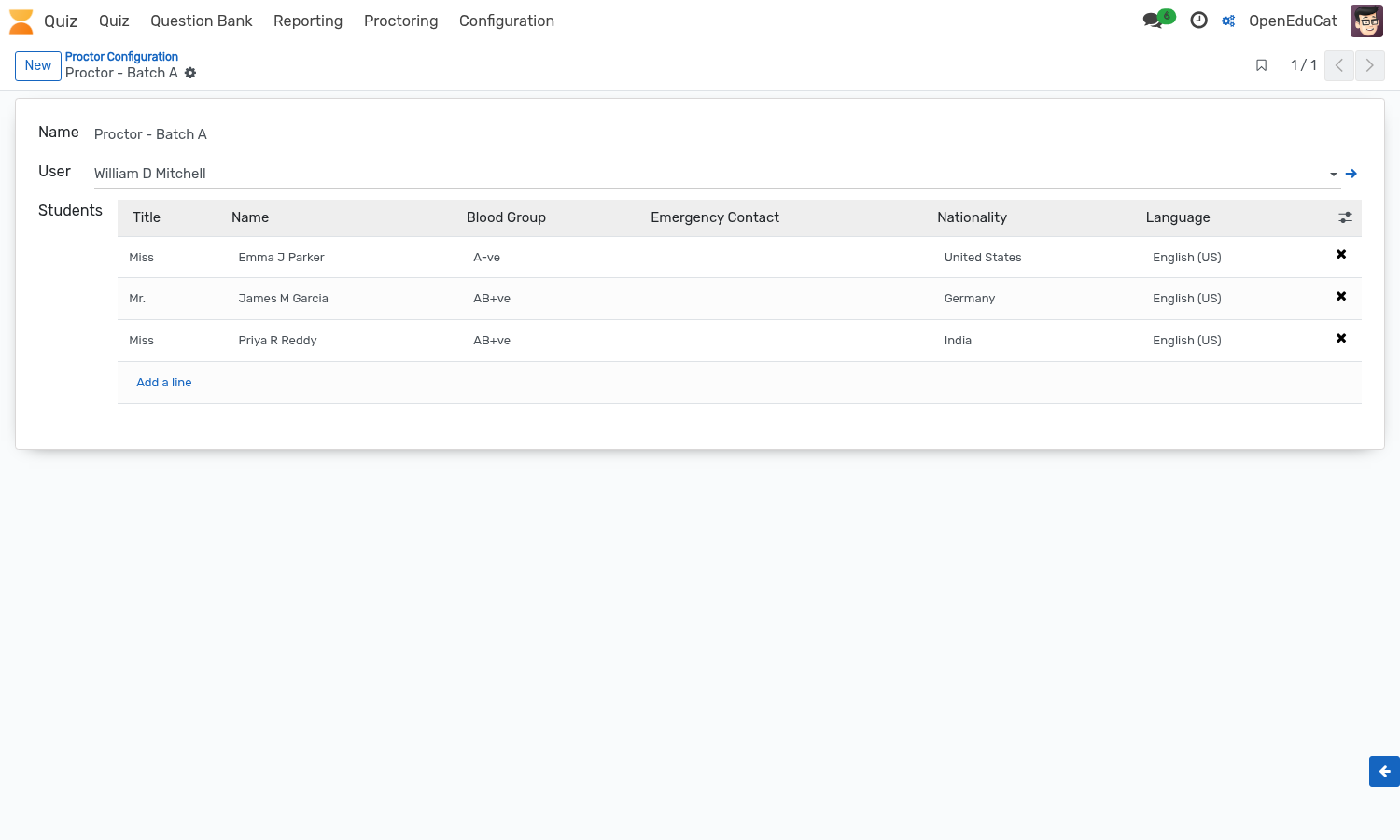
Key fields and options:
Name: Descriptive title for the invigilation session.
User: The assigned proctor (internal system user).
Quiz: The linked proctored quiz.
Course & Batch: Academic course and batch filter for student mapping.
Start Time & End Time: Schedule duration for the proctored session.
Enable Passcode: Option to require an entrance passcode for students attempting this quiz session.
Students: Selected students assigned to this proctor group.
When saved and confirmed, OpenEduCat automatically generates a dedicated discussion channel used as the signalling pathway for WebRTC connection setup between proctor and students.
Attempting a Proctored Exam (Student)
The student navigates to Home ‣ Exams on the portal.
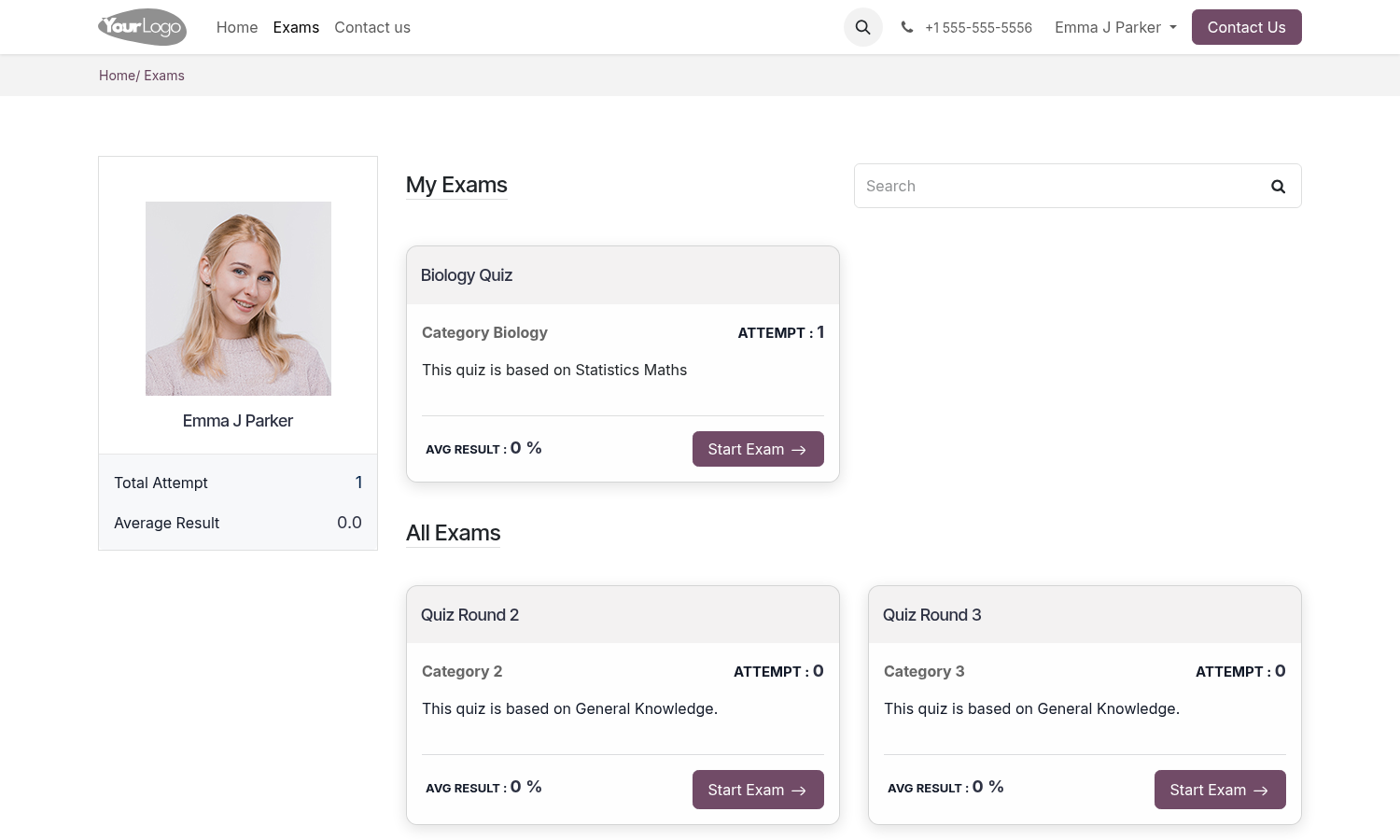
Upon selecting a proctored exam, the Exam Rules page is presented.
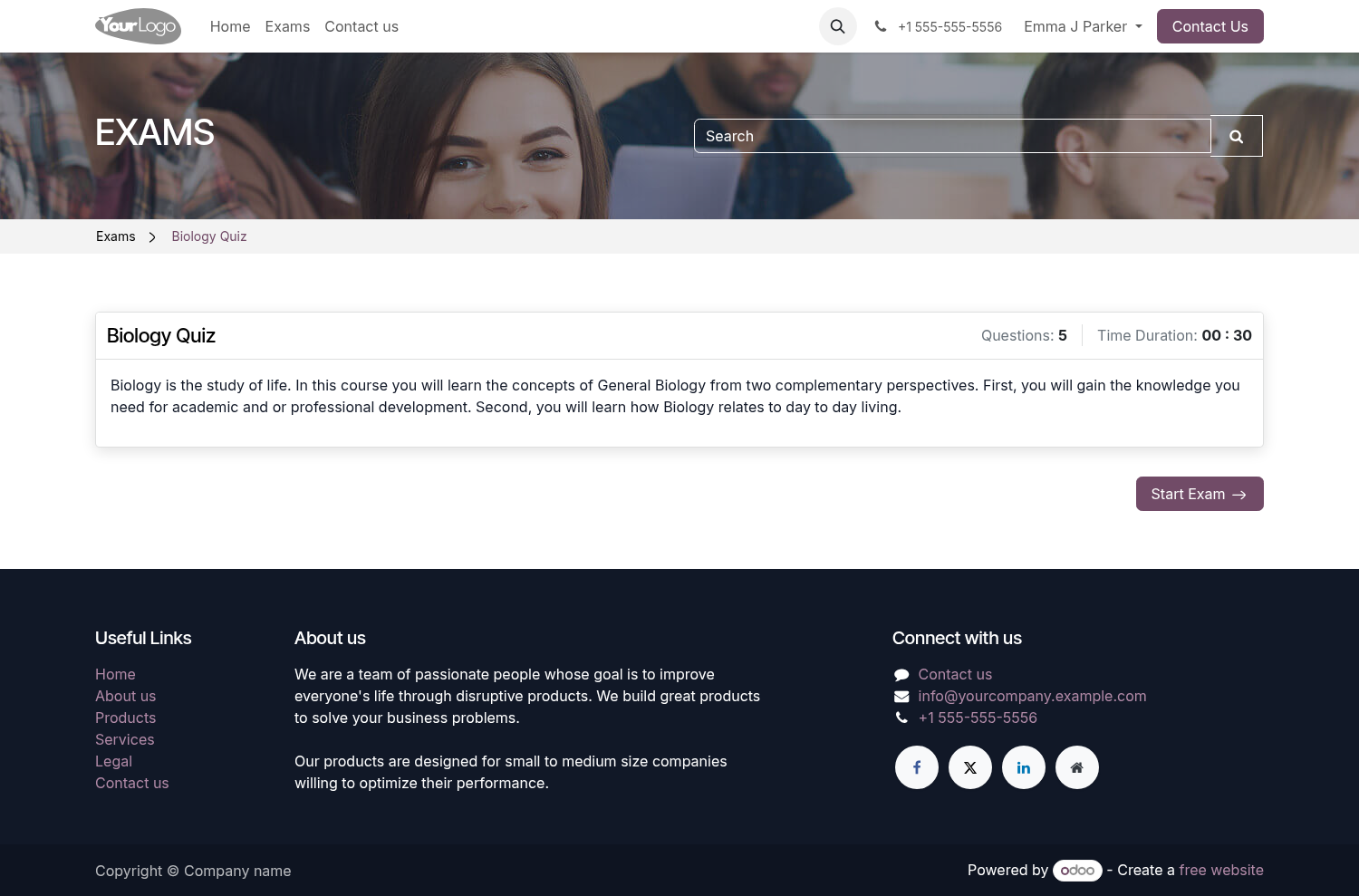
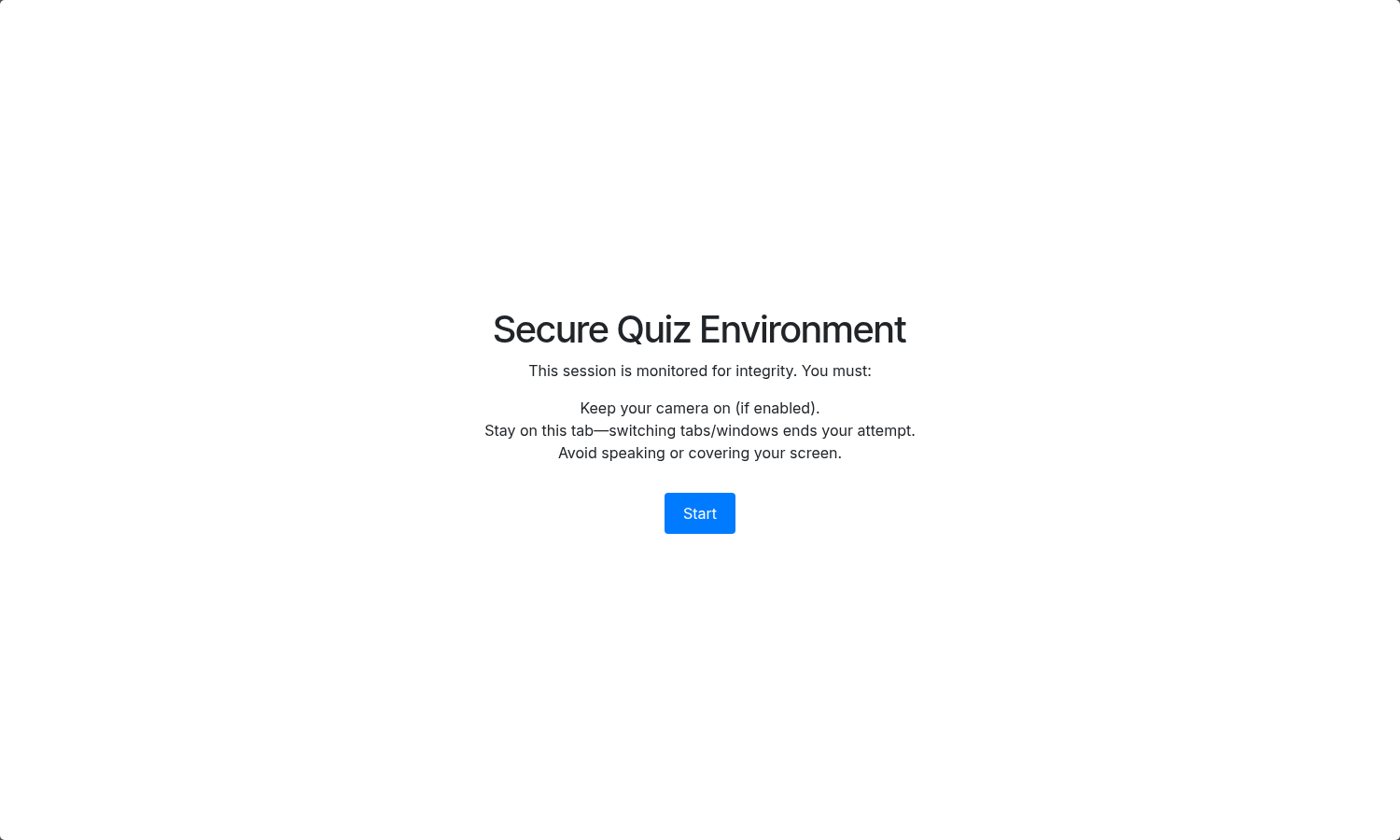
Clicking Start Exam activates the Secure Quiz Environment overlay. If a passcode is configured, the student enters the passcode and grants screen and camera permissions.
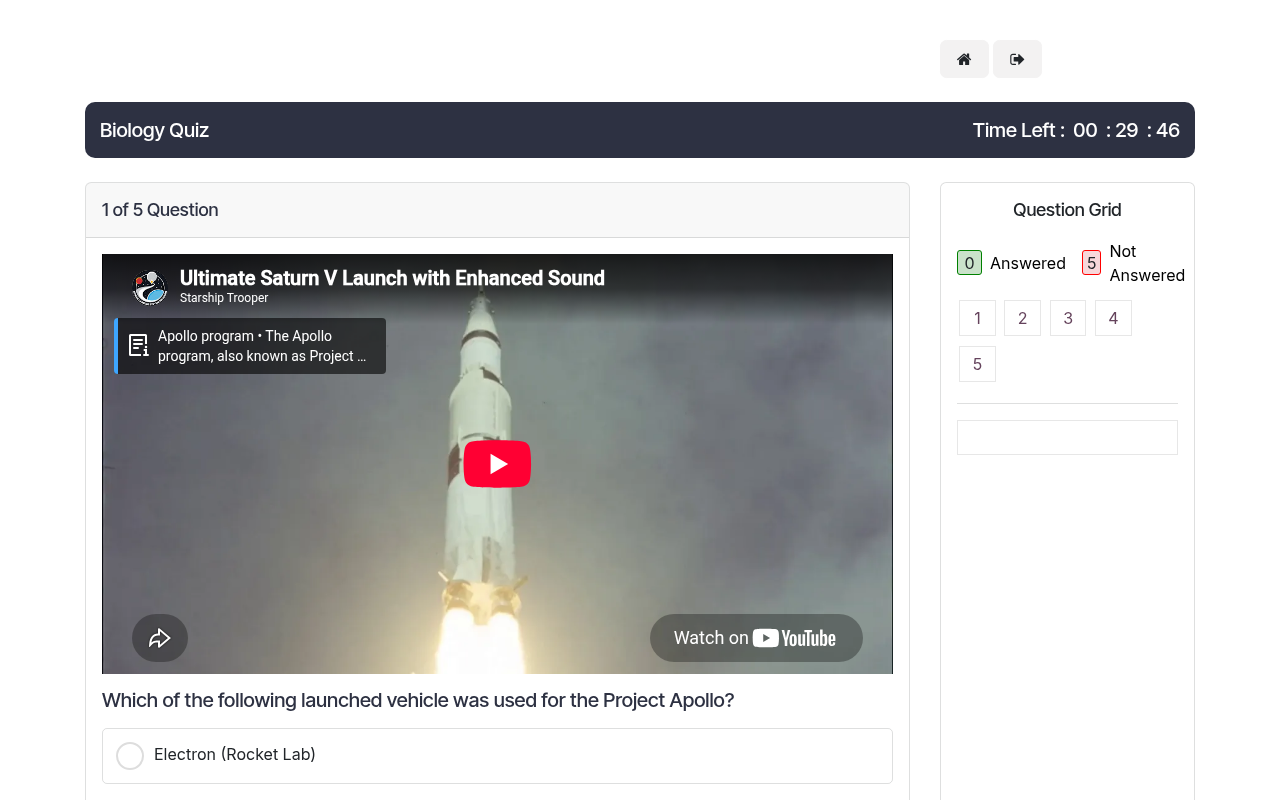
Once permissions and passcode verification succeed, full-screen mode is enforced and quiz questions become visible.
Live Proctoring Dashboard (Proctor)
Proctors access real-time feeds via Quiz ‣ Proctoring or via the Open Proctoring button on a confirmed Proctor Configuration record.
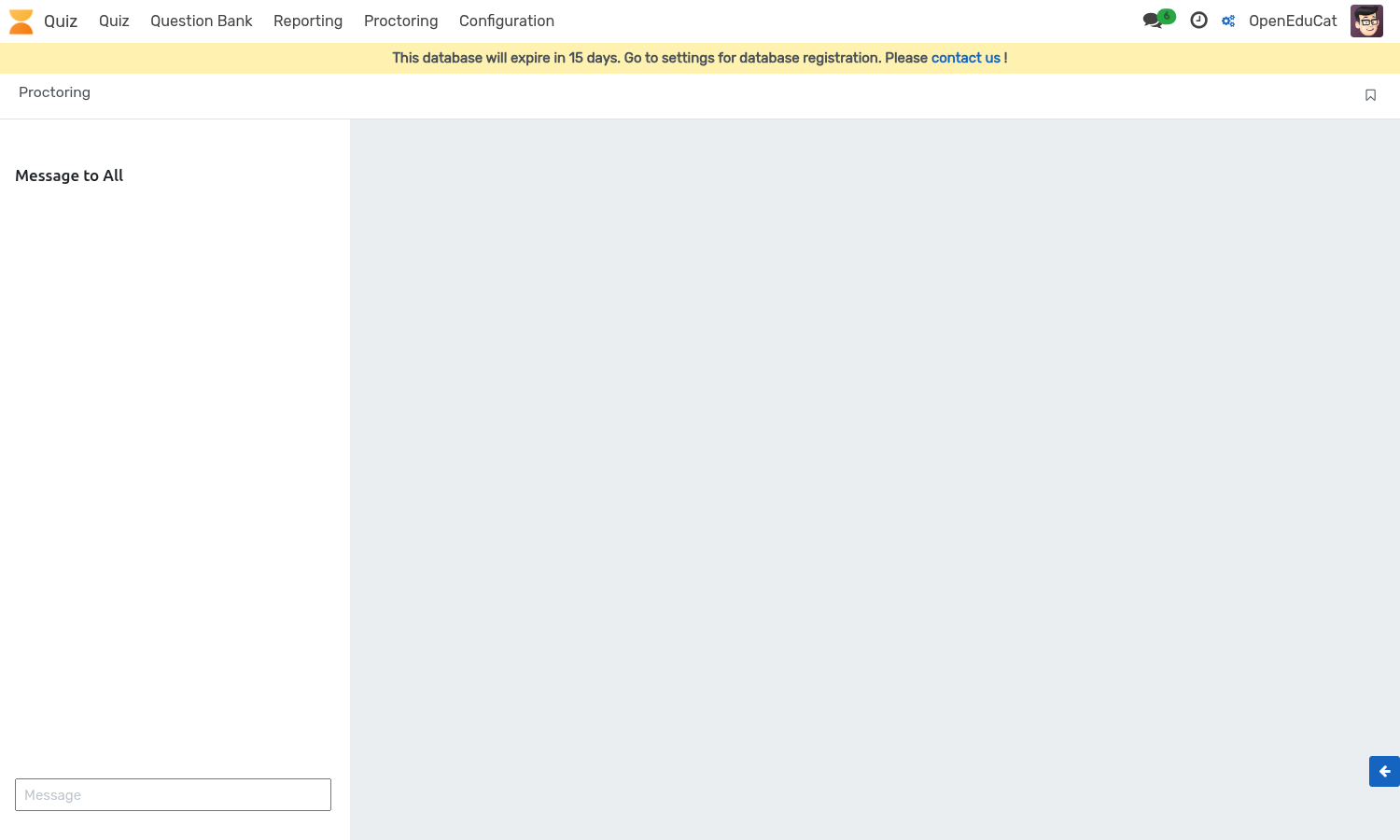
As students join, live camera and screen cards appear:
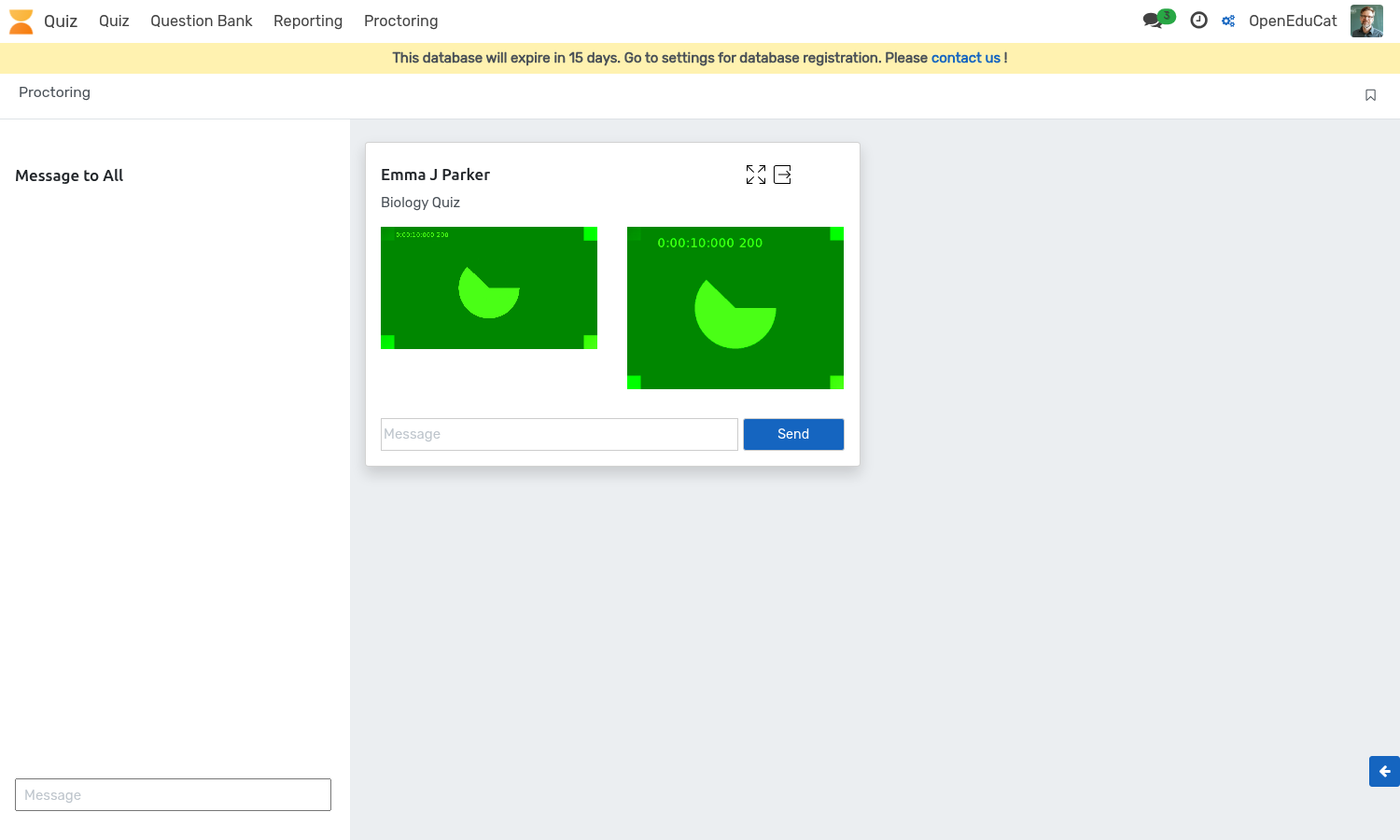
Dashboard Capabilities: - Message to All: Broadcast global announcements to all active student screens. - Private Messaging: Send direct alerts to individual student cards. - Full Screen Stream: Expand camera or screen feed for detailed invigilation. - Finish / Kick Out: End student session remotely and submit their current quiz attempt.