
Student Mentor
The Student Mentor module lets an institution nominate senior students as peer mentors for a batch of mentees. A faculty member drafts a Mentorship Allocation request based on a student’s gradebook, achievements and skills; an administrator reviews and approves (or rejects) it; and the approved mentor can then organise online meetings with their mentees directly from the student portal.
Feature Highlights
Mentorship Expertise catalog — configurable list of focus areas used when tagging a mentorship request.
Mentorship Allocation request — faculty-created record that captures the mentor’s academic profile (gradebook percentage, achievements, skills) and the mentees to allocate.
Approval workflow with a dedicated rejection wizard capturing the reason.
Duplicate protection — a student cannot be assigned as mentor for the same batch twice.
Peer meetings — mentors schedule, reschedule, mark done or cancel meetings from the portal; mentees receive a meeting list and join link.
Portal integration — separate portal cards and counters for the Student Mentor (host) and Mentor Meetings (mentee) views.
Mentorship Allocation (Faculty Workflow)
Creating a request
Log in as a faculty member and open
SIS ‣ General ‣ Student Mentor ‣ Mentorship Allocation, then click
New.
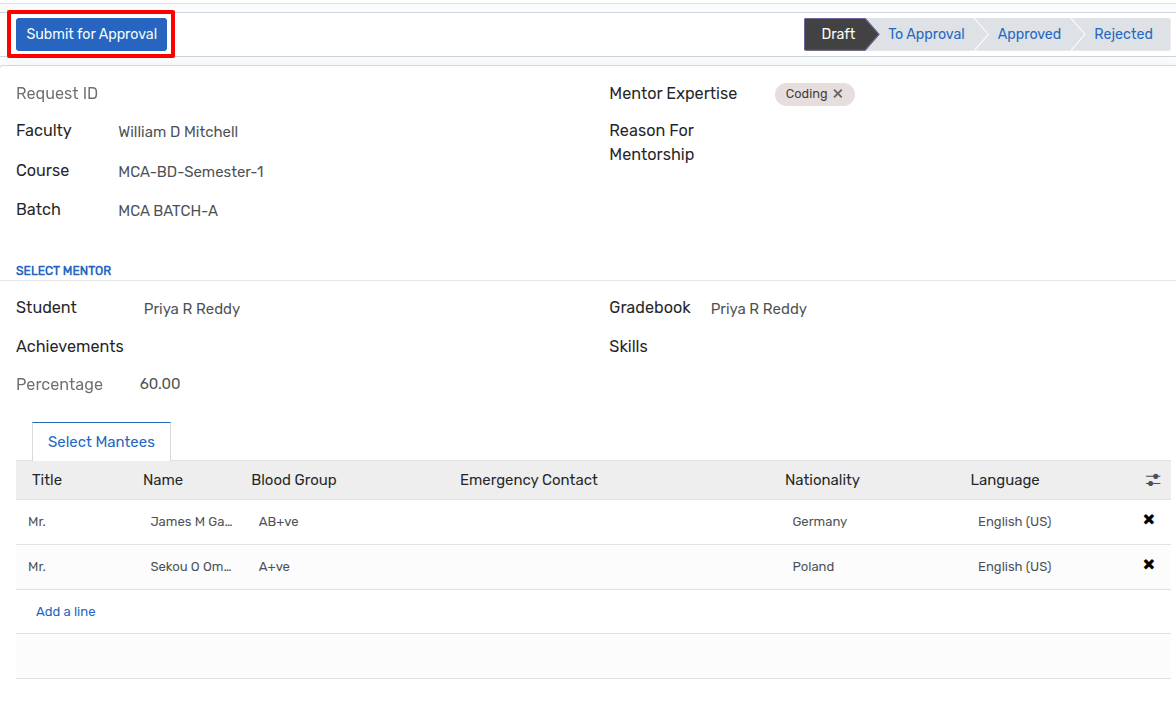
Fill the following fields:
Faculty — defaults to the current faculty user. Non-admin users see this field read-only; system administrators can pick another faculty.
Course — restricted to courses that the selected faculty teaches (built from
faculty_subject_ids).Batch — batches of the selected course.
Mentor Expertise — one or more entries from the expertise catalog.
Reason For Mentorship — free text describing why the mentor is being assigned.
Select Mentor
Mentor (Student) — the student to promote. The dropdown lists candidates enrolled in another course of the same program (the model computes
valid_student_idsfromcourse.program_id).Achievements / Skills — auto-populated from the selected mentor’s
achievement_line_idsandstudent_skill_line; displayed read-only to help the reviewer.Gradebook — auto-suggested from the mentor’s Gradebook for that course; the linked
percentageis displayed for quick reference.
Select Mantees (Notebook page) — mentees are selected from students in the chosen Batch who are not already flagged
is_mentorand who are not the mentor themselves.
Each request gets an auto-generated Request ID (op.mentor.details
sequence).
Note
A student cannot be assigned as mentor for the same batch twice — the
constraint _check_duplicate_mentor_batch raises « This student is
already assigned as a mentor for the selected batch. » if you try.
Submitting for approval
After filling the form, click Submit for Approval. The status moves from Draft to To Approval and the request appears on the admin’s list waiting for review.

Admin Approval Workflow
Reviewing requests
Log in as an administrator and open SIS ‣ General ‣ Student Mentor ‣ Mentorship Allocation. Every request submitted by faculty appears here.
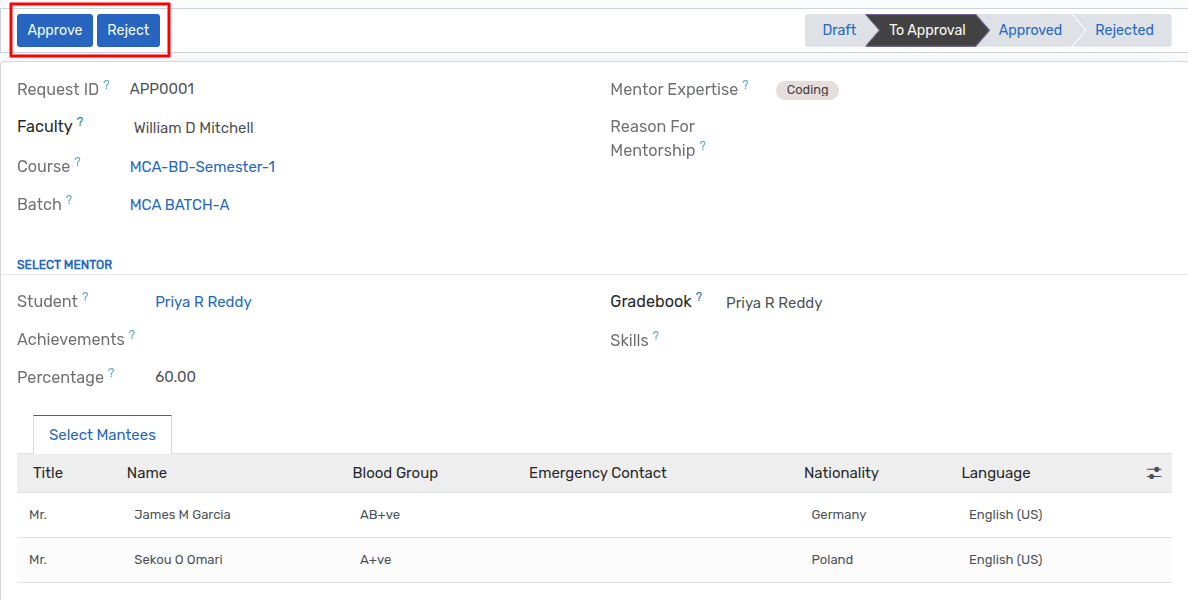
Open a request to review it. Two buttons are visible only to administrators when the status is To Approval:
Approve— sets the status to Approved and flags the mentor student asis_mentor = True. From that moment the student sees the Student Mentor portal card and can schedule meetings.Reject— opens the Reject Mentor Request wizard.
Approving a request

Once approved, the Course, Batch, Mentor Expertise, Reason, Mentor and Mantees fields become read-only.
Rejecting a request
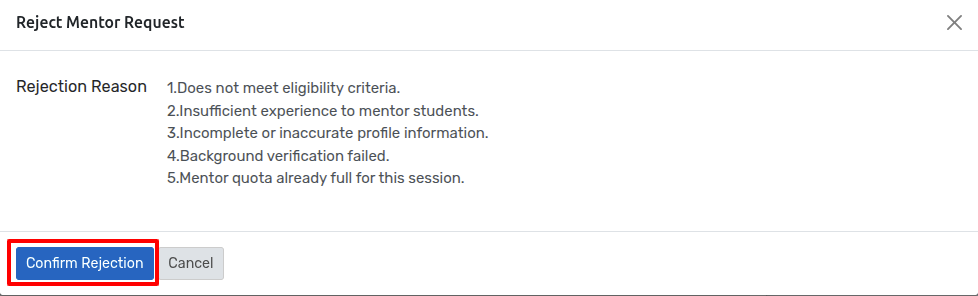
The Reject Mentor Request wizard asks for a mandatory rejection reason. On Confirm Rejection the wizard:
writes the reason to
rejection_reason,moves the request to Rejected,
posts a message with the reason on the request chatter,
returns the admin to the Mentor Requests list.

Re-submitting after rejection
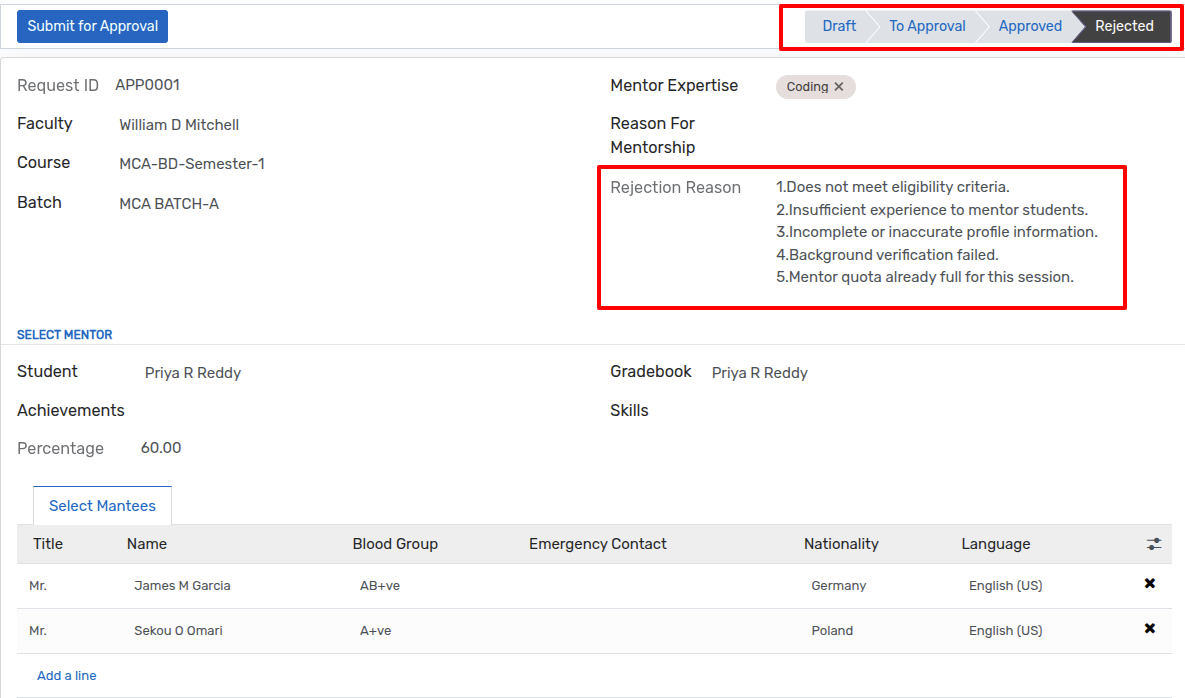
When a request is Rejected the faculty owner sees the Rejection Reason banner on the form and can edit the request again (fields are re-enabled for the draft/reject states). Clicking Submit for Approval again sends the request back to the administrator for a second review.
Lifecycle
Status |
Meaning |
|---|---|
|
Faculty is composing the request. Editable. |
|
To Approval. Awaiting admin review. Locked. |
|
Approved. Mentor is active. All fields read-only. |
|
Rejected. Faculty can edit and re-submit. |

Portal Experience
Portal home
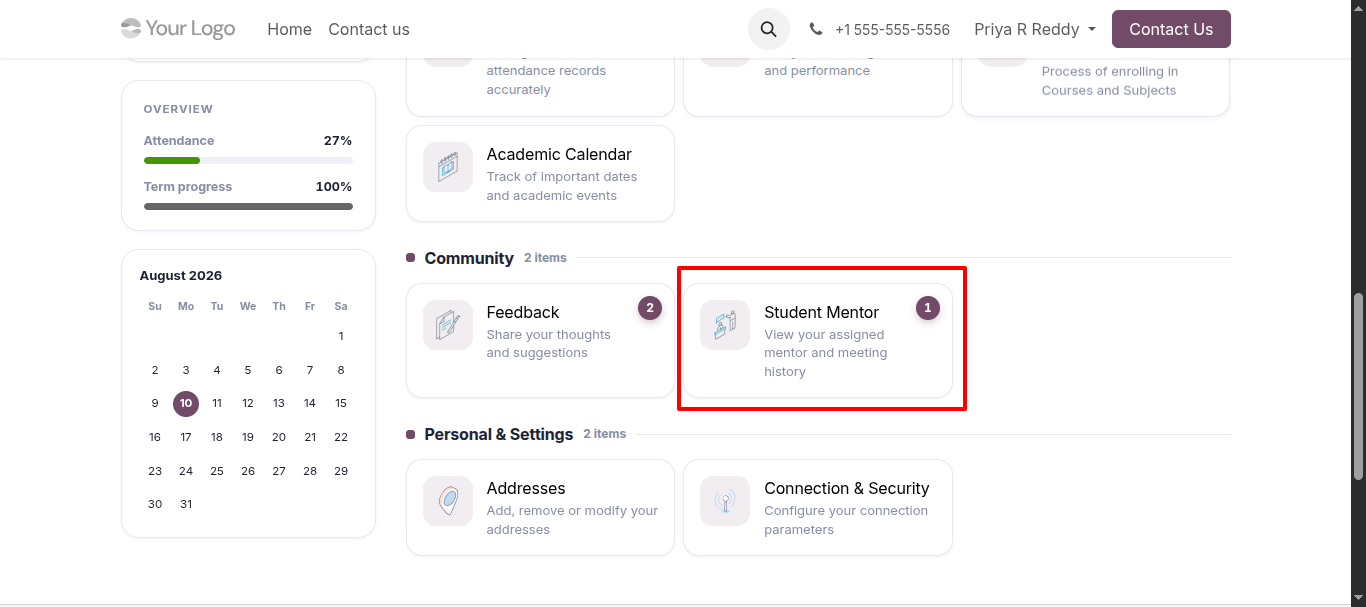
The module inherits the OpenEduCat portal home to add two mutually exclusive cards depending on the student’s role:
Student Mentor — visible to a student flagged
is_mentor. Links to/my/mentor/meetingswith the count of meetings the mentor has scheduled.Mentor Meetings — visible to a student who appears in the mentees list of at least one Approved allocation. Links to
/my/meetingswith the count of meetings they are invited to.
Mentor: scheduling a meeting
The mentor opens the Student Mentor card to reach /my/mentor/meetings.
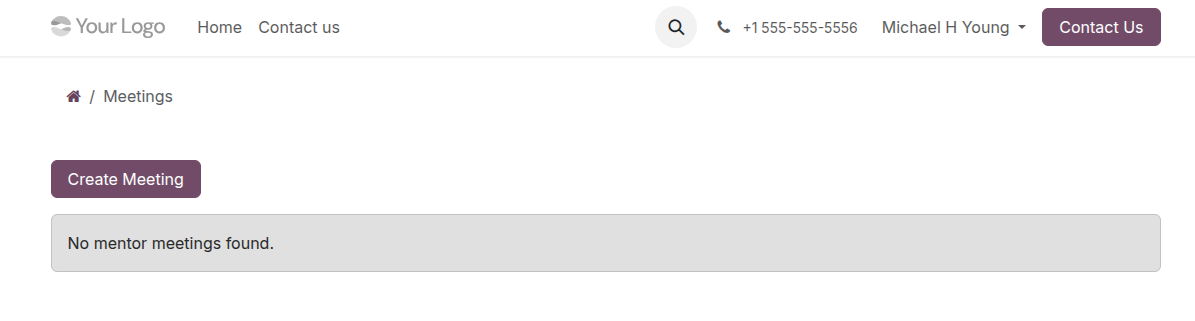
Click Create Meeting to open the scheduling form.

Fields:
Meeting Name
Meeting Link — external URL (Google Meet, Jitsi, Zoom, …).
Date & Time
Description
Students — restricted to the mentor’s approved mentees.
Submitting creates an op.mentor.meeting in status Scheduled owned by
the mentor.
Mentees: joining a meeting
Mentees access /my/meetings from the Mentor Meetings portal card and
see every meeting they were invited to.
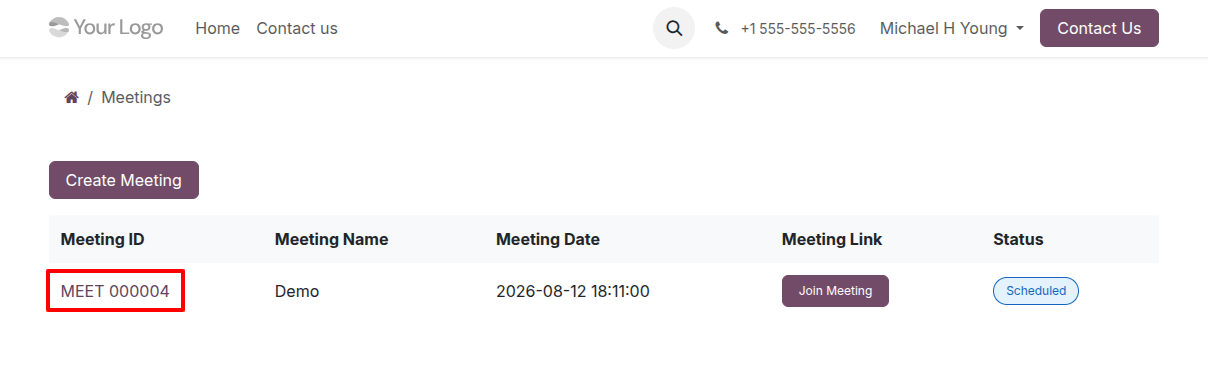
Clicking a meeting shows the details and the join link so the mentee can attend the session.
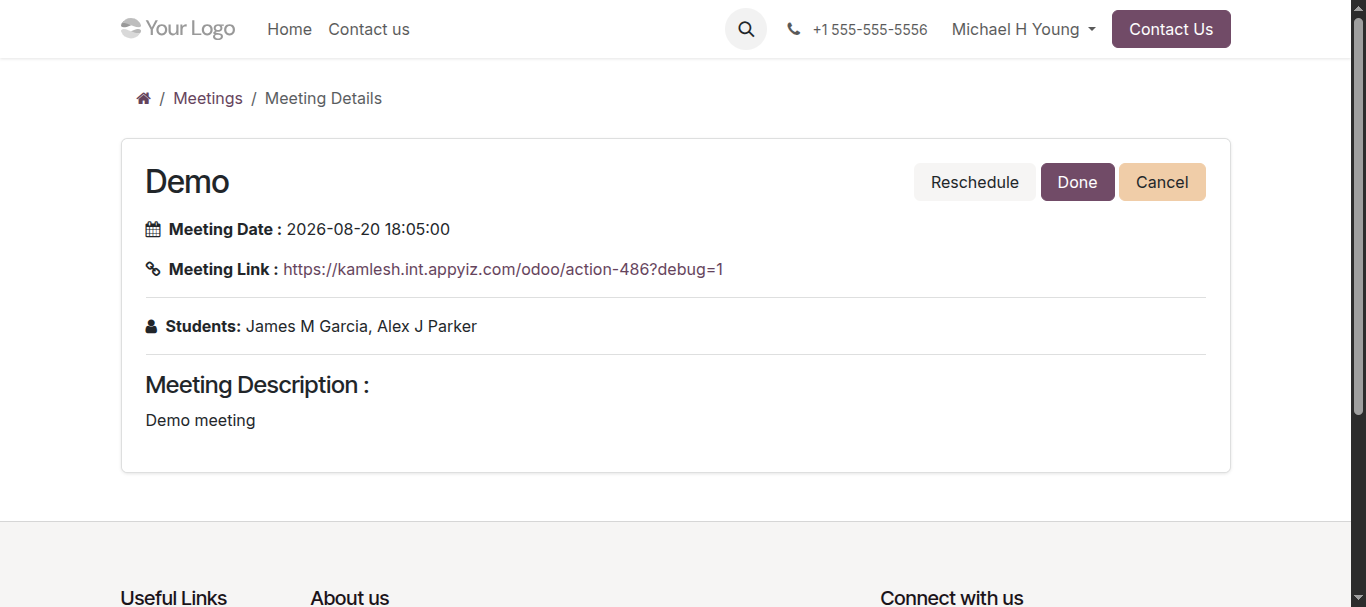
Mentor: managing an existing meeting
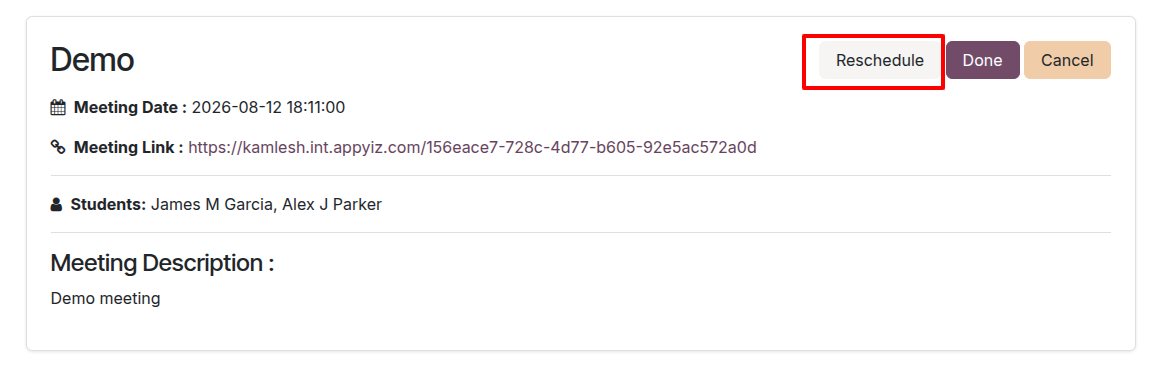
From the meeting detail page, the owning mentor can:
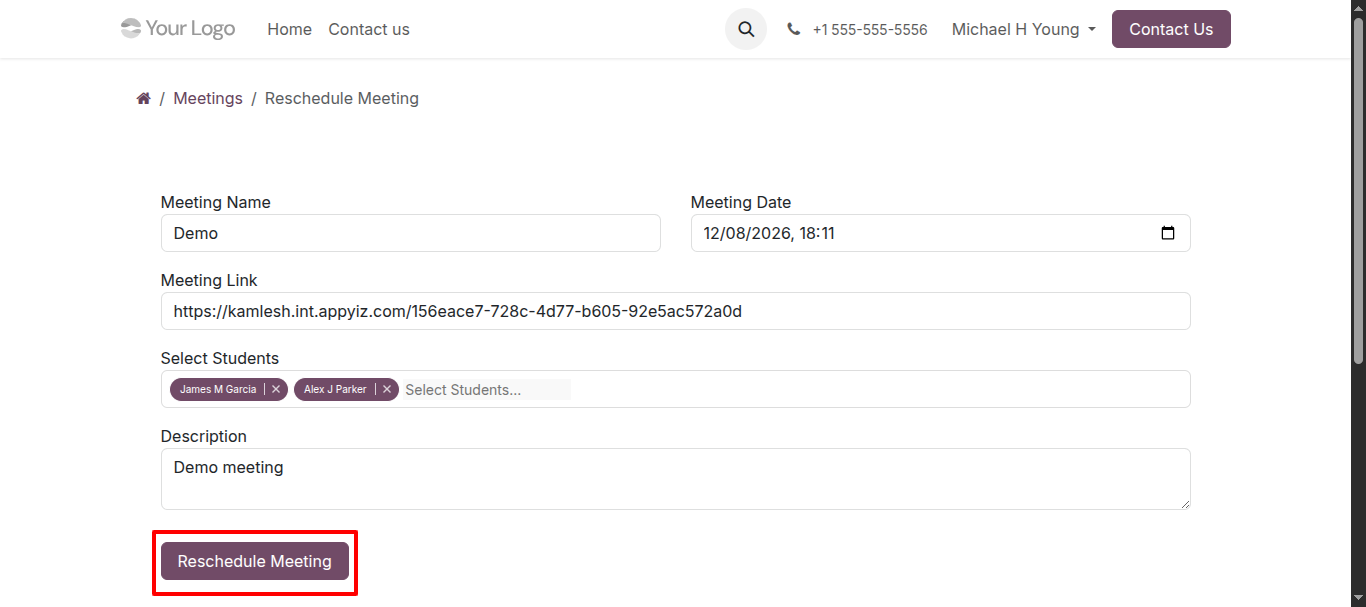
Reschedule — opens a reschedule form; the original record is set to
Done — moves the meeting to Done.
Cancel — moves the meeting to Cancel. Reschedule and updated with the new date/link/description.
Only the mentor who created the meeting can update its status — the
controller checks meeting.student_id == student and student.is_mentor
before writing.
Back-office View of Meetings
Administrators can review every meeting created from the portal via SIS ‣ General ‣ Student Mentor ‣ Mentor Meetings.
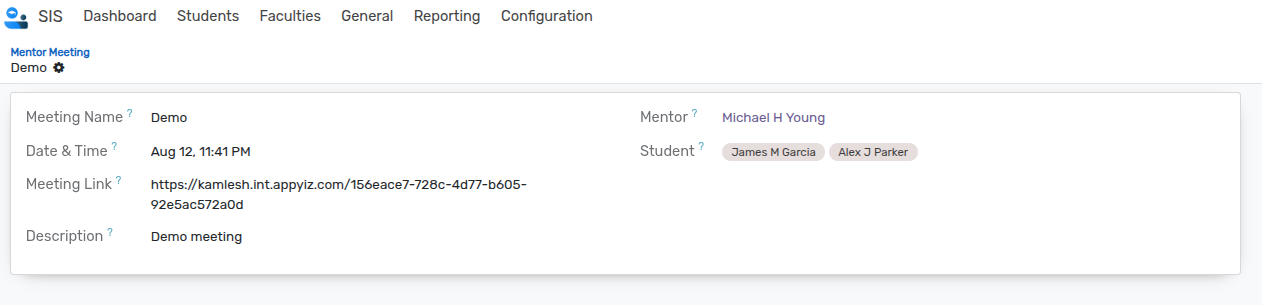
The list shows the meeting name, link, date and mentees. The form is read-only from the back-office — meetings are always created and updated through the portal to preserve the mentor/mentee guard rails.