
How to Configure WordPress SSO
The WordPress OAuth2 Account Management module provides seamless Single Sign-On (SSO) integration between Odoo and any WordPress site. It allows users to log into Odoo using their WordPress credentials, automatically creating Odoo user profiles when new users sign in.
This integration uses the secure OAuth2 Authorization Code grant flow.
WordPress Configuration
To set up your WordPress site as an OAuth2 Provider:
Log in to your WordPress dashboard as an Administrator.
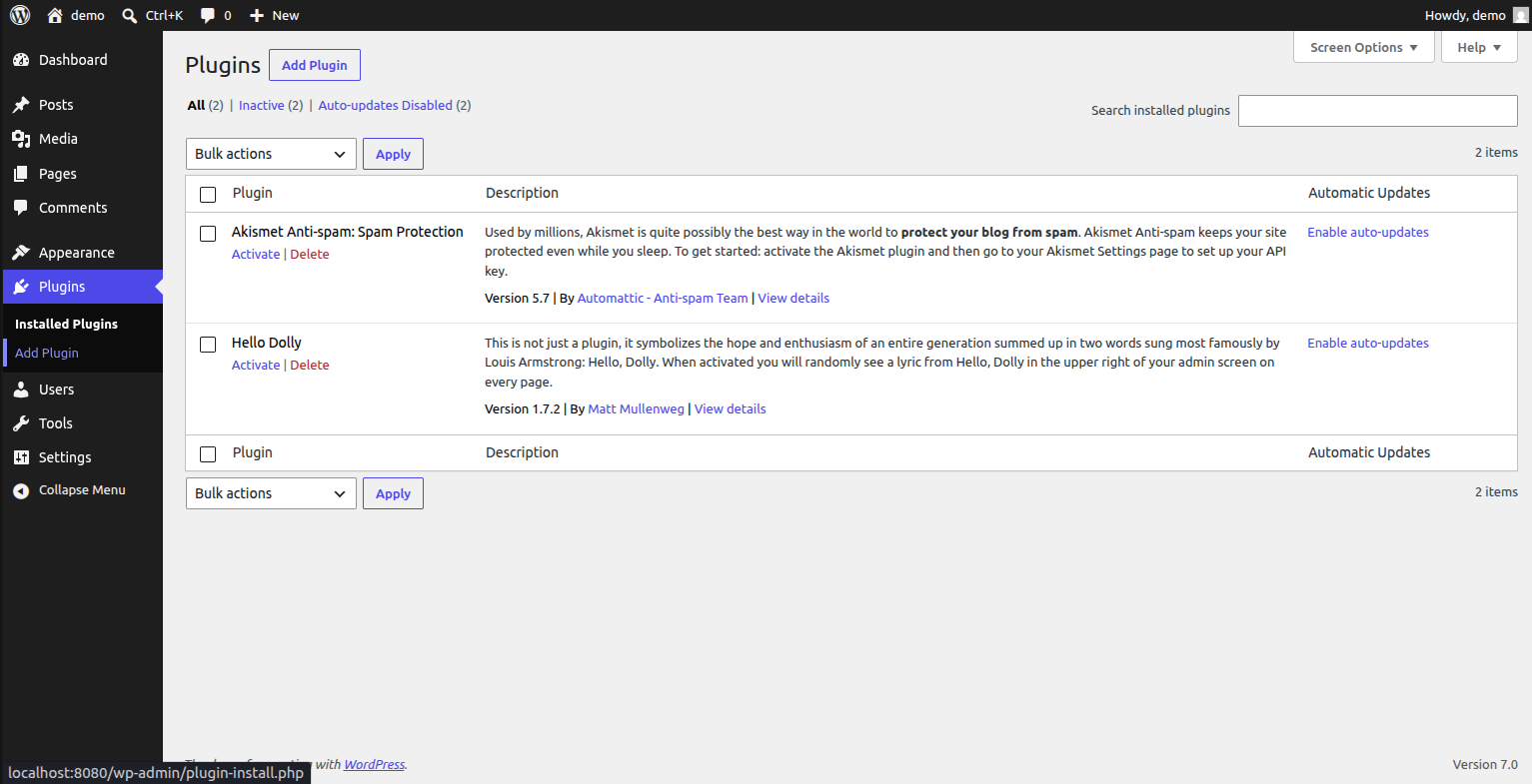
Navigate to Plugins --> Add New, search for OAuth Server (e.g., miniOrange OAuth / OpenID Connect Server), and install/activate it.
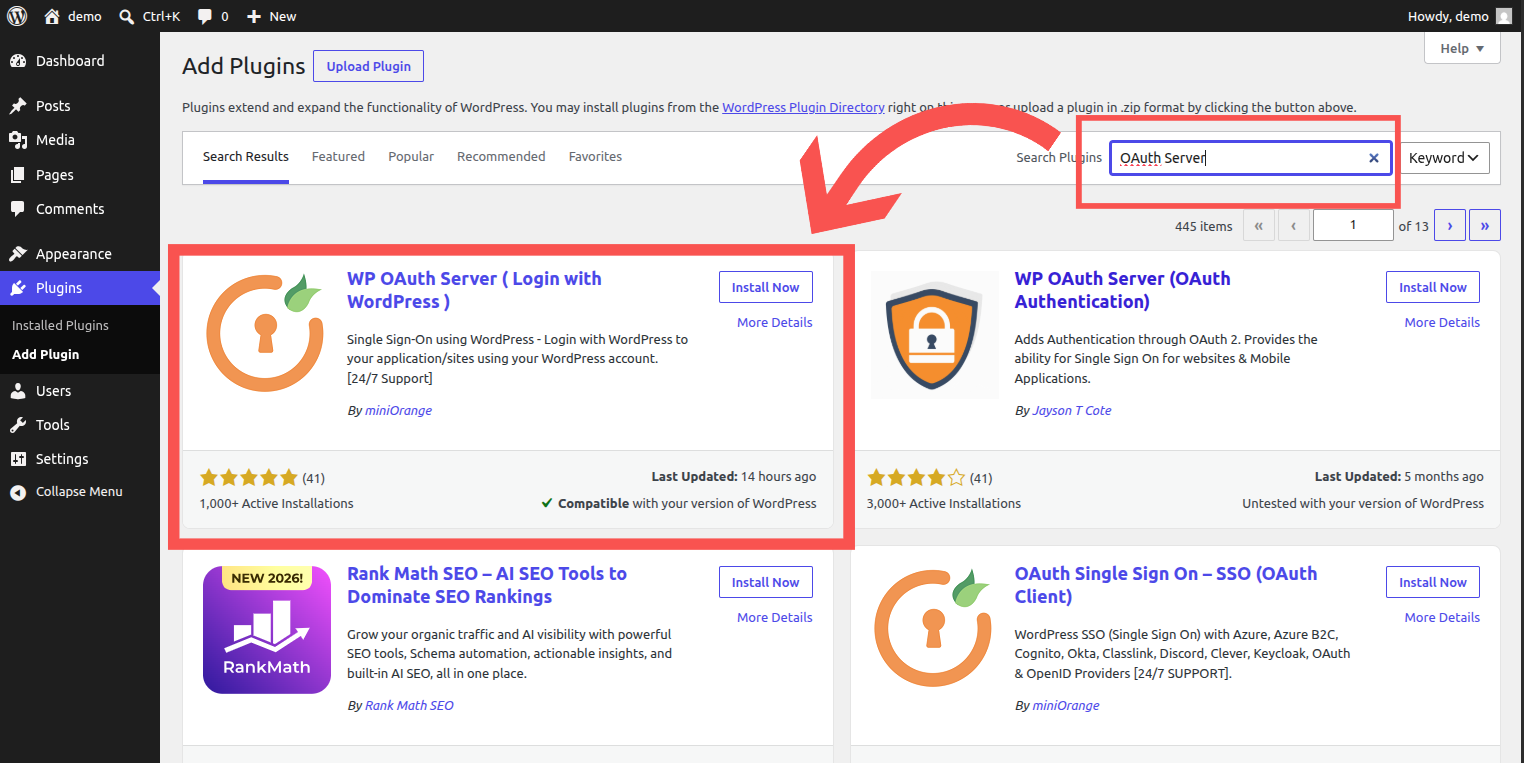
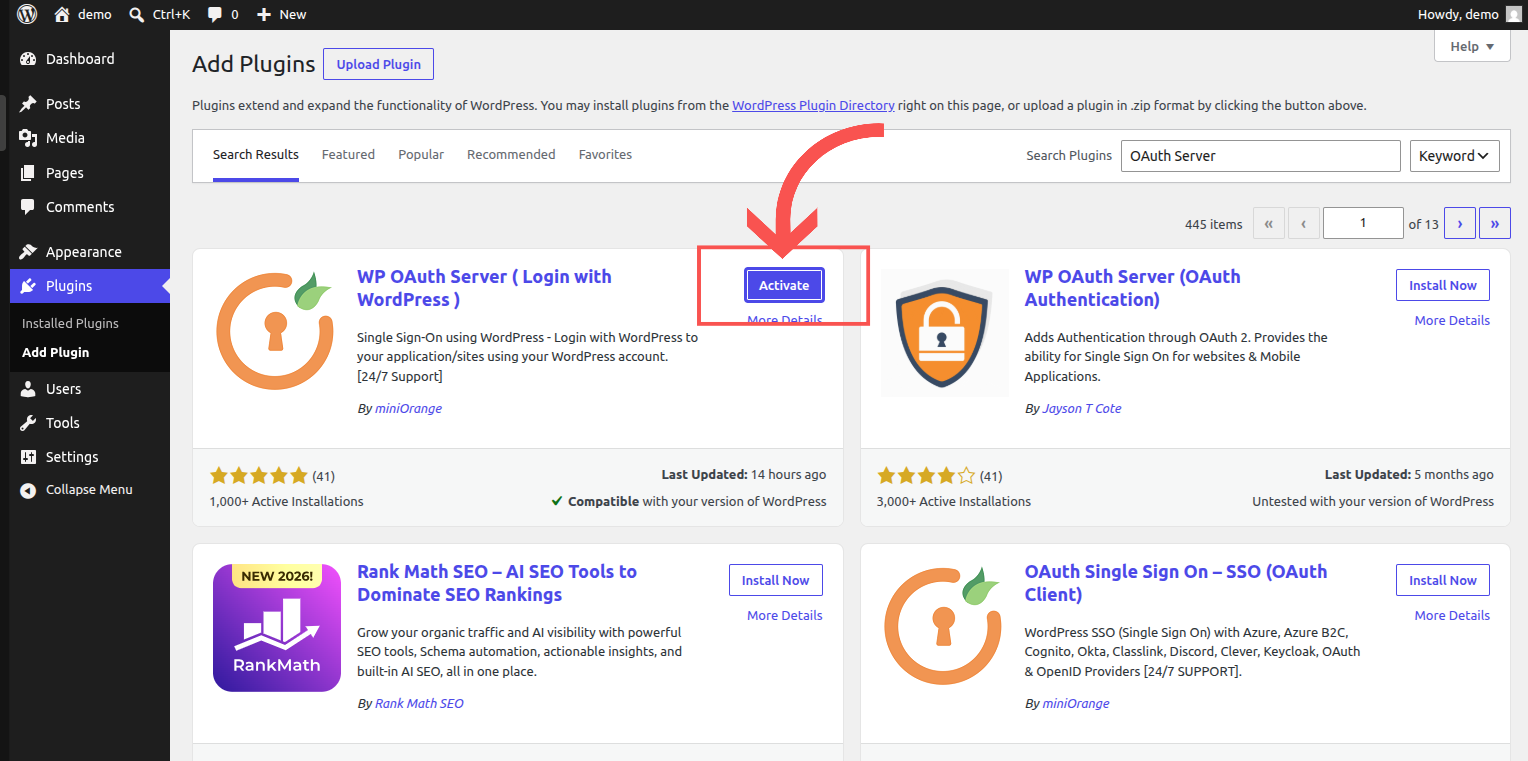
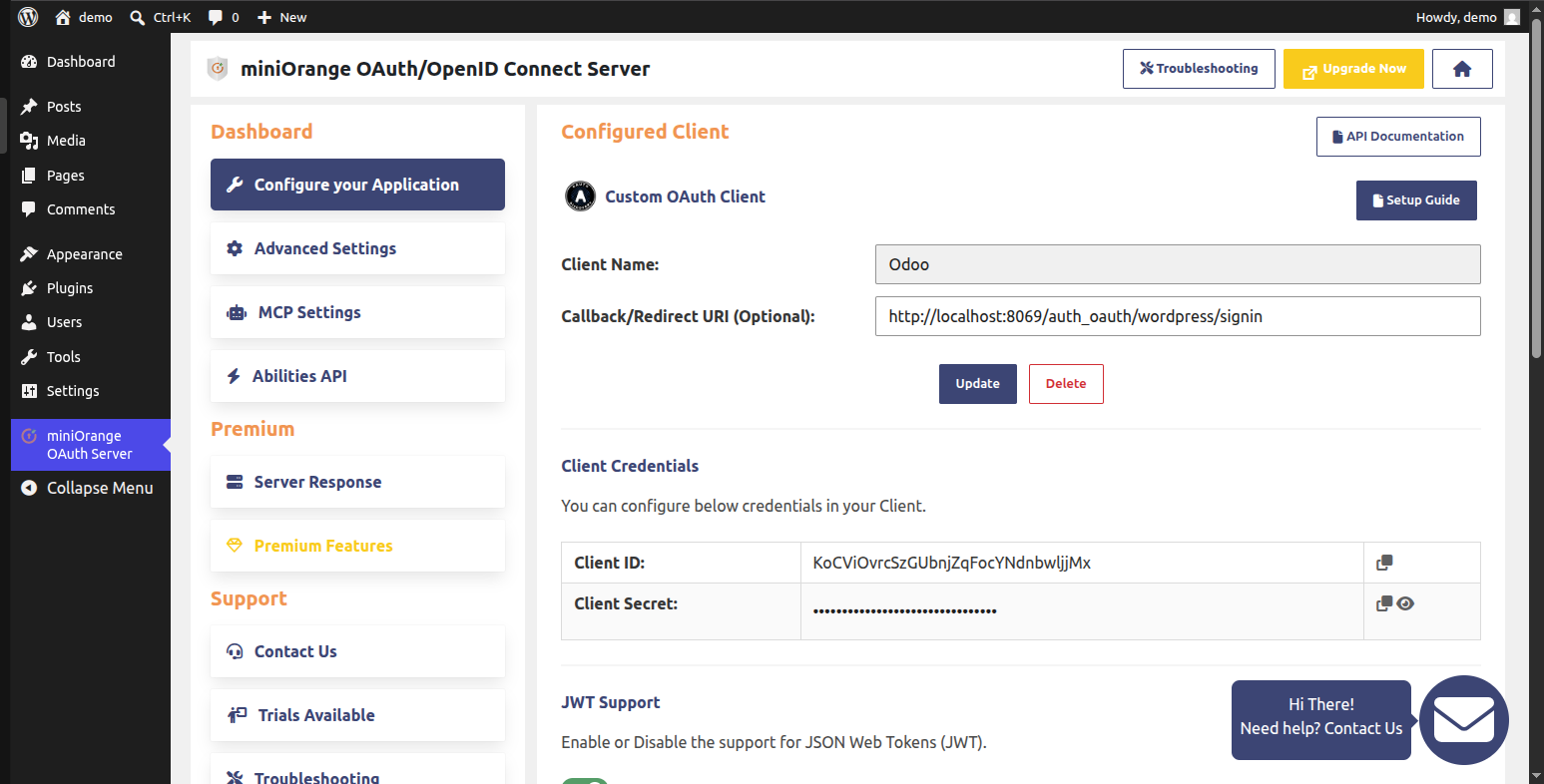
Navigate to the plugin configuration page. Under the Configured Client tab, add a new client configuration with:
Client Name: Odoo
Callback/Redirect URI:
http://<your-odoo-domain>/auth_oauth/wordpress/signin(replace<your-odoo-domain>with your actual Odoo host address, e.g.,http://localhost:8069/auth_oauth/wordpress/signin)
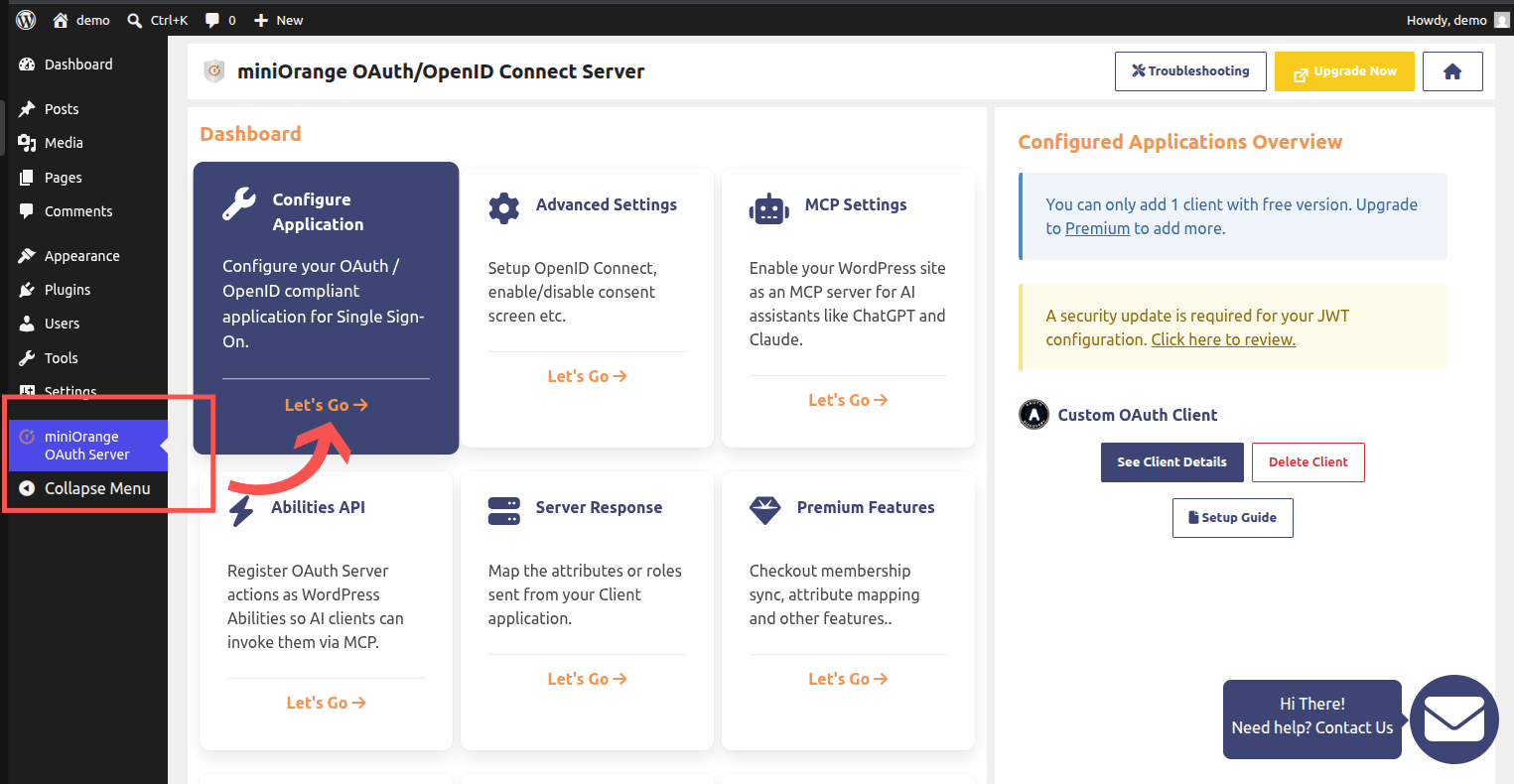
Save the client configuration and note down the Client ID and Client Secret.
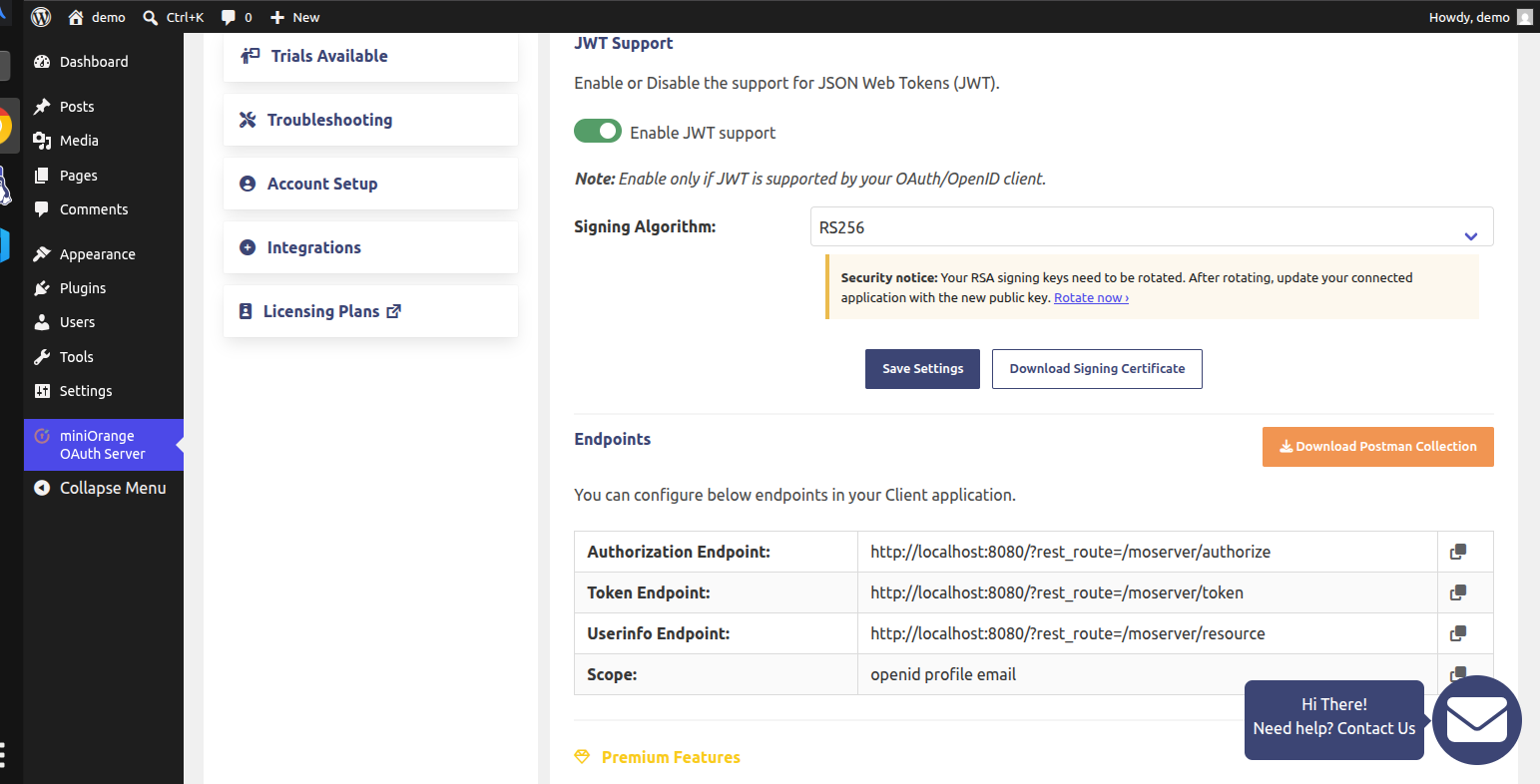
Click on the plugin settings or scroll down to the Endpoints section. Copy the following URLs to use in Odoo:
Authorization Endpoint:
https://your-wordpress-site.com/oauth/authorize(or with query param?rest_route=/moserver/authorize)Token Endpoint:
https://your-wordpress-site.com/oauth/token(or with query param?rest_route=/moserver/token)Userinfo Endpoint:
https://your-wordpress-site.com/oauth/resource(or with query param?rest_route=/moserver/resource)
If using OpenID Connect, enable JWT Support and set the signing algorithm to RS256.
Odoo Configuration
To set up the Odoo instance:
Log in to Odoo with administrative rights.
Ensure the WordPress OAuth2 Account Management (
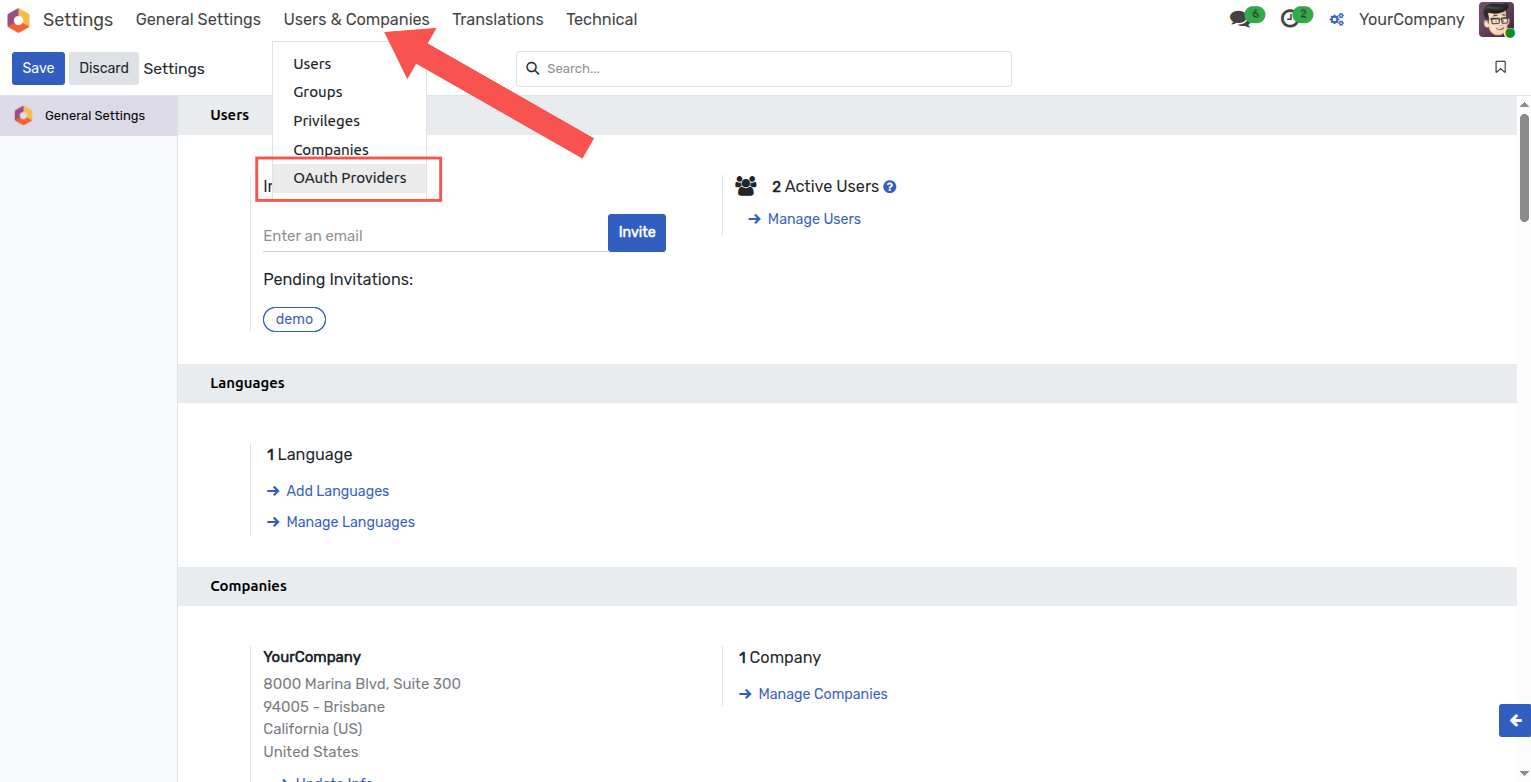
wordpress_account_mgmt) module is installed.Go to Settings --> General Settings. Under the Integrations section, verify OAuth Authentication is enabled, or navigate directly to Users & Companies --> OAuth Providers.
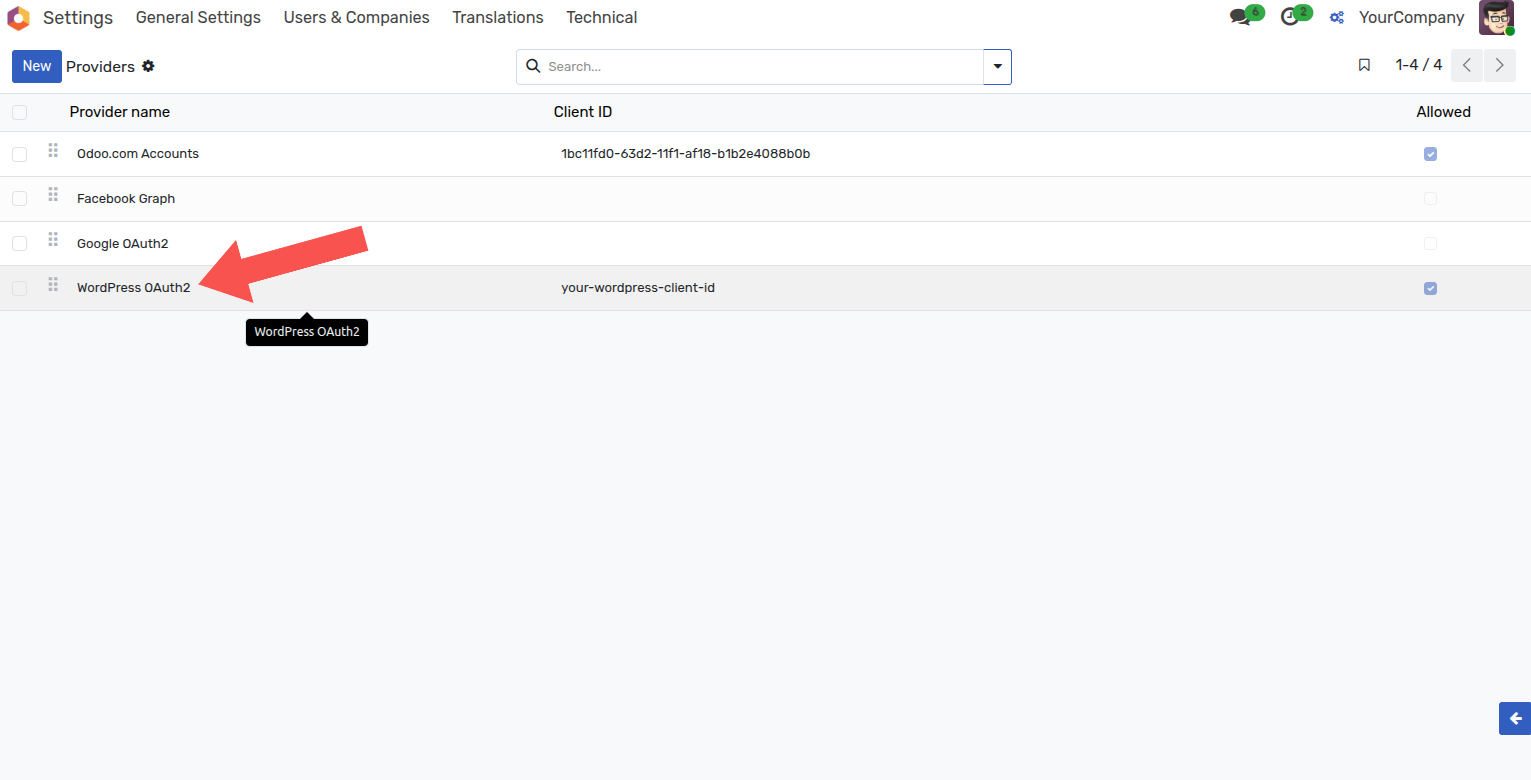
Open the WordPress OAuth2 provider record.
Complete the form with the details copied from your WordPress OAuth server:
Client ID: Enter your WordPress Client ID.
Secret Key: Enter your WordPress Client Secret.
Allowed: Check/enable this field.
Login button label:
Log in with WordPress(this text will appear on the button).CSS class:
fa fa-fw fa-sign-in text-primary(applies a clean sign-in icon).Authorization URL: Paste the WordPress Authorization Endpoint.
Scope:
openid profile email(ensures Odoo can access user name, email, and ID).Userinfo URL: Paste the WordPress Userinfo Endpoint.
Data Endpoint: Paste the WordPress Token Endpoint.
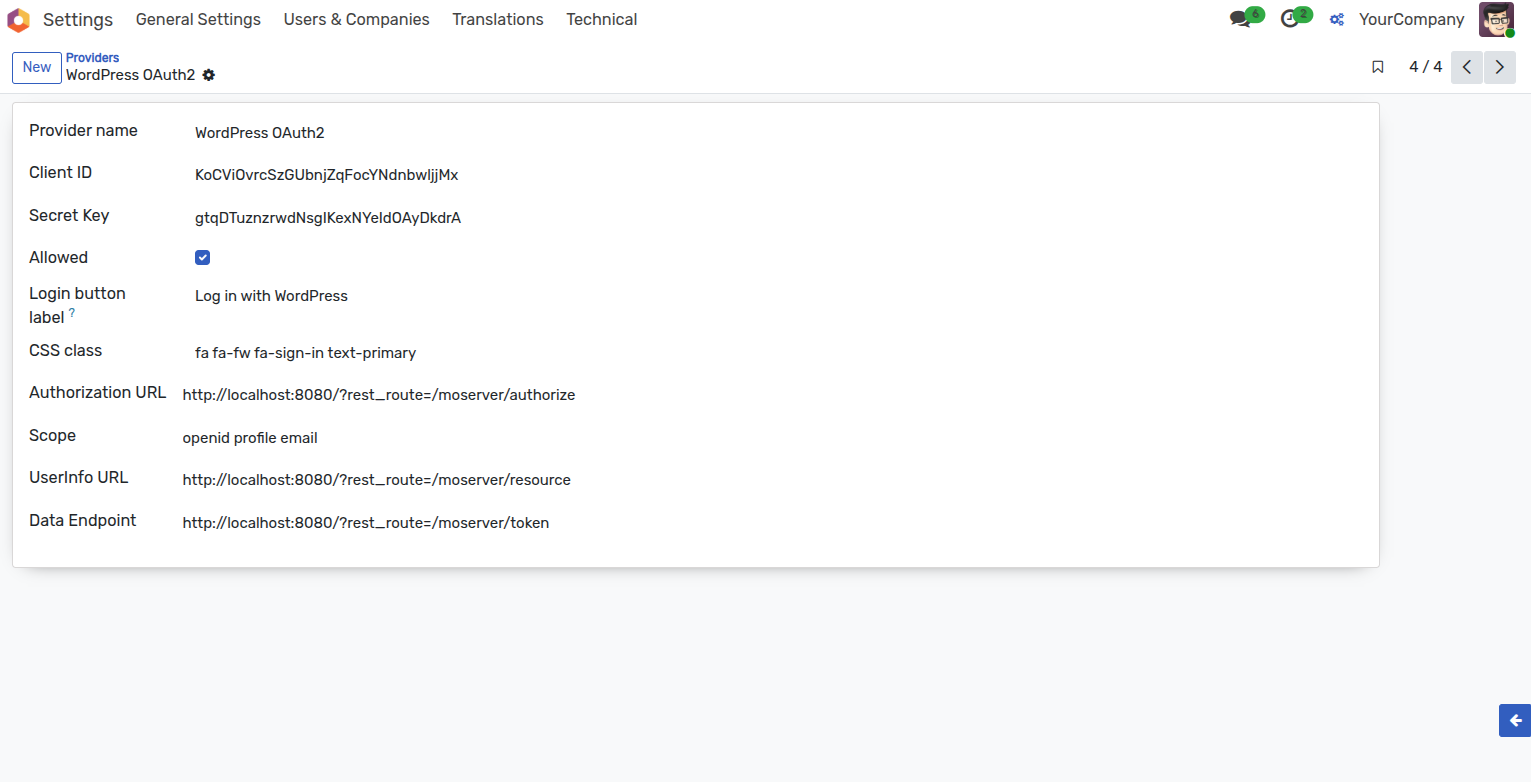
Click Save.
End-User Flow
Once configured, the login flow functions as follows:
On the Odoo login page, users will see the Log in with WordPress button.
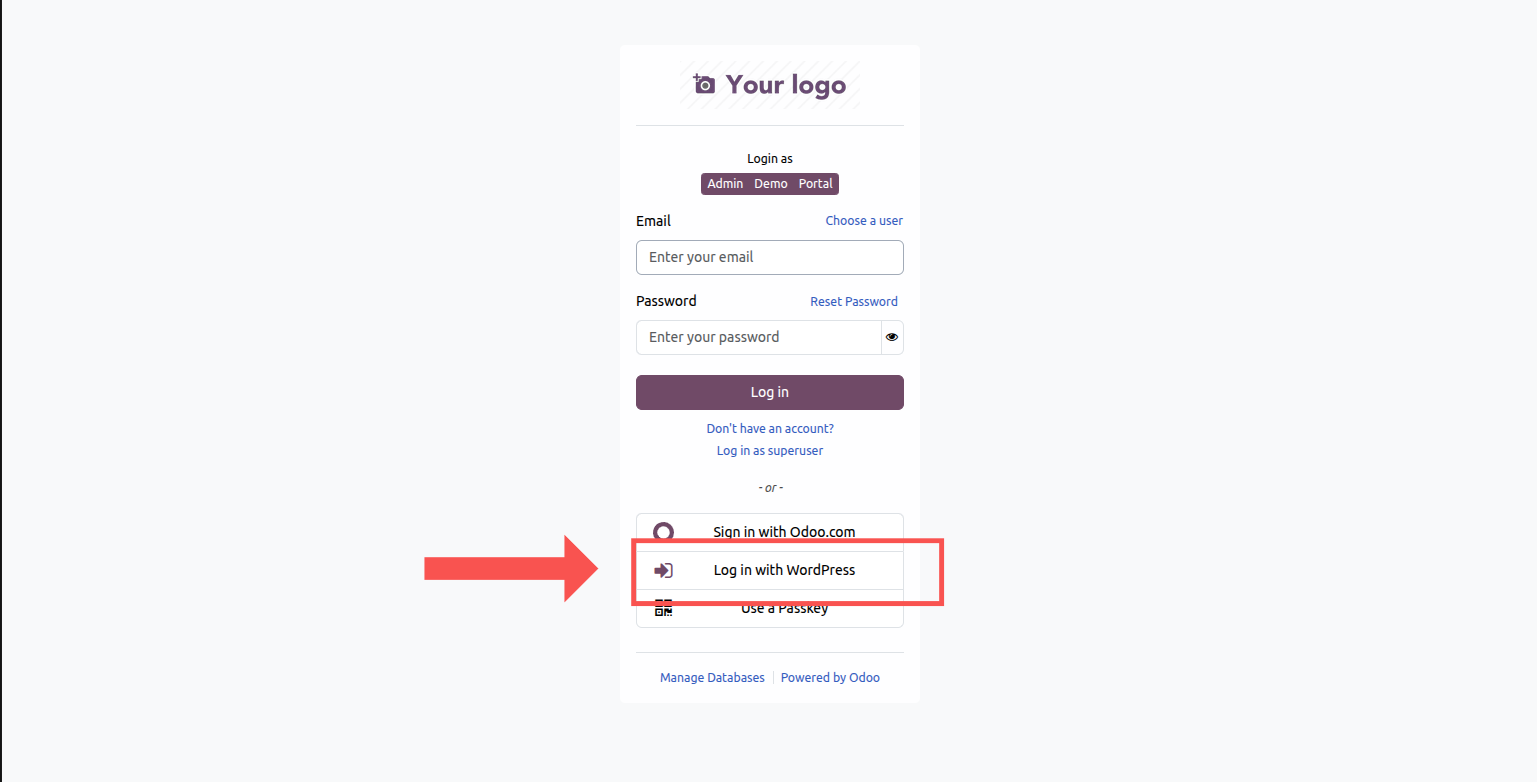
Clicking the button redirects the user to your WordPress site. If they are not already logged in to WordPress, they will be prompted to do so.
WordPress will display an authorization consent screen asking the user to approve Odoo's access to their profile and email.
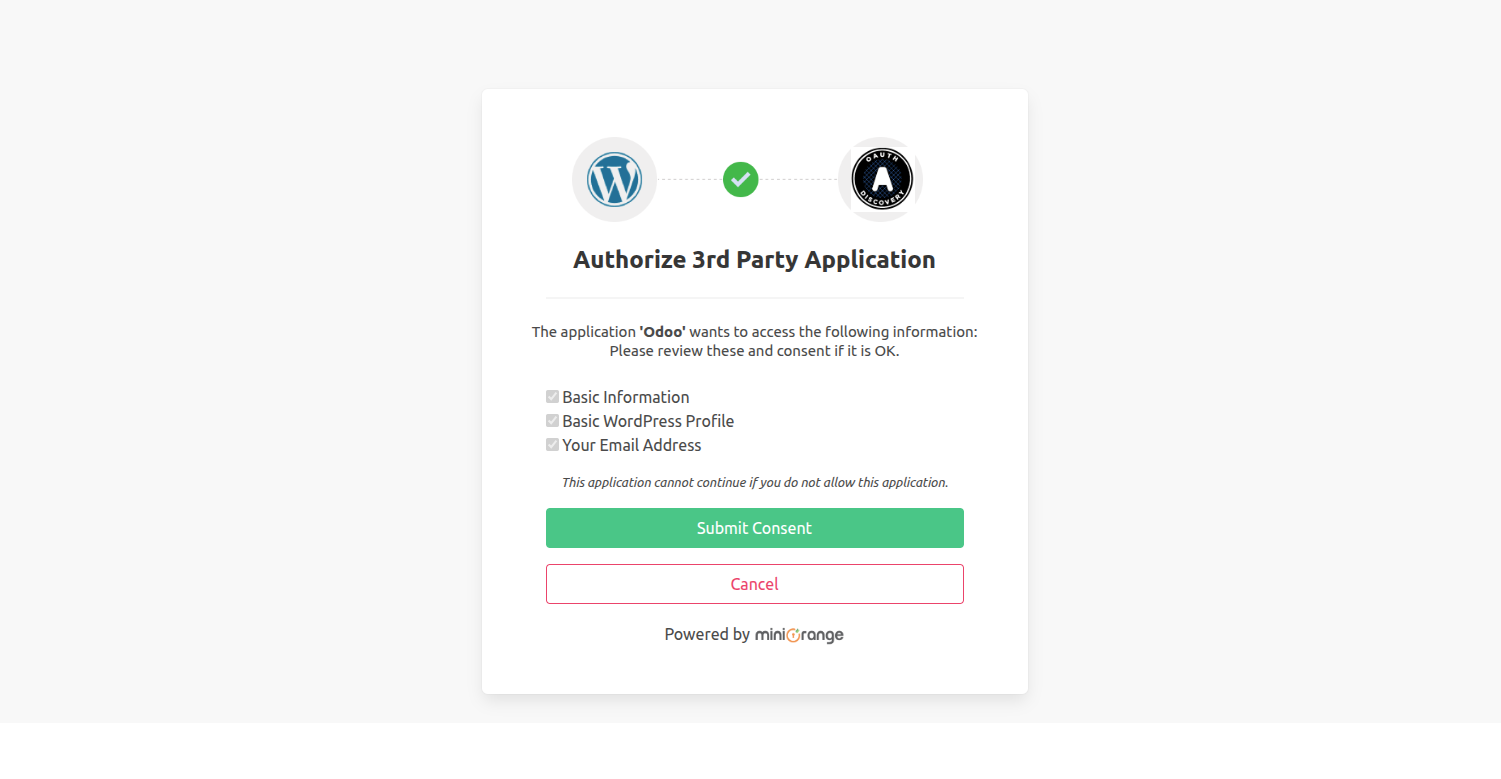
Clicking Submit Consent redirects the user back to Odoo.
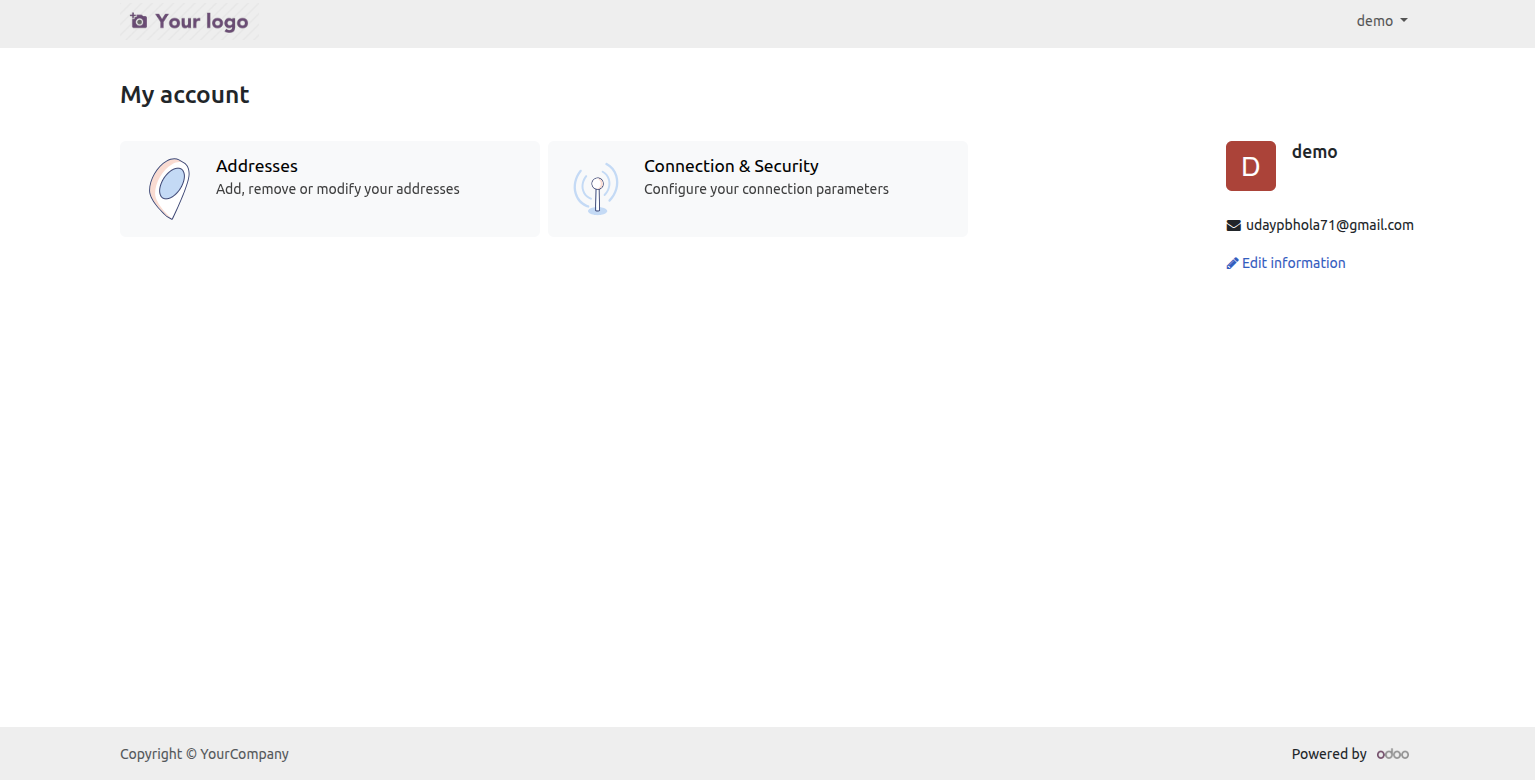
Odoo securely validates the authorization code behind the scenes, retrieves the user profile, and authenticates the user. If the user does not exist in Odoo yet, a new account is automatically created matching their WordPress details.