
Alumni Blog
OpenEduCat allows an institute to run a blog for every alumni group. The posts written for a group are published on the website with the regular blog engine and, in addition, they are listed on the public page of the alumni group itself, so visitors of a group page immediately see what that batch has been up to.
The feature is provided by the OpenEduCat Alumni Blog module, which
extends the Alumni application with the Odoo Blog engine. Installing
it brings in the Blog application and adds a Blog section on the
alumni group form.
Configure a Blog for an Alumni Group
Go to Alumni ‣ Alumni Group and open the alumni group for which the blog has to be maintained. A Blog section is available below the description of the group.
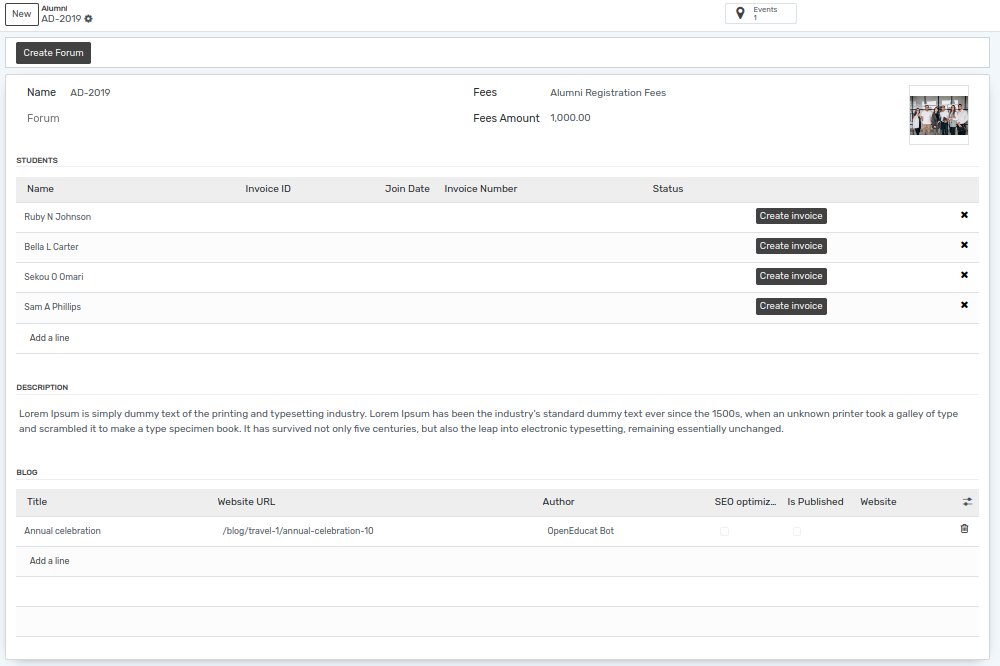
Click on Add a line to attach a blog post to the alumni group. An
existing post can be selected from the list, or a new one can be created
directly from here.
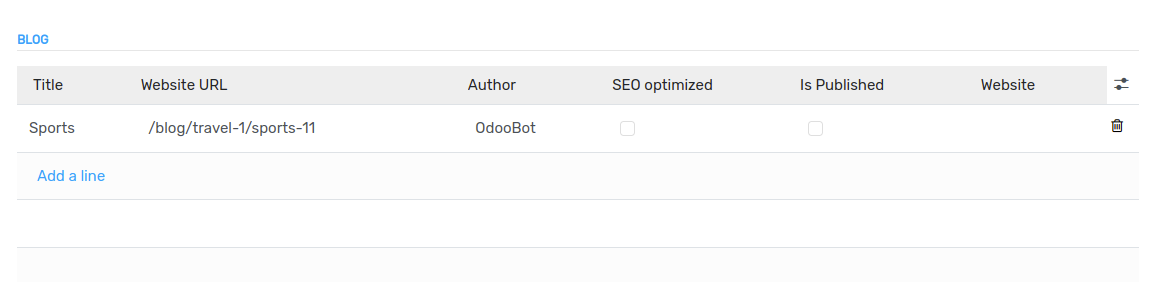
Details of the Blog Post Line
Title :- Title of the blog post. This is the heading shown on the website and it is used to build the address of the post.
Website URL :- The address on which the post is reachable, for example
/blog/travel-1/sports-11. It is generated from the blog and the title of the post.Author :- The user who writes the post. The logged in user is proposed by default.
SEO optimized :- Indicates whether the title, the description and the keywords needed by search engines have been filled in for the post.
Is Published :- Only the published posts are visible to the visitors of the website. A post which is not published stays visible to the members of the institute only.
Website :- The website on which the post has to appear. Keep it empty to show the post on all the websites of the database.
ملاحظة
A blog post always belongs to a blog. Blogs are created from the Blog application, from Blog ‣ Configuration ‣ Blogs. Create at least one blog, for example Alumni, before writing the first post of an alumni group.
Write and Publish the Post
Click on the title of the line to open the blog post. The content of the post is written with the website editor, where text, images, videos and building blocks can be added.
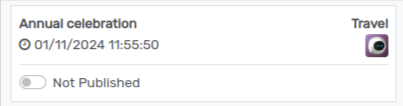
Once the content is ready, use the Unpublished / Published switch of
the post to make it visible on the website. As long as the post is not
published, it is flagged as Not Published and the visitors of the
alumni group page do not see it.
Blog on the Website
Go to the website and open the Alumni menu. The alumni groups of the institute are listed there.
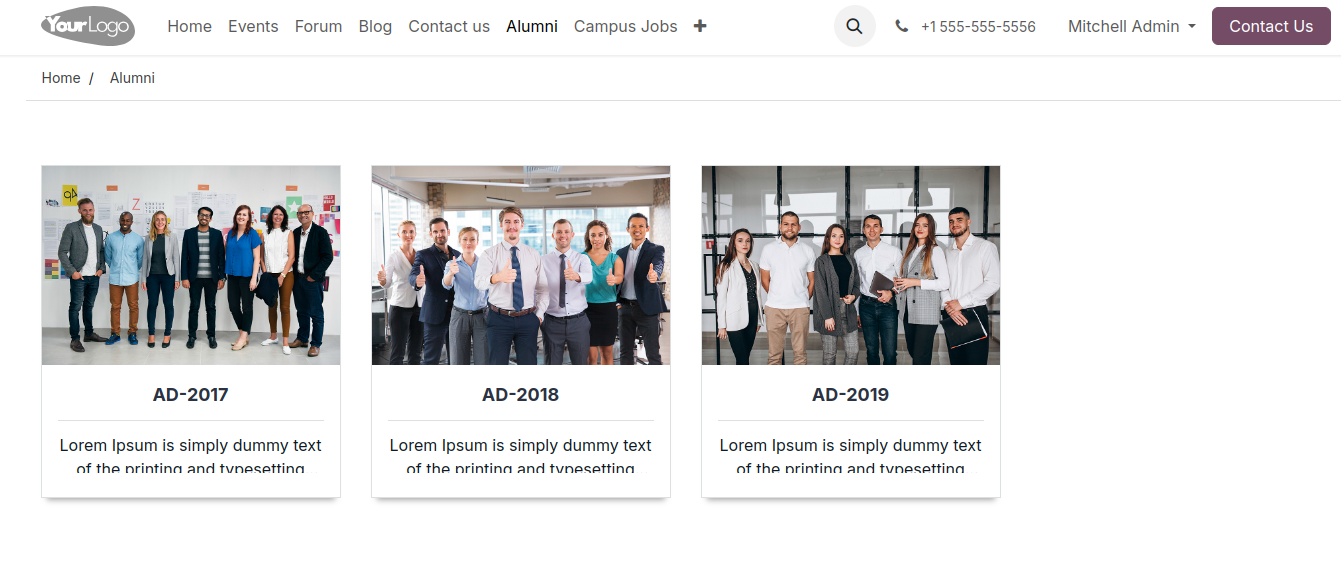
Click on an alumni group to open its public page. The page shows an Our Blogs section which lists the published posts linked to that group. Every entry of the list shows:
Date :- The day and the month of publication of the post, shown on the left of the entry.
Title :- The title of the post. Click on it to open the blog and read the full post.
Tags :- The tags set on the post, displayed as badges on the right of the title.
Blog :- The blog under which the post has been written.
Comments :- The number of comments received by the post. Click on it to jump to the comments of the post.
Description :- The short description of the post.
The View All link on the top right of the section opens the Blog
page of the website, where all the posts of the institute are listed.
نصيحة
The same post can be shown on the alumni group page and in the regular blog of the website at the same time. Linking a post to an alumni group does not remove it from its blog, it only makes it appear in the Our Blogs section of that group as well.