
Multi Campus
The Multi Campus application provides a centralized kanban dashboard for educational institutions operating across multiple locations or branches. It allows administrators to quickly oversee the statistics and data of each campus at a glance.
Dashboard Features
To access the dashboard, go to the Multi Campus app from the main menu.
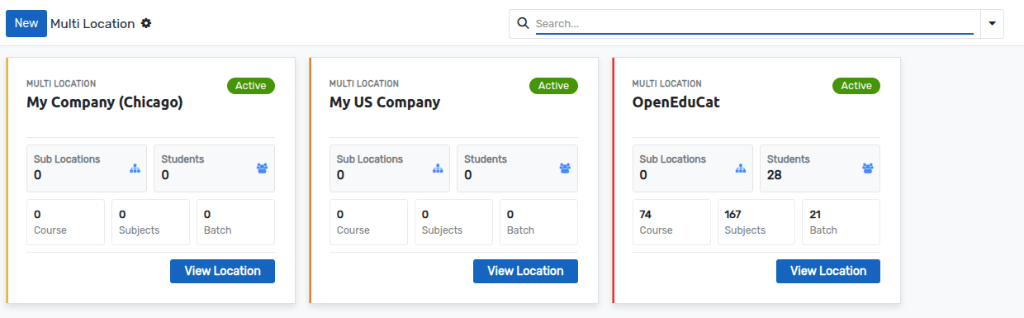
The Multi Campus dashboard displays a Kanban card for each configured location/company. Each card provides key metrics for that specific campus:
Sub Locations: The number of child locations (sub-companies) under the current campus.
Students: The total number of students enrolled at the campus.
Courses: The total number of courses offered at the campus.
Subjects: The total number of subjects available.
Batch: The total number of active batches.
Creating a New Campus (Location)
To add a new campus or sub-location to the system, you can use the New button from the top-left corner of the Multi Campus dashboard.
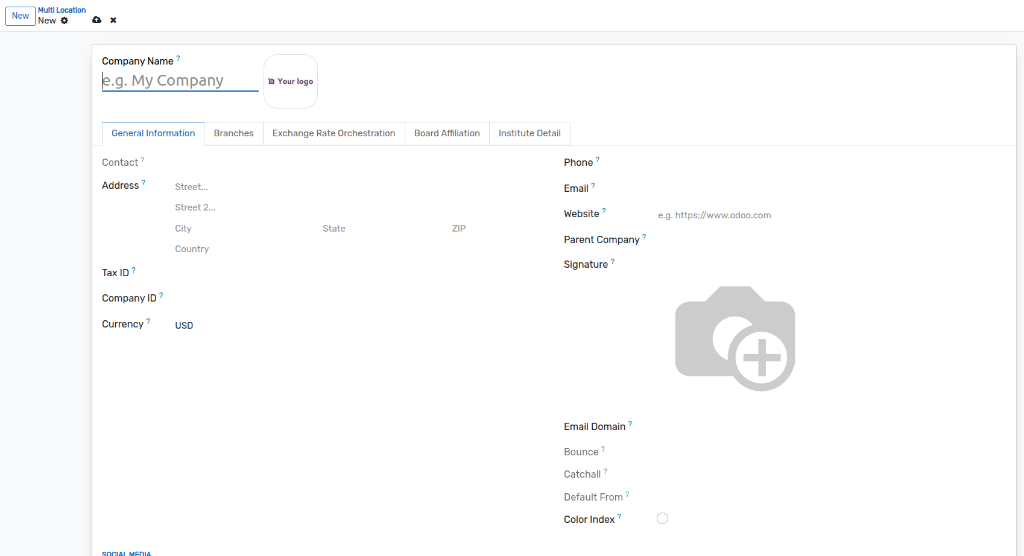
In the creation form, provide the essential details for the new location:
Company Name: Enter the name of the campus or institution branch.
Address: Input the complete physical address of the campus (Street, City, State, ZIP, Country).
Contact Info: Provide the Phone, Email, and Website.
Parent Company: If this is a sub-campus, select the parent institution here to maintain a proper hierarchy.
Currency & Tax ID: Set the default currency and tax identification number for this campus's financial operations.
Signature: Upload the authorized digital signature for institutional documents and certificates.
Logo: Upload the campus logo in the top right image placeholder.
Institute Detail & Accreditation
To record legal accreditations and regulatory approvals for the campus:
Click on the Institute Detail tab in the campus form.
In the Accreditation field, specify official accreditation bodies and ratings (e.g., NAAC, ABET).
In the Approval Authority field, specify the governing authorities or university recognitions.
Board Affiliation
If the campus operates under specific educational boards or councils:
Navigate to the Board Affiliation tab.
Add the relevant Board Affiliations associated with this specific campus branch.
Exchange Rate Orchestration
For international institutions or multi-currency setups, you can configure automatic exchange rate updates.

Navigate to the Exchange Rate Orchestration tab in the location's form view:
Synchronization Frequency: Define how often the exchange rates should be synchronized (e.g., Daily, Weekly, or keep it Disabled).
Exchange Rate Provider: Select the service provider (such as European Central Bank) from which to fetch the live exchange rates.
Next Execution Time: Displays the scheduled time for the next automated synchronization.
Batch Size & Error Tolerance: Configure performance tuning parameters for processing large volumes of transactions.
Execute Comprehensive Sync: Use this button to immediately trigger a manual synchronization of the exchange rates.