
تقديم الواجبات
بمجرد قيام الطالب بإرسال المهمة، يمكن لأعضاء هيئة التدريس تعيين العلامات بناءً على النقاط أو النسبة المئوية المحددة في قالب معايير التقييم.
Go to .
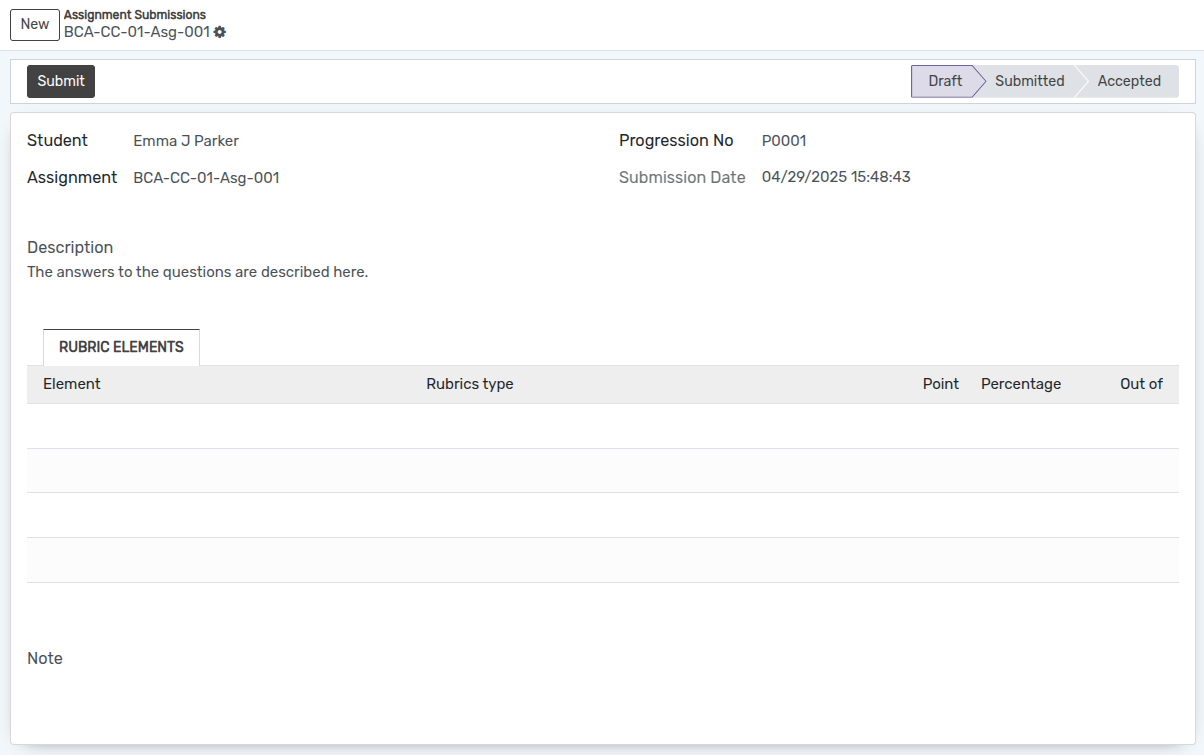
Assignment :- Select the name of the assignment from the list of available assignments or create a new assignment.
Click on Submit button.
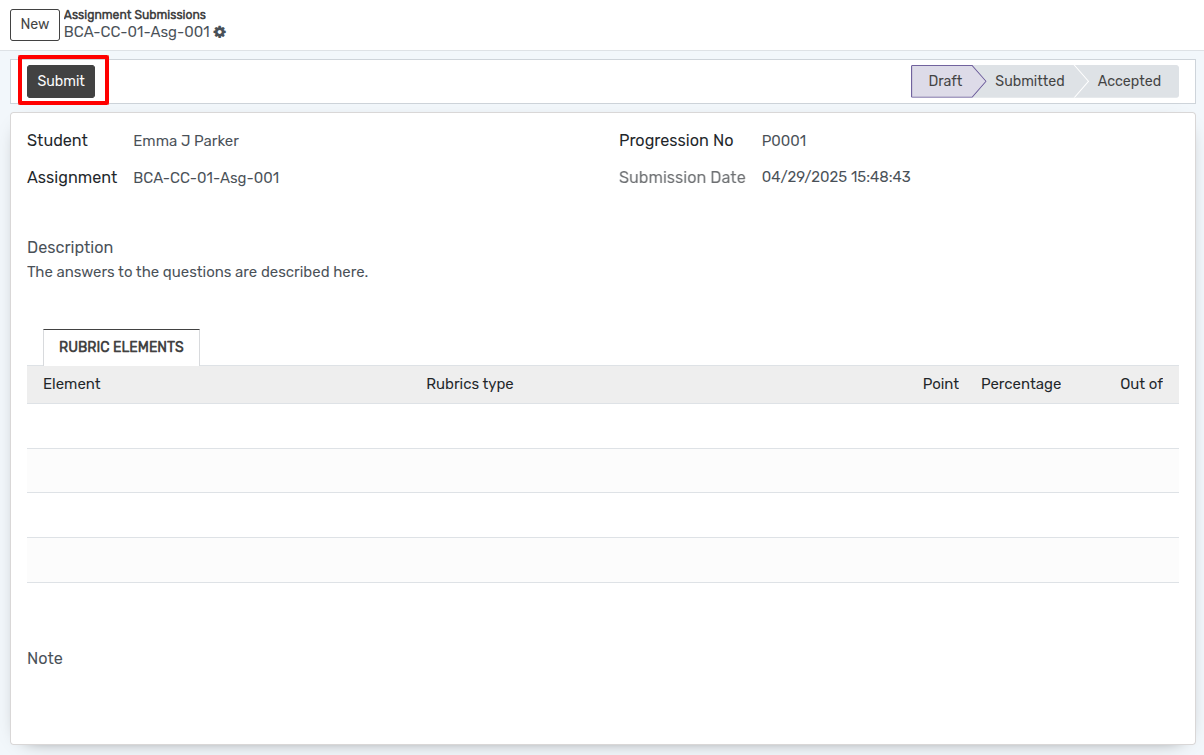
ثم انقر على للتقييم.

Once the assignment is in the To Assess state, a new button Add Rubric Assessment will appear.
Click on Add Rubric Assessment to open the grading interface. This opens a side-by-side view where the faculty can view the student's submitted PDF document on the left side and the Rubric Matrix on the right side.
Evaluate the student's work and select the appropriate rubric levels for each element on the right pane. The system will automatically calculate the assessment attempts and the last attempt score.
Once the assessment is complete, return to the submission record and click on To Accept.
Before clicking the To Accept button, ensure that the percentage or points are assigned to the student based on the rubrics template. Once the percentage or points are added, click the To Accept button.
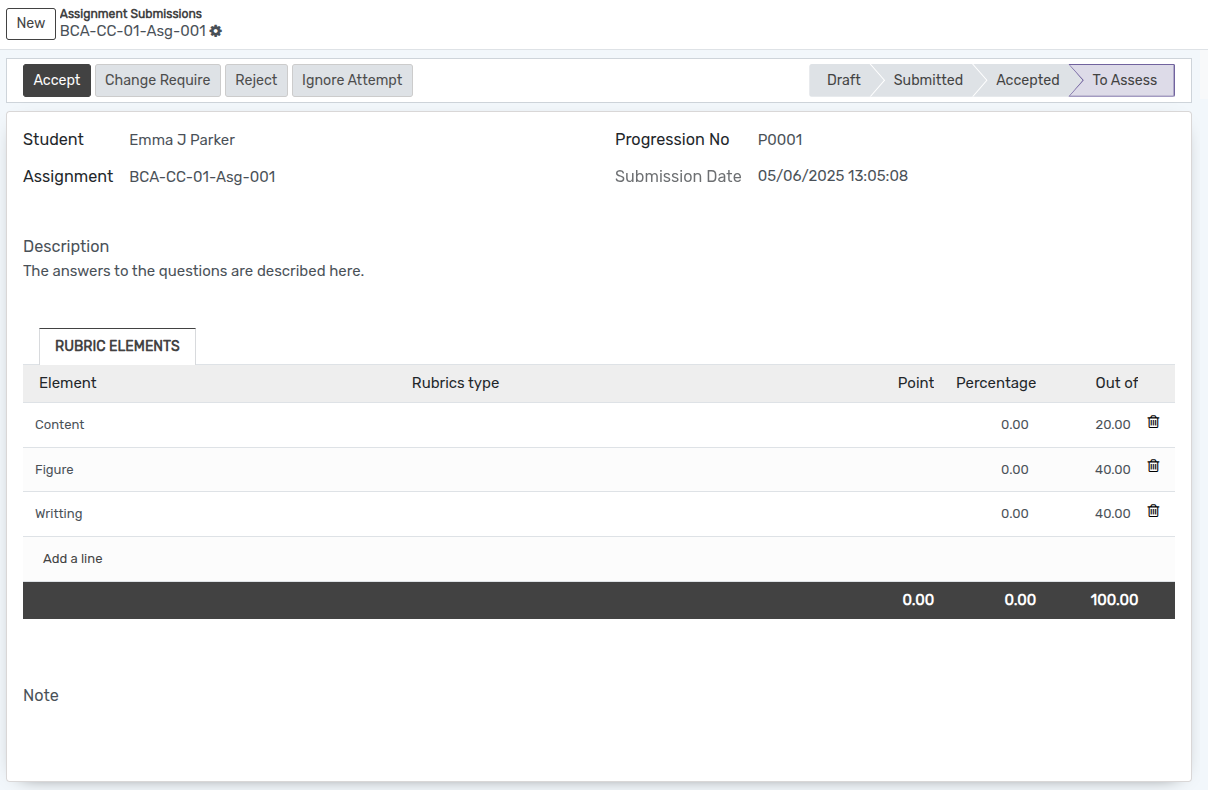
After clicking the To Accept button, the system will display the final percentage or points assigned to the student.
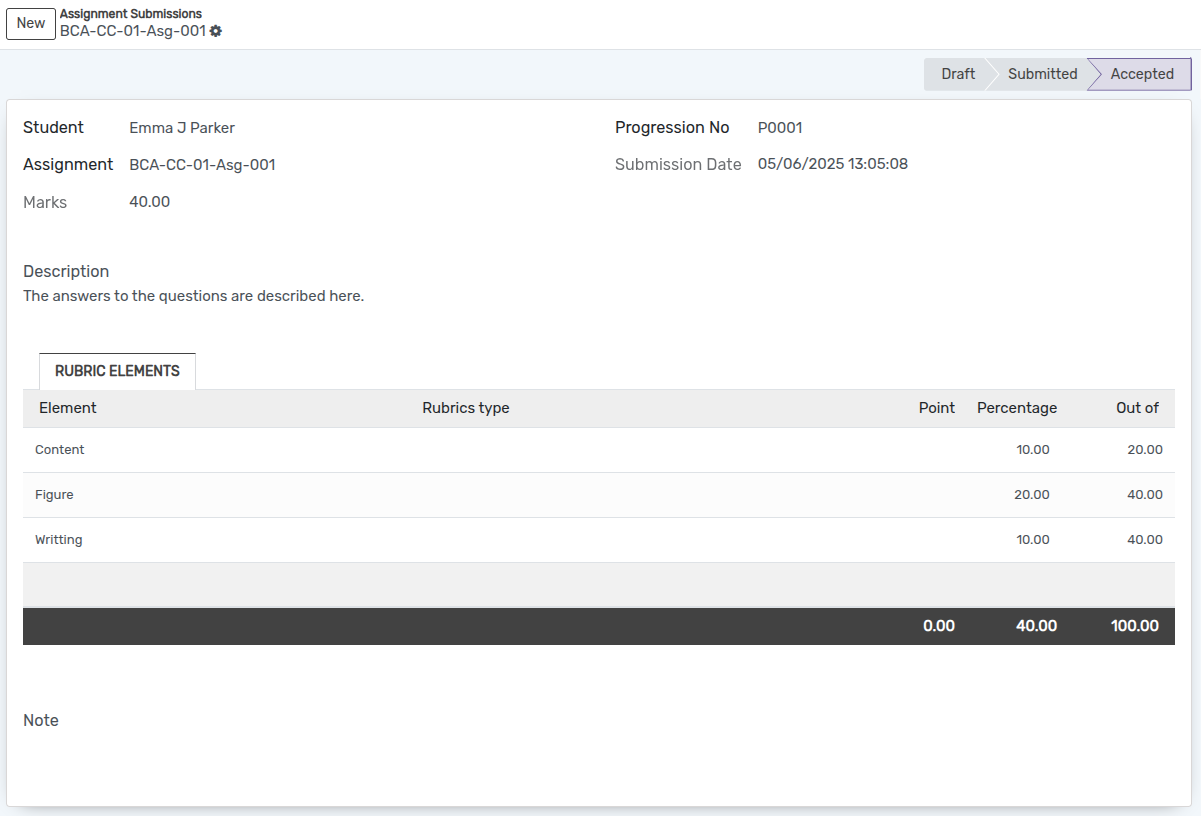
Student Portal View
Students can view their detailed rubric assessment from their portal account once the assignment is accepted.
They will be able to see their Final Score, Assessed By, Date, and Overall Feedback.
A detailed breakdown of the assessment will be shown in a table format, displaying the Rubric Element, Assessment Level, Point/Percentage, and Feedback for each element.
ملاحظة
When the Rubrics module is installed, students are restricted to uploading only .pdf files when submitting their assignments through the portal. This is to ensure compatibility with the built-in PDF viewer used by faculty for assessing assignments.