AI Practice Quiz
The AI Practice Quiz (ai_practice_quiz) module enables students and educators to dynamically generate, take, and evaluate AI-powered practice quizzes directly within OpenEduCat. It seamlessly connects the Student Portal, AI Playground, and AI Agents Library to provide an automated, end-to-end learning assessment workflow.
Key Features
Student Portal Access: Launch and manage personal practice quizzes directly from the web portal.
Pre-built Generator Template: Configure quiz parameters including topic, question length, difficulty level, and mode.
Dual Quiz Modes: Support for Study Mode (instant feedback) and Test Mode (end-of-quiz comprehensive scorecard).
Interactive Fullscreen UI: Dedicated test-taking interface equipped with a live countdown timer and question navigation grid.
Session Persistence: Automatic state preservation allowing students to resume interrupted sessions without loss of progress.
Smart Automated Scoring: Multi-tiered evaluation engine comparing student submissions against AI answer keys with detailed explanations.
End-to-End Practice Quiz Workflow
1. Accessing the Portal & Initiating a Quiz
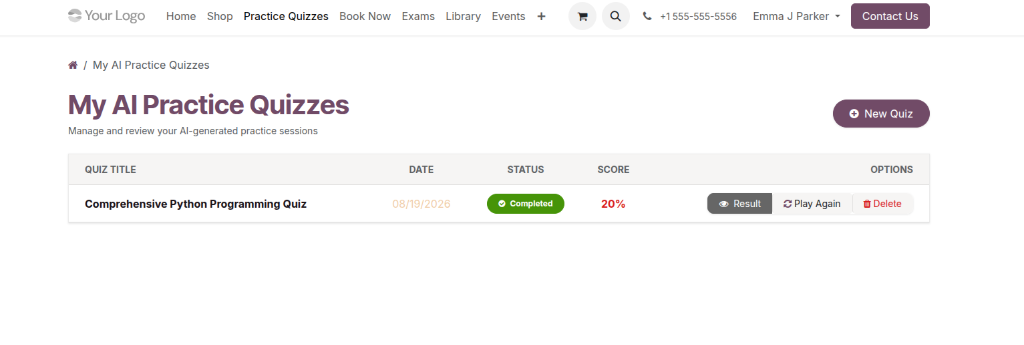
Students begin by navigating to the My AI Practice Quizzes dashboard (/my/practice/quizzes) in the OpenEduCat Student Portal:
View a complete log of active and past quizzes, including status (Draft, In Progress, Completed), dates, and scores.
Quick actions allow learners to Resume pending attempts, view completed Results, or Play Again.
Click the + New Quiz button to launch the AI quiz generator.
2. Configuring Quiz Parameters
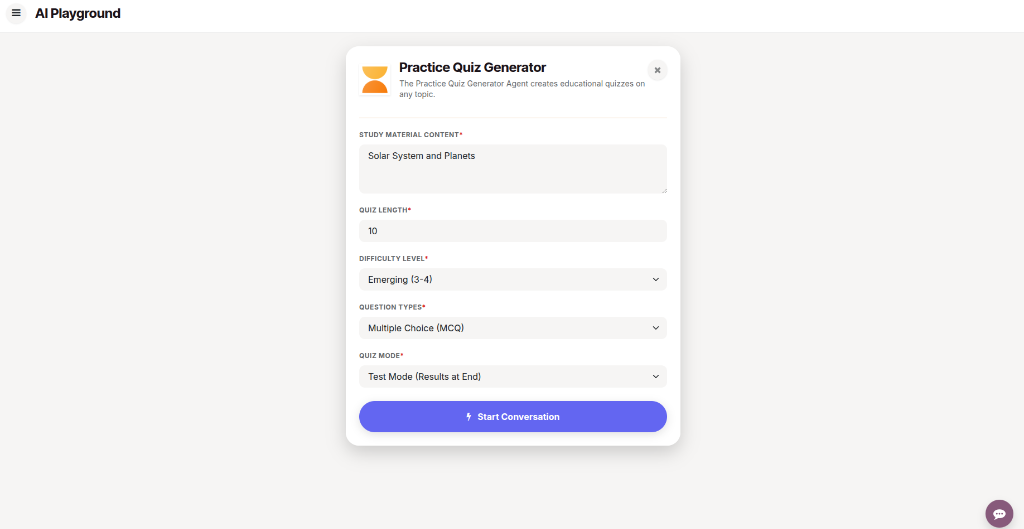
The Practice Quiz Generator configuration form allows students to customize the assessment to their exact learning needs:
Study Material Content: Enter a subject topic (e.g., Solar System and Planets) or paste syllabus notes.
Quiz Length: Choose the desired number of questions (e.g., 5, 10, or 20).
Difficulty Level: Select the target tier (Foundational (K-2), Emerging (3-4), Proficient (7-8), or Advanced).
Question Types: Select Multiple Choice (MCQ), True / False, or Mixed.
Quiz Mode: Choose Test Mode (Results at End) or Study Mode (Immediate Feedback).
Click Start Conversation to generate the quiz.
3. Quiz Generation & AI Playground Preview
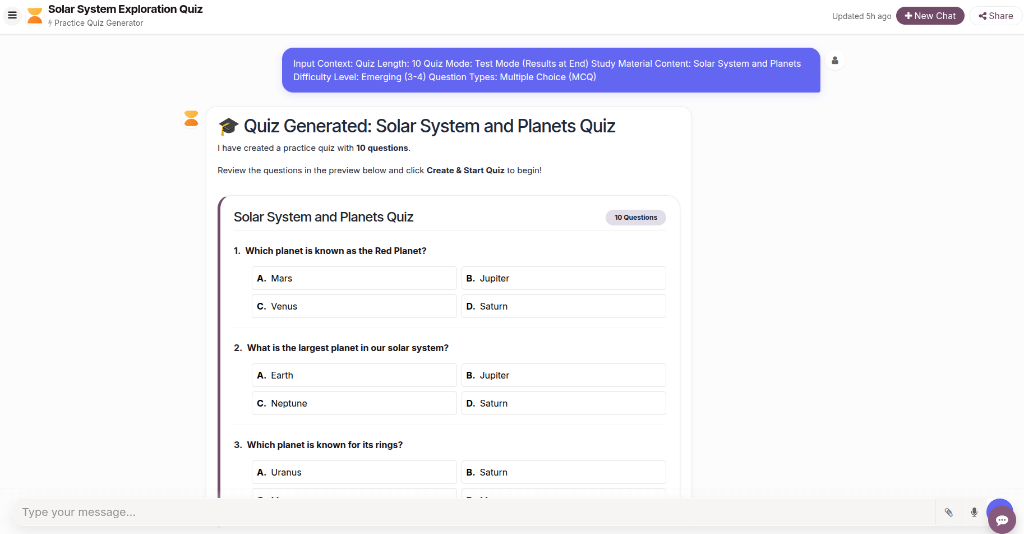
The AI Agent processes the input and formats the quiz into an interactive preview card within the AI Playground:
Review the generated questions, answer options, and difficulty distribution.
Create & Start Quiz: Click ⚡ Create & Start Quiz to initialize the live test session and transition to the test-taking environment.
Download PDF: Click the PDF icon in the bottom-right corner of the quiz card to export the question sheet for offline study.

4. Interactive Live Quiz Session
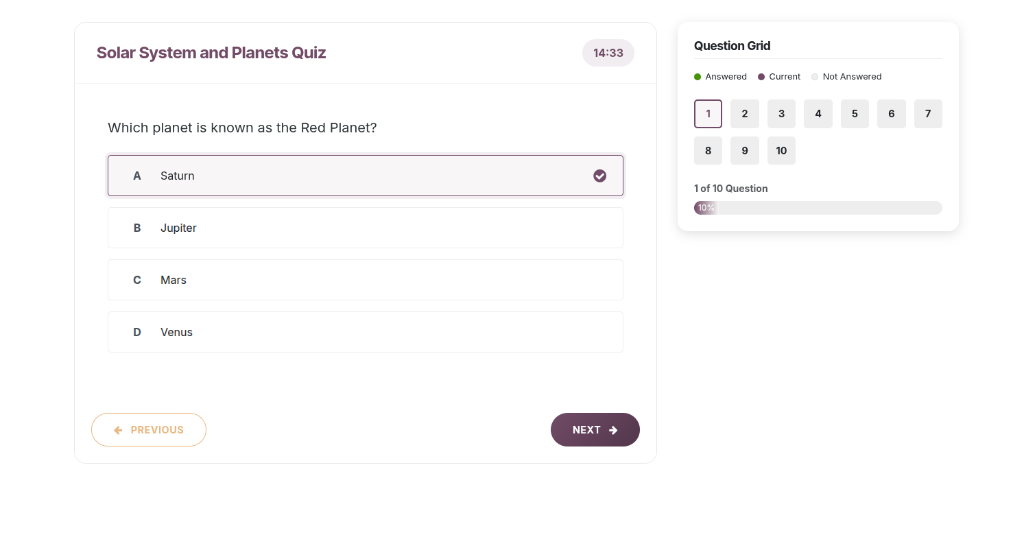
When started, the quiz launches in a distraction-free fullscreen assessment interface:
Live Countdown Timer: Dynamically monitors remaining time based on total questions (1.5 minutes per question).
Question Grid Palette: Visual matrix displaying Answered, Current, and Not Answered questions, allowing instant navigation across the quiz.
Option Selection: Clear and responsive choice selection with Previous and Next controls.
Auto-Save & Persistence: Progress and elapsed time are continuously saved to
ai.practice.quiz.session, ensuring sessions can be safely resumed if interrupted.
5. Automated Evaluation & Scorecard
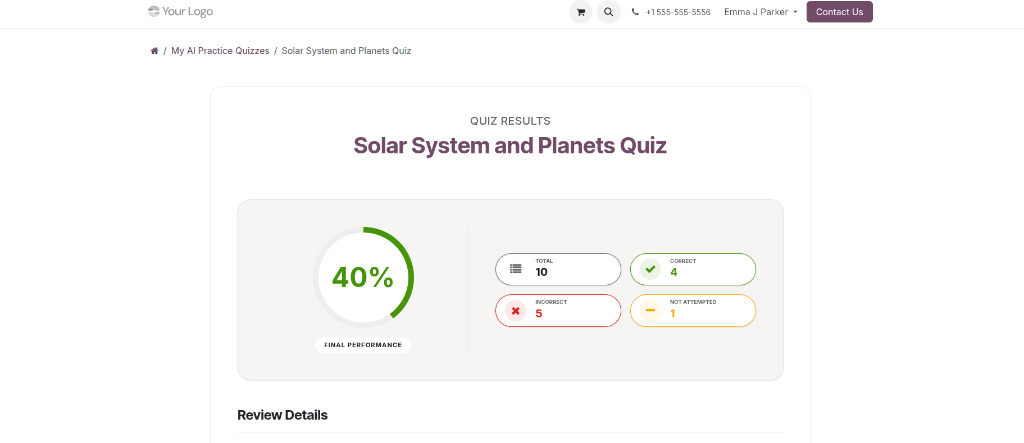
Upon submitting the quiz, the automated scoring engine instantly calculates performance metrics and displays the high-level evaluation scorecard:
Final Score & Percentage: Visual radial score indicator showing overall proficiency.
Metric Tiles: Numerical breakdown of total questions, correct answers, incorrect answers, and unattempted items.
Session Controls: Direct action buttons to review individual answers or re-take the assessment via Play Again.
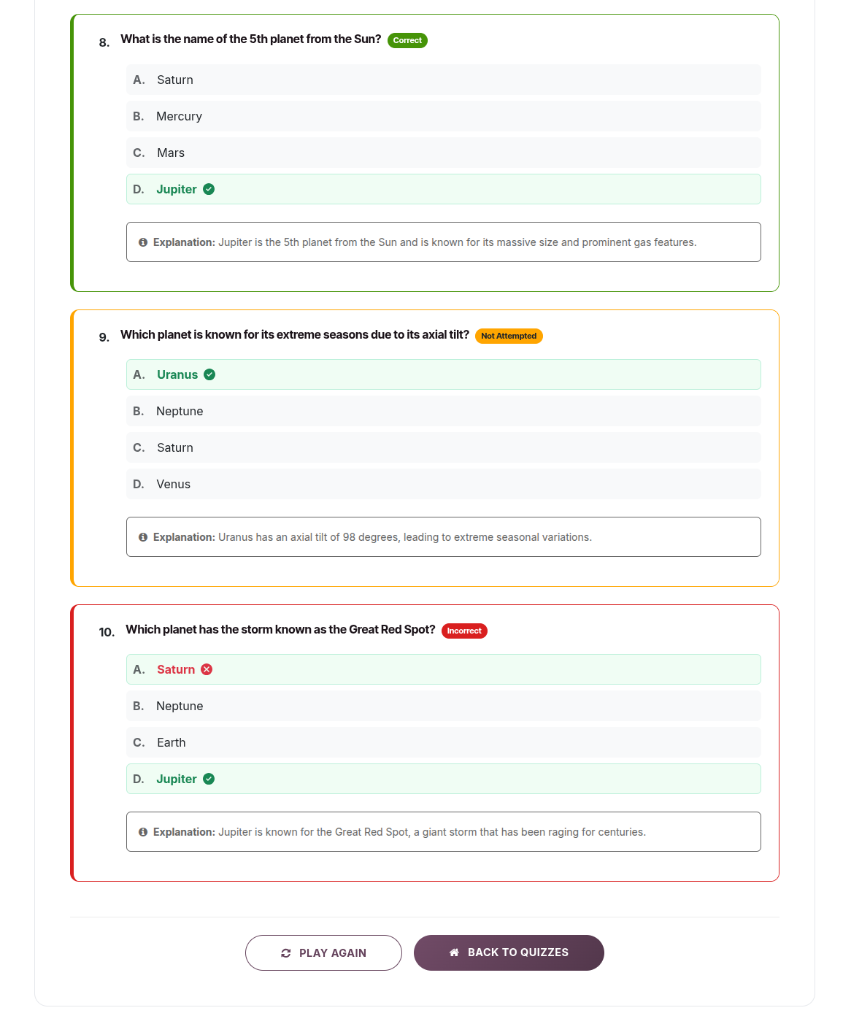
6. In-depth Question Review & Explanations
Students can drill down into each question to understand mistakes and reinforce subject mastery:
Step-by-step Answer Analysis: Highlights student selections alongside correct answer choices.
Conceptual Explanations: Rich AI-generated rationales explaining why the correct choice is right and clarifying misconceptions.
Multi-tiered Scoring Validation: Robust scoring logic matching by index, option labels, and normalized text.