وسائط
لاستيعاب كافة تفاصيل الوسائط المتوفرة في مكتبتك، يمكنك إنشاء سجلات للوسائط.
Go To .
Click on New to create a new media.
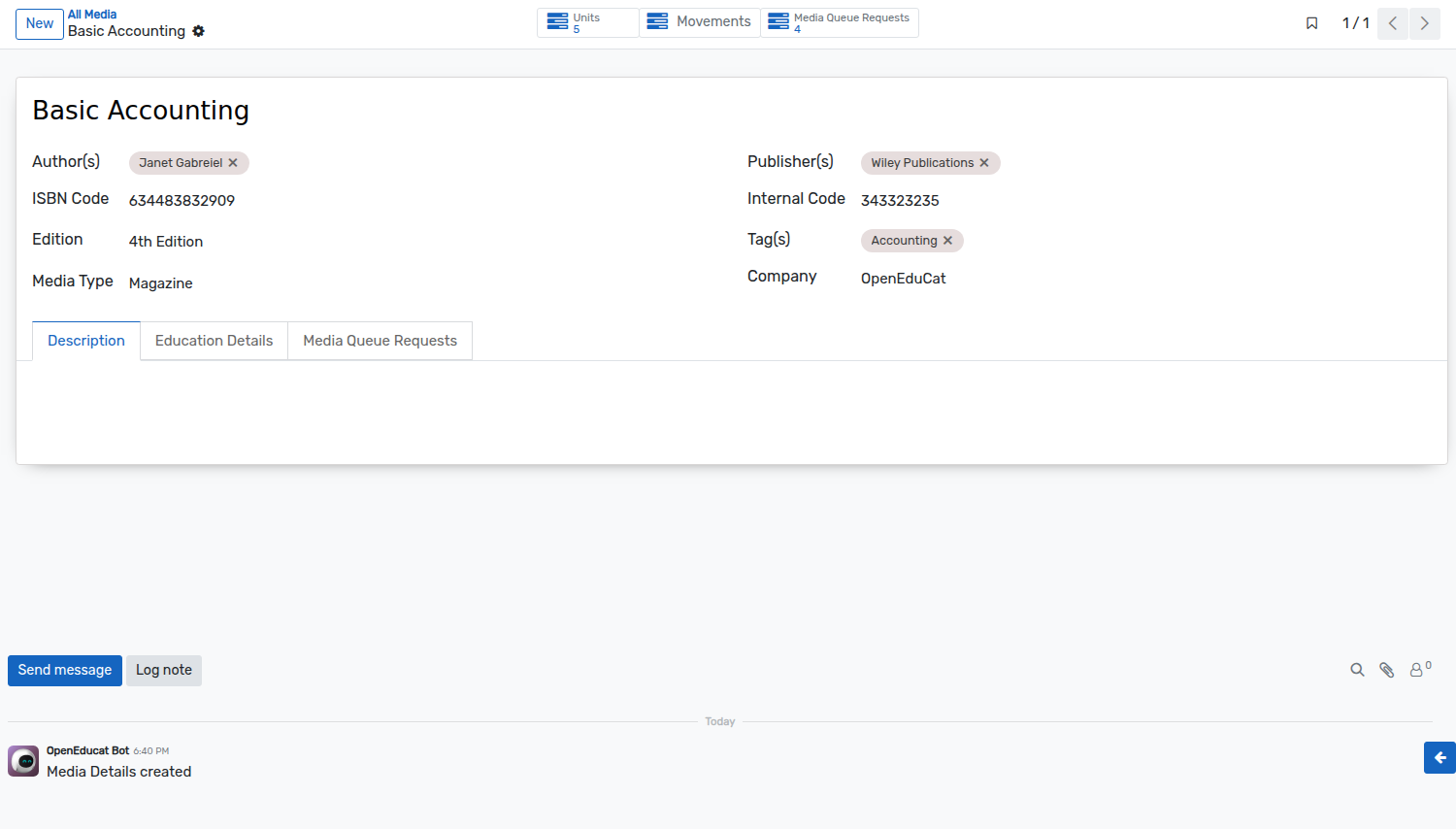
تفاصيل نموذج الوسائط
Name :- Provide the name of the book in Name field. It is mandatory field so you have to provide the name here.
Author(s) :- Mention the name(s) of authors who has written the book in Authors field. You can select multiple authors here.
Publisher(s) :-Mention the name(s) of publication house(s) in the Publishers field.
ISBN and Internal Code :- You can provide ISBN and internal Code of the book in ISBN and Internal code field.
Edition :- Specify the edition of the book in Edition field.
Tag(s) :- Provide the appropriate tags in Tags field.
Media Type :- Select Media Type.
الصفحات في نموذج الوسائط
وصف
تفاصيل التعليم
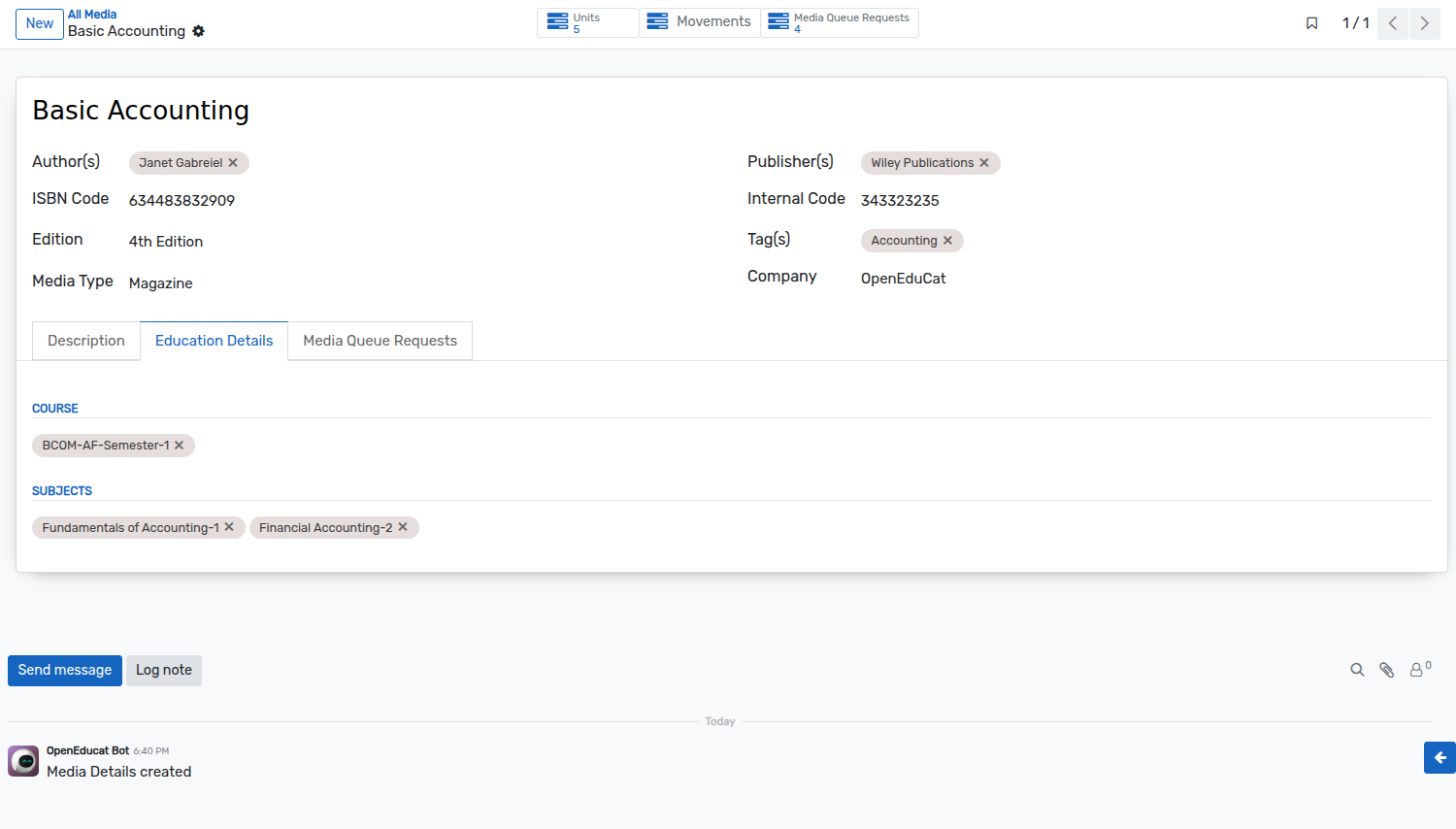
Courses :- Select the courses for which this media is useful from the list of courses.
Subjects :- Select the subjects which are included in the media.
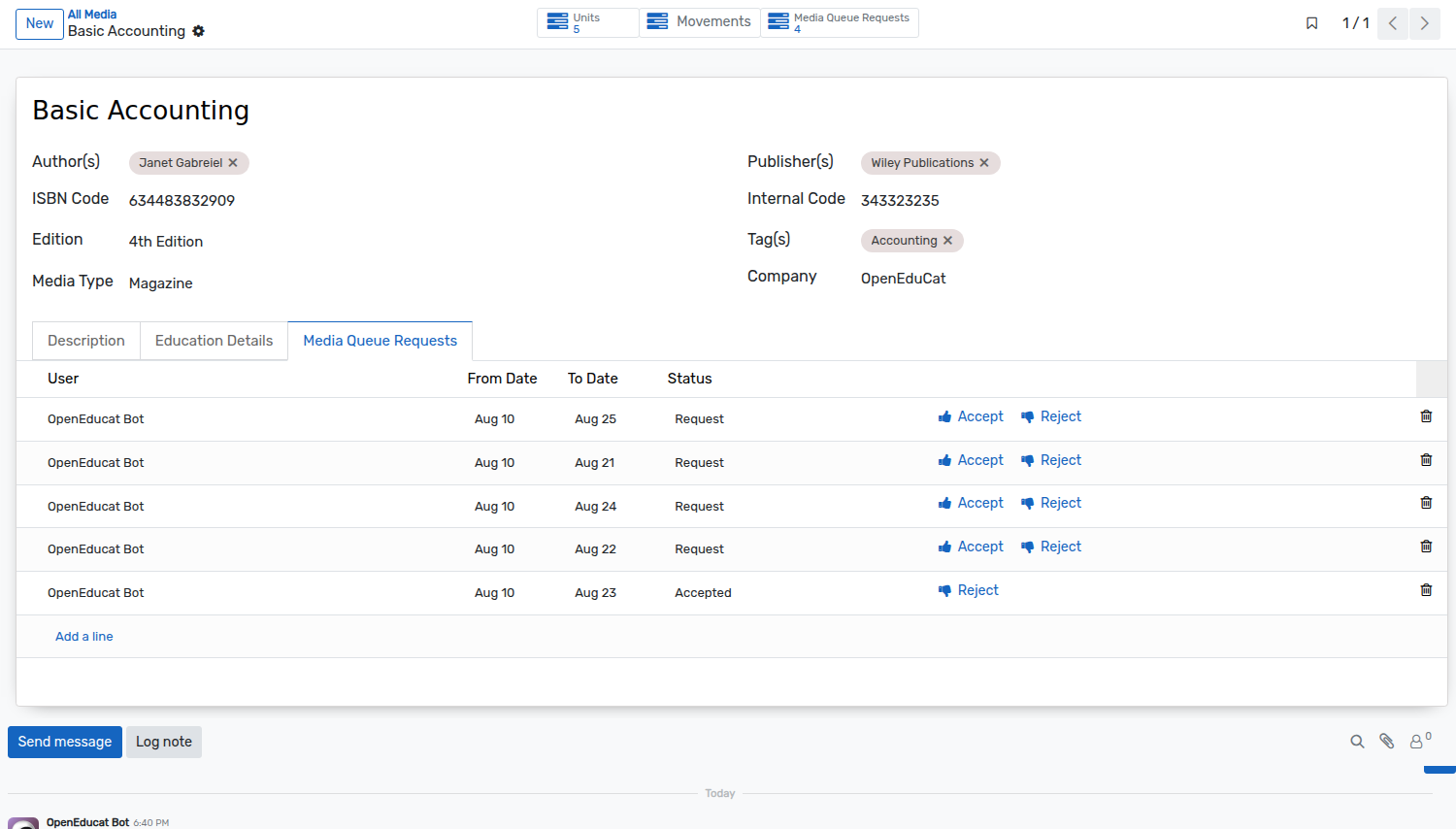
طلبات قائمة انتظار الوسائط
بالنسبة للوسائط التي يشغلها بالفعل شخص آخر، وينشأ طلب لذلك، يذهب طلب الوسائط ضمن طلب قائمة انتظار الوسائط.