
سير عمل التسجيل
Stages of an Application
Every application carries a Stage, which is displayed as a status bar at the top right of the application form. The status bar shows the stages that are marked as visible on the form (by default Draft, Confirmed and Done), together with the time the application has already spent in its current stage.
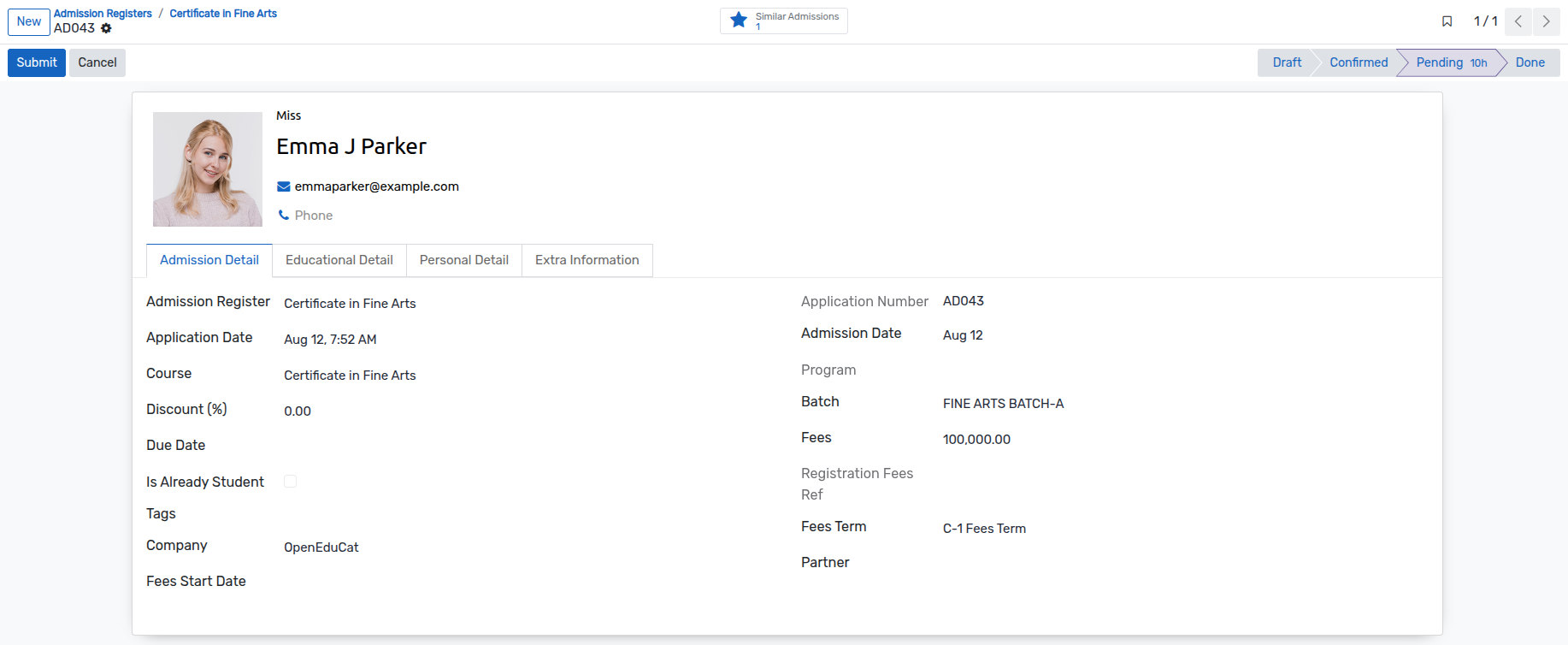
The stage and the status of an application are always kept in sync. Moving the application with the workflow buttons (
Submit,Confirm,Admission Confirm,Enroll…) updates the stage, and changing the stage updates the status accordingly.You can also move the application forward by clicking directly on a stage in the status bar.
The stages themselves are configurable, see Admission Stages.
Application Pipeline
Go to . The list of applications opens in a Kanban pipeline where each column is an admission stage.
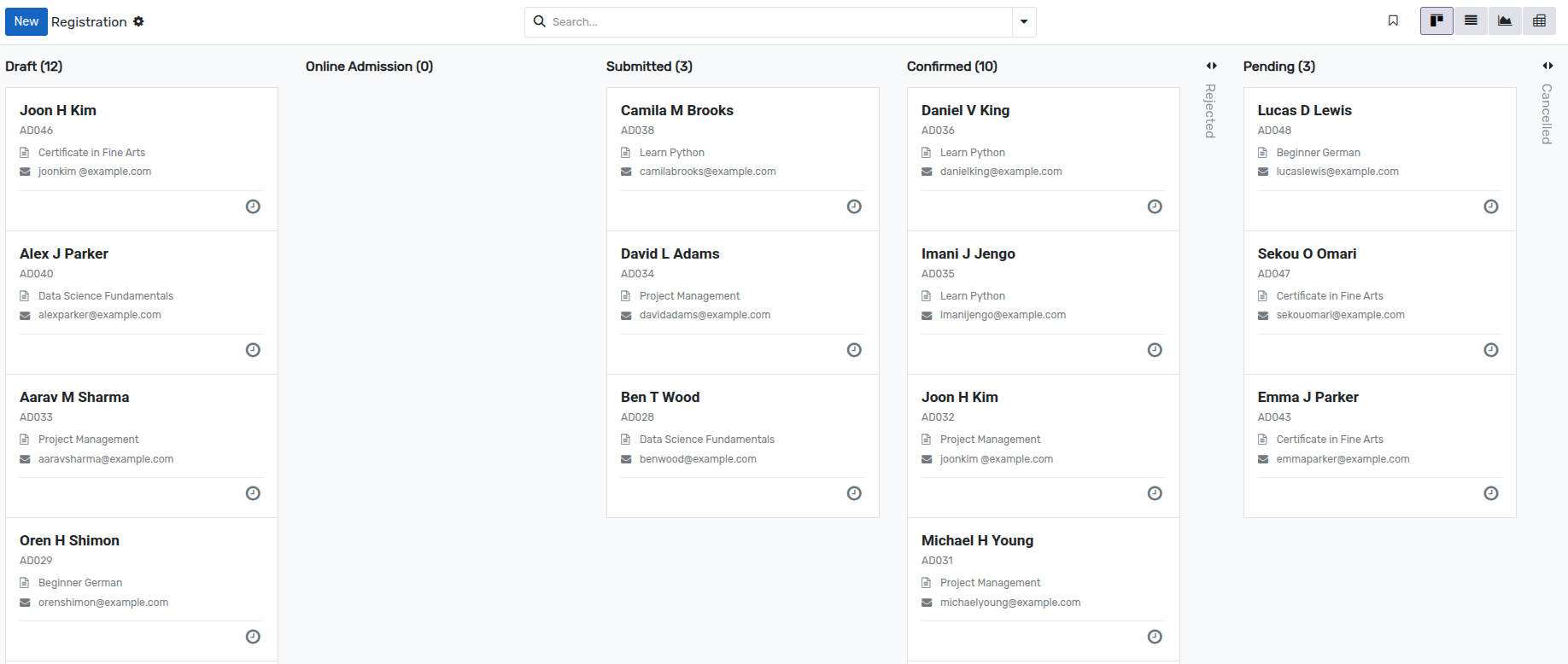
Every card displays the applicant name, the application number, the course and the tags of the application, along with the activity scheduling icon.
Drag and drop a card from one column to another to move the application to that stage. The status of the application follows the stage automatically.
Use the
⋮menu of a card to set a colour on the card or to open the application.Stages that are marked as Folded In Kanban (
RejectedandCancelledby default) are shown as collapsed columns, so the pipeline stays focused on the applications that are still being processed.
تحذير
Dropping a card in the
Donecolumn enrolls the applicant immediately, exactly like theEnrollbutton. The student record, the subject registration and the fees details are created at that moment, so use it only for applications that are really ready to be enrolled.
مسودة
بمجرد ملء التفاصيل في نموذج تسجيل التسجيل وحفظه، تصبح الحالة مسودة. يبدأ سير العمل لهذا النموذج من هنا.

يُقدِّم
انقر على زر إرسال لتأكيد الطلب. يؤدي هذا إلى تغيير حالة السجل من
مسودةإلىمرسل.

يتأكد
انقر على زر تأكيد لتأكيد الطلب. يؤدي هذا إلى تغيير حالة السجل من
تم الإرسالإلىمؤكد.لطلب الطلب أو إلغائه، انقر على زر
إلغاء.

تأكيد القبول
انقر على زر تأكيد القبول لتأكيد الطلب. يؤدي هذا إلى تغيير حالة السجل من
مؤكدإلىتأكيد القبول.

يتسجل، يلتحق
انقر على زر تسجيل لتسجيل الطالب. يؤدي هذا إلى تغيير الحالة من
تأكيد القبولإلىتم.

At that moment OpenEduCat performs the whole enrollment :-
The student record is created with the course, the batch, the academic year and the academic term of the Admission Register, together with the Academic Plan and the Intake Year of the application when they are used.
If a student already exists for that applicant (same contact, or same login as the email address of the application), that student is reused and the new course is simply added to their course details, so no duplicate student is created.
When the Create Student User option is enabled in , a portal user is created for the student, using the email address of the application as login, or the application number when no email address is filled in. If a user already exists with that login, it is reused and flagged as a student user.
The fees details of the student are generated according to the fees term, for the terms that are based on fixed days or on a fixed date, with the discount of the application.
A subject registration is created for the student in draft, pre-filled with the subjects of the course and its minimum and maximum unit loads.
ملاحظة
The enrollment is refused when the Maximum No. of Admission of the Admission Register is already reached.
افتح الملف التعريفي للطالب
بالنقر على فتح ملف تعريف الطالب، يمكنك رؤية تفاصيل ملف تعريف الطالب.