دورة
OpenEduCat Learning Management System (LMS) empowers educational institutes to build, organize, and publish online courses with multi-format content, quizzes, announcements, certificates, and interactive learning paths.
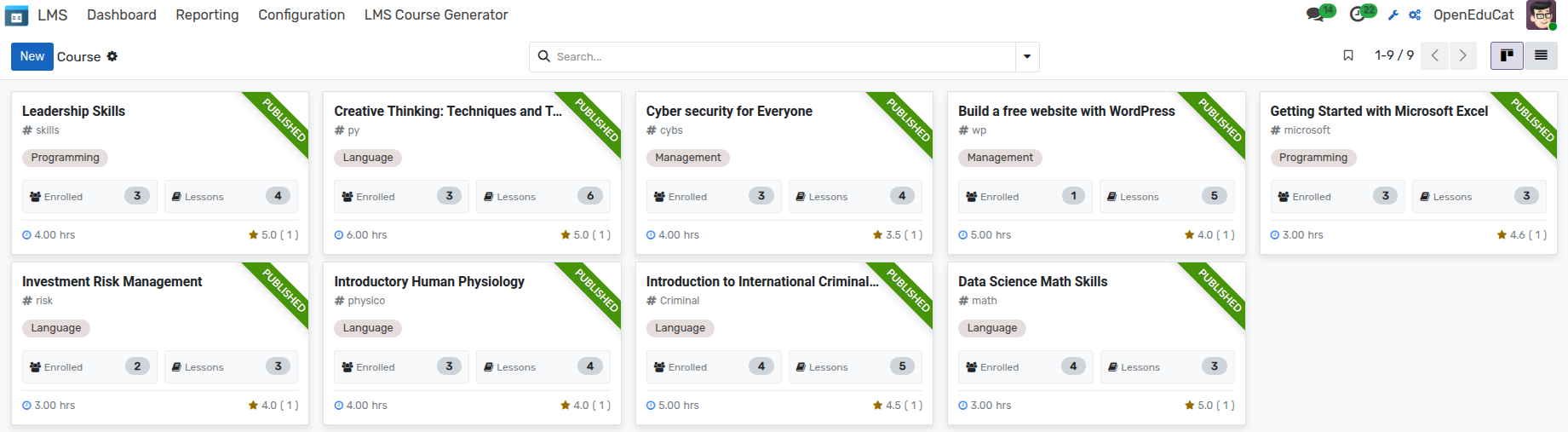
eLearning Dashboard
Go to (or ).
The dashboard displays courses in Kanban cards with status ribbons (Published, Archived), key metrics (Enrollments counter, Contents counter), tags, and direct access to view the course website portal or edit the course backend form.
Creating a Course
To create a new course:
Go to and click
New.Fill out the course header and main details.
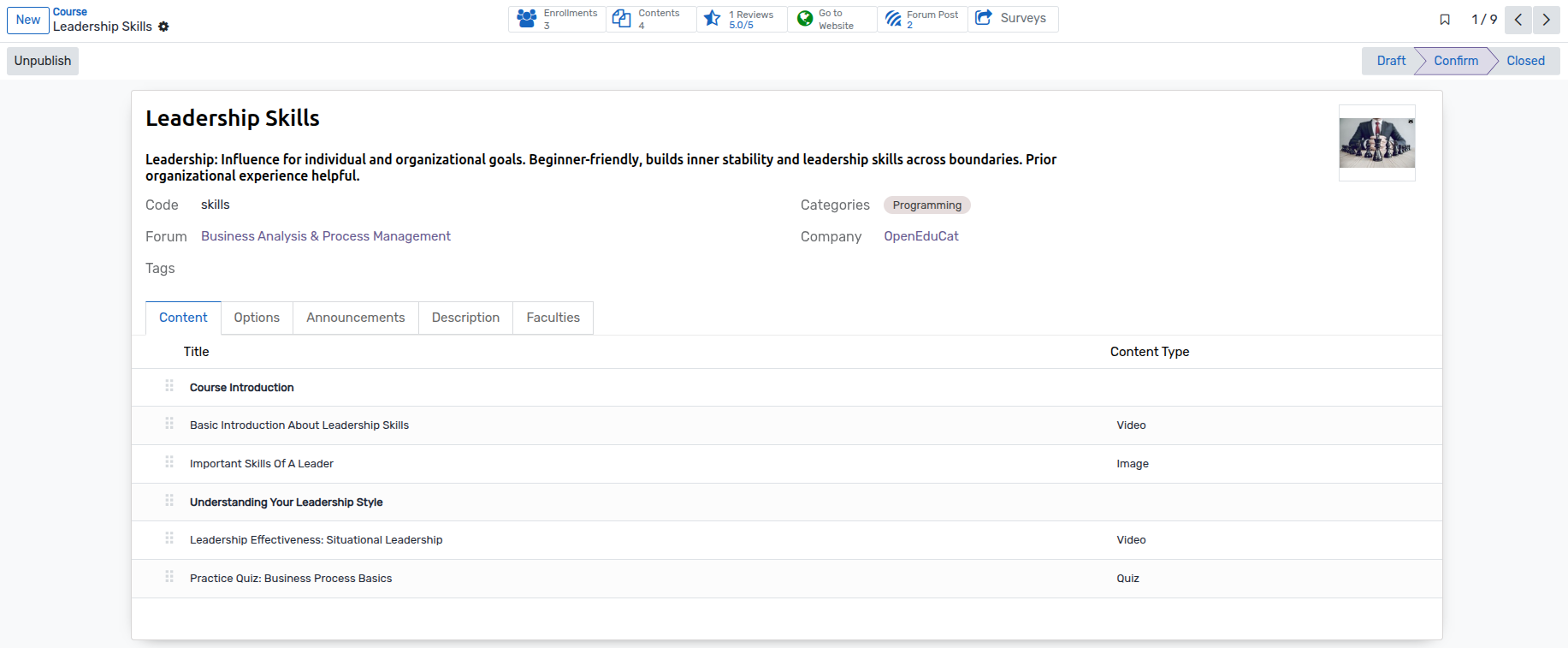
Course Header Actions & Workflow States
Confirm :- Changes state from
DrafttoConfirm(Open).Publish / Unpublish :- Toggles website publication (
is_published) on the portal once confirmed.Set To Draft :- Reverts a non-published open or closed course back to
Draft.Close :- Closes the course (
Closedstate) to restrict further activities.Statusbar :- Visual state progression:
Draft-->Confirm-->Closed.
Course Main Fields
Name :- Title of the course displayed across backend and frontend (required).
Short Description :- Brief summary explaining the course objective (required).
Code :- Unique identification code for the course.
Tags :- Categorical tags (
op.course.tag) used for filtering.Categories :- Subject or department categories (
op.course.category).Company :- Institute company for multi-company environments.
Course Form Tabs
Content Tab: - Create course structure by adding Modules (section headers) and Content (lessons/slides). - Use handle drag controls to resequence lessons and sections.
Invited Users Tab: - Visible when Visibility Policy is set to
Only Invited User. - List specific user accounts permitted to access the course.Options Tab:
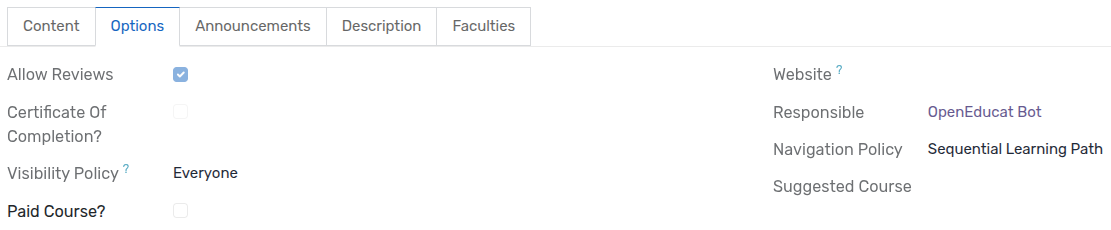
Allow Reviews :- Enable or disable student reviews and rating stars.
Certificate Of Completion :- Enable automatic certificate generation upon 100% course progress.
Visibility Policy :- Defines access restriction: - Everyone (
public): Open to all site visitors. - Signed In (connected): Open to logged-in portal users. - Only Invited User (invited_user): Restrict access strictly to users specified in the Invited Users tab.Navigation Policy :- Controls learning flow: - Free Learning Path: Students can view any content item in any order. - Sequential Learning Path: Students must complete previous lessons before unlocking subsequent contents.
Website: Select the target website instance.
Responsible: User managing the course.
Suggested Course: Recommended complementary courses for students.
Announcements Tab:
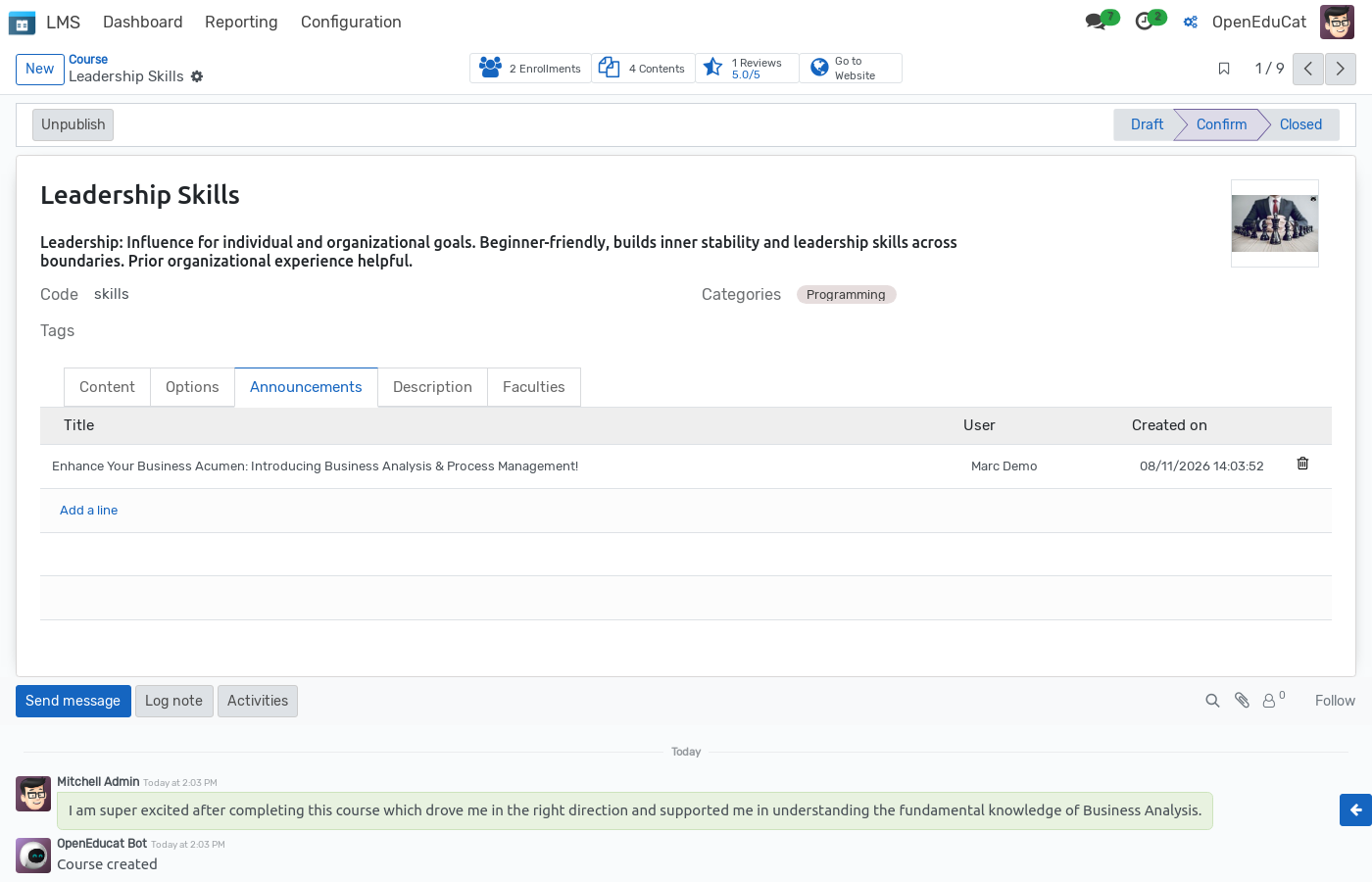
Add broadcast notices and updates for enrolled students.
Specifies title, author, date, and formatted HTML announcement text.
Description Tab: - Rich text HTML area to detail course prerequisites, syllabus, target audience, and learning outcomes.
Faculties Tab: - Assign instructors (
op.faculty) responsible for teaching the course.
Course Content & Lessons
Instructors can create and manage course contents under specific modules via the course form or from .

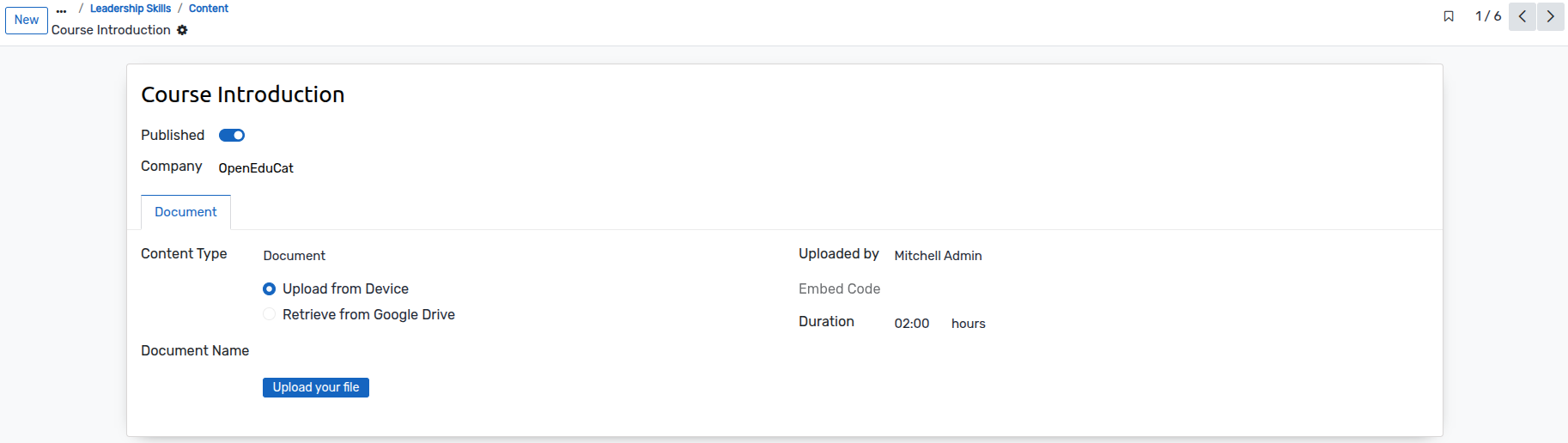
Content Types & Configuration
Title :- Name of the lesson/slide.
Published :- Toggle switch to publish/unpublish content.
Content Type (`module_category`): - Document: Upload PDF or Office files (.pdf, .xlsx, .docx, .doc, .xls) locally or provide a Google Drive document URL. - Video: Provide external video URL (YouTube video ID, Vimeo, Google Drive video) or upload MP4 video directly from local device. - Image: Upload image file locally or link external Google Drive image URL. - Article: Custom HTML content designed in the rich editor for reading materials. - Quiz: Associate an OpenEduCat Quiz (
op.quiz) to assess learning.Duration :- Time estimation (in hours) to complete the content.
Uploaded by :- User who created the content record.
Embed Code :- Auto-generated HTML embed code for video/document playback.
Reporting & Analytics
OpenEduCat LMS provides a comprehensive reporting suite accessible under for administrators and instructors to monitor student progress, course adoption, and quiz performance.
Summary Dashboard
Go to .
An interactive KPI dashboard detailing total courses, active/inactive courses, enrollments, completions, active learners, website visitor stats, content counts, and cohort progress matrix.

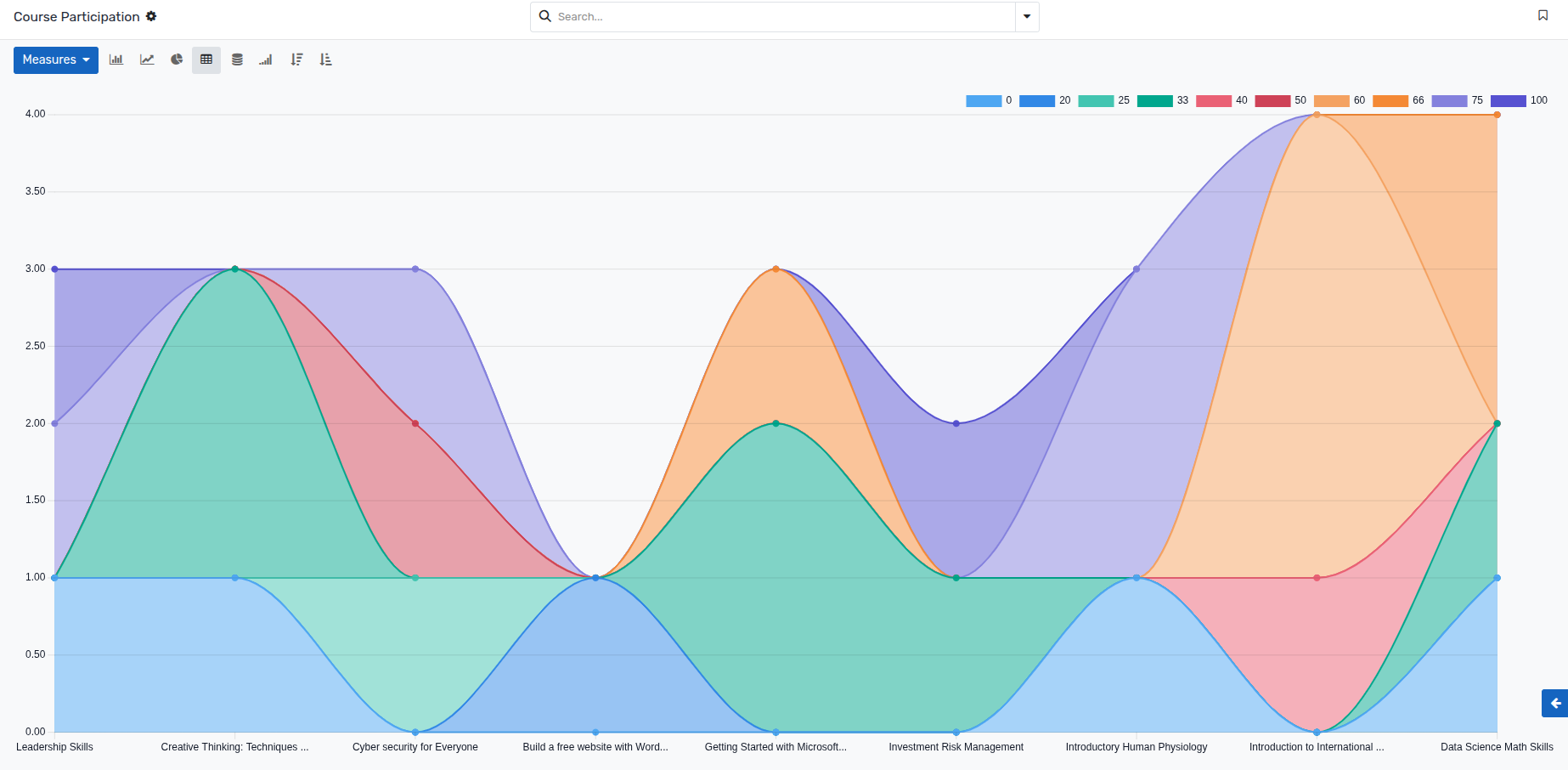
Course Participation
Go to .
Displays a graphical line chart analyzing student enrollment numbers and completion progress across all active courses.
Course Profile Report
Go to .
A multi-dimensional Pivot analysis table providing course-by-course metrics.
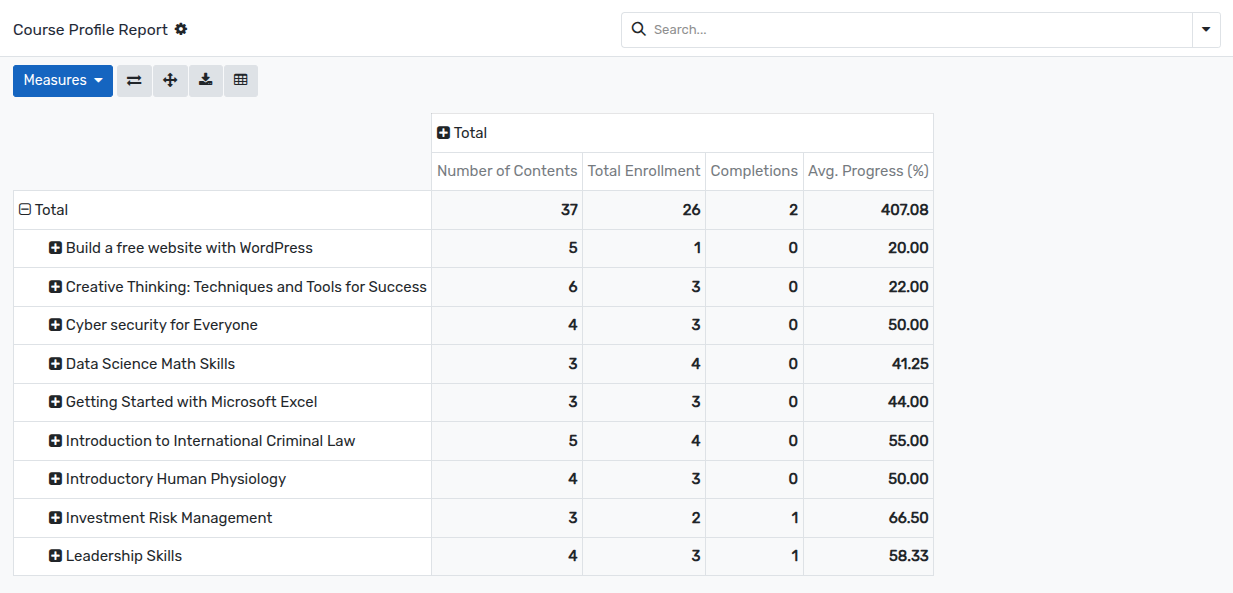
Available Pivot Measures:
Number of Contents (`total_modules`) :- Total number of published slides/lessons within the course.
Total Enrollment (`total_enrollment`) :- Count of enrolled students.
Completions (`completion_count`) :- Count of students who have completed 100% of course contents.
Avg. Progress (%) (`avg_progress`) :- Average progress score percentage across all enrolled students.
Quiz Participation Report
Go to .
Provides a structured list view tracking all quiz attempt records submitted by students.
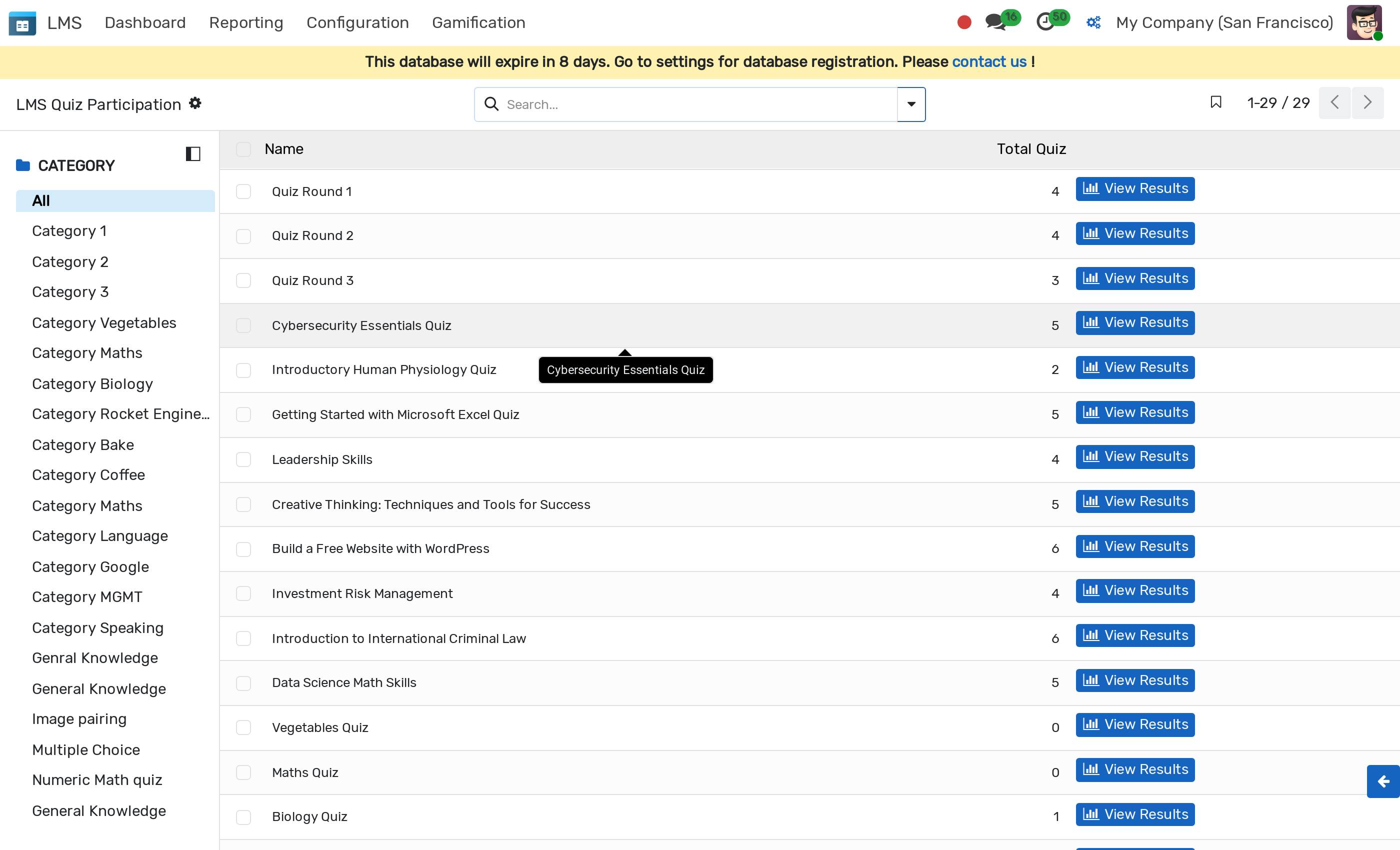
Displays student name, quiz title, attempt count, score percentage, pass/fail status, and submission date.
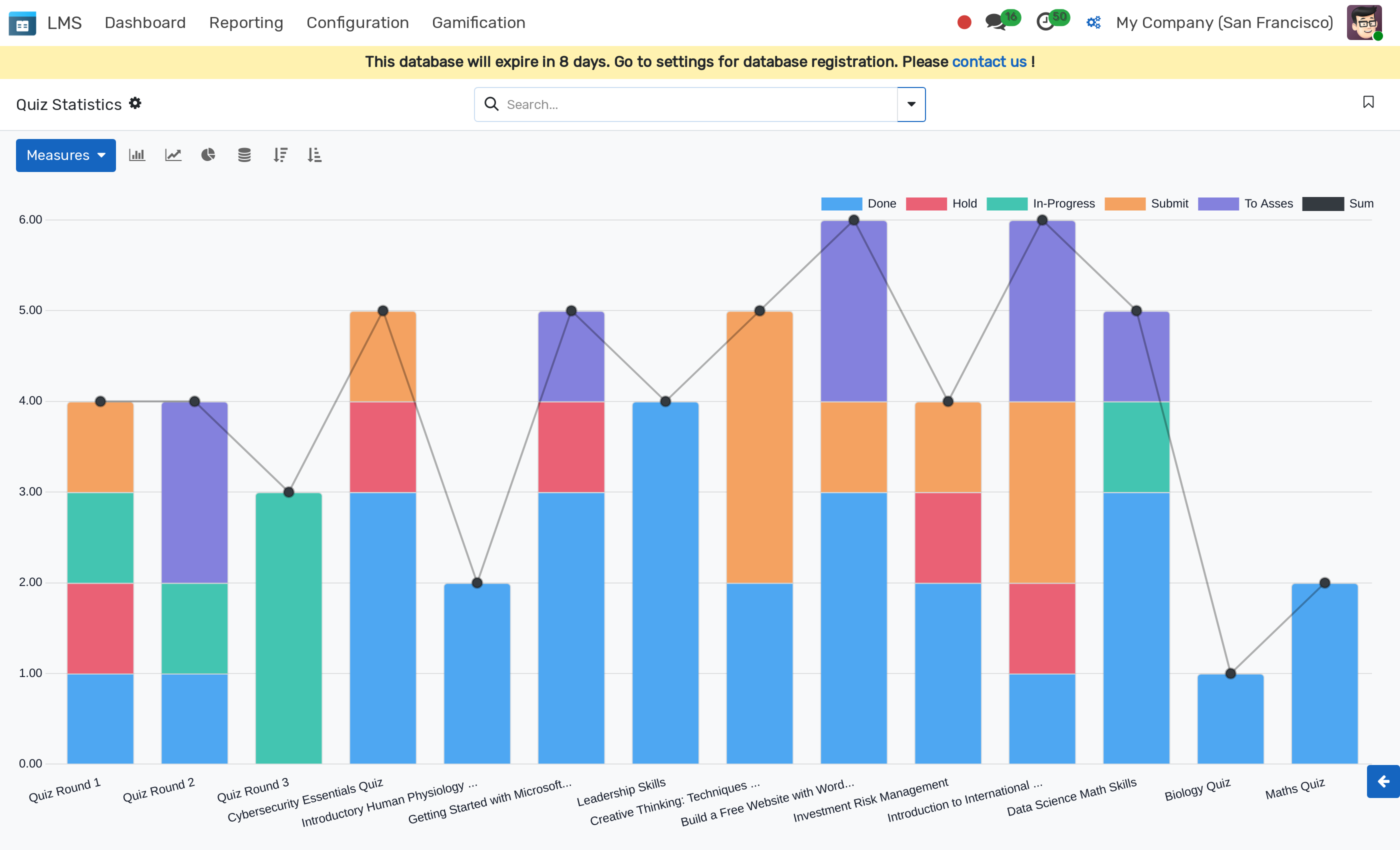
Quiz Statistics
Go to .
Graphical chart evaluating quiz performance and score distributions across quizzes.
إعدادات
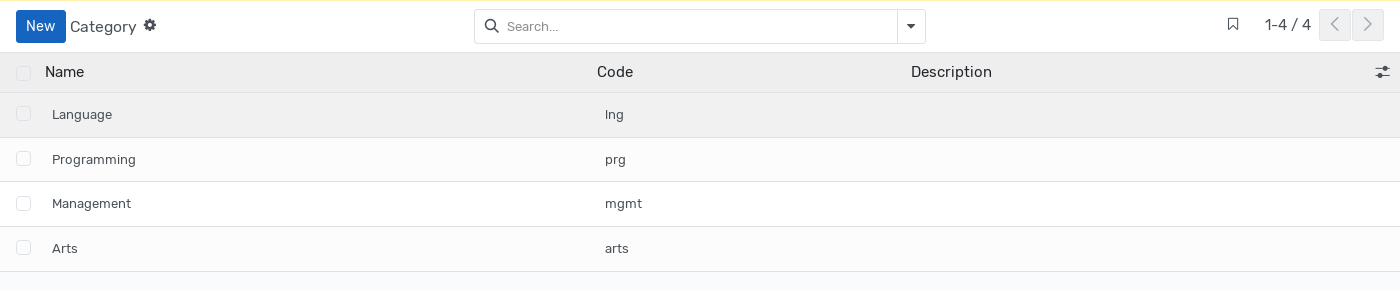
Course Category
Go to .
Define course categories and parent-child hierarchies to categorize courses on backend and portal filters.
Course Tags
Go to .
Create tags to label and filter courses.

Website Portal & Learning Interface
Courses Catalog (/courses)
Students and visitors browse available courses on the website with category, tag, instructor, and price filters.

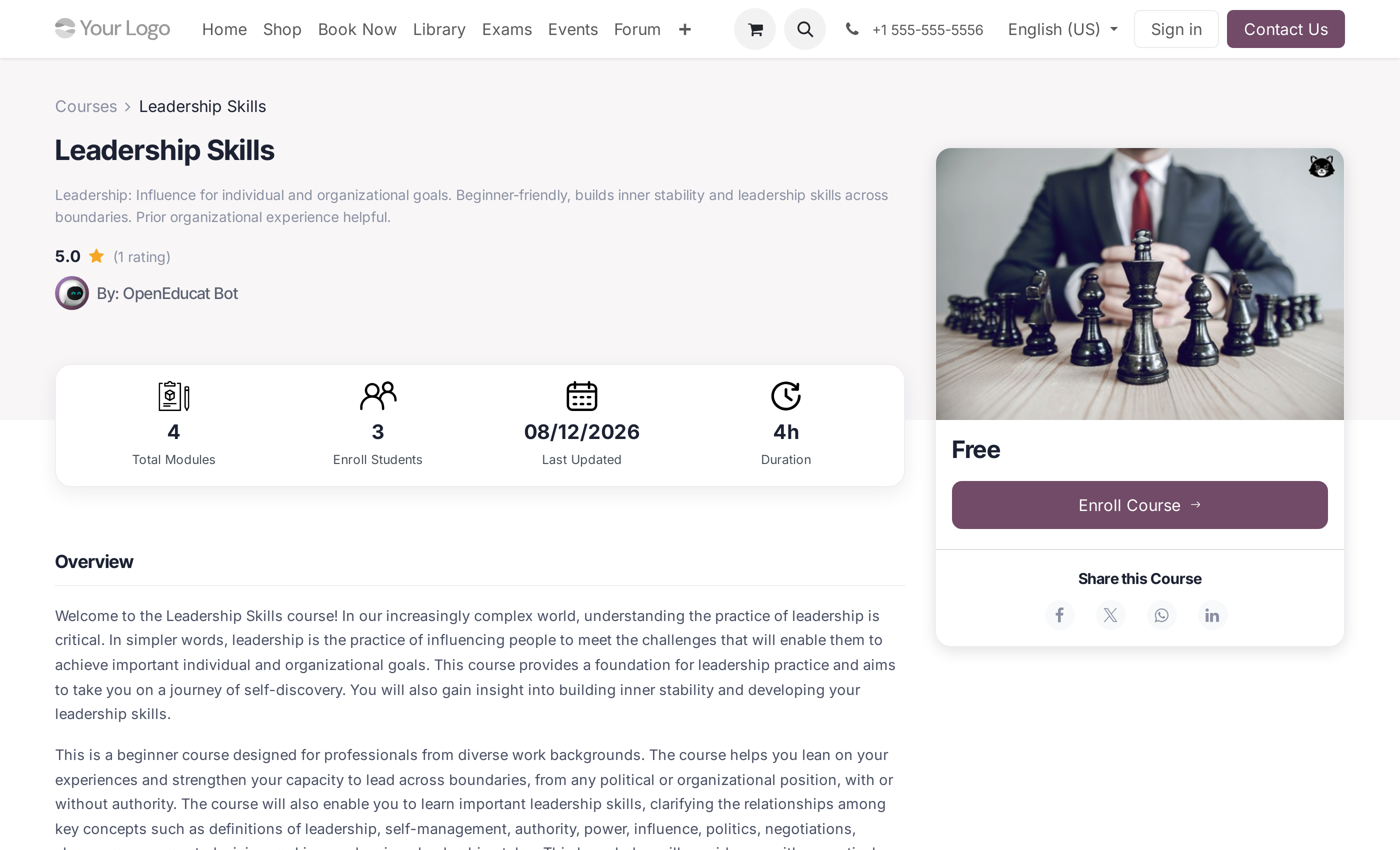
Course Details Page (/courses/<course-slug>)
Presents course title, short summary, instructor details, enrollment button, overview syllabus tabs, announcements, and student reviews.
Access Rights & Security
LMS User (Faculty / Staff): Can view, create, and manage courses, modules, contents, and view reports.
LMS Manager (Admin): Full administrative access to courses, configuration (categories/tags), security rules, and reporting analytics.
H5P
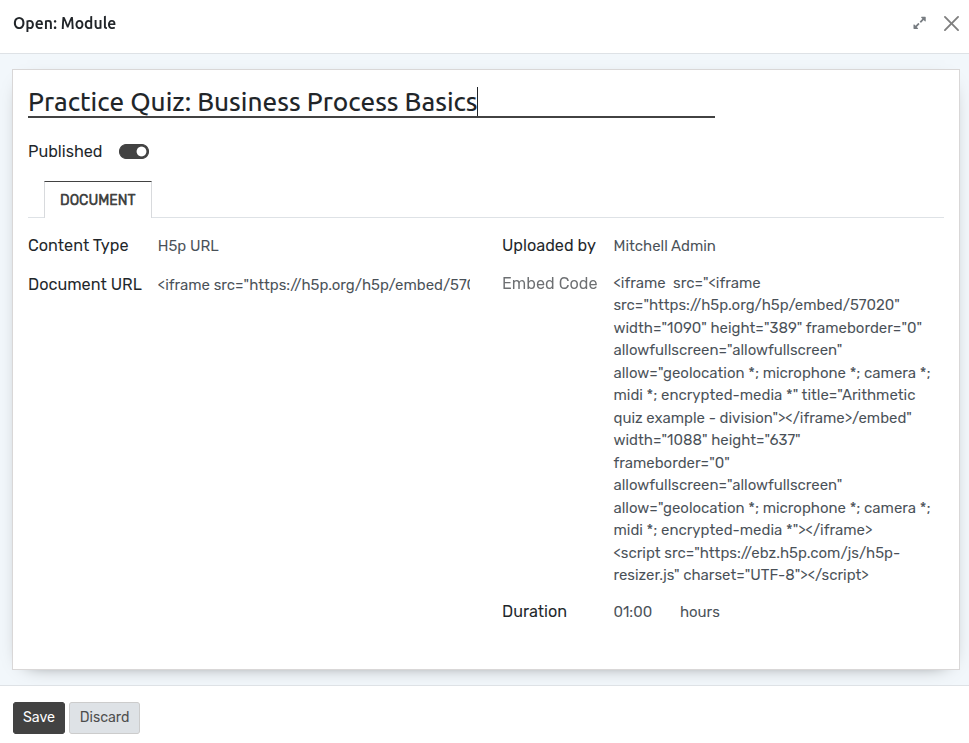
Configure h5p url
Go to LMS ‣ Content. Click on New to create a new content.