
Student LiveChat Management
The OpenEduCat Student LiveChat module provides real-time, instant communication between students (or parents) and faculty members. It bridges academic inquiries, instant messaging, and direct faculty support through an integrated web portal interface and a feature-rich backend Discuss client.
Key Capabilities
Portal LiveChat Request Form :- Enables students and parents to initiate live chat requests by selecting specific teaching staff or faculty members.
Student Web Chat Room :- Dedicated portal messaging workspace equipped with real-time text chat, file attachments, and audio/video call controls.
Faculty Approval Workflow :- Equips faculty members with interactive header actions (Approve, Reject, Close, Re-open) directly inside the Discuss application.
Real-time Status Synchronization :- Dynamic state tracking across channel creation (Request Send), approval (Approve), session termination (Close), and rejection (Reject).
Student Partner Search & Member Invitations :- Allows faculty and administrators to search active student partner records and invite them into chat channels.
Audio & Video Call Support :- Integrated Real-Time Communication (RTC) capabilities for instant voice and video meetings.
Student & Parent Portal Workflow
Initiating a LiveChat Session
Log into the OpenEduCat Student Portal or Parent Portal.
On the main portal dashboard, locate the LiveChat card. The card displays a live counter showing active and historical livechat conversations.
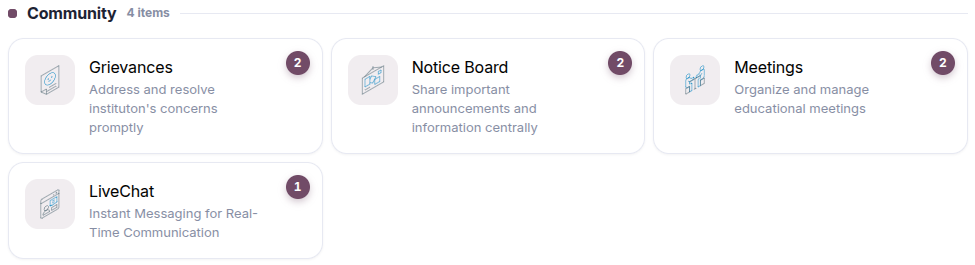
Click on the LiveChat card or click Create Livechat.
In the Livechat Request Form, select the target Teaching Staff / Faculty member from the dropdown menu.
Click SUBMIT to send the live chat request.
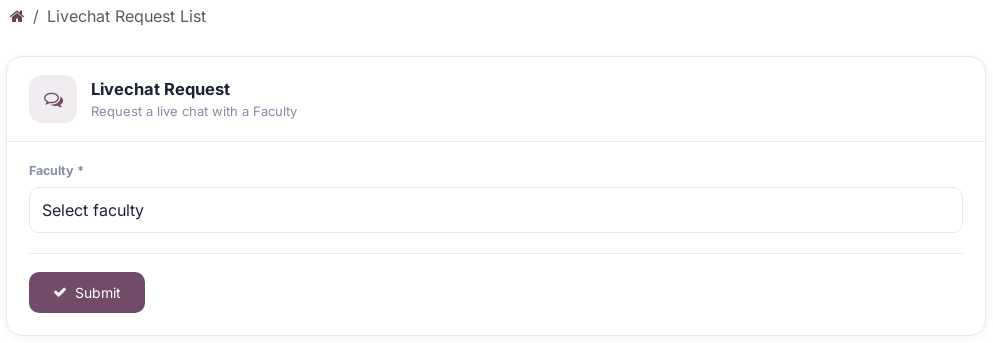
Upon submission, a dedicated live chat channel is generated in Request Send status, awaiting faculty approval.
Tracking & Accessing Student Chat Room
Students and parents can review all submitted live chat requests on the LiveChat list page.
State Column :- Displays the current lifecycle status (Request Send, Approve, Close, or Reject).
View Icon (Eye) :- Appears once a request is approved, providing direct single-click access to the live messaging chat room.
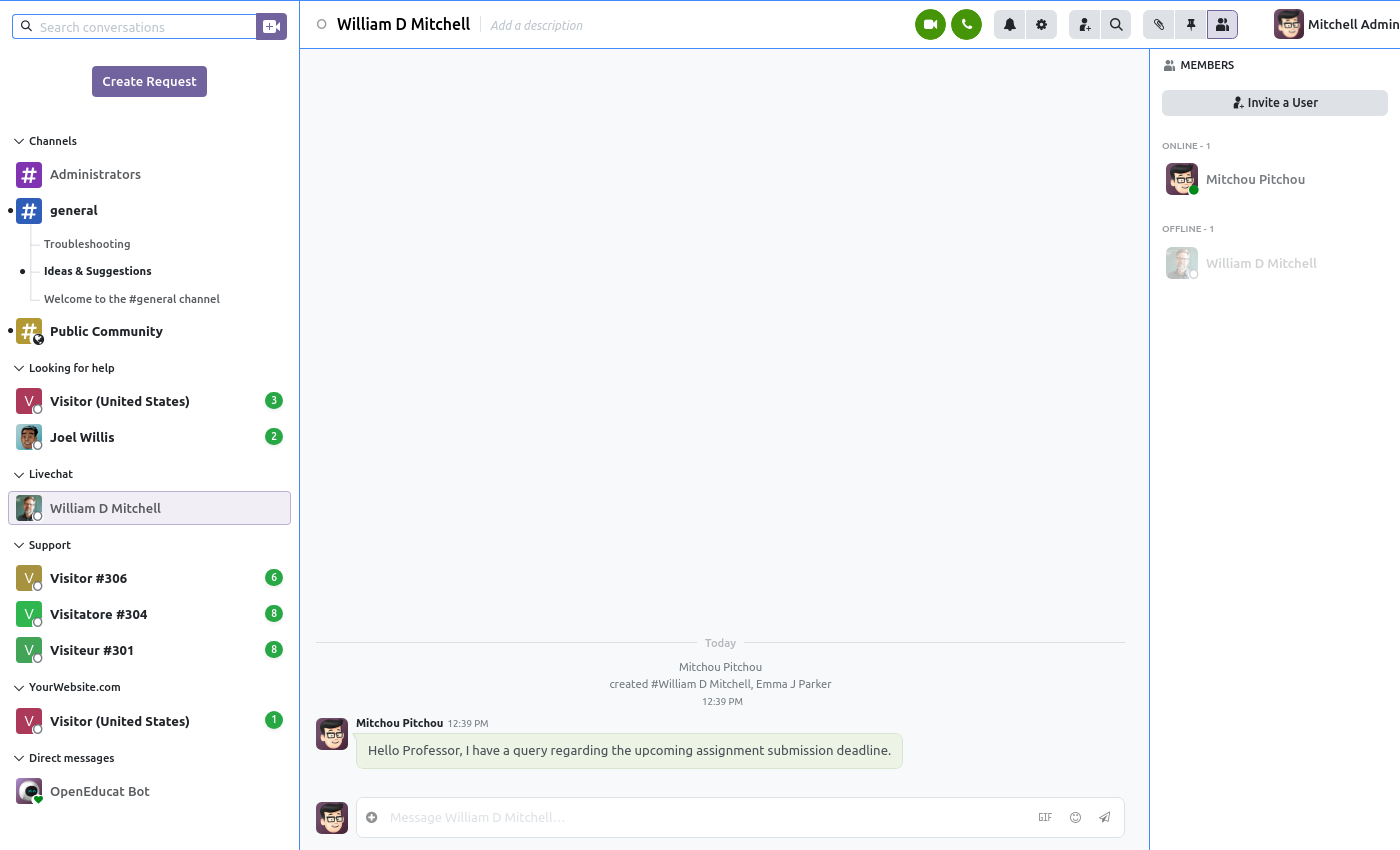
Inside the Student Chat Room, students can:
Exchange real-time text messages, emojis, and file attachments with the assigned faculty member.
Start instant audio or video calls using the top-bar RTC meeting controls.
View channel details and active member status.
Faculty & Discuss Application Workflow
Backend LiveChat Workspace
Faculty members and administrators manage all student live chat interactions directly from the backend Discuss module.
Log into the OpenEduCat backend as a faculty member or administrator.
Open the Discuss application.
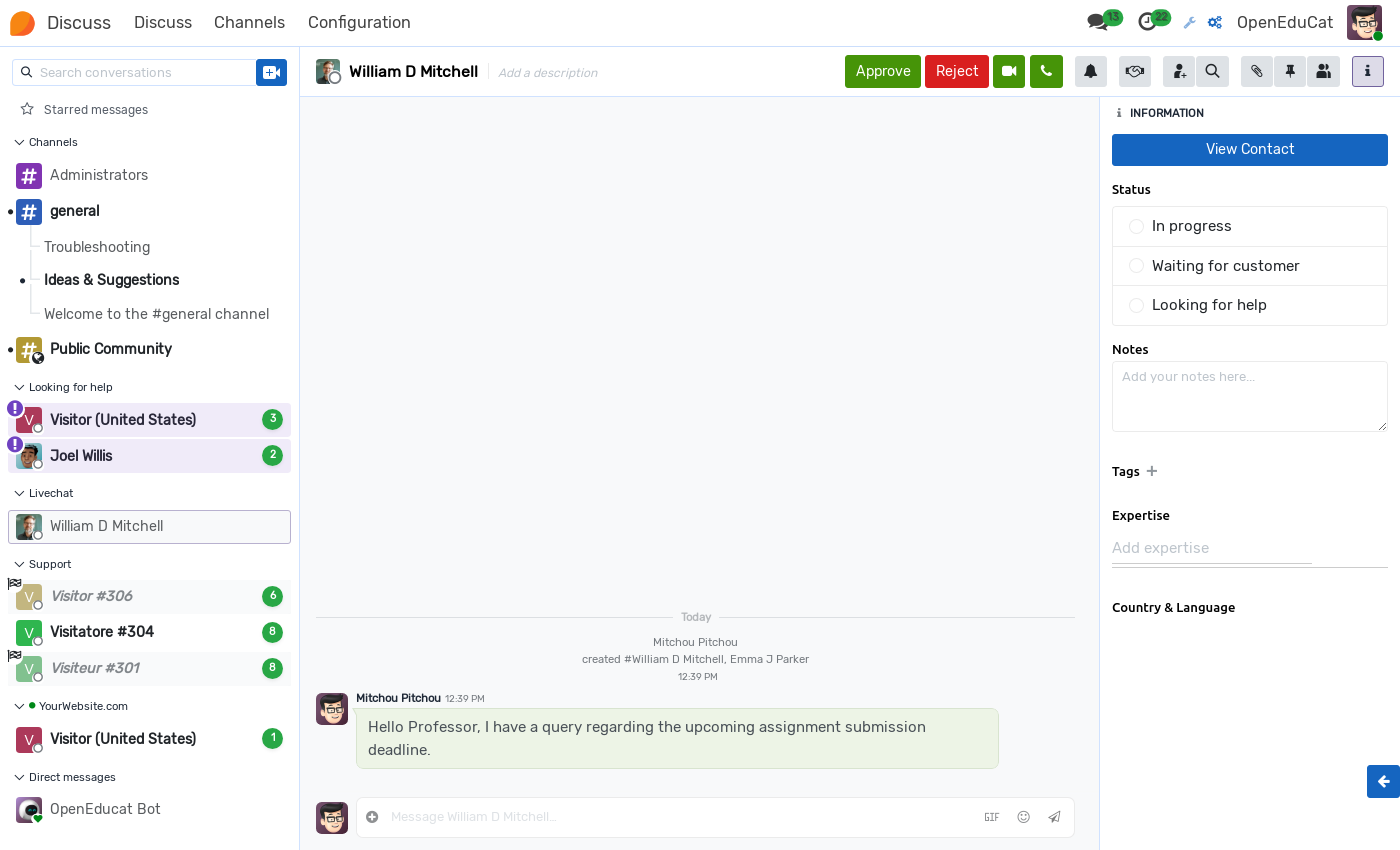
Live chat channels initiated by students are listed under the STUDENT LIVECHAT section in the left sidebar menu.
LiveChat Controls & Tools Guidance
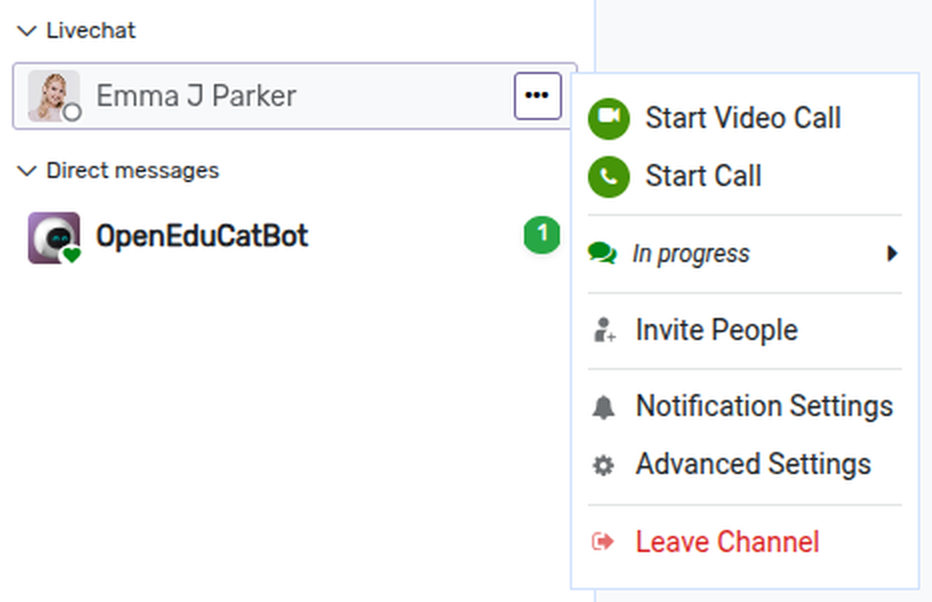
The Discuss application provides comprehensive communication and management tools accessible directly from the chat header toolbar and the sidebar channel context menu (...).

State Action Buttons (Approve / Reject / Close / Re-open) :- Workflow buttons used by faculty members to manage the live chat request lifecycle (Approve request, Decline, Close session, or Re-open).
Start Video Call (Green Camera Icon) :- Launches an instant, high-definition video conference meeting directly inside the channel workspace or from the sidebar menu.
Start Call (Green Phone Icon) :- Launches an audio-only voice call with the channel participants.
Notification Settings (Bell Icon) :- Configures notification alerts for the conversation (All Messages, Mentions Only, or Mute Channel).
Invite People (User+ Icon) :- Opens an interactive pop-up dialog to search for and invite additional faculty members or active student partner records into the chat.
Search in Conversation (Magnifying Glass Icon) :- Opens an in-thread search bar to quickly locate text, keywords, or past messages within the conversation history.
Attachments (Paperclip Icon) :- Opens the channel media panel, displaying all uploaded documents, PDFs, images, and files shared during the chat.
Pinned Messages (Pushpin Icon) :- Displays bookmarked or pinned messages for quick access to critical announcements.
Member List Toggle (Two Users Icon) :- Opens or hides the right-side member panel, showing all active online and offline participants in the conversation.
Channel Information (Info Icon) & Advanced Settings :- Accesses channel metadata, topic description, security permissions, and channel privacy parameters.
In Progress / Status Indicator :- Manages or displays current active call and channel status.
Leave Channel (Red Action) :- Exit or remove yourself from the selected live chat channel.