
Common AI Configuration
Overview
This guide covers the core setup process required to enable AI features across OpenEduCat. By following these steps, you will configure your AI Provider and set up a specific Model.
1. AI Model Provider
The first step is to configure your connection to an LLM provider (e.g., OpenAI, Anthropic).
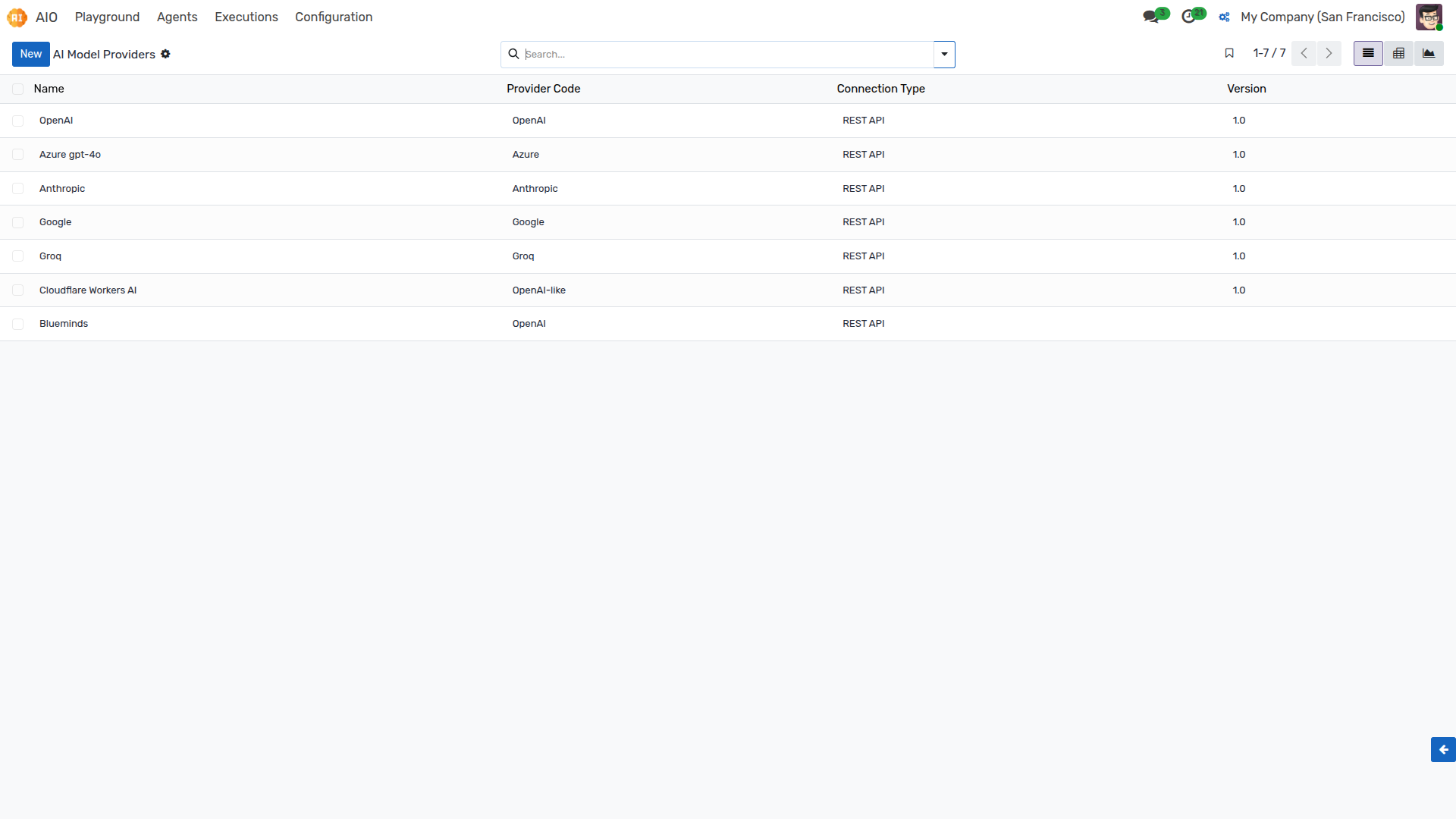
Navigate to AIO ‣ Configuration ‣ AI Model Provider.
Here, you will see a list of all defined providers. Select the provider you wish to use (for example, OpenAI).
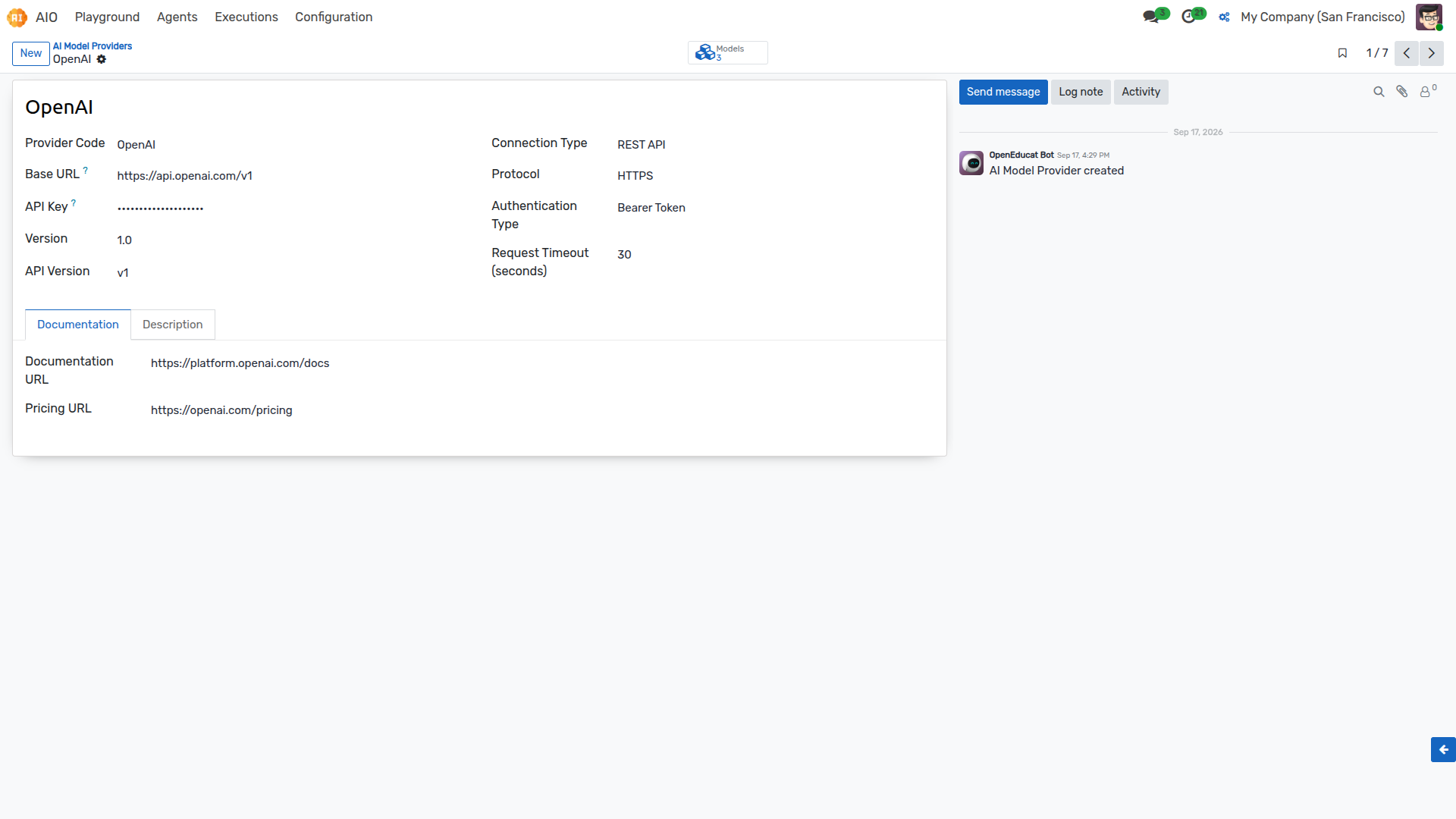
In the provider's configuration page, enter the required details: * URL: The API endpoint for the provider. * API Key: Your secret API key.
Save your configuration.
2. AI Models Configuration
Once the provider is set up, you need to add and test the specific AI model.
Navigate to AIO ‣ Configuration ‣ AI Models.
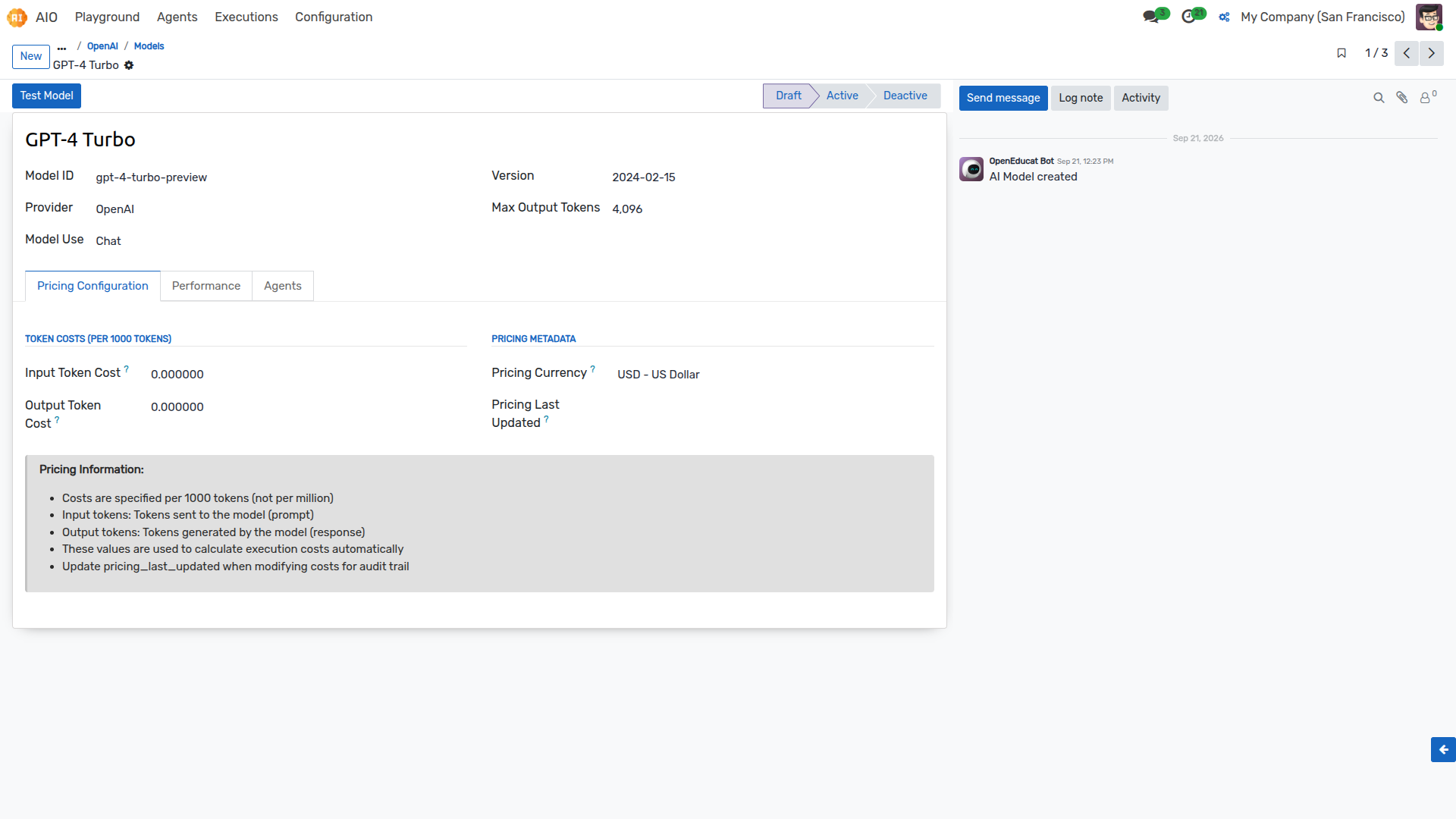
Click New to add a model or select an existing one.
Enter the Model ID (e.g.,
gpt-4o,claude-3-5-sonnet-20240620).Ensure it is linked to the Provider you configured in Step 1.
Click the Test Model button to verify the connection is working successfully.
Next Steps
Now that your AI Provider and Model are fully configured and successfully tested, the core infrastructure is ready.
You can now proceed to the specific documentation for the OpenEduCat AI module you wish to use (such as the Essay Grading Agent or Note Summarizer). There, you will find instructions on how to link this model to the respective Agent from the Agent Library and test it in the Playground.