
Administrar asistencia
Faculty can take attendance of students in the class room so easily using OpenEduCat. To do that, Go to Class Attendances ‣ Attendance ‣ Sheets.
Open the attendance sheet of the day and click on Attendance Start.
All the students of the register are added to the sheet and are marked
as present by default, then the Attendance Lines of that sheet are
opened so that only the exceptions have to be corrected.
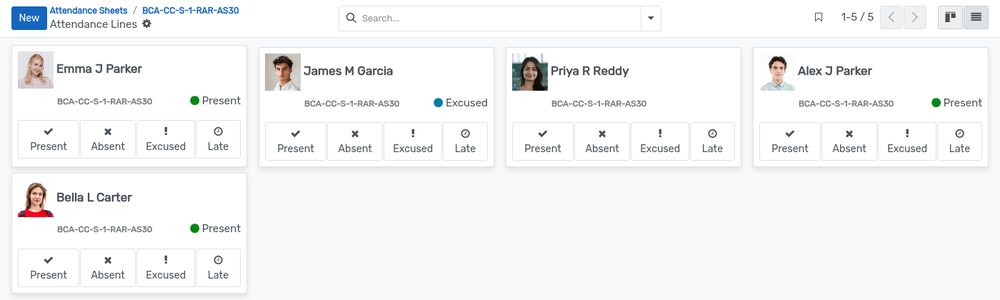
Each card shows the photo and the name of the student, the attendance sheet, and the status that is currently recorded, with a coloured dot :- green for Present, red for Absent, blue for Excused and orange for Late.
To change the status of a student, click on one of the four buttons of the card :-
Present :- The student attended the class.
Absent :- The student did not attend and the absence is not justified (Absent Unexcused).
Excused :- The student did not attend but the absence is justified.
Late :- The student attended but arrived late.
Only one status can be active at a time, so selecting a new one automatically clears the previous one. The counters of the attendance sheet are updated accordingly.
Nota
The status can only be changed while the attendance sheet is in the
Attendance Start state. Once Attendance Taken has been
clicked, OpenEduCat refuses any further change and displays the
message Attendance has already been taken for this session. Use the
reset button of the sheet if the attendance has to be taken
again.
The same records are available as a list from Class Attendances ‣ Attendance ‣ Attendance Lines, where the Present, Late, Absent Excused and Absent Unexcused columns can be ticked directly, and a Remark can be added for a student.