
Administrative Staff and Role Mappings
Students and faculty reach Moodle through the normal push. Everyone else — registrars, programme coordinators, examination officers, IT staff — needs a Moodle account with the right permissions, but has no place in the academic push.
Role Mappings fill that gap. Each row links an OpenEduCat security group to a Moodle role and to the scope at which that role applies. A daily job then makes sure every member of the group holds that role in Moodle.
Enabling the Feature
Open the Moodle instance and go to the Sync Configuration tab.
Enable Push Admin / Non-Teaching Staff in the push column.
Save. A Role Mappings tab appears on the form.
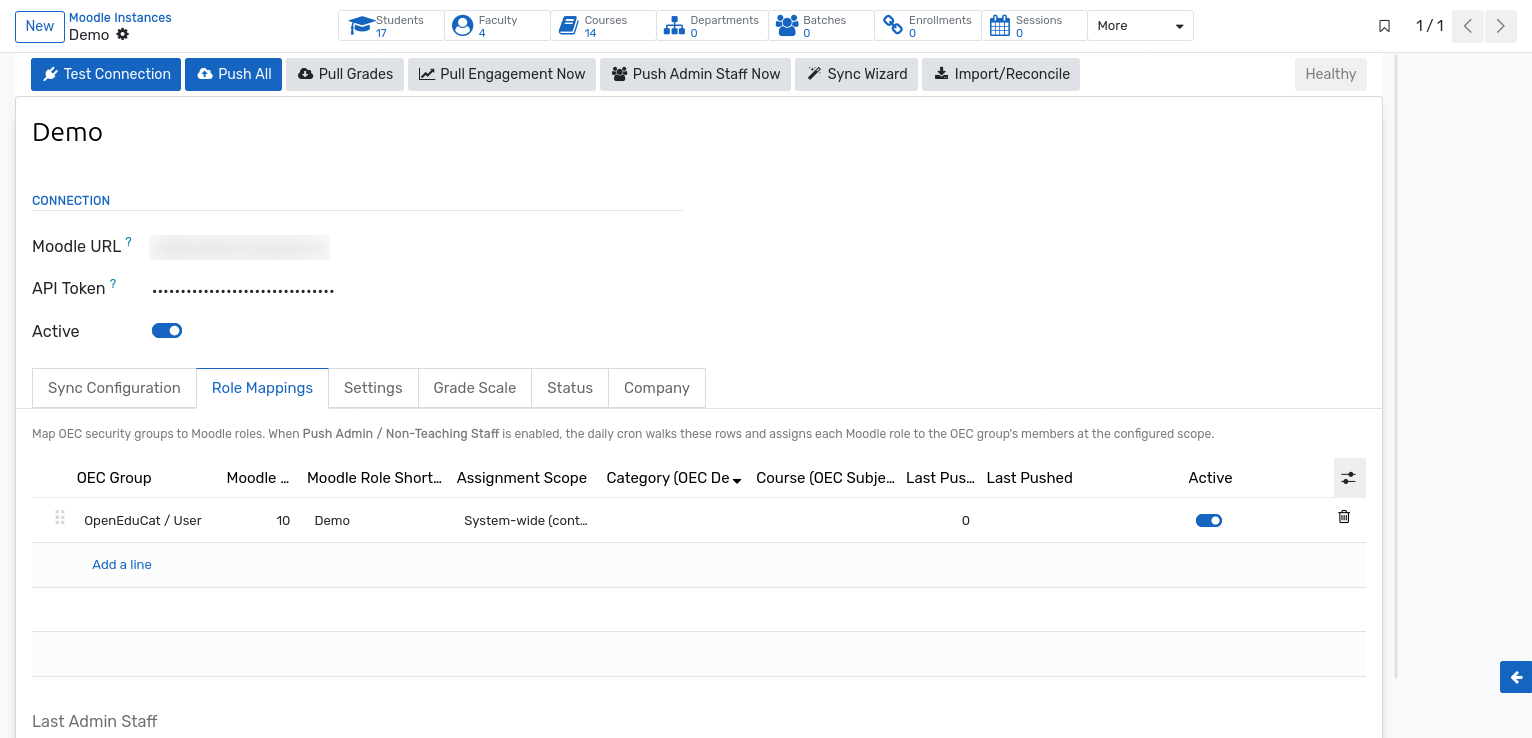
Defining a Mapping
Add one line per group in the Role Mappings tab.
Field |
Description |
|---|---|
OEC Group |
The OpenEduCat security group whose members are pushed, for example Back Office Admin. |
Moodle Role ID |
The numeric role ID in Moodle. The stock roles are |
Moodle Role Shortname |
A readable label used in the logs, such as |
Assignment Scope |
Where the role applies — see below. |
Category (OEC Department) |
The department whose Moodle category the role is limited to. Required for the category scope. |
Course (OEC Subject) |
The subject whose Moodle course the role is limited to. Required for the course scope. |
Last Push Count / Last Pushed |
How many users the mapping applied on its last run, and when. |
Active |
Untick to keep the row without applying it. |
Assignment Scope
Scope |
Effect in Moodle |
|---|---|
System-wide |
The role applies across the whole site. Appropriate for registrars and administrators who must see everything. |
Category |
The role applies to one department’s category and everything beneath it. Appropriate for a programme lead who should only reach their own faculty’s courses. |
Course |
The role applies to a single Moodle course. Appropriate for a subject-matter expert or an external examiner. |
The Use Stock Manager button on the role mapping form pre-fills the row with the Moodle manager role at system scope, which is the most common configuration for administrative staff.
Running the Push
Automatically :- The daily Moodle: Admin Staff Push job walks every active mapping and applies the roles.
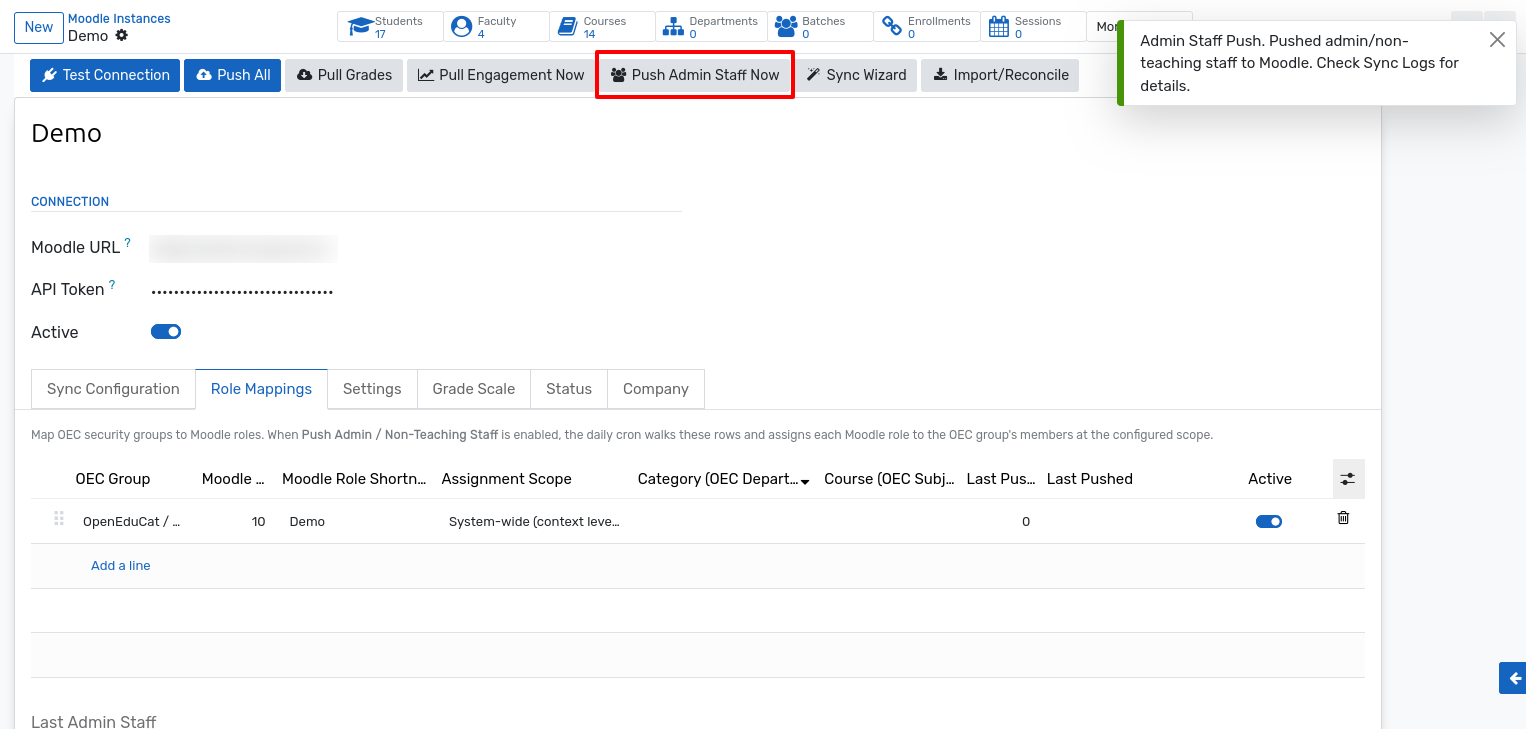
Manually :- Click
Push Admin Staff Nowin the instance header. The button appears once the feature is enabled.
For each mapping, the members of the OpenEduCat group are created in Moodle if they do not
exist yet — with the identifier oec_user_{id} — and the mapped role is assigned at the
configured scope. The Last Admin Staff Push timestamp at the bottom of the tab records
the run, and every assignment is written to the sync log.
Good Practice
Grant the narrowest scope that works. A category-scoped manager is far safer than a site-wide one.
Confirm the role IDs on your own site. They differ between Moodle installations, and a wrong ID either fails or grants the wrong permissions.
Manage membership in OpenEduCat. Removing someone from the OpenEduCat group is the correct way to withdraw their Moodle access; editing the role directly in Moodle is overwritten on the next run.
Check the count. The Last Push Count should match the size of the group. A smaller number means some members could not be created or matched in Moodle — the sync log explains which ones.