
Report Comment Generator
The OpenEduCat AI Report Card Comments Generator (openeducat_ai_report_card_comments_generator) module automates the evaluation and creation of personalized, professional, and constructive student report card feedback by connecting OpenEduCat’s Grading & Gradebook system with the AIO Agents framework.
Overview
Writing individualized, meaningful report card comments for dozens or hundreds of students across multiple subjects and academic terms is one of the most time-consuming administrative tasks for educators.
The AI Report Card Comments Generator analyzes student gradebook metrics—including overall percentage, final letter grade, term-by-term performance, subject-specific marks, and assignment breakdowns—and leverages intelligent LLMs to automatically generate comprehensive, balanced, and encouraging feedback reports.
Key Features
Automated Data Compilation: Seamlessly extracts student records, enrolled courses, academic terms, subjects, assignments, and percentages directly from the Gradebook (
gradebook.gradebook).Subject-Wise Feedback: Generates structured, subject-by-subject assessment commentary alongside overall progress summaries.
One-Click Comment Generation: Dedicated Generate AI Comment action located directly on student gradebook records.
Audit Trail & Comment History: Stores generated comments as individual
report.card.commentrecords linked to the gradebook with full revision history.Parent & Student Communication: Built-in Send by Email wizard with email templates for fast communication with parents and students.
Printable PDF Assessment Report: Generate and print official Report Card Assessment PDF documents featuring academic tables, performance cards, and AI-generated teacher commentary.
Agent Library Integration: Includes a pre-configured, ready-to-deploy Report Card Comments Generator library template (
aio.agent.library) for custom execution and testing.
Configuration & Setup
To enable and configure the AI Report Card Comments Generator:
1. Enabling the Feature
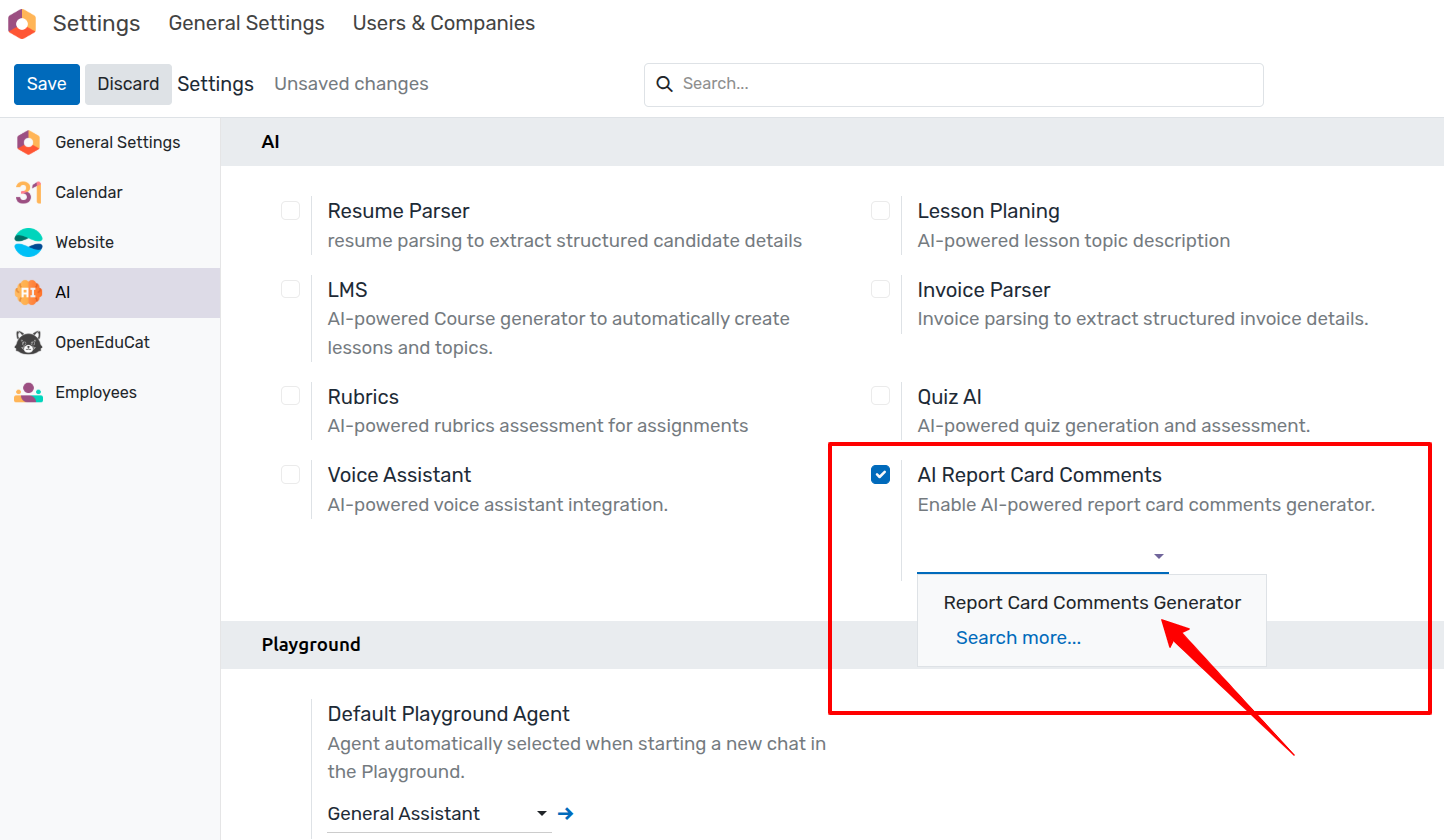
Navigate to Settings ‣ AI Settings.
Locate the AI Report Card Comments setting.
Check the box for Enable AI-powered report card comments generator.
2. Configuring the AI Agent
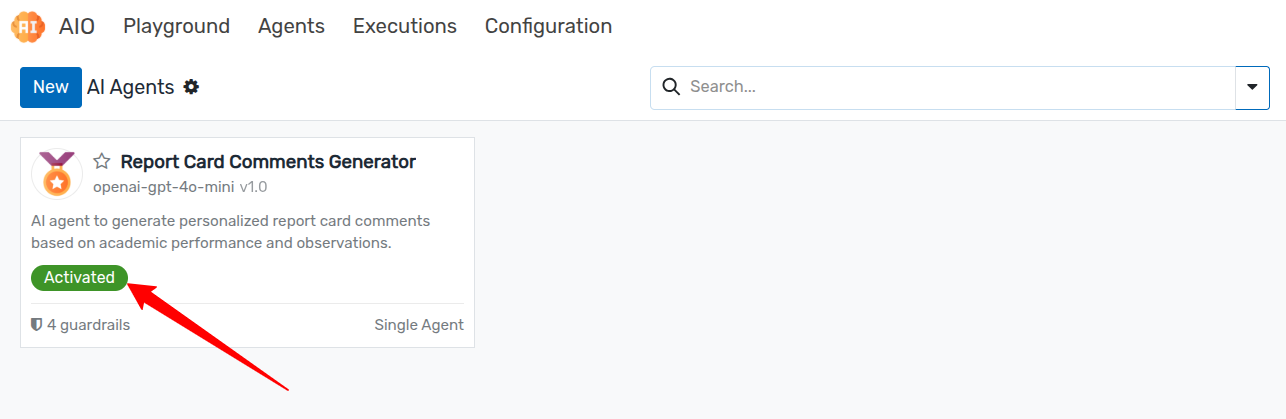
In the Report Card Comments AI Agent field, select an active AI Agent (e.g., Report Card Comments Generator).
Ensure the chosen agent is set to Active status and has an active LLM provider (such as GPT-4o or Claude 3.5).
Click Save to apply the configuration.
Nota
If the feature is disabled or no active agent is assigned in Settings, clicking the generation button in a gradebook will display a configuration prompt.
Workflow: Generating Report Card Comments
1. Generating Comments from Gradebook
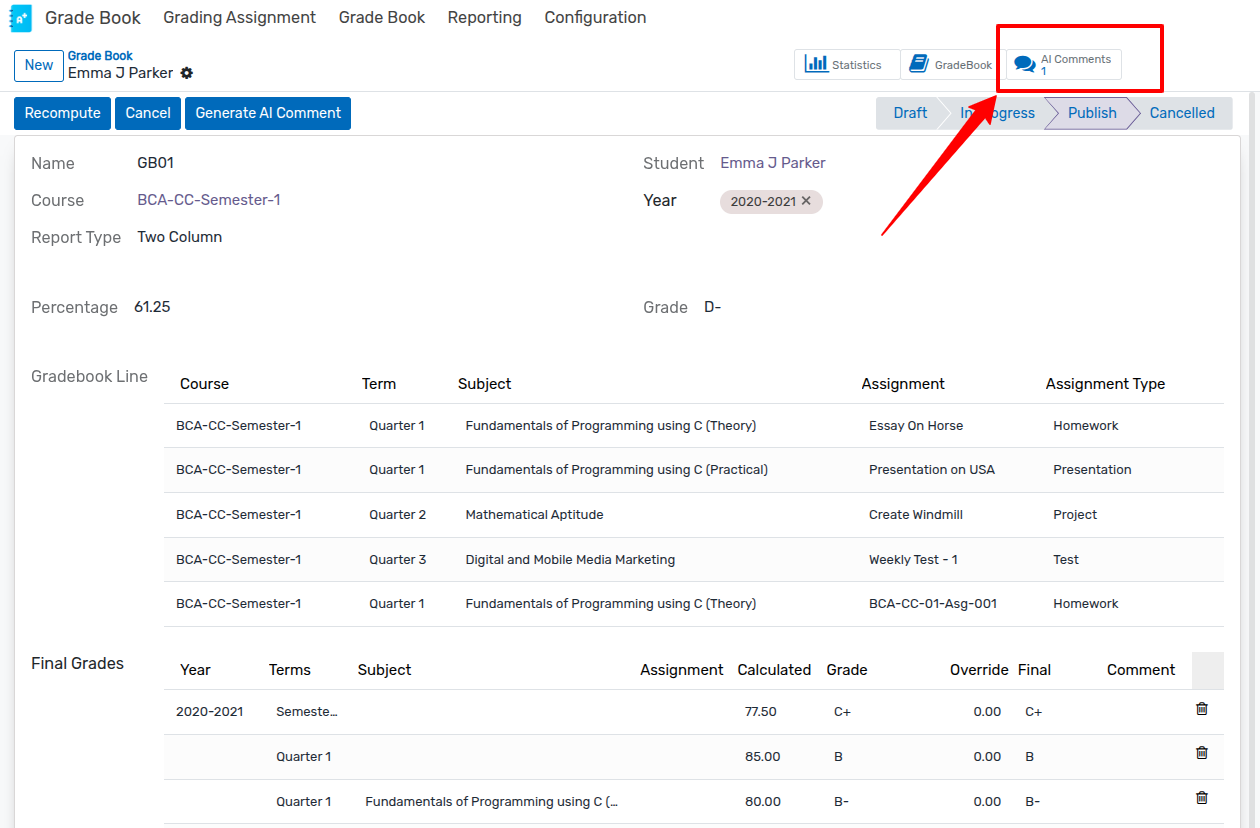
Go to Grading ‣ Gradebooks and select a student’s gradebook record.
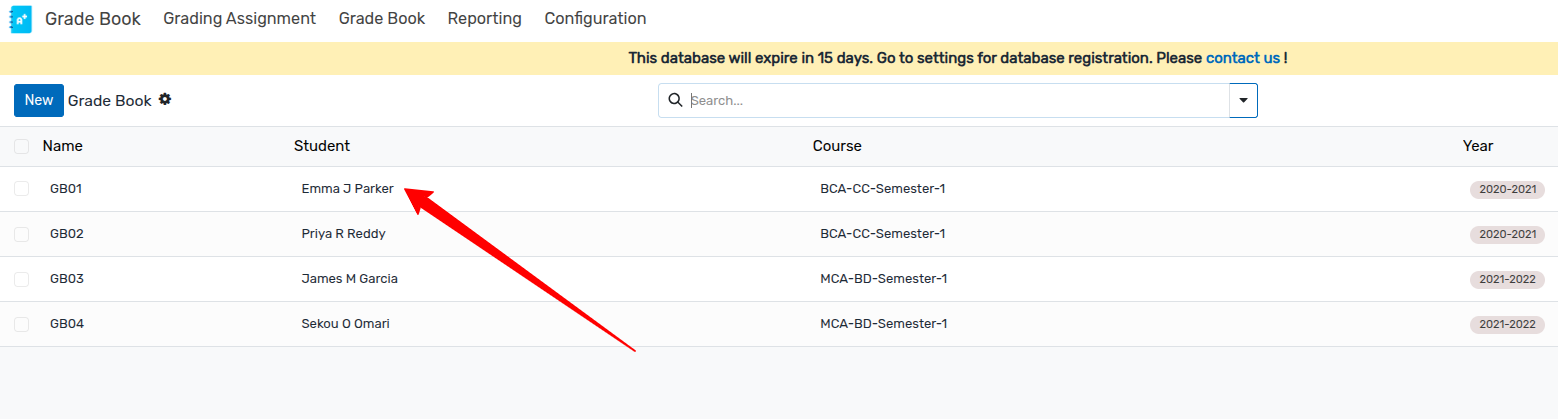
Verify that the gradebook contains calculated grades, percentages, and subject-wise assignment lines.
Click the Generate AI Comment button in the top header.
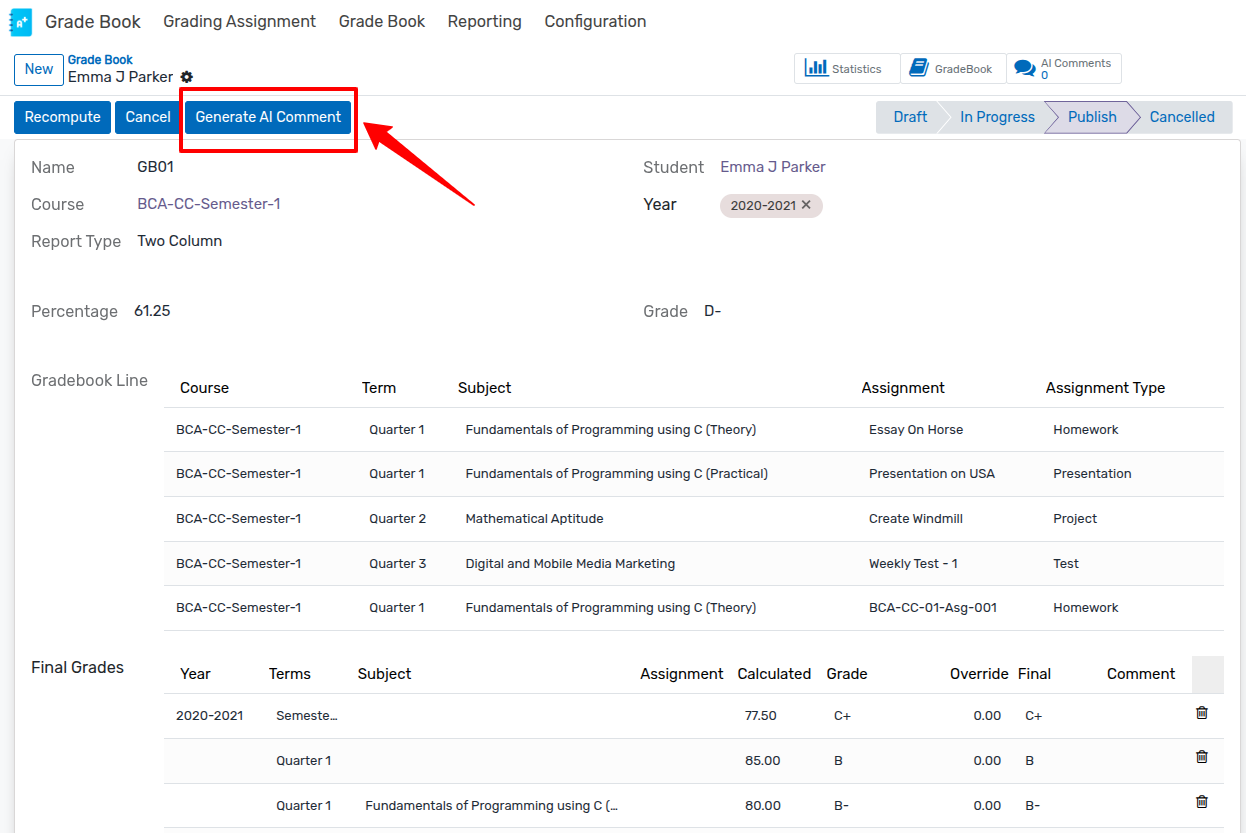
The system prompts the configured AI Agent with the student’s performance metrics and creates a new comment record.
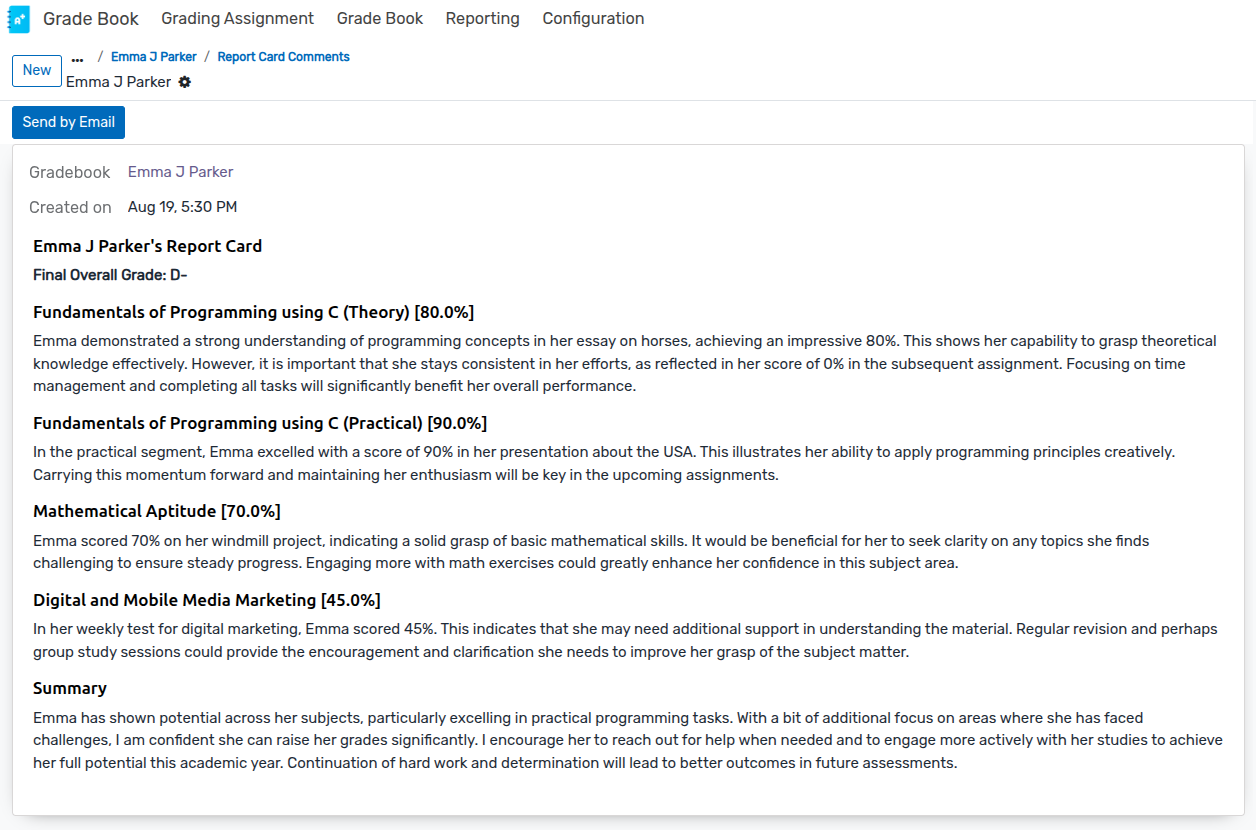
The view automatically redirects to the generated Report Card Comment form.
2. Reviewing and Editing Comments
Comment Counter: The Gradebook displays an AI Comments stat button showing the number of generated comments. Click the stat button at any time to view all historical comments.
Rich Text Editing: Comments are rendered in rich HTML format. Teachers and academic administrators can review, modify, or add custom notes before finalizing.
Log & Notes: Use the built-in chatter to log internal notes or schedule follow-up activities.
3. Sending Comments via Email
Open the specific Report Card Comment record.
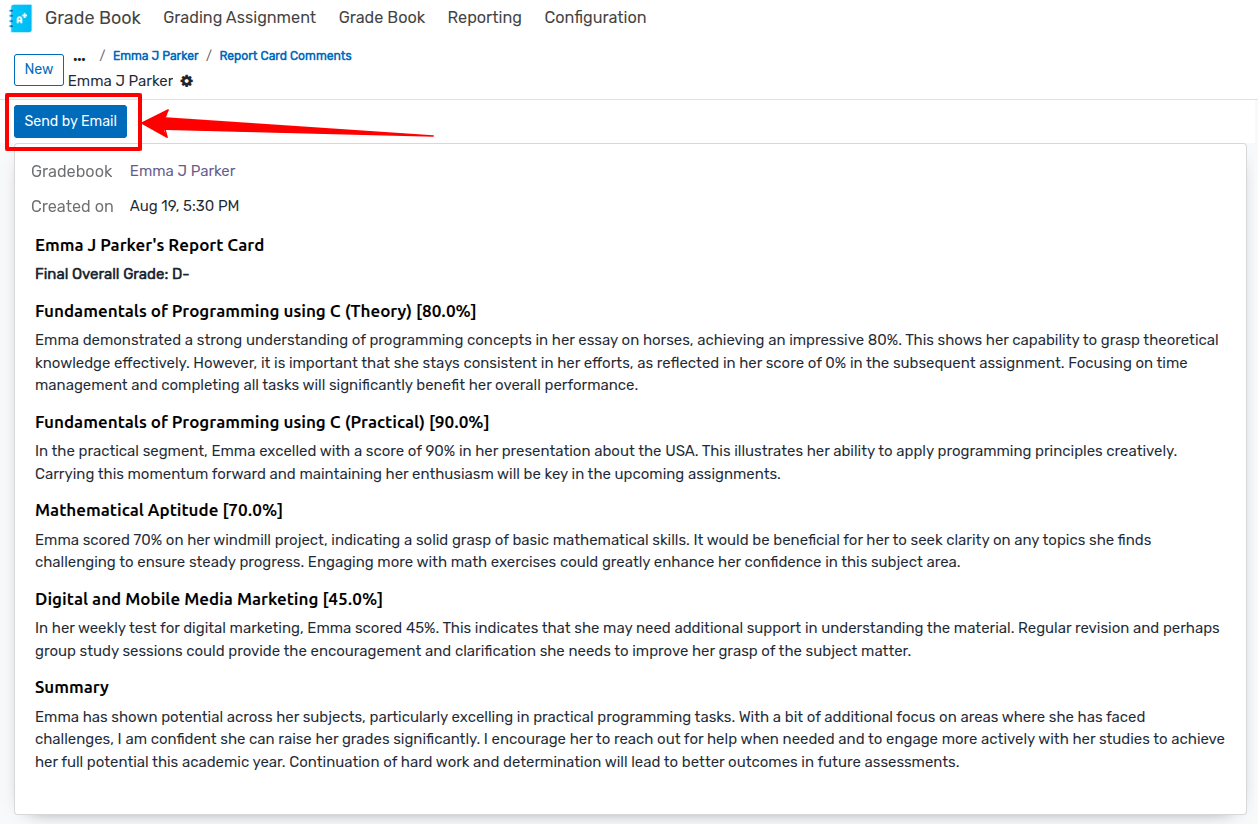
Click the Send by Email button in the header.
The email composer opens with the pre-configured Report Card Comment Template, automatically addressing the student/parent and including the assessment summary.
Review the email body and click Send.
4. Printing the PDF Assessment Report
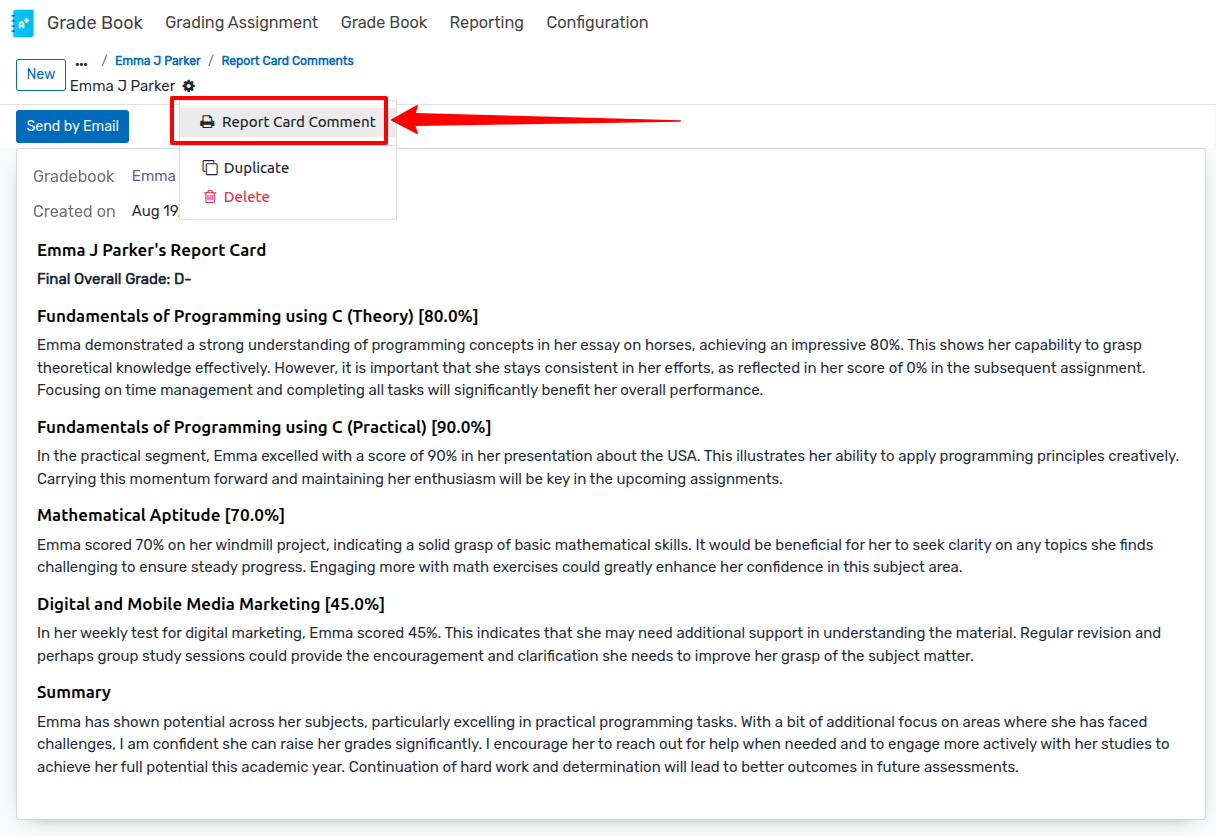
On the Report Card Comment form view, click the Print menu in the control panel.
Select Report Card Comment.
The system generates a formatted PDF document containing: * Academic Details: Student name, course, academic year, date, and gradebook reference. * Overall Performance: Visual cards displaying Final Grade and Total Percentage. * Teacher’s Feedback: Full formatted assessment text and subject-level insights.
Agent Library Template
The module installs a pre-defined template in the Agent Library:
Template Name: Report Card Comments Generator
Model:
aio.agent.libraryPredefined Tool:
odoo_record_retriever(enables automated search acrossop.studentandgradebook.gradebook)Pre-configured Guardrails: PII Protection, No Harmful Content, Academic Tone, and Educational Appropriateness.
Input Parameters: * Academic Year: Dropdown selection of academic years (
op.academic.year). * Course: Dropdown selection of enrolled courses (filtered by chosen academic year). * Student: Dropdown selection of students (filtered by chosen course).