AI Quiz Generator
The OpenEduCat Quiz AI module provides an advanced, automated assessment generation system. It empowers educators and instructors to instantly create high-quality, structured quizzes from a wide range of content inputs, including custom topics, uploaded documents, and web resources.
How to Generate a Quiz
To create a new quiz using AI in OpenEduCat:
Navigate to AI Quiz Generator: Open the Quiz application and select AI Quiz Generator from the navigation menu.
Select Content Source: * Topic: Enter any subject or topic title (e.g., Cyber Security, World History). * Document Upload: Attach course files (PDF, DOCX, TXT) to generate questions directly grounded in your study material.
Configure Assessment Parameters: * Difficulty: Select Easy, Medium, or Hard. * Number of Questions: Choose the question count (up to 50 questions per session). * Time Limit: Set a time limit (in minutes) for the assessment. * Generation Type: Select between Standard Generator, Advanced Generator (to set exact type quotas), or SAT / ACT Reading Practice (for reading comprehension passages).
Generate Quiz: Click the Generate Quiz button.
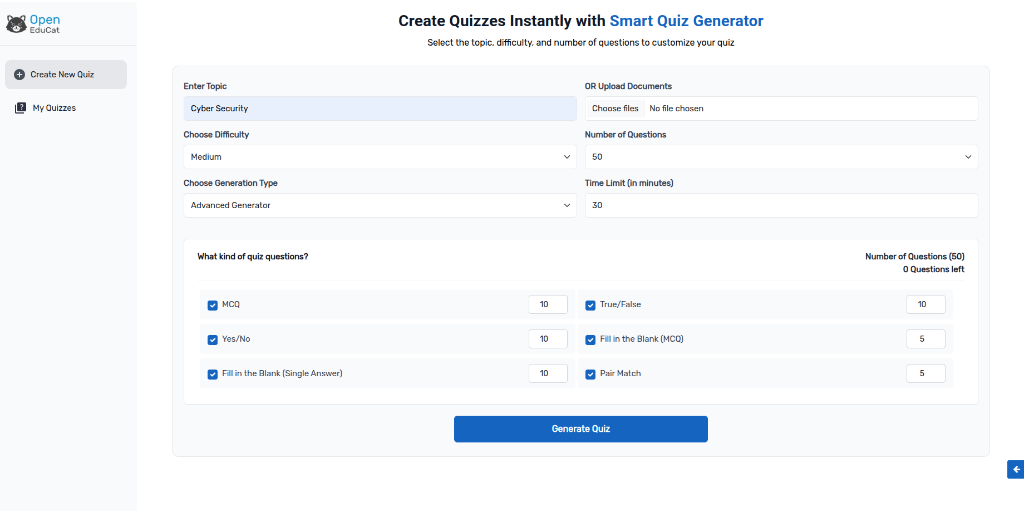
Quiz Customization & Question Types
The AI Quiz Generator supports diverse pedagogical question formats to create comprehensive evaluations:
Multiple Choice Questions (MCQ): Single-correct options with distractor choices.
True / False: Binary evaluation statements.
Yes / No: Concept validation questions.
Fill in the Blank (MCQ): Sentence completion with choice options.
Fill in the Blank (Single Answer): Text-input answer validation.
Pair Match: Matching terms with their corresponding definitions.
When using the Advanced Generator, educators can specify exact question quotas for each type before generating.
Reviewing & Customizing Generated Quizzes
Once generation is complete, the Quiz Preview screen provides full editorial control:
Answer & Explanation Verification: Each question displays its marked correct answer and a detailed AI-generated conceptual explanation.
Individual Question Editing: Click the pencil icon to edit question prompts or option text.
Regenerate Single Question: Click Regenerate on any specific question to replace it with a fresh alternative without redoing the entire quiz.
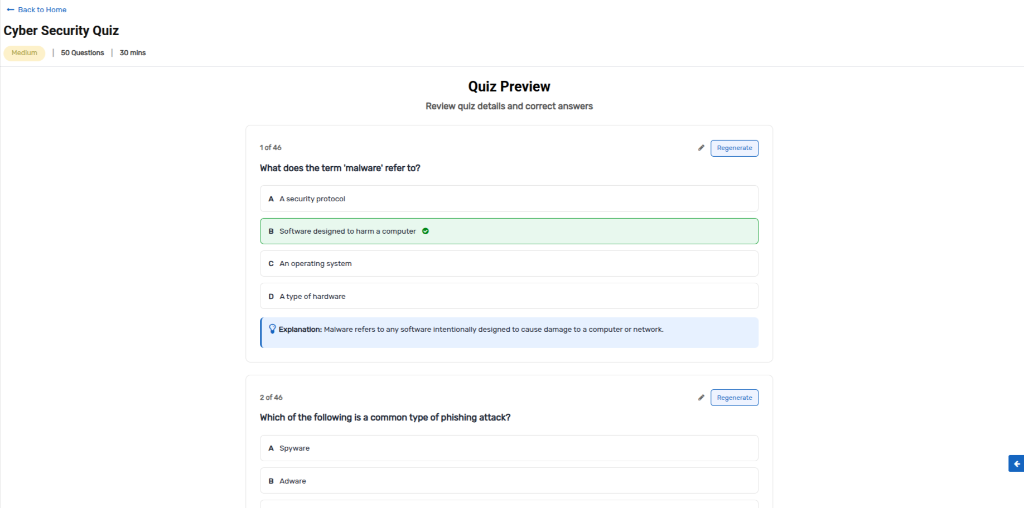
Saving & Publishing the Quiz
Once you have reviewed all questions and verified the matching pairs:
Scroll to the bottom of the generated preview.
Verify complex items such as Pair Match mappings and short answers.
Click the Save Quiz button to finalize and publish the assessment into the OpenEduCat Quiz repository.
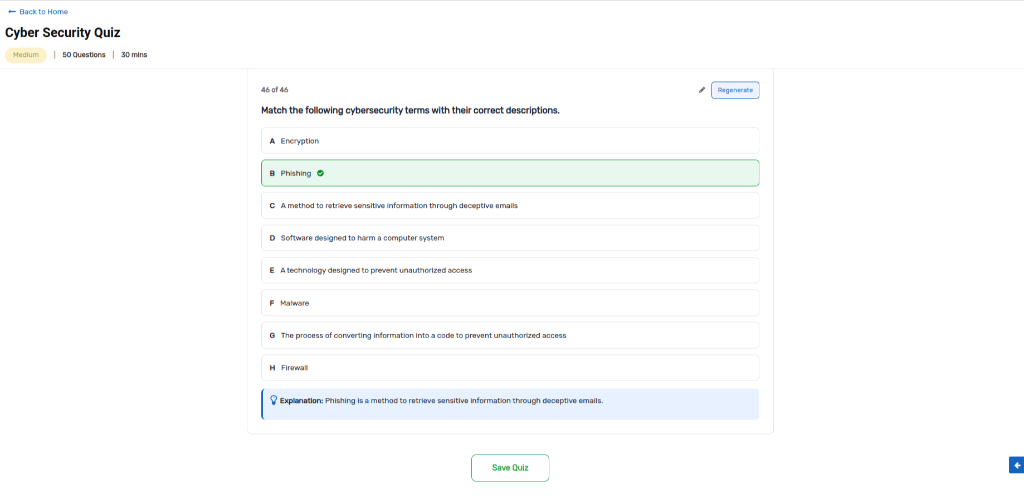
Managing Generated Quizzes
Educators can review, access, and launch all previously generated assessments at any time:
In the AI Quiz interface, click My Quizzes in the left sidebar.
View summary cards detailing the topic, difficulty level, question count, and allocated duration.
Click Start to begin an assessment session or Delete to remove obsolete quizzes.

Configuration & Setup
To enable the AI Quiz Generator across your organization:
Navigate to Settings ‣ General Settings.
Scroll to the Quiz AI section.
Under Quiz AI Agent, select an active AI agent configured with your preferred AI model.
Click Save to apply the configuration.