
Discipline Configuration
La disciplina te ayuda a aprender a comportarte bien en un instituto para estudiantes. Siempre es una buena idea mantener el comportamiento de los estudiantes para que puedan mantenerse saludables y organizados.
Configure Misbehavior Categories : Using this, you can configure the misbehaviour category.
Configure School Offences : Using this, you can list the offences of the institute.
Configure Elearning Rules : Using this, you can list the rules of the e-learning platform and the action to be taken when they are broken.
All the discipline configuration menus require the Discipline / Manager access group, and are grouped under .
Configurar categorías de mal comportamiento
La configuración de la categoría de mala conducta le ayuda a proporcionar diferentes categorías de mala conducta y tipos de categorías. También puede seleccionar la categoría principal para la categoría de mala conducta respectiva. Para configurar las categorías de mal comportamiento, siga los pasos a continuación: -
Go to .
Click on New to create a new misbehaviour category.
Configuring misbehaviour categories requires the Discipline / Manager access group.

Detalles del formulario de categorías de mala conducta
Name :- Set the name for the misbehaviour category.
Category Type :- Select category type whether it is major or minor. This field is mandatory, and only the categories of the matching type are proposed on a discipline record.
Parent Category :- You can specify the parent category to the respective misbehaviour category. Categories are displayed with their full path, for example
Classroom / Late Arrival.Misbehaviour Template :- Select the email template that is used to notify the parents of a misbehaviour. It is loaded automatically in the email composer when
Send Emailis clicked on a discipline record of this category. This field is mandatory.Company :- Company the category belongs to. The field is only displayed when several companies are managed.
Configure School Offences
School Offences let you list the offences of the institute so that everybody refers to the same wording.
Go to .
Click on New to create a new offence.
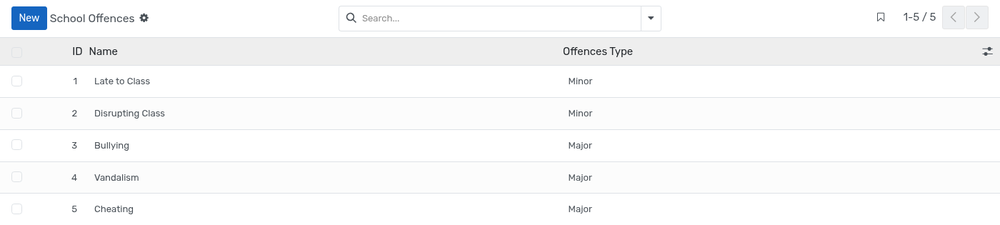
Details of School Offences Form
Name :- Description of the offence. This field is mandatory.
Offences Type :- Select whether the offence is
MinororMajor. This field is mandatory.Company :- Company the offence belongs to. The field is only displayed when several companies are managed.
An offence that is not applicable any more can be archived, and can be displayed again with the Archived filter of the search bar.
Configure Elearning Rules
Elearning Rules let you publish the rules that apply to the e-learning platform, together with the action that is taken when a rule is broken.
Go to .
Click on New to create a new rule.
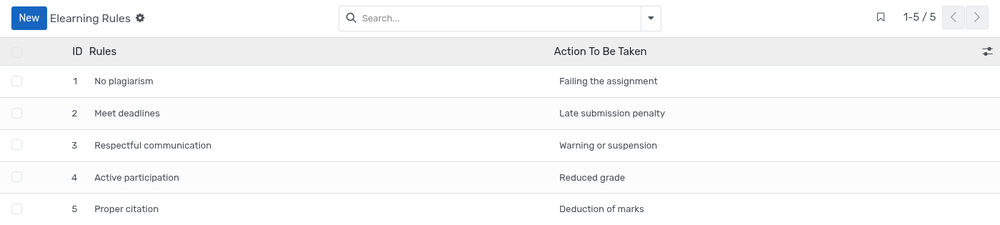
Details of Elearning Rules Form
Rules :- Text of the rule. This field is mandatory.
Action To Be Taken :- Action that is applied when the rule is not respected. This field is mandatory.
Company :- Company the rule belongs to. The field is only displayed when several companies are managed.