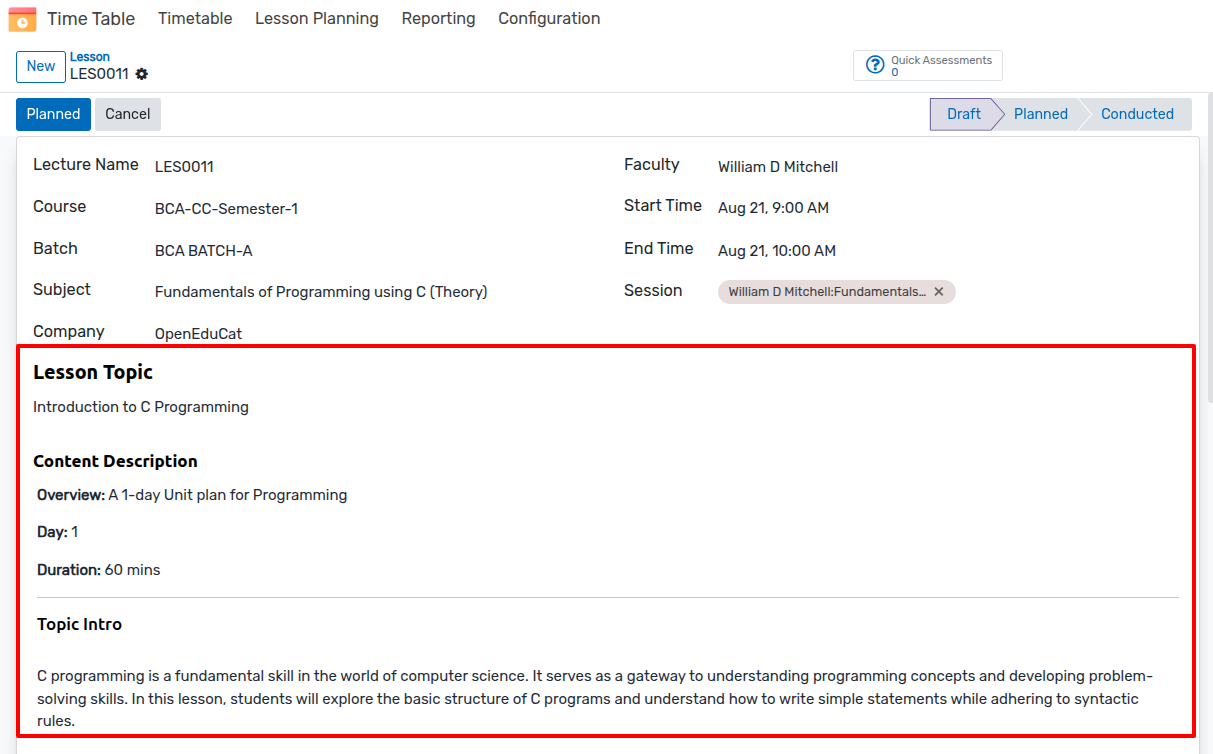
AI Lesson Planning
The AI Lesson Planning (openeducat_ai_lesson_planning) module empowers educators to generate detailed, structured lesson plans using AI. By integrating directly into OpenEduCat’s academic framework, it automates curriculum generation across multiple pedagogical frameworks—including Unit Plans, Weekly Plans, Monthly Plans, and 5-E Lesson models—saving hours of manual preparation while maintaining rigorous academic standards.
Key Features
Multiple Instructional Models: * Unit Plan: Sequential day-by-day unit curriculum (up to 30 working days). * Weekly Plan: Multi-week itinerary (up to 4 weeks) with automatic calendar working day distribution (Mon–Fri). * Monthly Plan: Month-long structured curriculum organized by Month ‣ Weeks ‣ Days for a specific calendar month. * 5-E Lesson Model: Specialized pedagogical model structured into 5 distinct phases (1 Engage, 2 Explore, 3 Explain, 4 Elaborate, 5 Evaluate) with time allocations automatically scaled to total lecture duration.
Academic Context Integration: Links plans to Course, Subject, Faculty, and Batch.
Background Async Generation: Executes AI generation in a background thread with real-time status polling, keeping the user interface responsive.
Single-Day Targeted Regeneration: Rewrite or adjust specific days using AI without re-running the entire unit plan.
Batch Plan Cloning: Duplicate finalized lesson plans for new student cohorts across different batches.
Direct OpenEduCat Lesson Publishing: Automatically creates native
op.lessonrecords with rich HTML content converted from Markdown.
Configuration & Setup
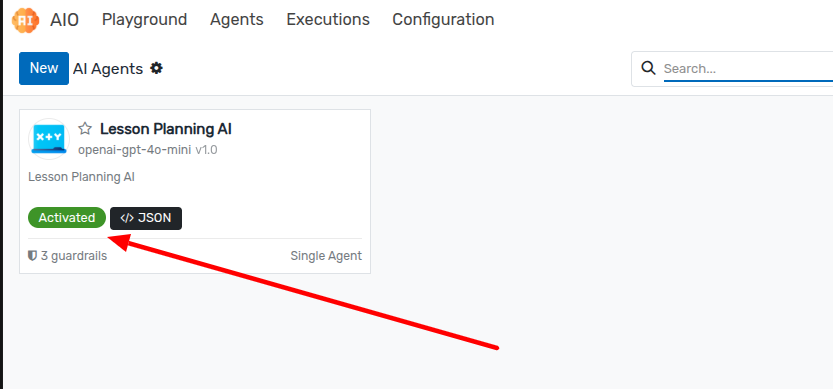
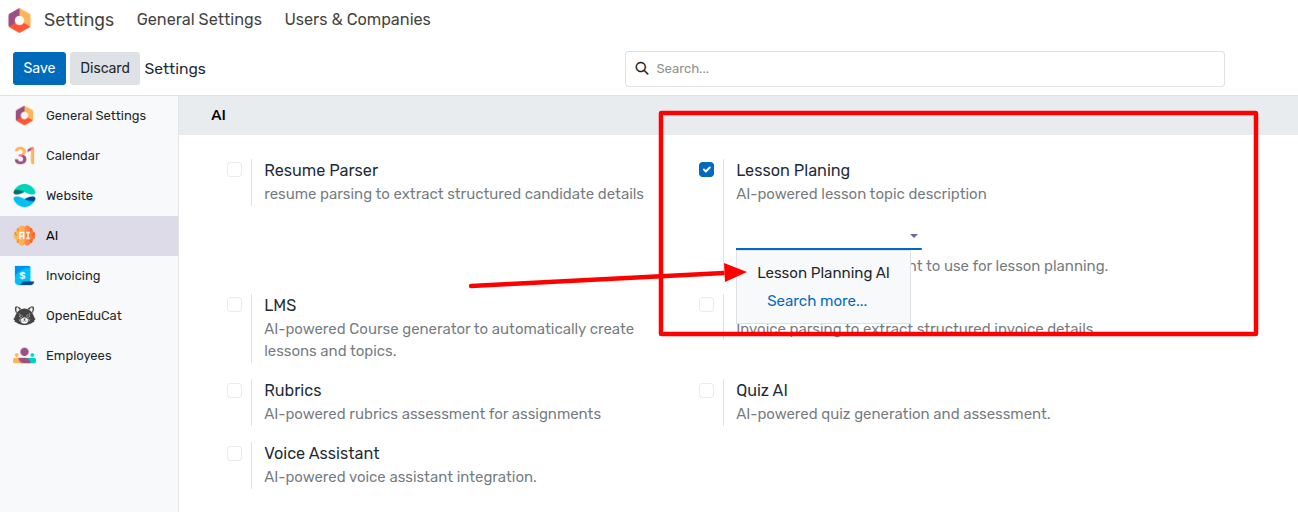
1. Setting Up the Global Lesson Planning Agent
Navigate to Settings ‣ AI Settings (or General Settings ‣ AI Agents).
Locate the Lesson Planning AI section.
In the Lesson Planning AI Agent field, select the active AI Agent configured for curriculum design (e.g., Curriculum Designer).
Click Save.
Workflow: Creating and Managing AI Lesson Plans
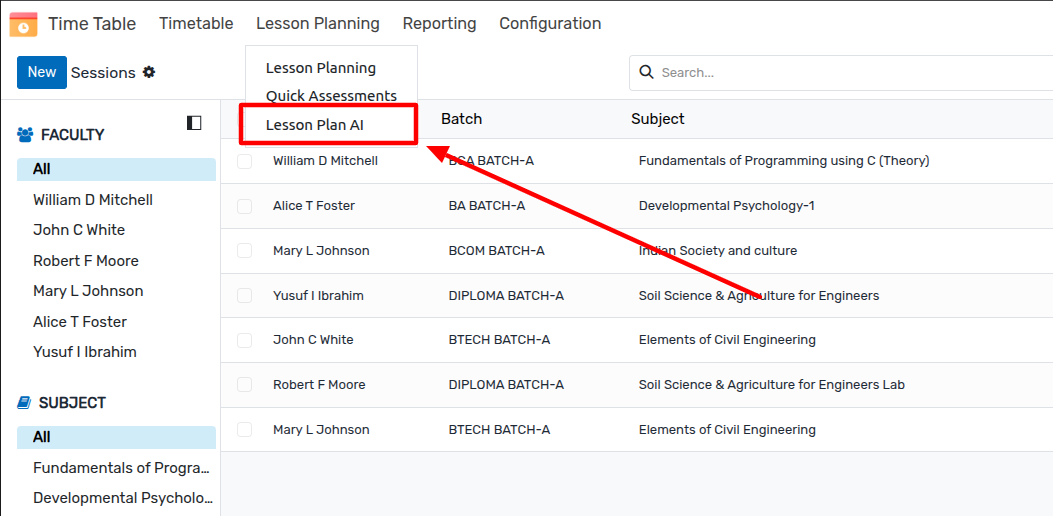
1. Accessing the AI Lesson Planning Studio
Navigate to OpenEduCat ‣ Configuration ‣ Lessons ‣ Lesson Plan AI (or Lessons ‣ Lesson Plan AI).
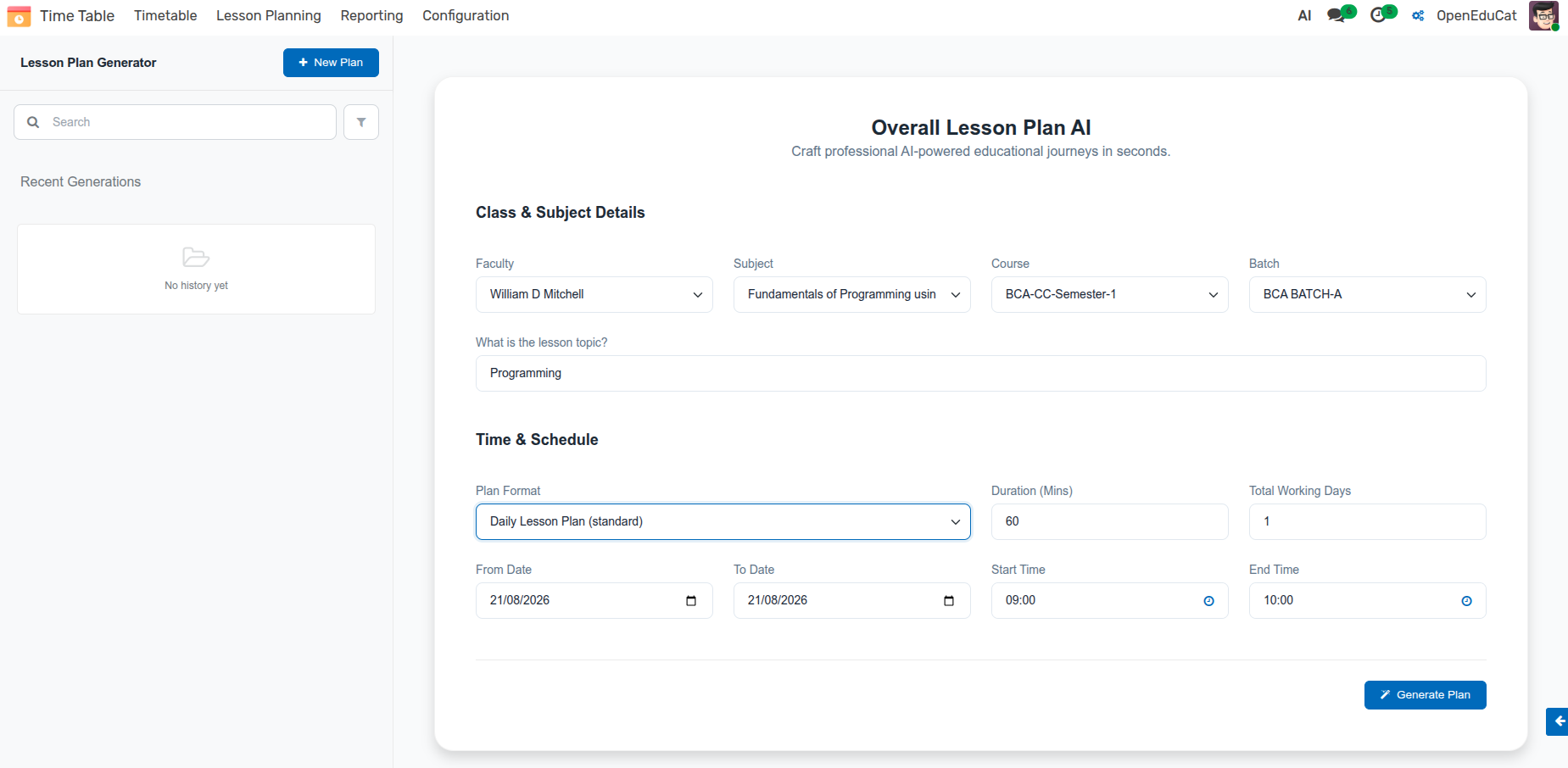
The client dashboard opens, featuring the plan generation form and historical plan library.
2. Setting Academic Parameters & Generating
Fill in the required parameters:
Topic: Enter the main subject or curriculum topic (e.g., «Introduction to Data Structures & Algorithms»).
Course & Subject: Select the target academic course and subject.
Faculty & Batch: Assign the lead instructor and target student batch.
Plan Type: Choose between Unit Plan, Weekly Plan, Monthly Plan, or 5-E Lesson.
Dates & Schedule: Define the Start Date, End Date, Lecture Duration (Minutes), and Start/End times. The system automatically computes working days (excluding weekends).
Click Generate Plan.
The system queues the request and displays a background progress indicator while polling for completion.
3. Reviewing and Regenerating Days
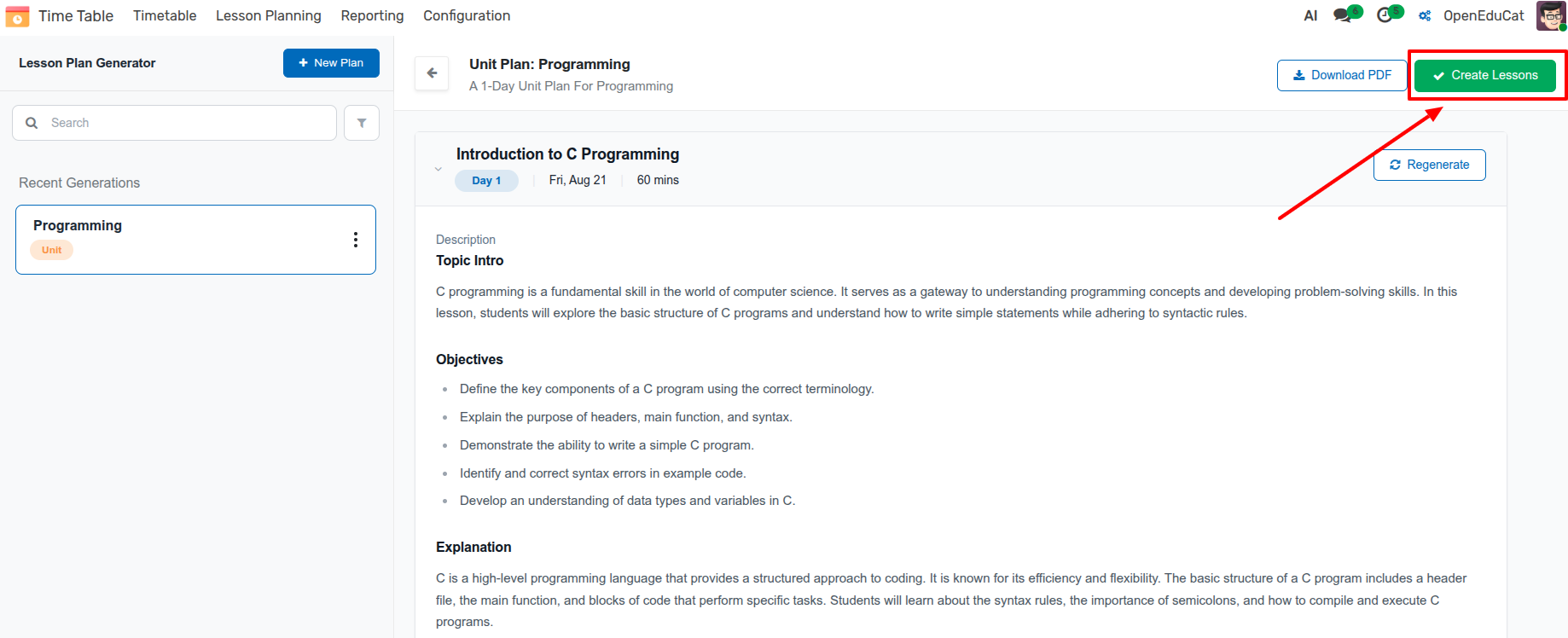
Once generated, the interactive view displays the complete curriculum broken down by days, weeks, or 5E phases.
Each lesson day includes formatted section headers (Topic Intro, Objectives, Explanation, Lesson Flow, Activities, Assessment, Homework).
Targeted Regeneration: Click the Regenerate button on any individual day to have the AI rewrite that specific day’s content while keeping the rest of the plan intact.
4. Plan Cloning & Lesson Publishing
Batch Cloning: Click Clone Plan and select a target batch to replicate the complete curriculum for a new cohort.
LMS / Lesson Integration: Click Create Lessons to automatically populate native OpenEduCat Lesson records (
op.lesson) with rich HTML descriptions for instructors and students.