
Course Change Request Workflow
The OpenEduCat Course Change Request module enables enrolled students to request a transfer from their current course to a different requested course. Students submit requests via the website portal, administrators review and process fee payments, and upon approval, OpenEduCat automatically cancels the existing course enrollment, creates a new enrollment in the requested course, generates fee lines, and sends email notifications at each workflow step.
Workflow Overview
A course change request progresses through five states:
Draft: The request has been submitted by the student (or created manually).
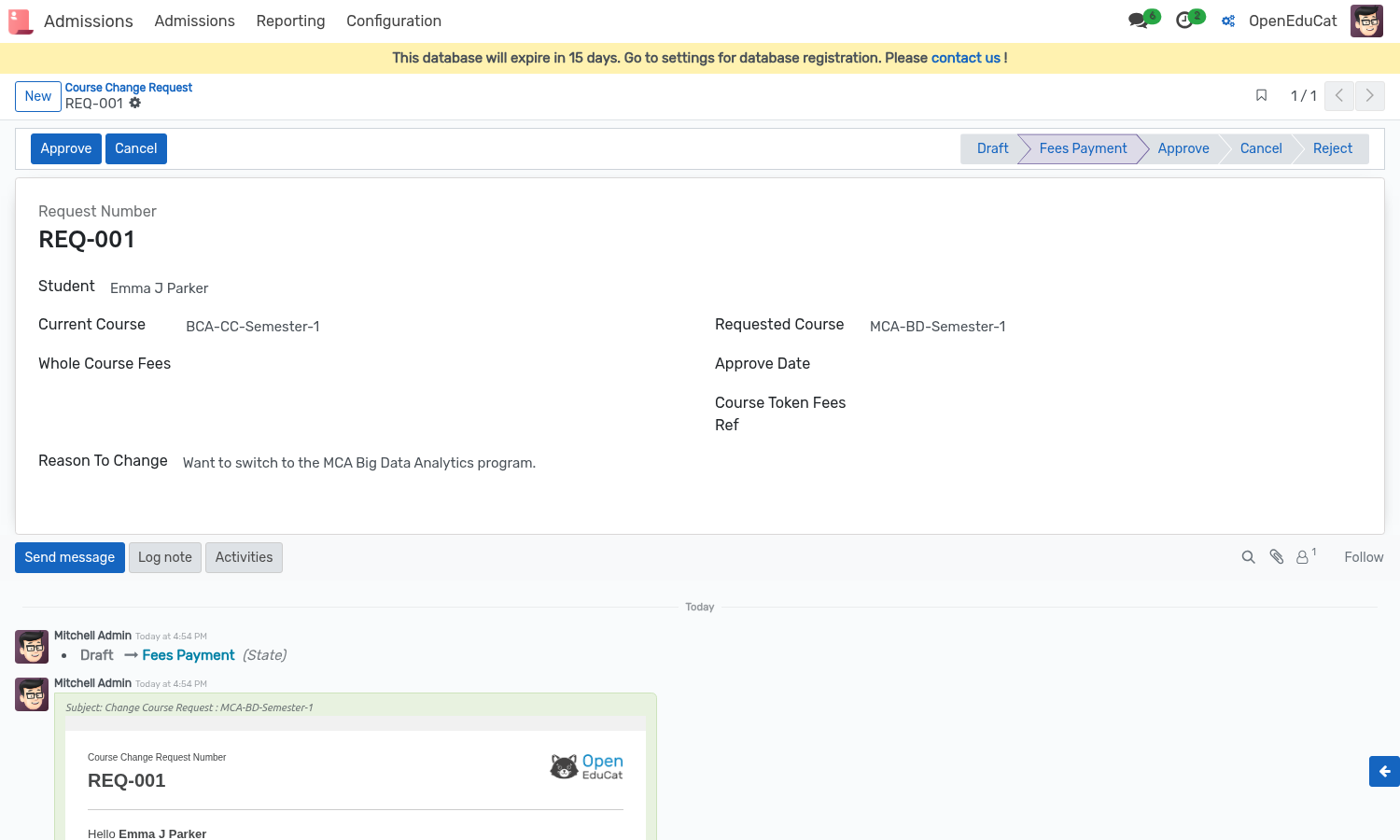
Fees Payment: The administrator accepts the request and prompts the student to pay the course transfer fees.
Approve: Fees are paid, the old course enrollment is set to Cancel, the student is enrolled in the new course, and fee lines are added.
Reject: The request is rejected by administration and a notification is sent to the student.
Cancel: The request is cancelled/withdrawn. A cancelled request can be reset to Draft using the Reset To Draft button.
Requirements & Dependencies
Depends on OpenEduCat Admission (Enterprise) (
openeducat_admission_enterprise), OpenEduCat Fees Plan (openeducat_fees_plan), Sale Management (sale_management), and Mail (mail).Installing OpenEduCat Course Change Request automatically installs these dependencies.
Nota
Before students can request a course change, the destination course must have Course Change Fees and a fee Product configured under SIS ‣ Configuration ‣ Course Management ‣ Courses.
Student Portal Workflow
Submitting a Request
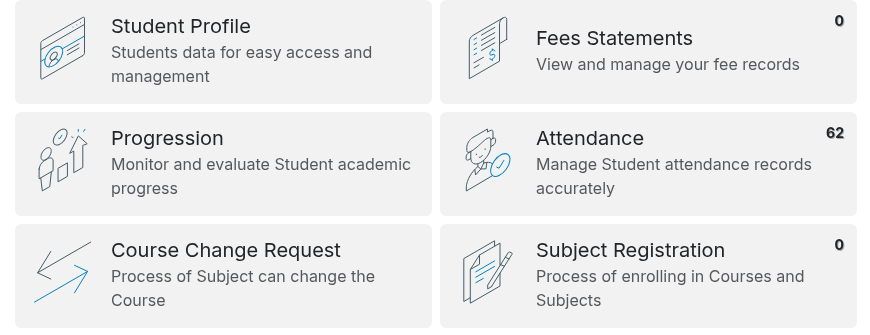
A logged-in student navigates to their portal dashboard (My Account) and clicks the Course Change Request card.
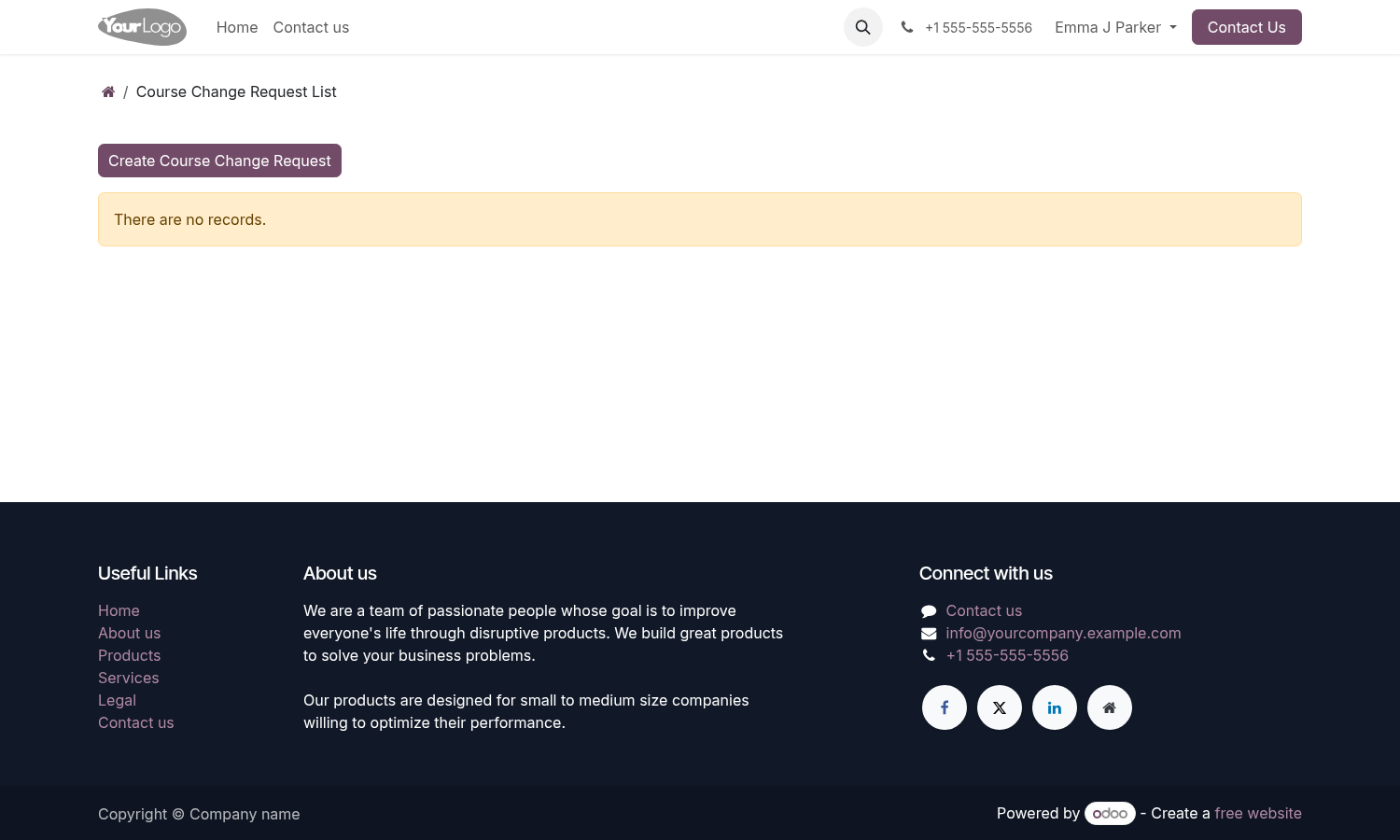
The portal displays the student’s existing requests. Click Create Course Change Request to start a new request.
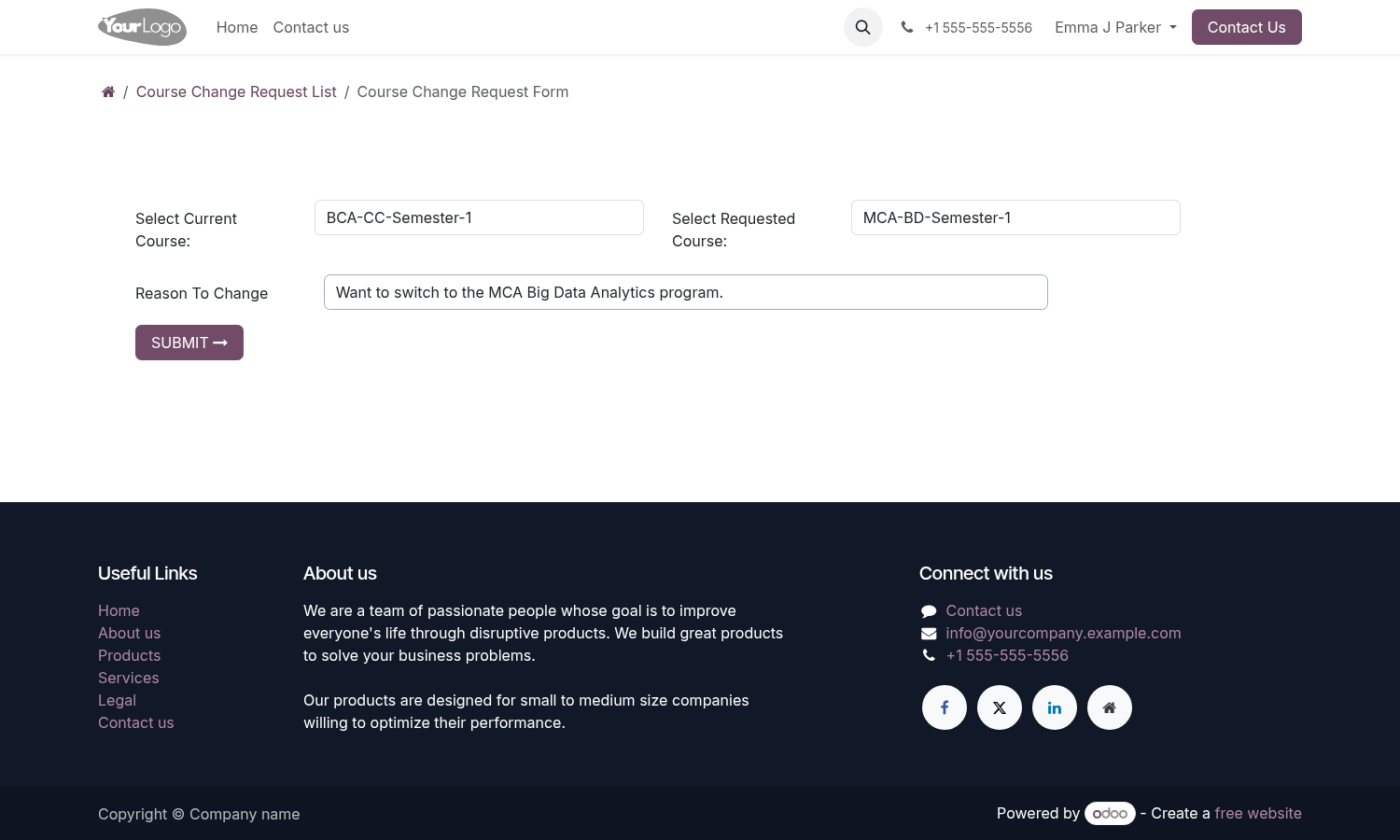
On the request form, the student fills in:
Select Current Course: Chooses from their active running courses.
Select Requested Course: Chooses the target course to transfer into.
Reason To Change: Provides a summary of the transfer reason.
Nota
The Requested Course cannot be the same as the Current Course. If selected, an error «Requested course is same as current course.» is displayed.
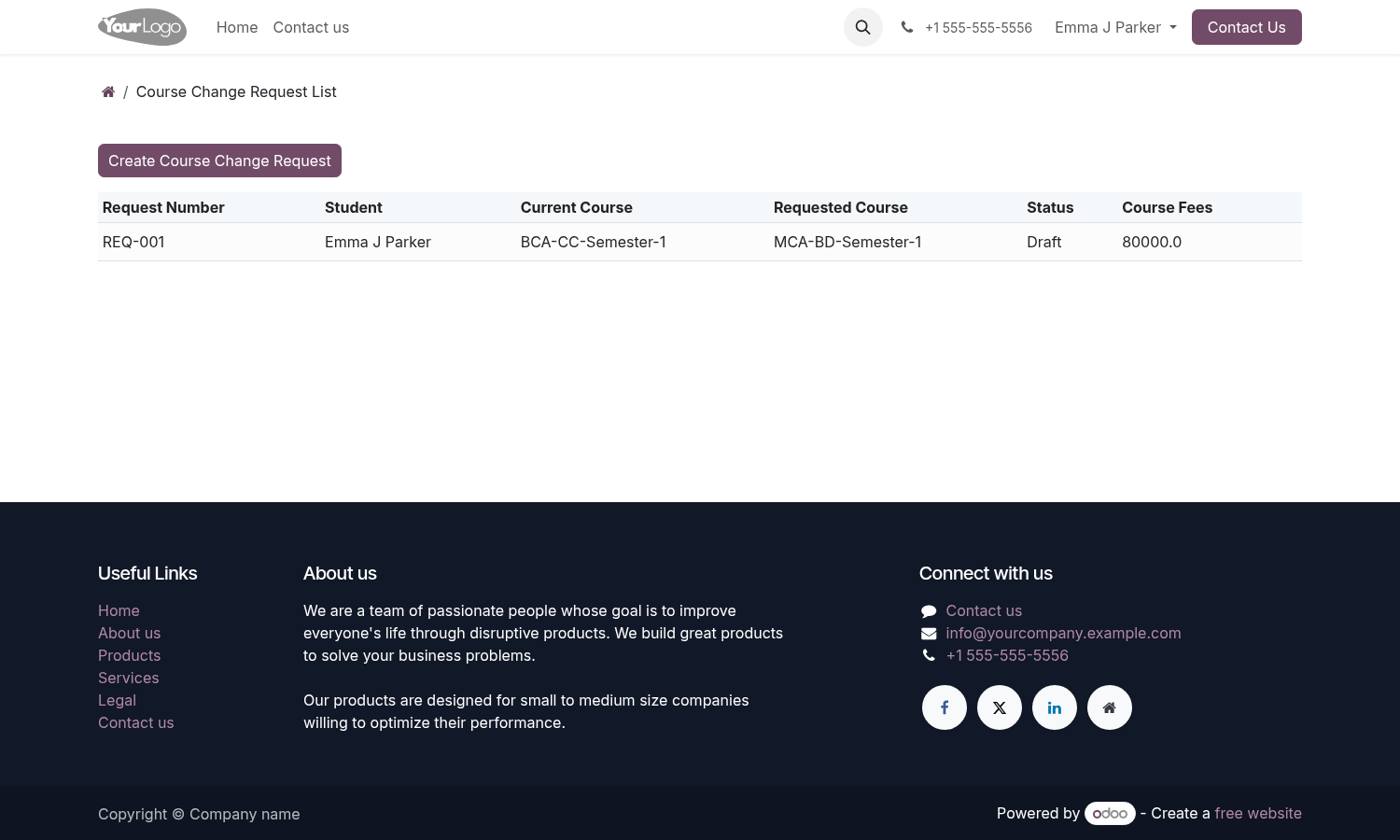
Upon clicking Submit, the request is saved in Draft status with a sequence-generated reference number (e.g.
REQ-001).
Administration Workflow
Reviewing & Managing Requests
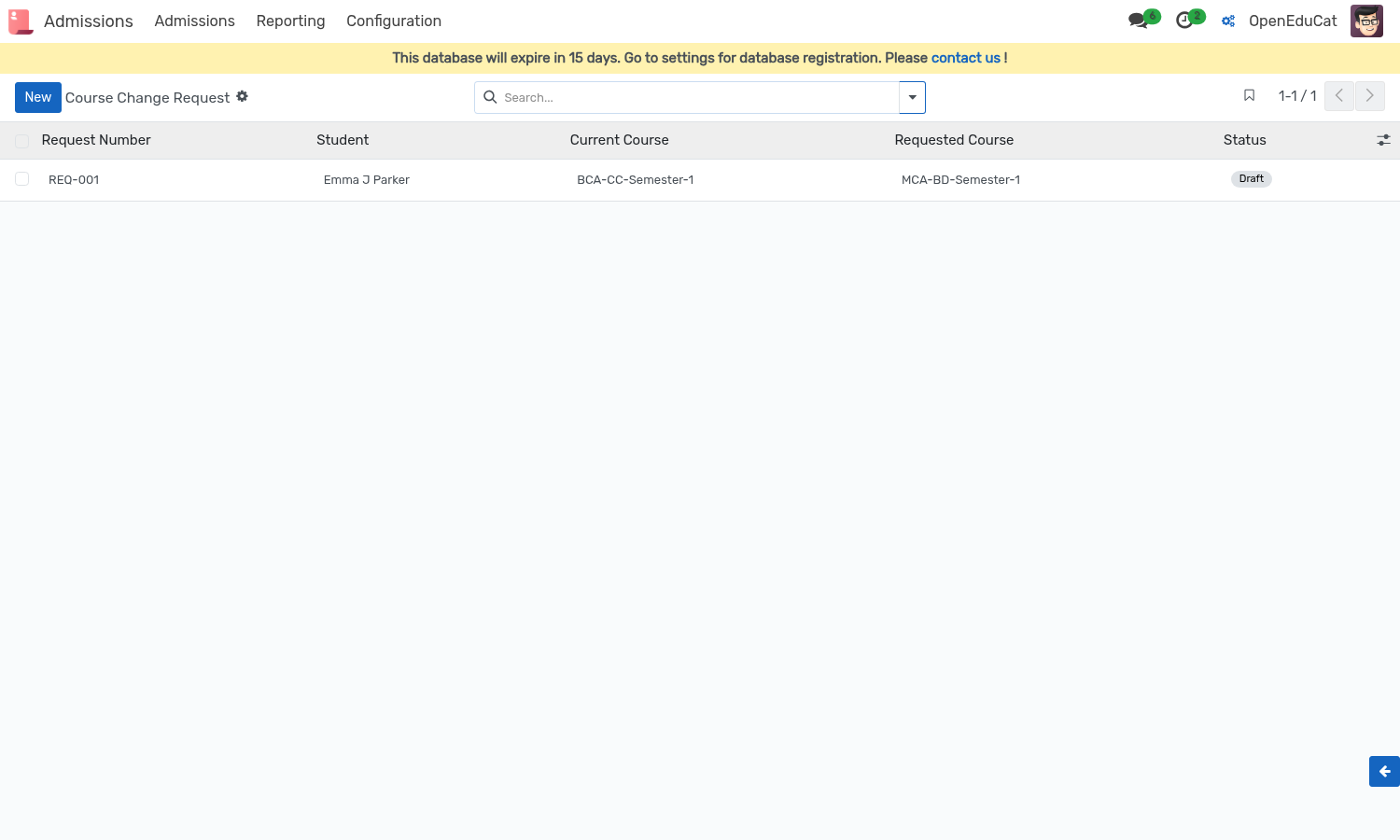
Administrators access backend requests via Admissions ‣ Admissions ‣ Course Change Request.
Opening a request record displays all request details, student info, current/target course, fee product, order reference, approve date, and chatter history.
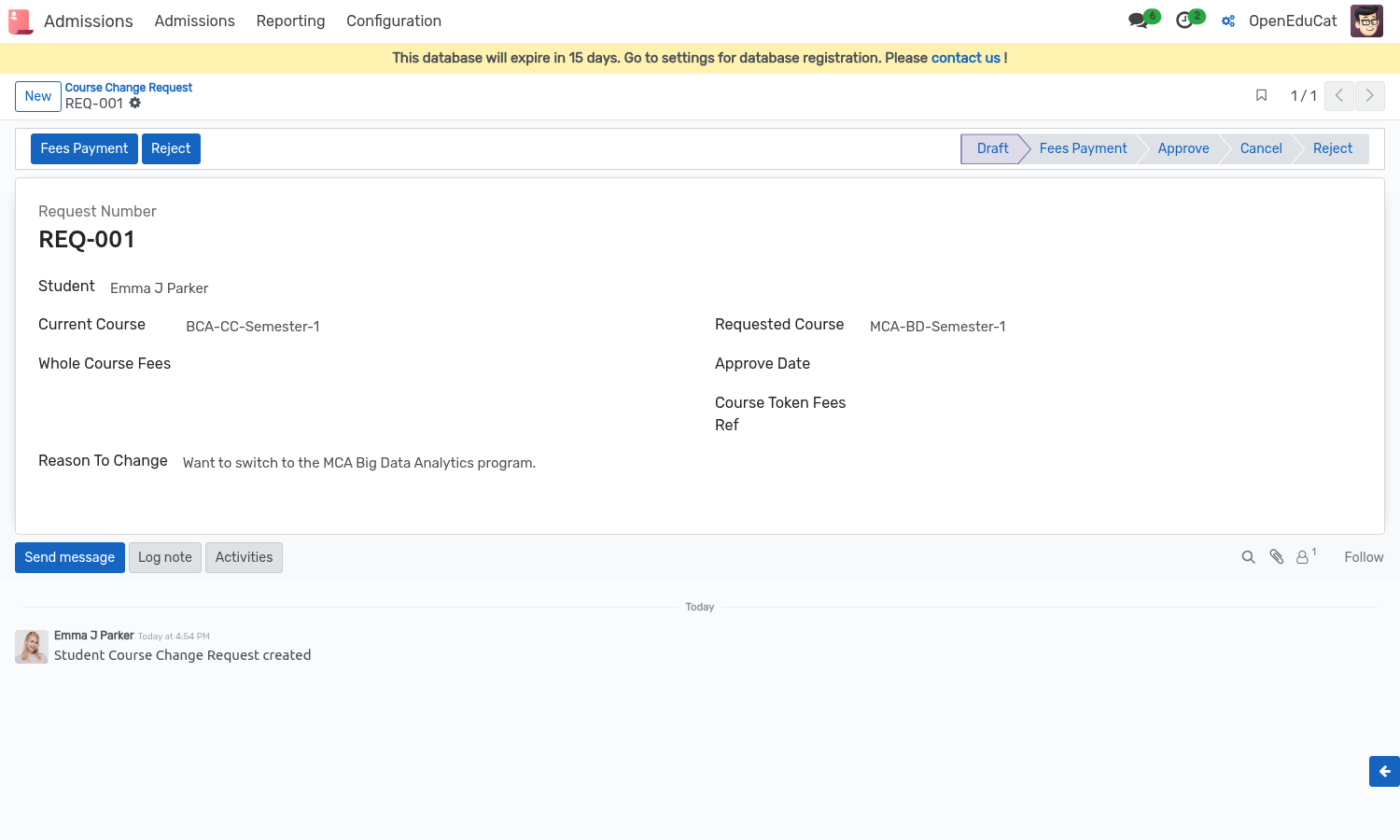
Key Fields:
Request Number: Auto-generated sequence reference.
Student: The student requesting the transfer.
Current Course: The active course being transferred from.
Requested Course: The target course being transferred to.
Whole Course Fees: Service product representing course transfer fees.
Course Token Fees Ref: Linked sale order created when student pays fees.
Approve Date: Date when the request was approved.
Reason To Change: Student’s provided reason.
Requesting Fees Payment
Click Fees Payment to advance the request status to Fees Payment. OpenEduCat sends the Course Change Fees email notification to the student.
Paying Course Fees (Student Portal)
On the student portal, requests in Fees Payment display a Pay Fees button.
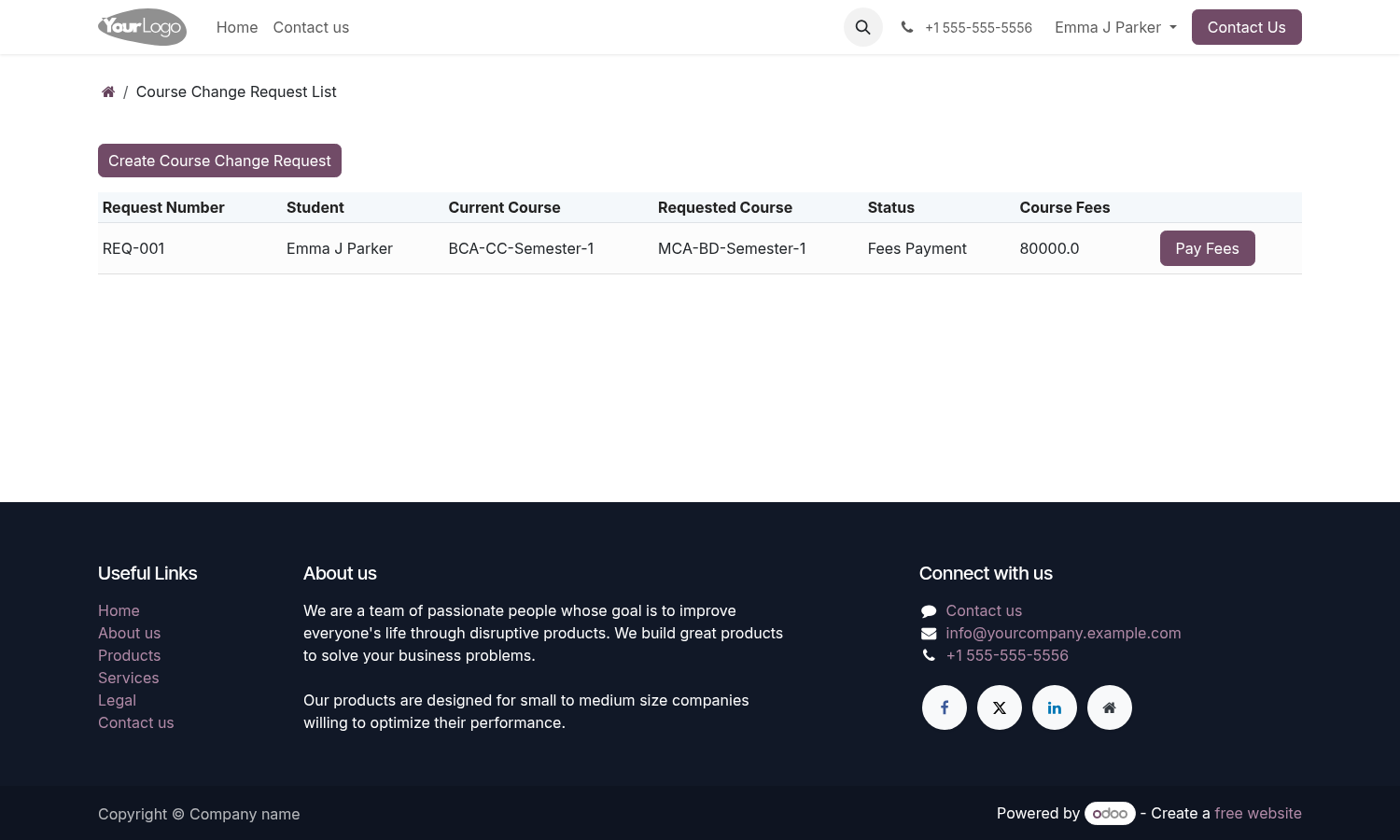
Clicking Pay Fees:
1. Creates a sale.order for the fee product configured on the requested course.
2. Generates a payment link (payment.link.wizard).
3. Redirects the student to the online payment portal.
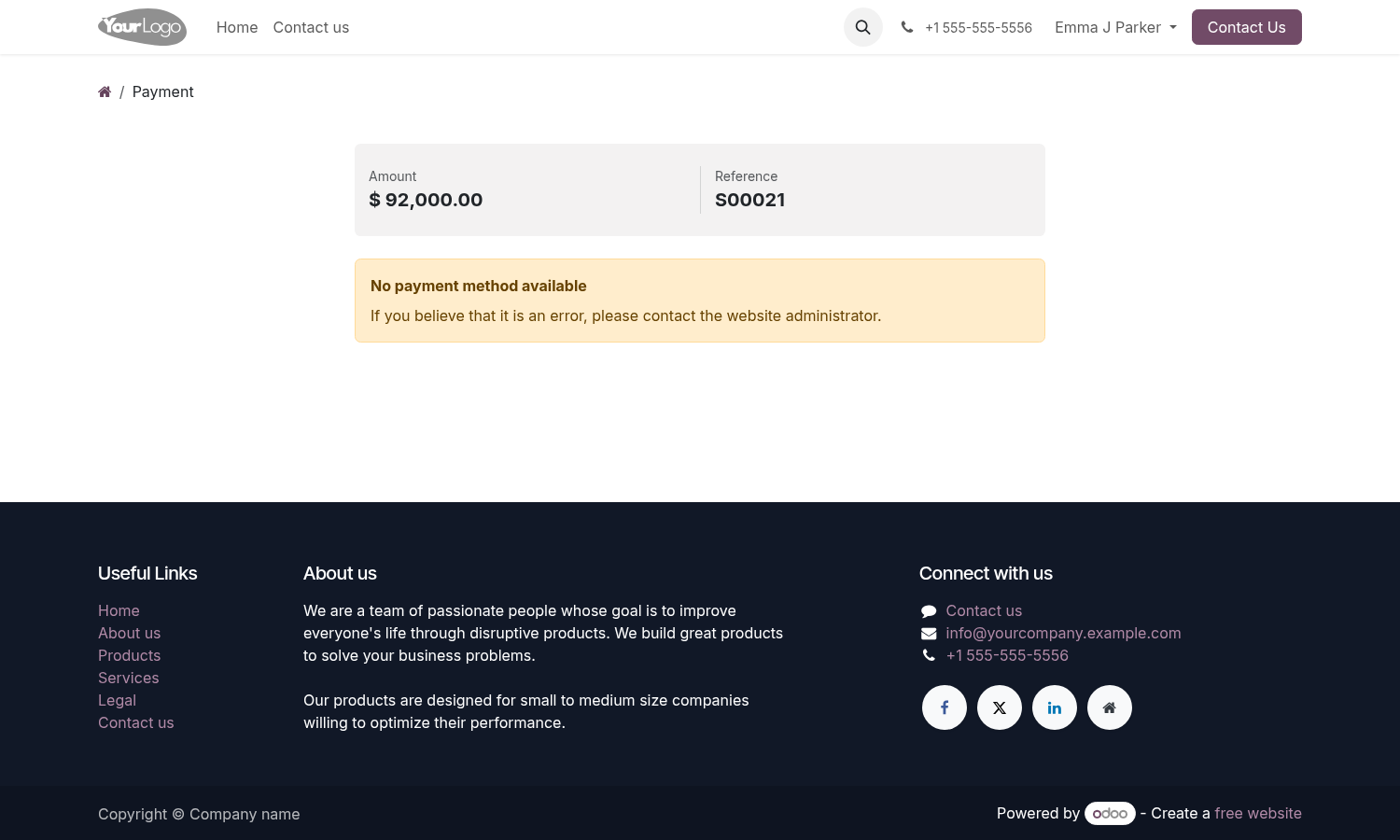
Approving the Request
Once payment is verified, the administrator opens the request record, selects the Whole Course Fees product (if not pre-filled), and clicks Approve.
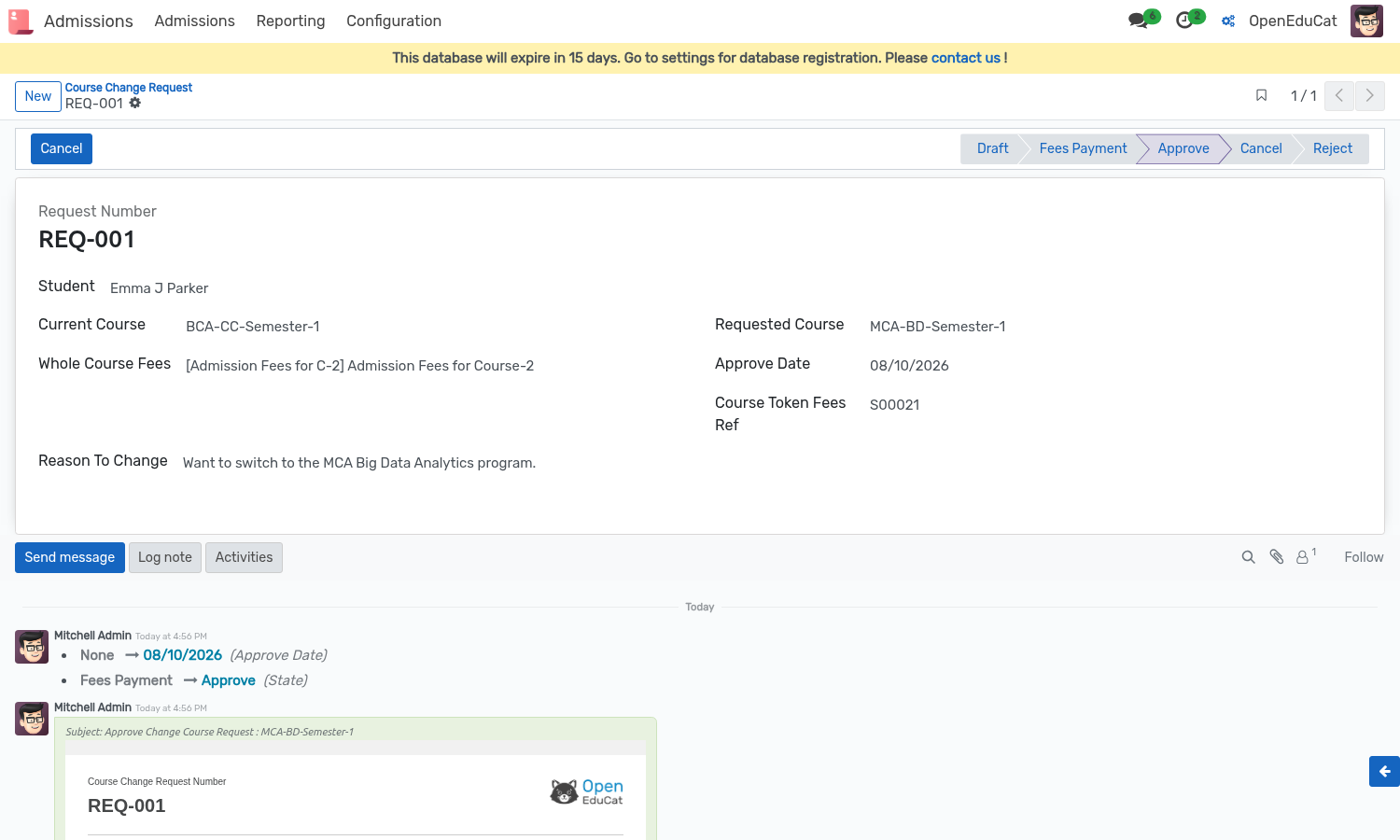
Upon approval:
- The student’s enrollment in the current course (op.student.course) is updated to Cancel.
- A new enrollment record (op.student.course) is created for the requested course with the associated fees product and fee terms (fees_term_id).
- Draft fee lines (fees_detail_ids) corresponding to the new course’s fee terms are added to the student record.
- An approval email (Approve Change Course Request) is sent to the student.
- The Approve Date is stamped and status changes to Approve.
Advertencia
A Whole Course Fees product is mandatory prior to approval. If omitted, OpenEduCat raises a validation error «Please select course fees.».
Mail Notifications
The module includes three automated email templates:
Course Change Fees: Sent when state moves to Fees Payment.
Approve Change Course Request: Sent when request is Approved.
Reject Change Course Request: Sent when request is Rejected.
Security & Access Rights
Back Office Admin / Admission Admin: Full access to backend menu and course change request records.
Multi-Company: Multi-company record rules isolate requests per company (
company_id).Students: Portal user access strictly limited to their own requests.