AI Voice Assistant
The OpenEduCat AI Voice Assistant (openeducat_ai_voice_assistant) module introduces an interactive, multimodal conversational assistant designed for educational institutions. Powered by the OpenEduCat AI Agent Architecture (aio_agents), the module combines high-performance local Speech-to-Text (STT) with faster-whisper, browser-based Speech Synthesis (TTS), real-time computer vision analysis, and contextual document understanding (RAG).
Key Features
Full-Screen Voice Studio: Dedicated, distraction-free client action equipped with an audio-reactive glowing orb visualizer, volume waveforms, and real-time transcript bubbles.
Dual Speech-to-Text Pipeline: Combines browser-native SpeechRecognition for instant interim feedback with server-side
faster-whisper(int8 CPU quantization) for high-precision transcription.Text-to-Speech (TTS) Synthesis: Natural voice playback delivering spoken-friendly, concise responses optimized for auditory learning.
Multimodal Vision & Object Identification: Live camera integration with frame-capture capabilities («Tap to Identify») to assist visually impaired learners and analyze educational props in real time.
Document Knowledge Ingestion (RAG): Attach PDF, Word (DOCX), Excel (XLSX), and text files to ground the conversation in specific lecture slides or study materials.
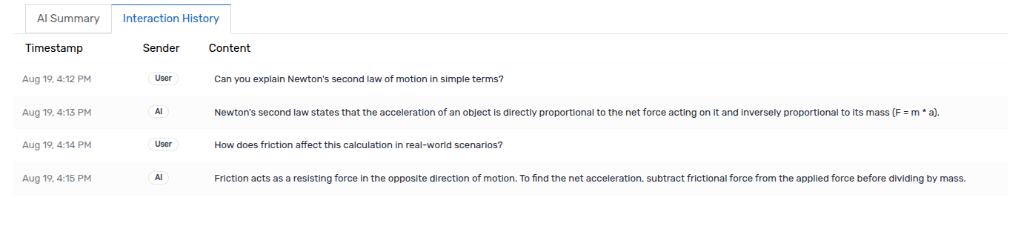
Session Persistence & Dashboard Analytics: Automatically logs conversation history, interaction counts, session durations, and generates AI executive summaries with suggested session titles.
Enterprise Security & Ownership Isolation: Strict access controls ensuring all session attachments, transcripts, and LLM calls remain securely scoped to the authenticated user.
End-to-End Voice Assistant Workflow
1. Configuration & Agent Binding
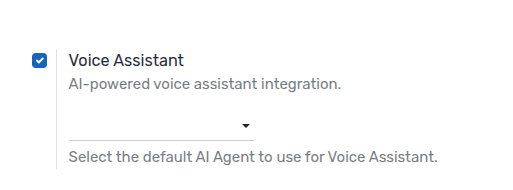
Administrators can configure the default AI Agent used across all voice interactions:
Navigate to Settings > General Settings > AI Voice Assistant.
AI Voice Agent: Select an active agent (e.g., OpenEduCat Voice Assistant) configured with speech-friendly prompt guidelines (concise sentences, conversational tone, minimal markdown formatting).
Fallback Resolution: If no custom agent is explicitly configured, the system automatically binds to the pre-packaged library agent or the default active
aio.agent.
2. Launching the Voice Studio Interface
Users can access the full-screen interactive voice environment directly from the main menu:
Navigate to Voice Assistant > Voice Interaction.
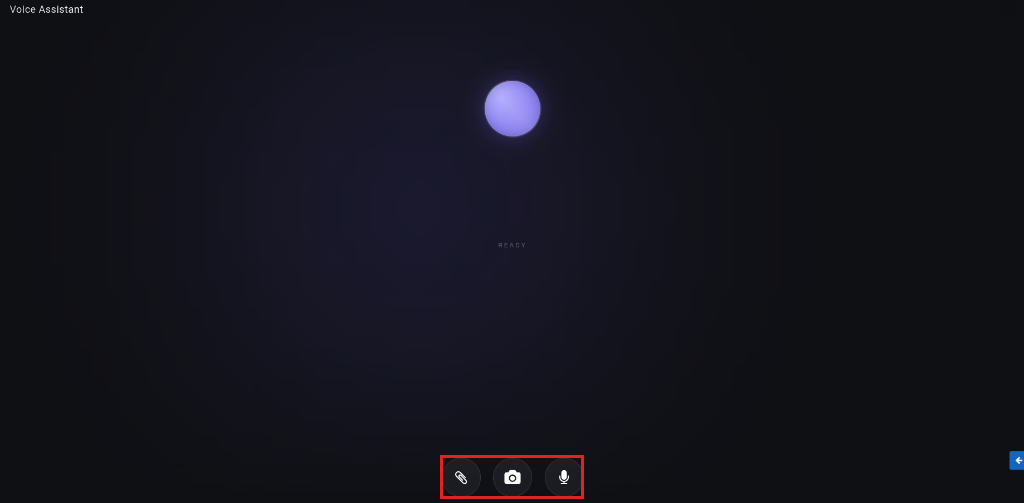
The interface opens in a clean, dark-themed studio centered around the AI Brain Orb.
Status Indicators: The animated orb dynamically updates its state:
Ready: Idle state awaiting user input.
Listening: Pulses in sync with microphone audio input and displays surrounding waveform bars.
Thinking / Analyzing: Processing queries or running vision inference.
Speaking: Audio playback active with speech synthesis.
3. Speech Interaction & Real-Time Audio
The voice assistant supports intuitive push-to-talk and continuous speech recognition:
Hold-to-Talk / Tap Controls: Press and hold the microphone button (or tap on mobile/touch screens) to speak.
Real-time Volume Analysis: Web Audio API tracks Root Mean Square (RMS) volume and scales the visualizer in real time.
Interim Transcription: Displays live draft text bubbles while the user is speaking.
High-Precision Transcription: When released, the recorded audio chunk (WebM Opus) is sent to the server for processing via
faster-whisper.
4. Multimodal Vision & Scene Identification
The assistant includes integrated computer vision capabilities to assist visually impaired users and inspect visual learning materials:
Toggle Camera: Click the camera button in the control bar to open the live video feed.
Flip Camera: Switch between user-facing (selfie) and environment-facing (rear) cameras on mobile and tablet devices.
Tap to Identify: Tap anywhere on the live video feed to capture the current frame and transmit it to the vision-enabled LLM.
Accessibility Descriptions: The AI analyzes objects, surroundings, text, and environmental context, providing a spoken audio description.
5. Document Grounding & Context Upload
Users can attach study materials to anchor the voice conversation in specific reference files:
Click the Paperclip (Attachment) button in the control bar.
Upload supported files including PDF, DOCX, XLSX, and Images (up to 3 documents per session, max 10 MB each).
The server extracts plain text using document parsers (
agno.knowledge.pdf.PDFReader,python-docx,openpyxl) and injects the content as[DOCUMENT_CONTEXT]into the LLM prompt.Users can ask questions about the attached document (e.g., «Summarize section 2 of the syllabus»).
6. Voice Dashboard & AI Summarization
All voice interactions are recorded and structured in the administrative dashboard:
Navigate to Voice Assistant > Dashboard.
Session Metrics: View past sessions with message counts, user avatars, start and end timestamps, and calculated session durations.

AI Executive Summary: Open any session to view the automated executive summary and click Regenerate Summary to generate an updated summary based on the conversation history.
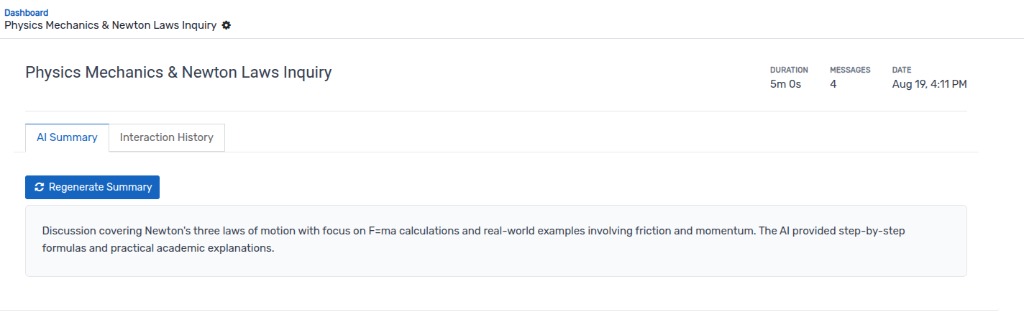
Interaction History: Switch to the Interaction History tab to review the chronological dialogue transcript with exact timestamps, sender roles (User / AI), and conversation turns.