
Subscribing (Users)
Before a user receives push notifications on their device they must grant notification permission to the browser for this origin. The module provides a small «Enable Notifications» pill to make this one click. This is a one-time action per browser / device.
The «Enable Notifications» pill
On the portal (or any frontend page other than login / signup / reset pages), a small floating pill appears at the bottom-right of the window shortly after page load:
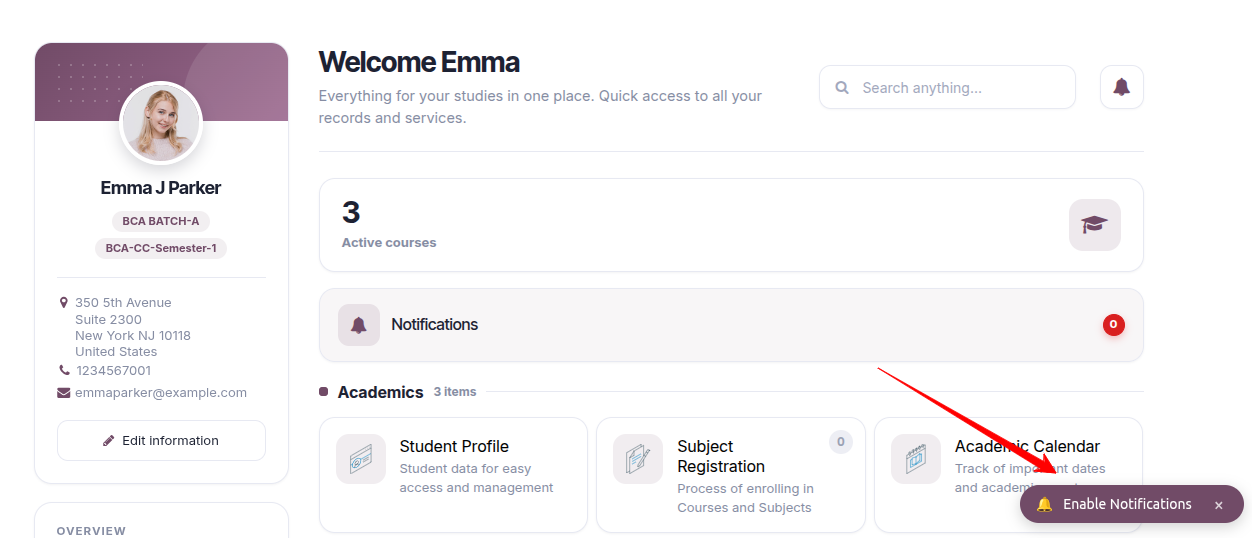
Clicking it triggers the browser’s native permission dialog:

Choose Allow. The subscription is registered server-side against the current session and the pill silently disappears. On next page loads the user is auto-subscribed with no visible UI.
The pill will NOT appear when:
The visitor is not logged in (an authenticated
/pwa/vapid-keyfetch is what proves the session).Notification permission is already
granted— the module silently auto-subscribes, no pill.Notification permission is
denied— the module cannot override a user’s Block; the pill stays hidden.The pill was dismissed (via its × close button) within the last 24 hours — a
pwa_prompt_dismissed_attimestamp inlocalStoragesuppresses it.The current path is under
/web/login,/web/signup,/web/reset_password, or/pwa(excluded on purpose).
Resetting the pill for testing: DevTools → , then reload. This clears both the permission state and the localStorage dismiss timestamp.
Checking subscription status
Open DevTools — the endpoint URL of the current subscription should be listed. In the backend, staff users can also list their subscribed devices under .
Users can subscribe from multiple browsers / devices; each browser gets its own subscription. A notification fires once per subscription, so a user with two devices sees two toasts (one on each).
What a notification looks like
When an event fires, a toast appears in the corner of the screen (top-right on most desktops) with the site’s icon, a title, and a short body line:

Clicking the toast opens the configured link (usually a page like
/my/invoices).
The same notification appears on the PWA-installed app on Android / iOS in the device’s native notification tray — nothing extra to configure once permission is granted.