
Configure Transportation Agreement
A Transportation Agreement is the formal contract between a student/faculty member and the institute for using a specific bus route and stop. It manages billing cycles, fee collection, and the full lifecycle from enrolment request to active passenger registration on a stop.
Go to . Click on New to create a new agreement.
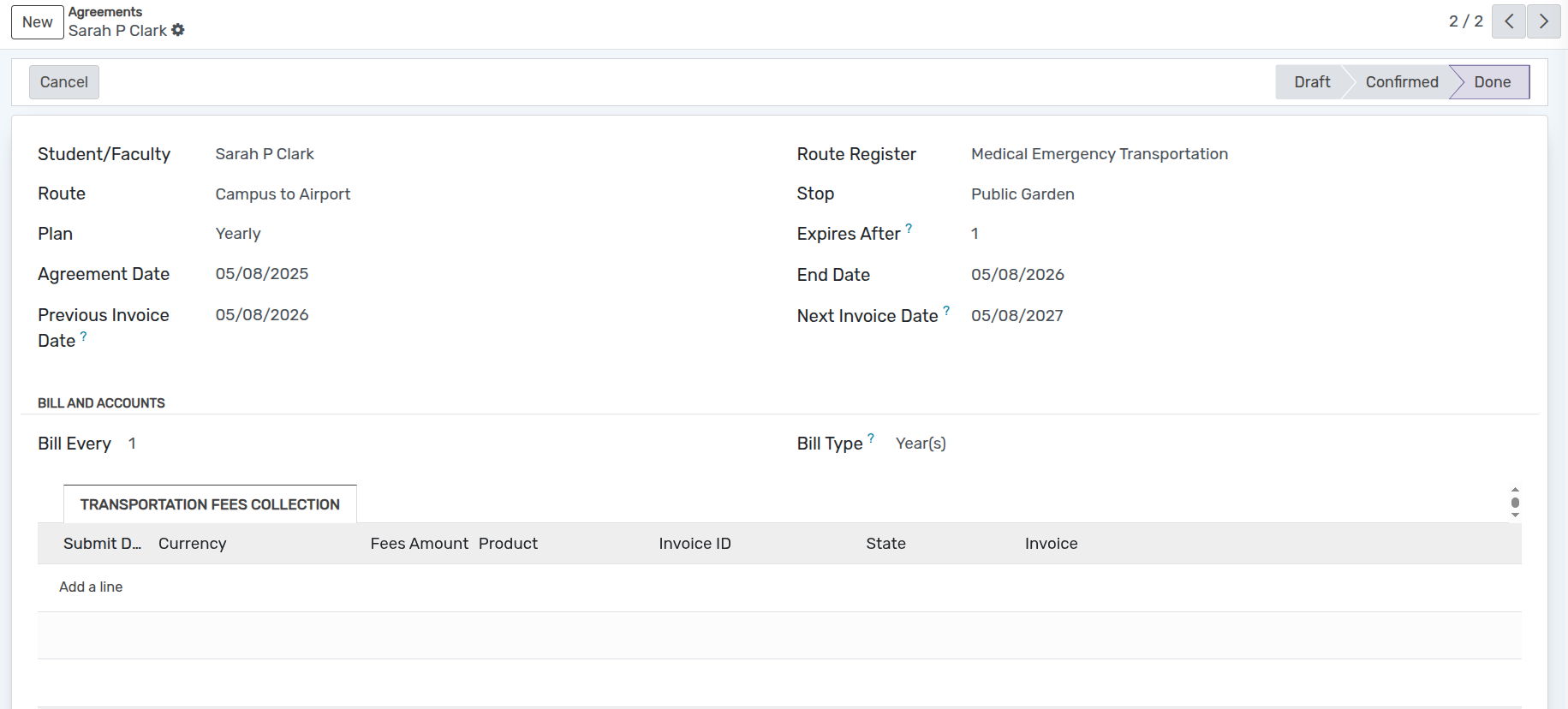
Details of Transportation Agreement Form
Main Fields
Student/Faculty :- Select the student or faculty member for whom the agreement is created.
Route Register :- Select the route register (must be in Register Gathering state).
Route :- Auto-filled based on the selected route register.
Stop :- Select the pickup/drop stop for this passenger.
Plan :- Auto-filled from the route register; sets the billing frequency for this agreement.
Agreement Date :- The date the agreement is created (defaults to today).
End Date :- Auto-calculated based on the selected plan’s Expires After value and billing type.
Previous Invoice Date :- Automatically updated when an invoice is generated.
Next Invoice Date :- Auto-calculated based on the plan’s billing cycle; the next invoice will be created on this date.
Bill and Accounts Section
Bill Every :- Auto-filled from the plan; the frequency number of the billing cycle.
Bill Type :- Auto-filled from the plan; the billing period (Day(s), Week(s), Month(s), or Year(s)).
Expires After :- Auto-filled from the plan; the total number of billing cycles before the agreement expires.
Transportation Fees Collection Tab
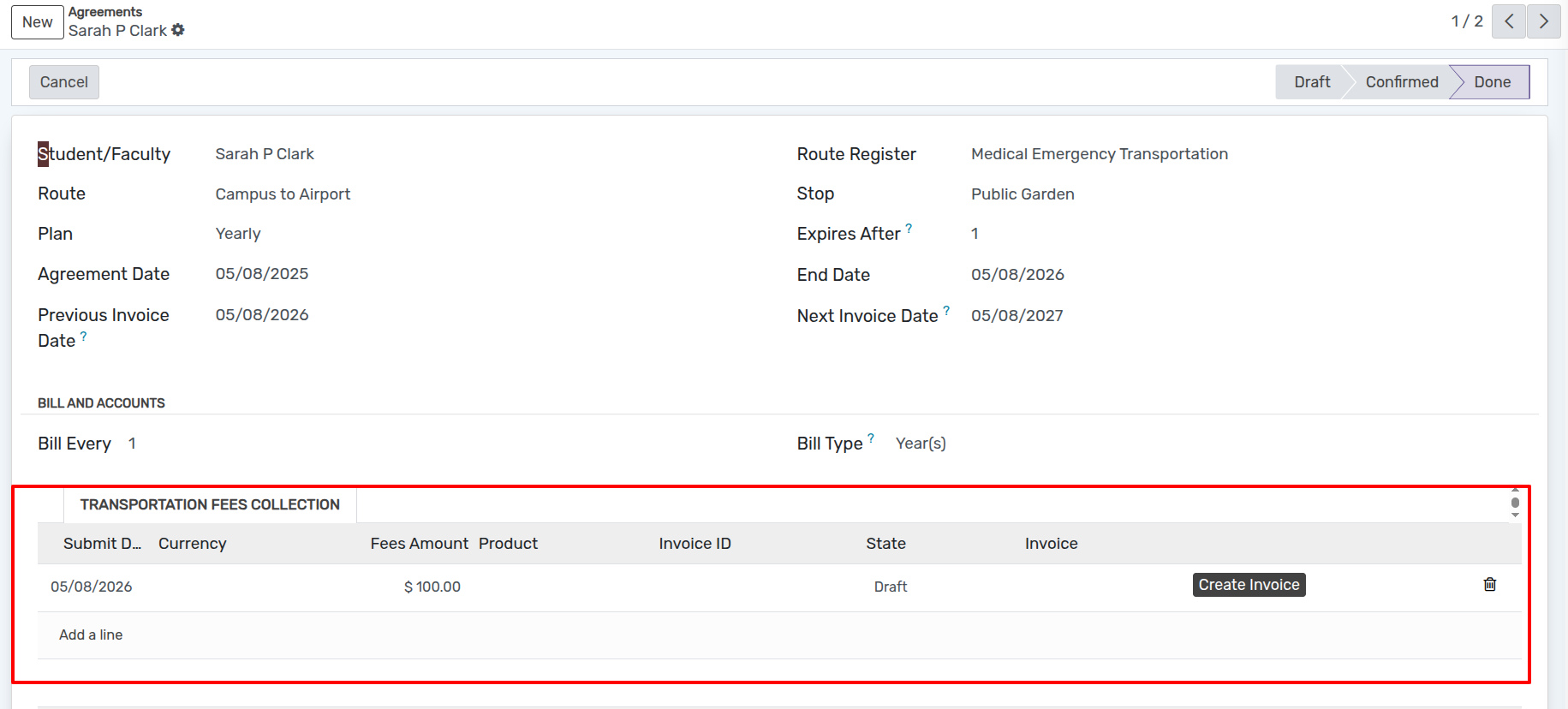
Lists all auto-generated fee records for this agreement. Each row contains:
Date :- The invoice date for this billing cycle.
Fees Amount :- The billing amount (taken from the route cost).
State :- The status of each fee entry.
Invoice State :- Shows the related invoice state (Draft, Posted, Cancelled).
Create Invoice (button) :- Available for Draft fee entries. Creates an
account.move(customer invoice) for this fee line. Visible to Transport Manager group only.View Invoice (button) :- Opens the linked invoice once generated.
Workflow of Transportation Agreement
The agreement moves through the following states:
Draft
Initial state after creation.
Submit button: moves the agreement to Submitted state.
Submitted
Confirm button: moves to Confirmed.
Pending button: moves to Pending state.
Cancel button: cancels the agreement.
Confirmed
Agreement Confirm button: moves to Agreement Confirm state.
Reject button: rejects the request.
Cancel button: cancels the agreement.
Agreement Confirm
Enroll button: finalises the agreement by adding the student/faculty to the selected stop’s Person(s) list and moves the state to Done.
Cancel button: cancels the agreement.
Done
The passenger is now enrolled and active on the route. Automatic fee collection entries are created as per the billing schedule defined by the plan.
Pending / Rejected / Cancelled
These states are available for workflow management. Agreements in Pending, Rejected, or Cancelled states can be reset to Draft using the Draft button.
Note
Transportation fee collection lines are auto-generated by a scheduled cron job (transportation_fees_cron.xml) that runs daily. Each run checks all Done agreements and creates the next fee line when next_invoice_date falls on or before the current date.
Views Available for Agreements
Agreements support the following views (accessible from the view switcher):
List :- Tabular view of all agreements.
Form :- Detailed record view.
Pivot :- Aggregated analysis by student/faculty and route register.
Calendar :- Agreements displayed on a calendar by agreement date and end date.