
Assignment Grading Bridge
The openeducat_assignment_grading_bridge module connects the
Assignments application with the Grade Book. Once it is
installed, an assignment is graded with marks, a penalty can be applied
to the submissions which arrive after the due date, and the marks of the
accepted submissions are pushed into the grade book of the students.
Install the openeducat_assignment_grading_bridge module from the
apps. It brings in the Assignments and the Grade Book
applications.
The module adds:
A Late Submission criteria, with the penalty to apply per number of days of delay.
New fields on the assignment: Grading Assignment, Grade, Score Attempt Using and Late Submission Criteria.
New fields on the submission: Given Marks, Penalty %, Obtained Marks and Late Submission.
An Update Grades button which copies the marks of the accepted submissions into the grade book lines of the students.
How to configure a Late Submission criteria
The late submission criteria defines how much a student loses when the work is handed in after the due date of the assignment.
Go to .
Click on New to create a new criteria.

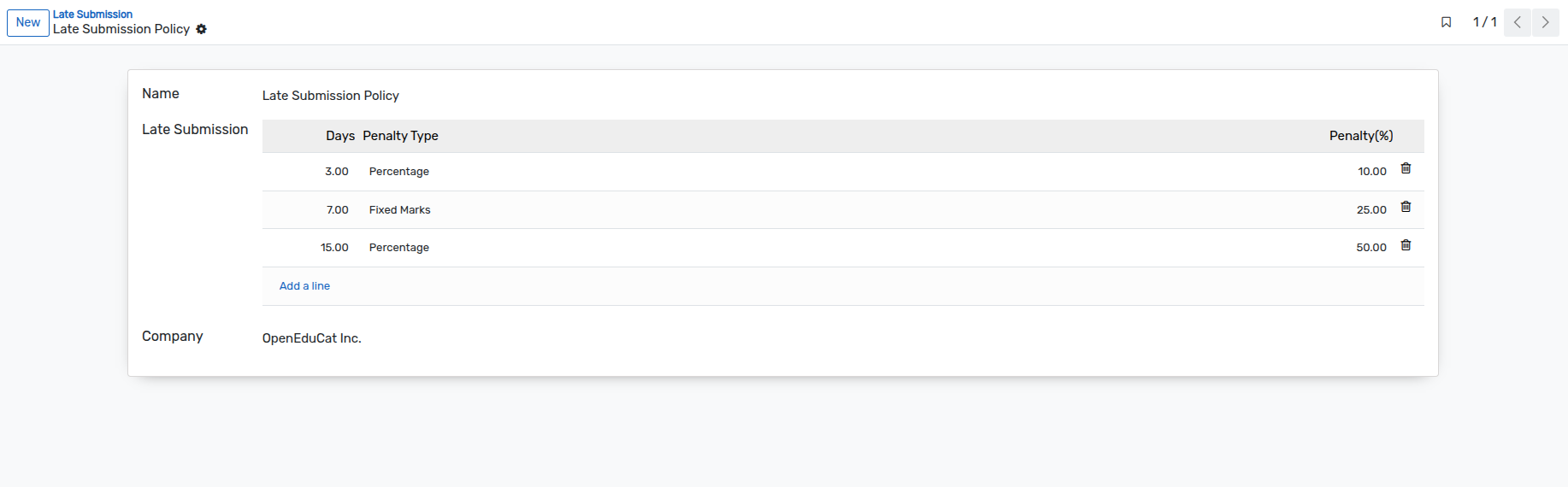
Details of Late Submission
Name :- Specify the name of the criteria, for example Late Submission Policy.
Late Submission :- Add one line per step of the penalty.
Days :- The maximum number of days of delay for which this line applies. The first line whose number of days is greater than or equal to the delay of the submission is the one which is used.
Penalty Type :- Select Percentage or Fixed Marks.
Penalty(%) :- The part of the given marks which is removed.
Note
Order the lines from the shortest delay to the longest one. With the lines of the example above, a work handed in 3 days late loses 10 % of its marks, 7 days late 25 % and 15 days late 50 %. The penalty is taken as a part of the marks given to the submission.
How to configure the Assignment
Go to and open the
assignment, or click on New to create a new one. The fields added by
this module can only be set while the assignment is in the Draft
state.
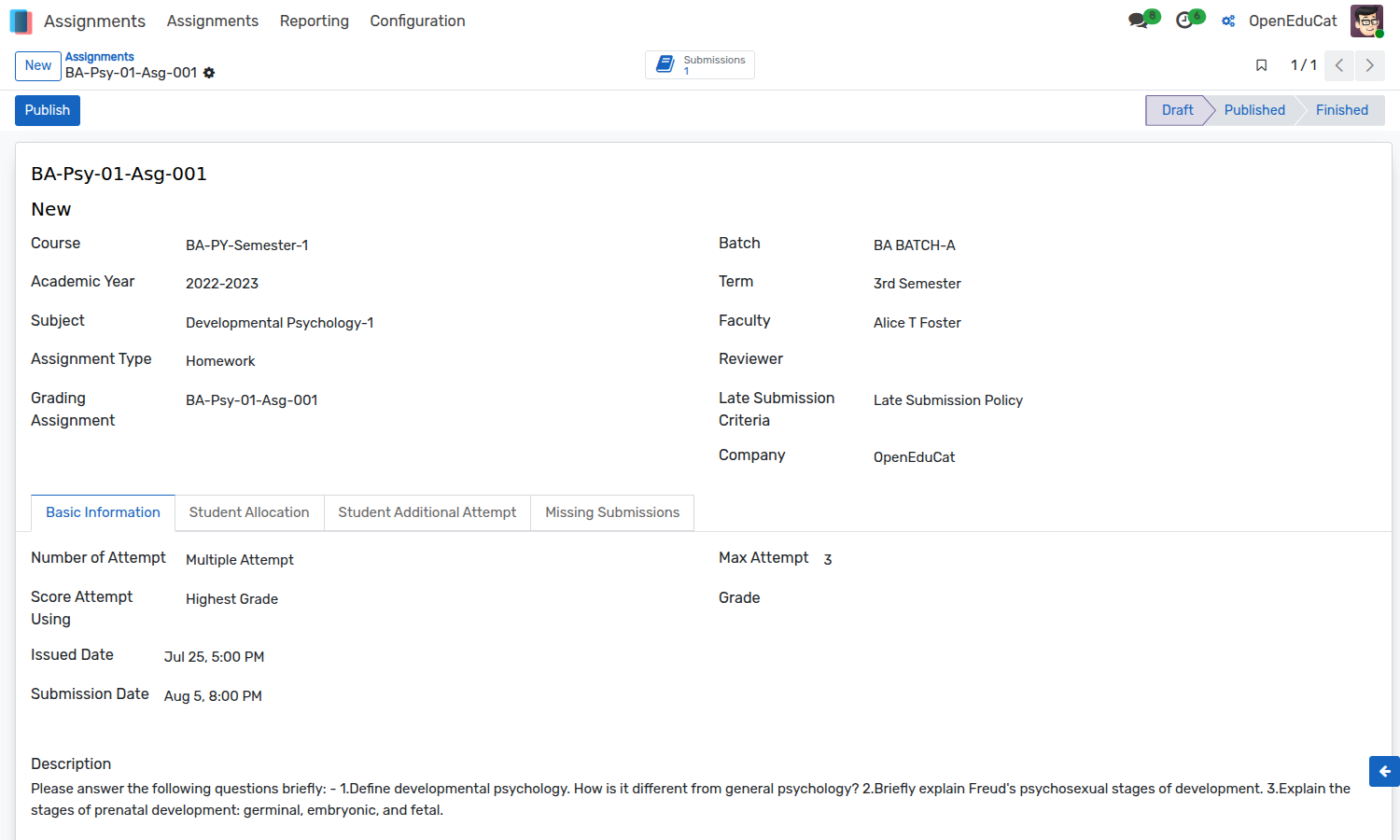
Details of the Assignment
Grading Assignment :- The grading assignment of the Grade Book on which this assignment is graded. It is the record which carries the course, the subject, the term and the points of the assignment.
Late Submission Criteria :- Select the criteria created above. If it is left empty, no penalty is applied to the late submissions.
Number of Attempt :- Select Single Attempt or Multiple Attempt.
Max Attempt :- The number of attempts a student is allowed to submit, when multiple attempts are used.
Score Attempt Using :- Visible for the multiple attempts only. It defines which attempt is taken into account for the grade:
First Graded Attempt
Last Graded Attempt
Lowest Grade
Highest Grade
Average of Graded Attempts
Grade :- Select the grade table with which the work is marked. When the selected grade table has its own grade lines, the submission is graded by choosing a grade instead of typing marks.
Points :- The maximum marks of the assignment. The marks given to a submission cannot be greater than this value.
Publish the Assignment
Click on the Publish button. The button Update Grades appears in
the header of the assignment.
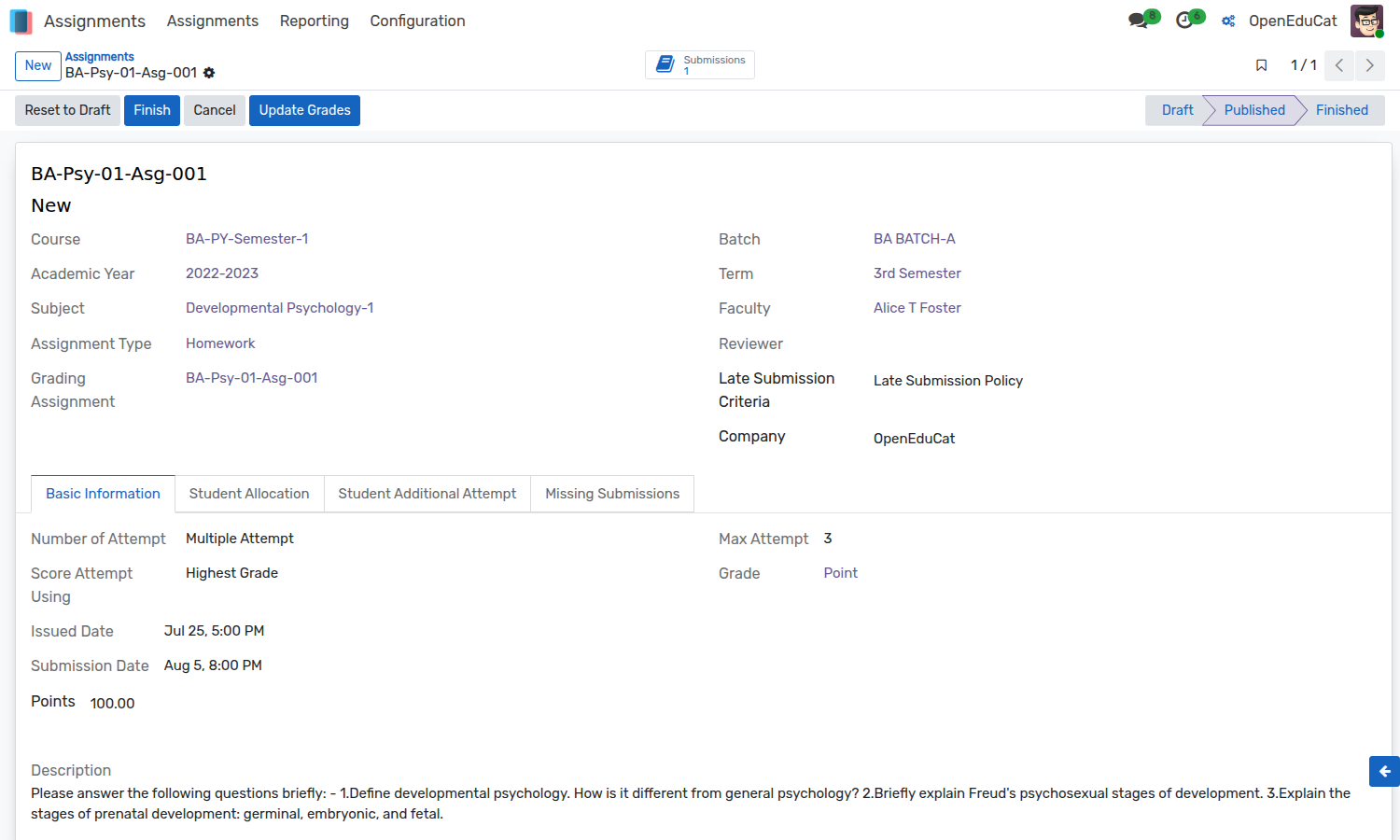
Note
Publishing the assignment also moves its grading assignment of the
Grade Book from Draft to Grading Started. In the same way,
the Finish button closes the grading and publishes the grades of
the grading assignment.
How to grade a Submission
Go to , or use the Submissions smart button of the assignment, and open the submission of the student.
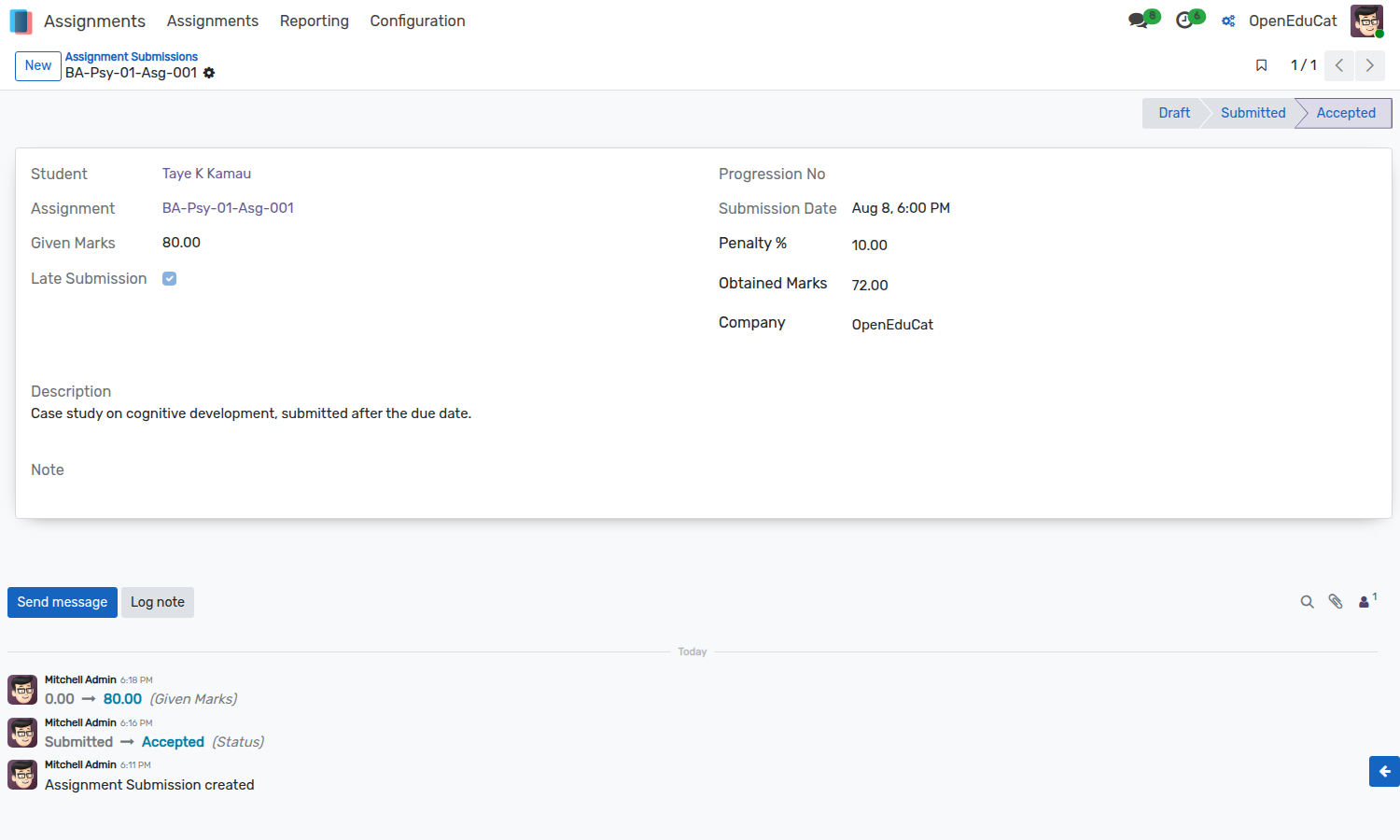
Details of the Submission
Given Marks :- Type the marks of the work. They cannot be greater than the points of the assignment.
Late Submission :- Set automatically when the submission date of the student is later than the submission date of the assignment.
Penalty % :- The penalty which is taken from the late submission criteria, according to the number of days of delay.
Obtained Marks :- The marks which are kept for the student, that is the given marks minus the penalty.
Grade :- Shown instead of the marks when the assignment is graded with a grade table which has its own grade lines.
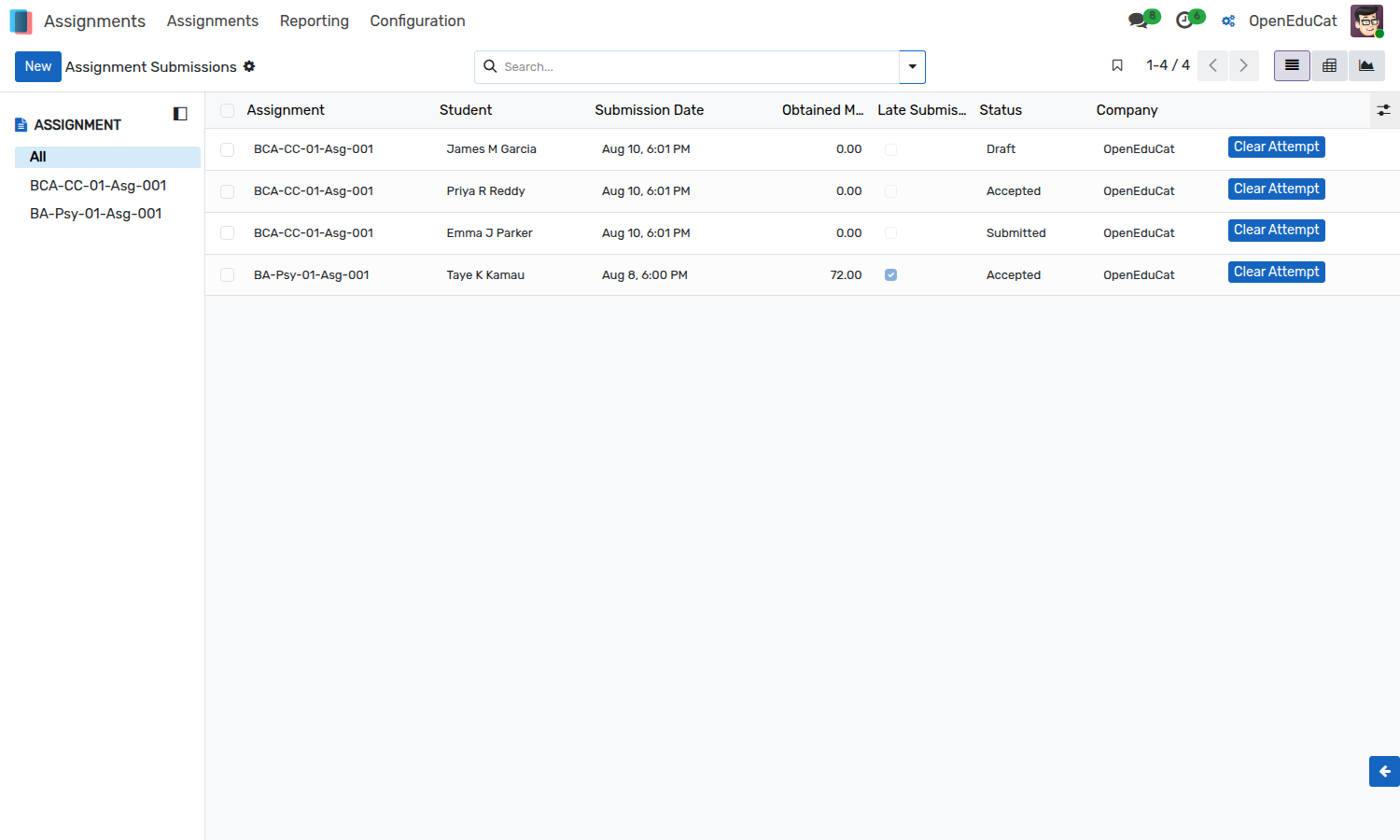
In the example above the work was due on 5 August and handed in on 8 August, that is 3 days late. The criteria removes 10 % of the given marks, so 80 given marks become 72 obtained marks.
Click on the Accept button to accept the submission. Only the
accepted submissions are taken into account by the grading.
The submissions list shows the Obtained Marks and the Late Submission of every student.
How to update the Grade Book
Go back to the assignment and click on the Update Grades button. The
marks of the accepted submissions are copied into the grade book lines
of the students of the assignment.
For the assignments with multiple attempts, the attempt which is copied is the one selected in the Score Attempt Using field.
Go to to check the result.
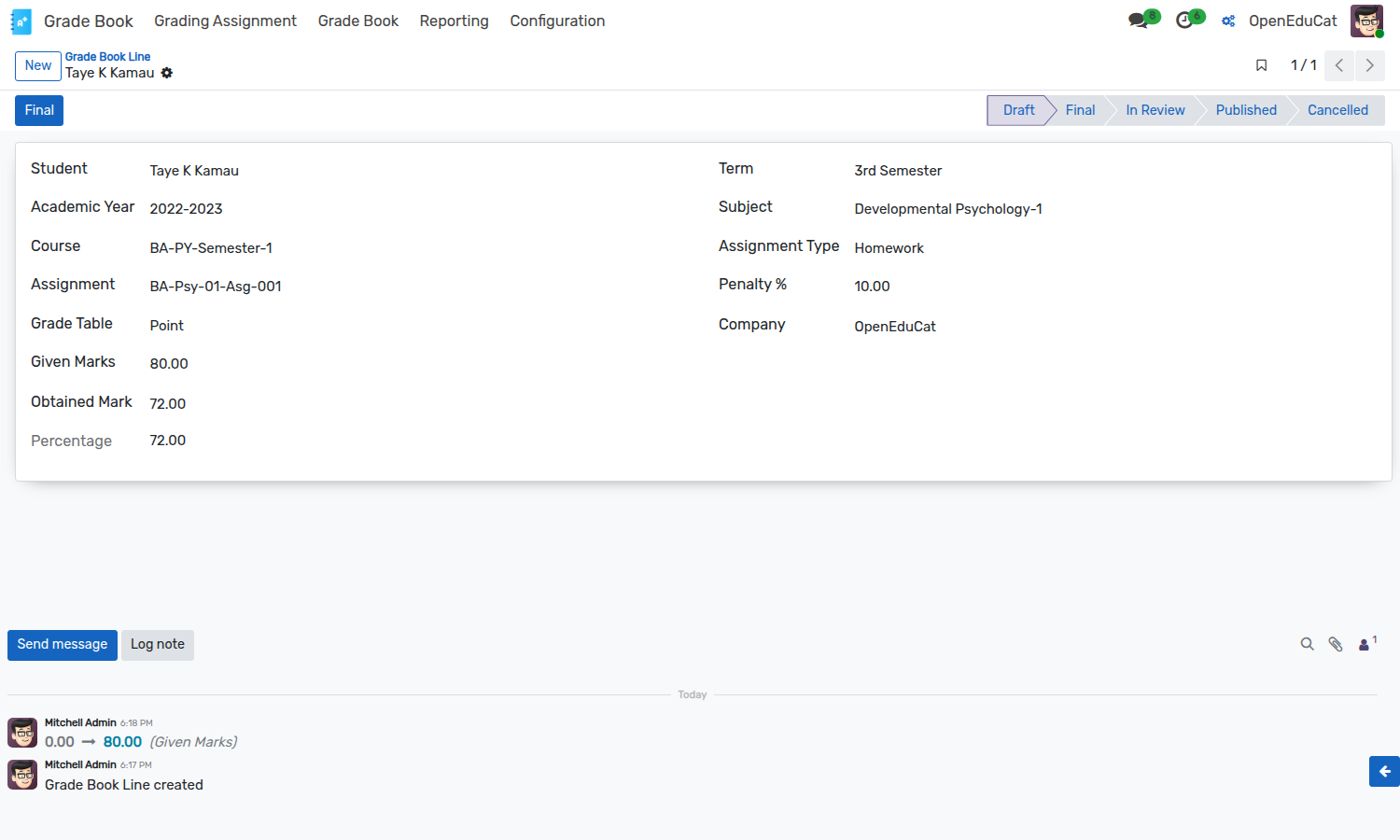
Details of the Grade Book Line
Given Marks :- The marks given to the submission of the student.
Obtained Mark :- The marks kept after the penalty of the late submission.
Penalty % :- The penalty which was applied.
Percentage :- Computed from the obtained marks and the points of the grading assignment. It is the value used by the grade book to compute the final grade of the student.
Note
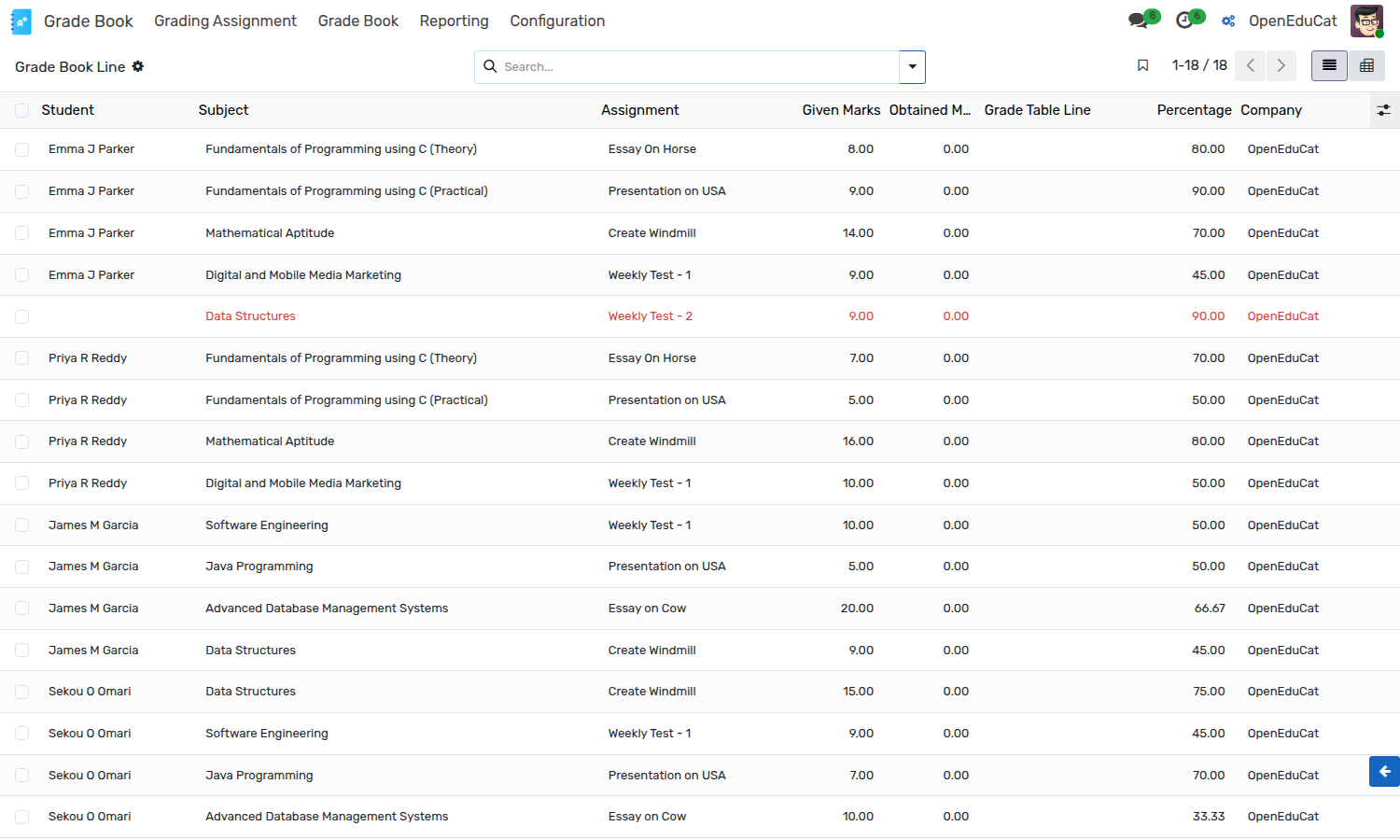
A grade book line is only updated when a grade book already exists for the student, the course and the academic year of the assignment, and when it holds a line for the grading assignment of the assignment. Create the grade book of the student from before updating the grades.
Assignment on the Student Portal
For the assignments which allow multiple attempts, the list of the submitted works of the student portal also shows the Grade method, that is the attempt which is used to grade the work, so that the student knows which of the attempts counts.