
Subject Material Allocation
OpenEduCat Subject Material Allocation provides an efficient facility to allocate, organize, and distribute subject-specific learning resources to enrolled students and parents. Administrators and faculty can attach digital study materials directly to academic subjects, enabling instant online access and file downloads via the web portal.
Faculty & Administrator Workflow
To allocate study materials to a subject in the backend system:
Navigate to (or ).
Select an existing subject or click New to create a new subject instance.
In the Subject form view, navigate to the chatter or attachment section.
Click on the paperclip attachment icon or Attach a file button to upload study documents (PDFs, lecture notes, slides, syllabus guidelines, or external web links).
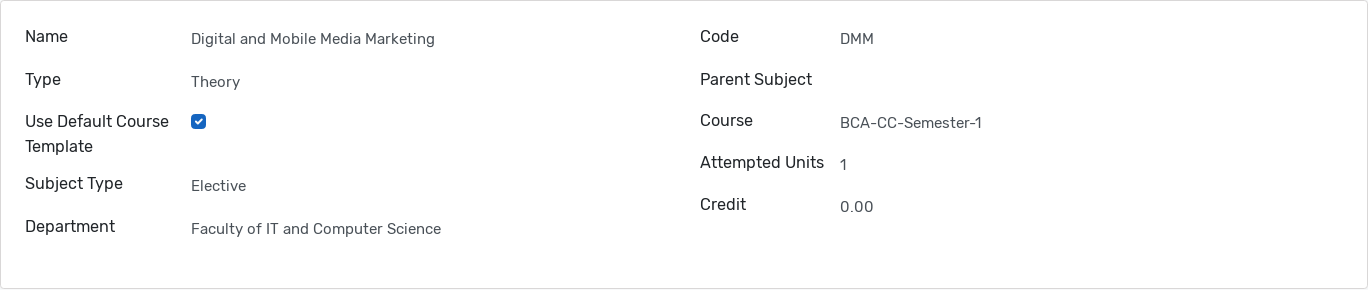
Key Subject Material Fields
Subject Name :- Name of the subject to which study materials are attached.
Code :- Unique subject identifier code.
Course :- Associated course instance.
Type :- Instruction mode (Theory, Practical, Both, or Other).
Subject Type :- Enrollment category (Compulsory or Elective).
Grade Weightage :- Configured grade weightage factor for the subject.
Attachments :- List of uploaded digital study material files or external web URLs associated with the subject.
Assigning Subject to Student Course Detail
To ensure study materials for a subject are accessible on the portal for a student:
Go to .
Select the student record (e.g., Emma J Parker) and open the Course Details tab.
Click on the active course record (e.g., BCA-CC-Semester-1) to open the Student Course Detail form.
Under the Subjects tab, click Add a line and select the subject (e.g., Digital and Mobile Media Marketing).
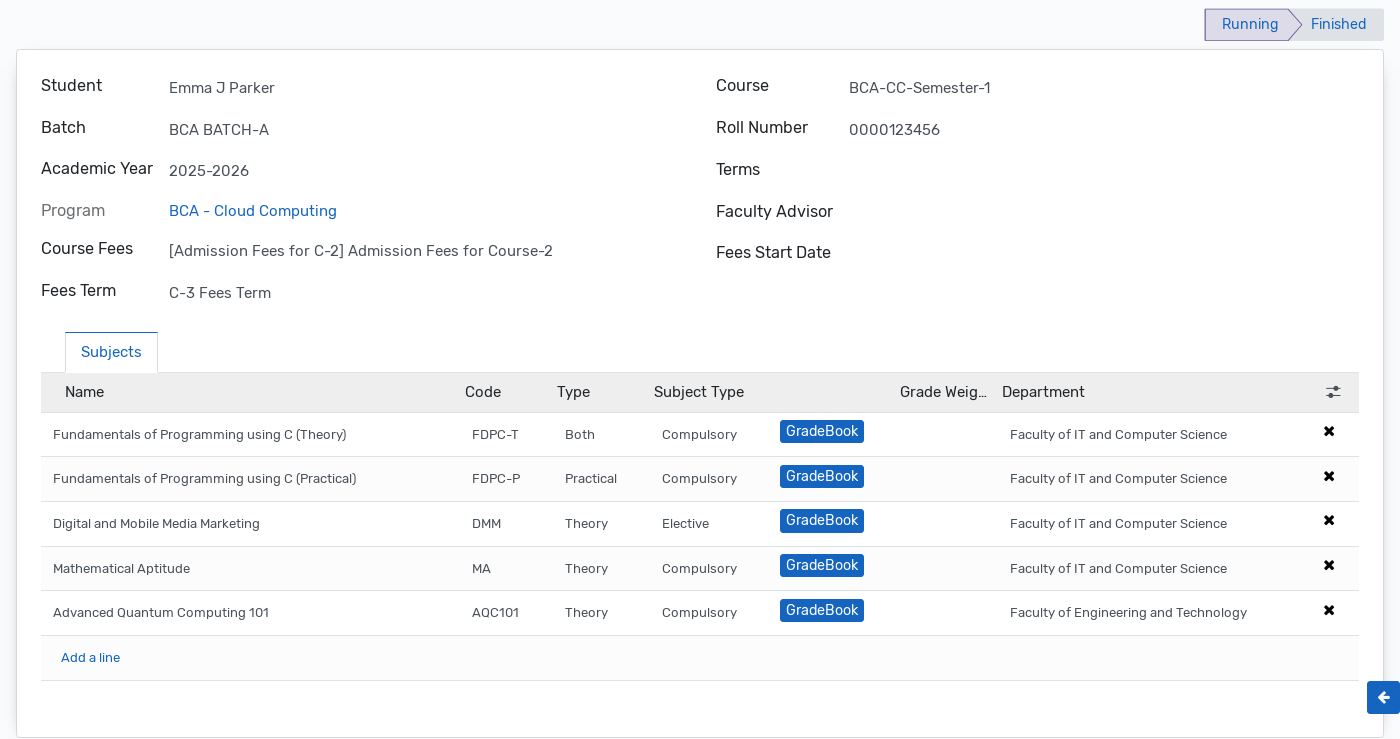
Once assigned to the student’s Course Detail record and equipped with at least one file attachment, the subject and its study materials will immediately become visible on the Student Portal and Parent Portal.
Student Portal Workflow
Enrolled students can view and download all allocated subject study materials directly from their web portal account.
Accessing Study Material Card
Log into the OpenEduCat Student Portal.
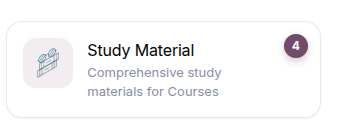
On the portal home dashboard, locate the Study Material card. The card displays a live counter showing the total number of subjects carrying study materials.
Study Material List View
Clicking the Study Material card navigates to the list view (/subject/details/).
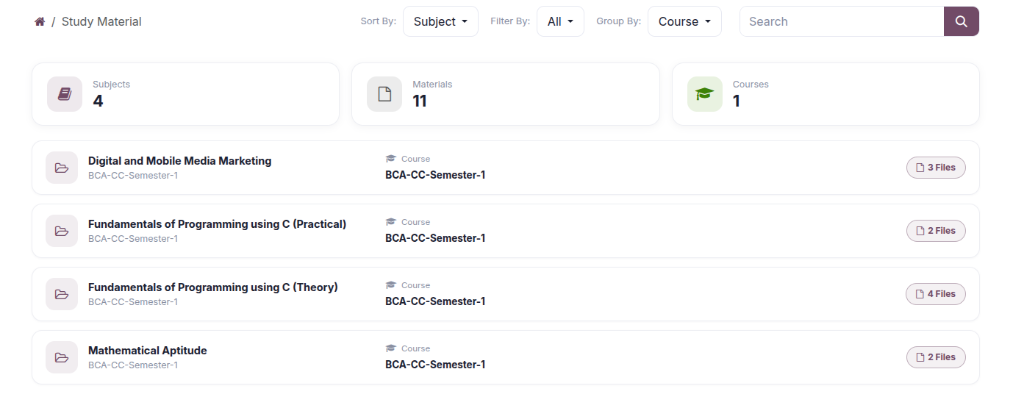
Summary Metrics :- * Subjects :- Total count of enrolled subjects that contain learning resources. * Materials :- Cumulative count of uploaded material files available across all subjects. * Courses :- Total number of distinct courses represented in the material library.
Subject Listing :- Lists each enrolled subject along with its associated course name and total files badge (e.g., 3 Files).
Search & Filters :- * Search Bar :- Search across subjects or courses. * Filter By :- Filter materials by specific enrolled courses. * Group By :- Group listings by Course or view as a flat list (None). * Sort By :- Order subjects alphabetically by Subject or Course.
Subject Material Details & File Download
Clicking on any subject card opens the Subject Material Details view (/subject/material/detail/<subject_id>).
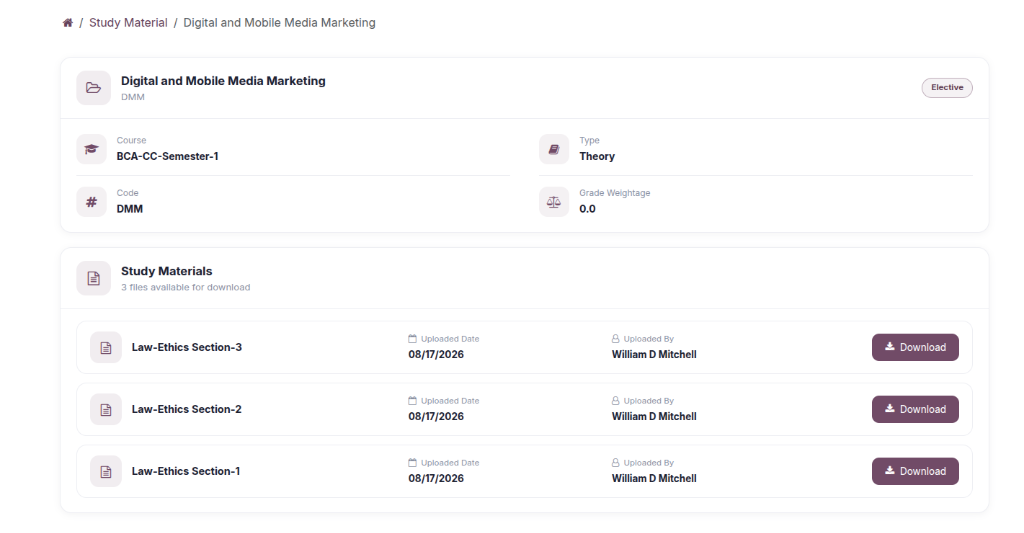
Subject Metadata Header :- Displays full subject attributes including Subject Name, Course, Code, Type, Subject Type, and Grade Weightage.
Material Table :- Lists all attached resources: * Material Name :- Title and filename of the study resource. * Uploaded Date :- Formatted creation/upload timestamp. * Uploaded By :- Name of the faculty member or administrator who uploaded the material.
Download Button :- Clicking the Download button (or material title) streams the binary file directly to the user’s browser, or redirects to the external URL resource.
Parent Portal Workflow
Parents connected to student accounts can monitor study materials allocated to their children:
Log into the Parent Portal account.
Select the relevant child from the portal dashboard.
Click on the Study Material card (
/subject/details/<student_id>).Review available learning resources, view subject metadata, and download study materials allocated to the student’s courses.