
Pulling Data from Moodle
The pull direction brings learning activity back from Moodle — gradebook grades, assignment
and quiz results, course completion, attendance and engagement. It runs through the
Moodle: Grade Pull and Moodle: Attendance Sync scheduled actions, and on demand from
the Pull Grades button or the manual sync wizard.
Gradebook Grades
When Pull Gradebook Grades is enabled, OpenEduCat reads the grade items of every mapped Moodle course and imports each student’s grade.
For every Moodle course, the pull:
reads the grade items — assignments, quizzes, manual items, category totals and the course total,
records each item under ,
locates the OpenEduCat student and subject through their mappings, and
writes the grade into the exam and result records for that subject.
Grades are grouped in an exam session named Moodle Grades - <program>, with one exam per Moodle grade item. Students appear as exam attendees and their marks are written to the result lines. Where an exam session, exam type or exam does not exist yet, it is created automatically on first import.
The pass or fail outcome follows the Pass Threshold and the optional letter bands on the instance’s Grade Scale tab.
Note
When the Advanced Gradebook modules are installed, the openeducat_moodle_gradebook_bridge
module routes these imported grades into gradebook lines as well. See
Advanced Gradebook Bridge.
Grade Items
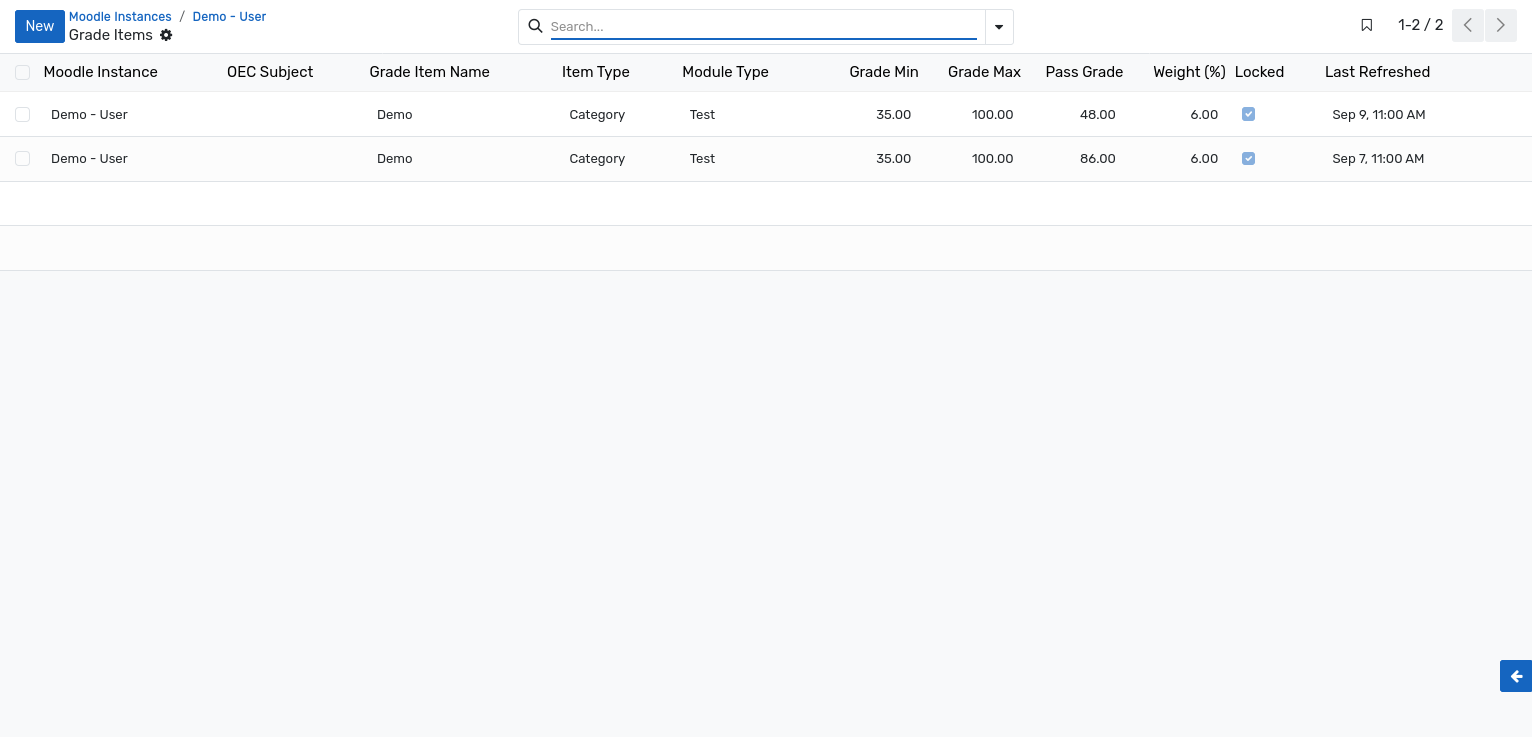
Each Moodle grade item encountered during a pull is stored for reference at .
Field |
Description |
|---|---|
Instance, Moodle Course, Moodle Item |
Where the item comes from. |
Subject |
The OpenEduCat subject the Moodle course maps to. |
Item Name |
The name of the item in the Moodle gradebook. |
Item Type |
mod for an activity, manual for a manually created item, category for a category total, course for the course total. |
Item Module |
The Moodle activity type, such as |
Grade Min, Grade Max, Grade Pass |
The grading range and the pass mark defined in Moodle. |
Weight |
The item’s weight in the Moodle gradebook. |
Locked |
Whether the item is locked in Moodle. |
Last Refreshed |
When the item was last read. |
The list can be filtered by item type — Activity Modules, Manual, Course Totals, Categories — and grouped by Moodle course, item type, instance or subject.
Assignment Grades
With Pull Assignment Grades enabled, the assignment activities of each mapped Moodle course are read together with their submission grades, and the marks are recorded against the matching student in OpenEduCat.
Quiz Grades
With Pull Quiz Grades enabled, each student’s best quiz attempt is imported and recorded as an exam result for the subject.
Course Completion
With Pull Completion Status enabled, the completion state of each mapped Moodle course is written to the student’s enrollment record, where it is visible as the Moodle Completion Status field alongside the Moodle Enrolled flag.
Attendance
Attendance is the only entity that can move in either direction. The Attendance Source setting on the Settings tab decides which system wins:
Moodle :- Sessions and their attendance statuses are imported into OpenEduCat.
OpenEduCat :- Attendance recorded in OpenEduCat is pushed to Moodle.
Both (last write wins) :- Both directions run and the most recent change prevails.
Attendance requires the local_wsattendance plugin in Moodle. When the plugin is absent, the integration detects that its web service functions are unavailable and the attendance run is skipped rather than failing — the sync log simply shows no attendance operations.
Running a Pull
Scheduled :- Moodle: Grade Pull every two hours and Moodle: Attendance Sync every four hours, for instances with Auto Sync Enabled on.
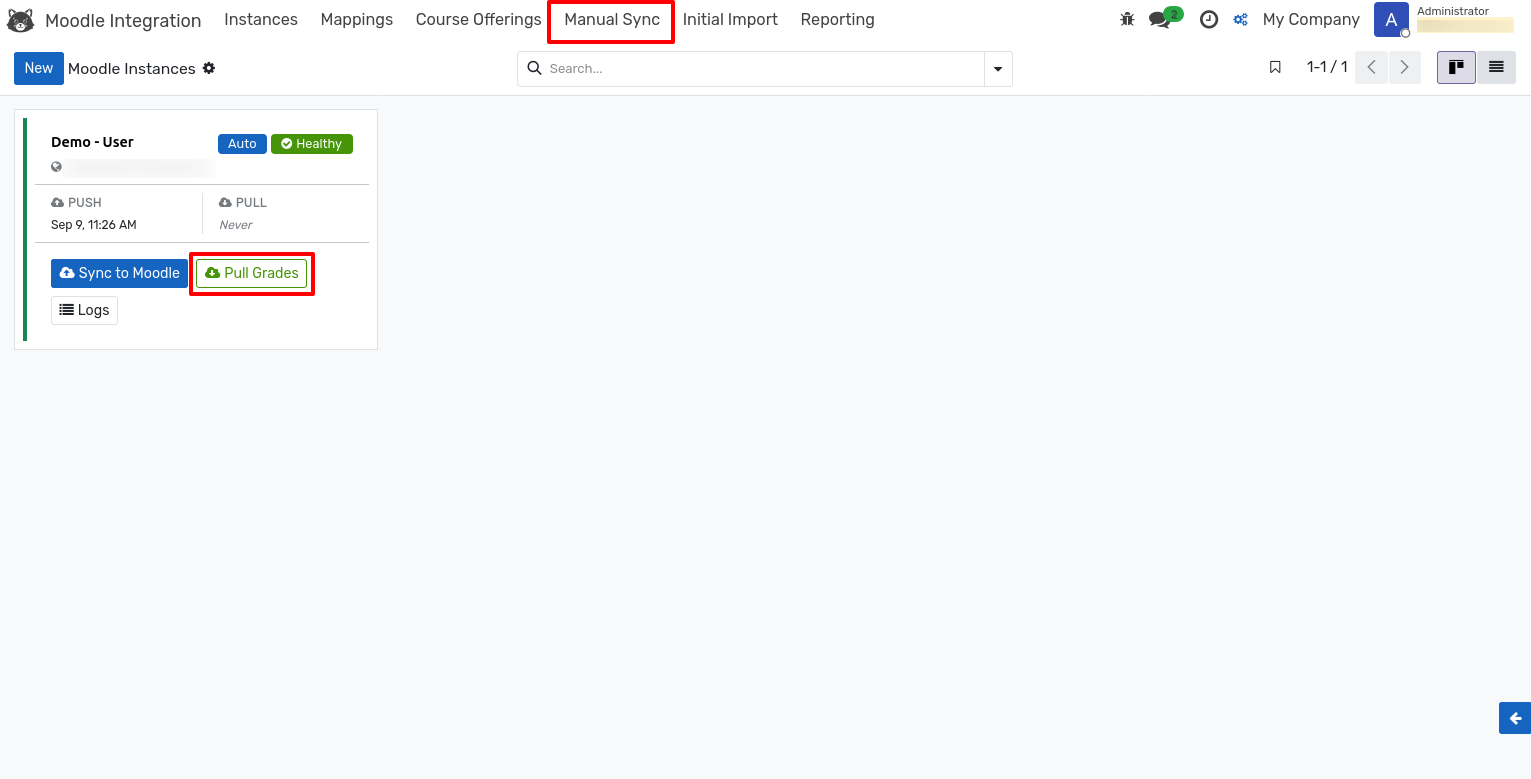
From the instance :- The
Pull Gradesbutton in the form header, or Pull Grades on the kanban card.From the wizard :- , with the sync type set to Pull.
From an exam :- Exams synchronized with Moodle offer a Pull Grades from Moodle action to refresh a single exam.
Only changed grades are written. Each imported value is hashed on its mapping, so a grade that has not moved in Moodle is logged as skipped rather than rewritten.
Requirements for Grades to Land
A grade only reaches OpenEduCat when all of the following hold:
The Moodle course is mapped to an OpenEduCat subject.
The Moodle user is mapped to an OpenEduCat student.
The student’s program has at least one batch, which is required to create the exam session.
An exam or gradebook module is installed to receive the marks.
Grades that fail any of these conditions are skipped and the reason is recorded in the sync log, which makes the log the first place to look when an expected grade does not appear.