
Student Skill Assessment
OpenEduCat provides a comprehensive Student Skill Assessment framework to define, evaluate, and track student competencies, technical skills, and proficiency levels across courses and academic programs.
Configuration
Skills Category
Go to .
Click on New to create a new skill category.

Name :- Enter the descriptive name of the skill category (e.g., Programming, Management, Design).
Code :- Enter a unique identifier code for the category.
Company :- Select the associated institute/company (in multi-company environments).
Skills
Go to .
Click on New to create a new skill.
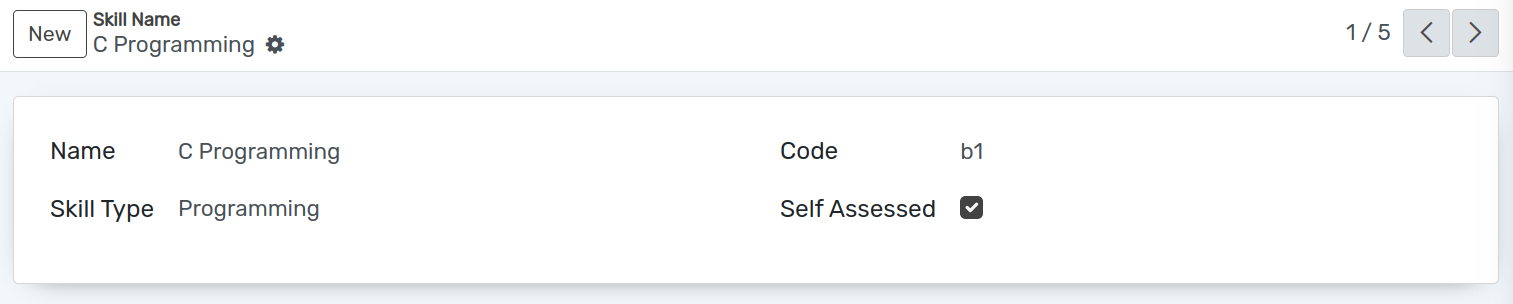
Name :- Specify the name of the skill (e.g., C Programming, Network Engineer).
Skill Type :- Select the parent Skills Category for classification.
Code :- Enter the unique code associated with the skill.
Self Assessed :- Check this box if the skill can be self-evaluated by the student or user.
Skill Levels
Go to .
Click on New to create a new skill level.
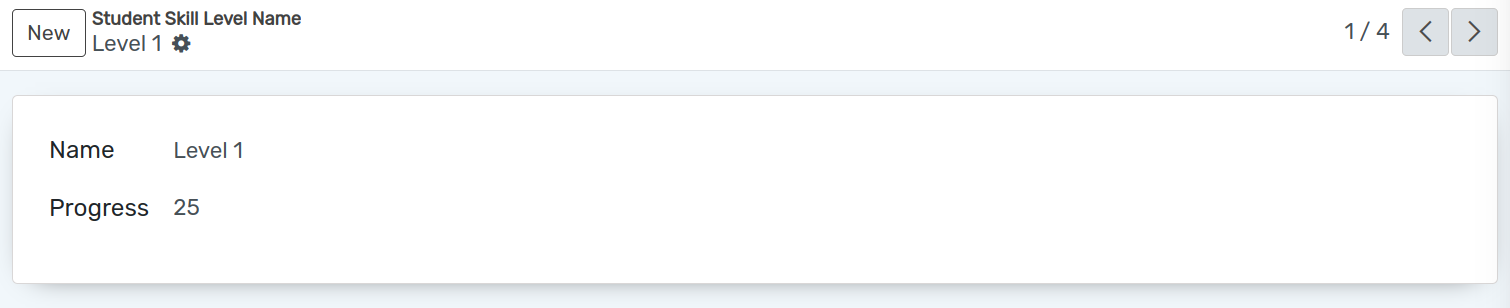
Name :- Specify the label of the skill level (e.g., Level 1, Level 2, Beginner, Expert).
Progress :- Set the corresponding progress percentage (e.g., 25%, 50%, 75%, 100%).
Skill Assessment Template
Go to .
Click on New to create a new template.

Name :- Specify the name of the template (e.g., Technical Skills).
Skills :- Add the skills that belong to this assessment template.
Levels :- Define the hierarchy of progression levels available for these skills.
Student Skills Management
Assigning Skills to Students
Go to , open a student record, and navigate to the Skills tab. Click on Add a line to assign or evaluate skills directly on the student profile.
Note
The Skills tab is accessible to users in the Skill / User or Skill / Manager access group. Configuring skill categories, skills, levels, and templates requires Skill / Manager rights.
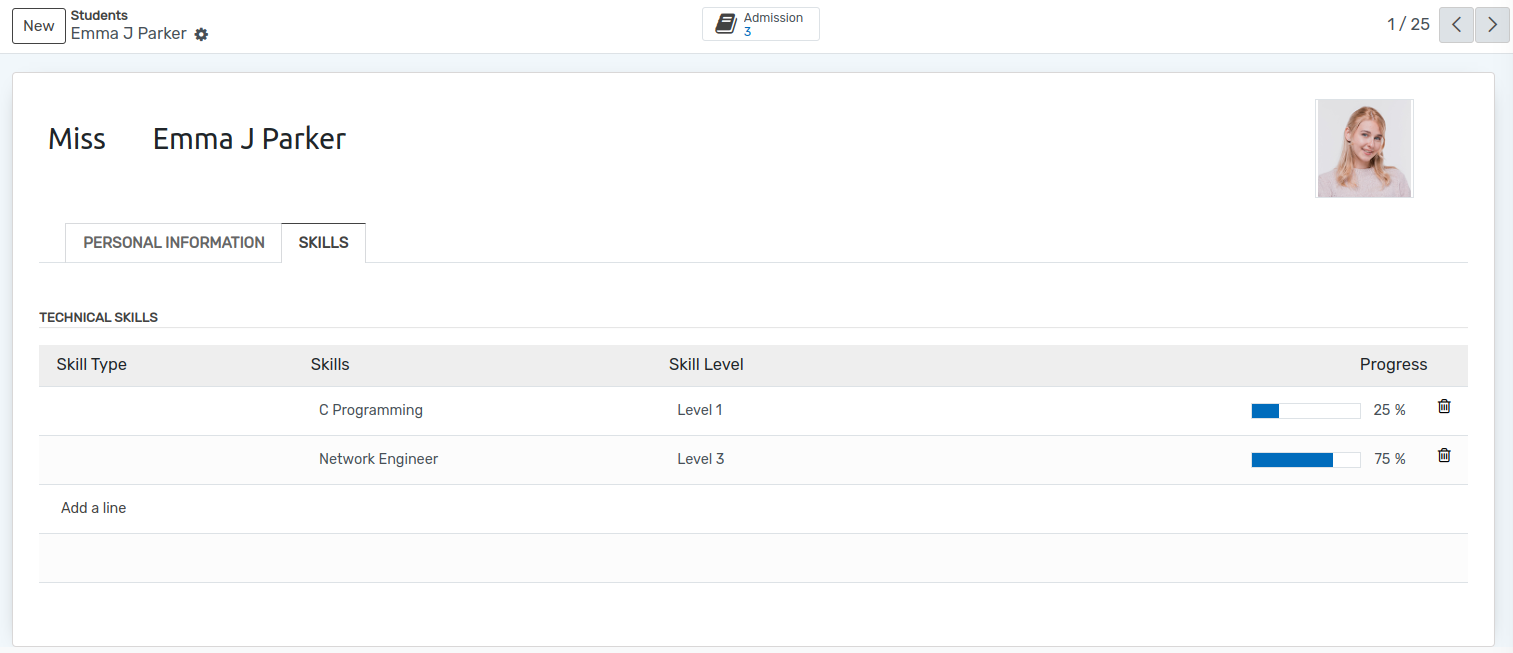
Skill Type :- Select the skill assessment template.
Skills :- Choose the specific skill.
Skill Level :- Select the attained proficiency level.
Progress :- Automatically reflects the progress percentage associated with the selected skill level.
Student Portal View
Once skills are recorded, students can review their skill evaluations through the self-service portal:
On the Student Portal home page, click on Student Profile.
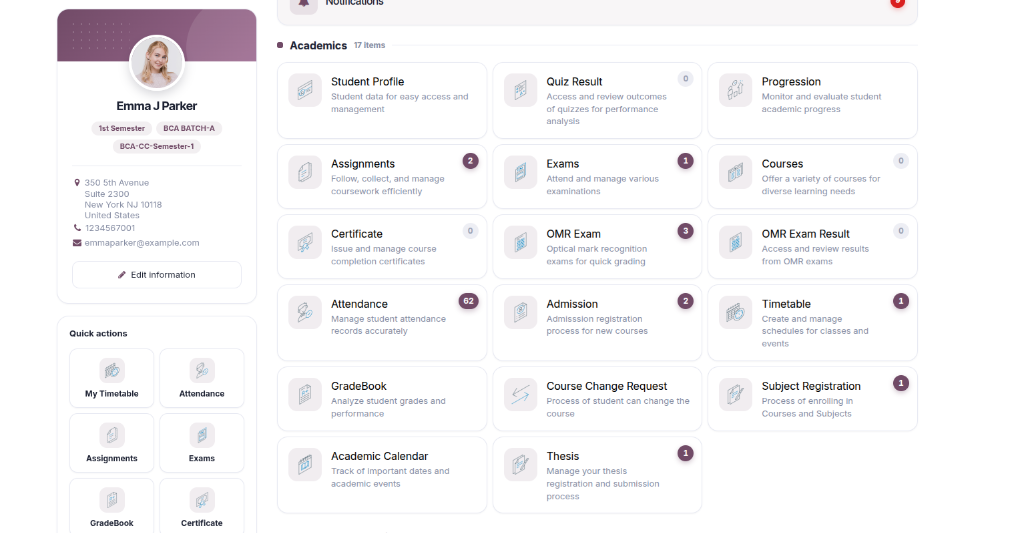
Under the Student Details tab:
Skill Assessment :- Displays the student’s Overall Skill Score in a circular progress ring gauge along with competency status ratings (Needs Improvement, Good Progress, or Excellent) and detailed proficiency progress bars for each evaluated skill.
Self Assessed Skills :- Displays student self-evaluated skills with direct capability to add and update personal skill proficiency ratings using the
+ Add Your Skillbutton.

Reporting
Skill Assessment Analysis
To analyze student skill evaluations across various templates, skills, and progress metrics:
Go to .
Pivot Analysis :- Displays a multi-dimensional matrix showing student competencies categorized by Skill Assessment Template and individual Skills.
Measures & Metrics :- Analyze average and total progress percentages across batches and student groups.
Visual Insights :- Switch between pivot matrix and interactive graph views (Bar, Line, Pie) to evaluate performance trends and identify areas requiring academic support.
Data Export :- Export the filtered analysis directly to an Excel/XLSX sheet for administrative reporting.