
Monitoring and Sync Logs
Every synchronization operation — successful, failed or skipped — is recorded. The Reporting menu gathers the log, the dashboard and the retry queue, which together answer the two questions that matter in daily operation: did it run, and what went wrong.
Sync Logs
Go to , or use the Sync Logs smart button on an instance.
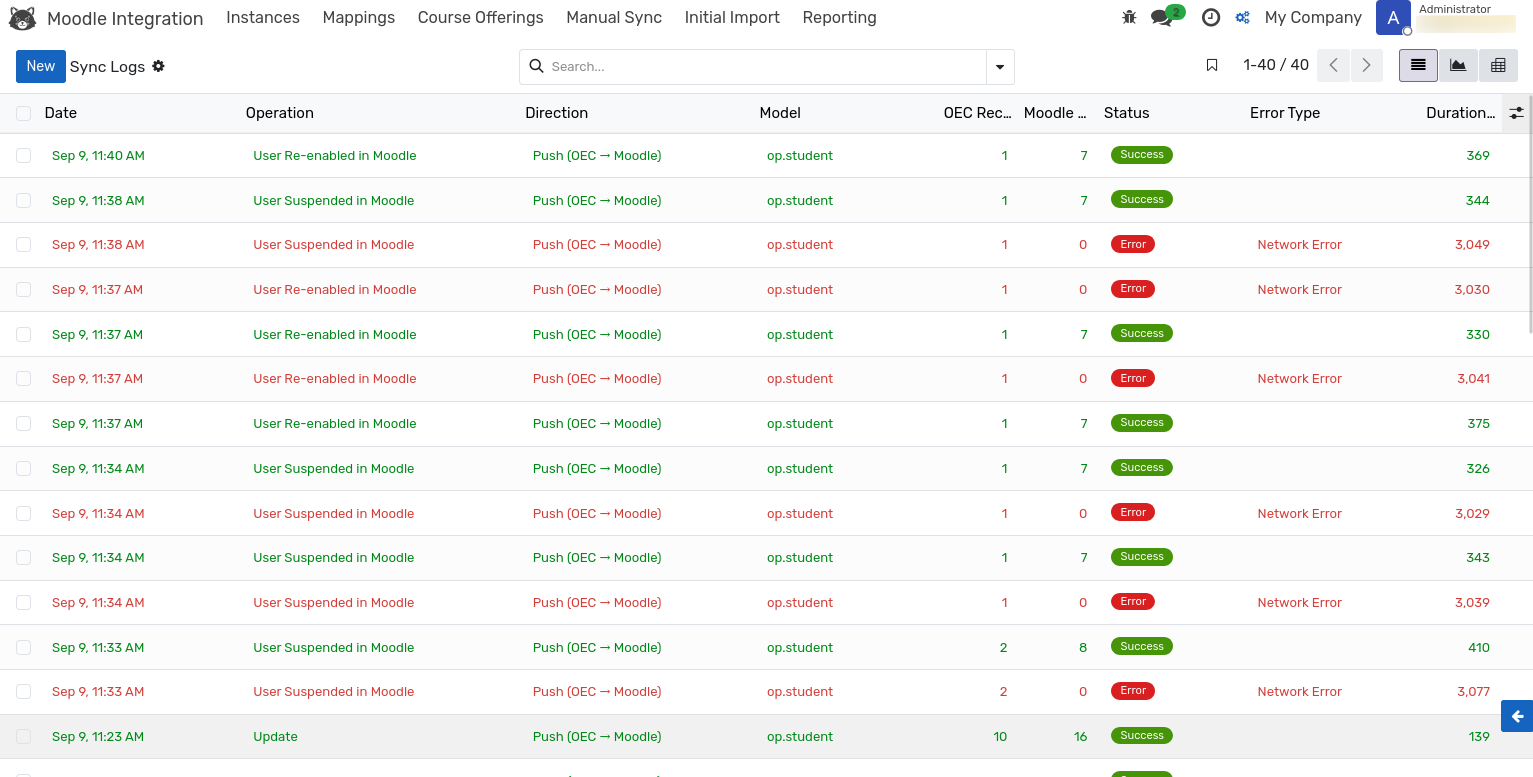
Column |
Description |
|---|---|
Date |
When the operation ran. |
Operation |
What was attempted — see the table below. |
Direction |
Push for OpenEduCat to Moodle, Pull for Moodle to OpenEduCat. |
Model |
The OpenEduCat model involved. |
OEC Record / Moodle Record |
The identifiers on each side. |
Status |
Success, Error or Skipped. |
Error Type |
The category of the failure, for error rows. |
Duration (ms) |
How long the operation took. |
Rows are colour-coded — green for success, red for errors, grey for skipped records.
Operations
Operation |
Meaning |
|---|---|
create / update |
A Moodle record was created or updated. |
delete |
A Moodle record was retired. Rare, as the integration prefers suspension. |
enrol / unenrol |
A user was enrolled in or removed from a Moodle course. |
grade_pull |
Gradebook grades were imported. |
assignment_pull / quiz_pull |
Assignment or quiz grades were imported. |
attendance_pull / attendance_push |
Attendance was exchanged in the configured direction. |
completion_pull |
Course completion status was imported. |
sync |
A generic operation, used by the retry queue. |
Statuses
Status |
Meaning |
|---|---|
Success |
The operation completed and Moodle confirmed it. |
Error |
The operation failed. The error type and message explain why. |
Skipped |
The record was unchanged, so no call was made. This is the normal outcome for most records in a routine run. |
Error Types
Error Type |
Typical cause |
|---|---|
auth |
The token is invalid, expired or not configured. |
validation |
Moodle rejected the data — a missing required field, or a value it will not accept such as an email address already in use. |
network |
Moodle could not be reached. |
timeout |
Moodle did not respond in time. |
server |
Moodle returned an internal error. |
rate_limit |
Moodle refused the request because too many were sent. |
Useful Filters
The search panel offers ready-made filters for Success, Errors, Push, Pull, Today and Last 7 Days, and grouping by status, operation, model, instance, error type, direction or date. Common combinations are:
Errors plus Today — everything that failed since this morning.
Error type auth — token problems across every instance.
Group by Model with the Errors filter — which entity type is failing.
Sync Dashboard
opens the same data as a graph, defaulted to the last seven days. Successes and errors are stacked per day, which makes a sudden change in behaviour obvious.
Switch to the pivot view for a breakdown by model against status, with the operation count and the total duration as measures — the quickest way to spot both the noisiest entity and the slowest one.

Retry Queue
Failed operations are queued for an automatic retry rather than being lost. The Moodle: Process Retry Queue job runs every 15 minutes and picks up whatever is due.
Go to . The list opens on the pending items.
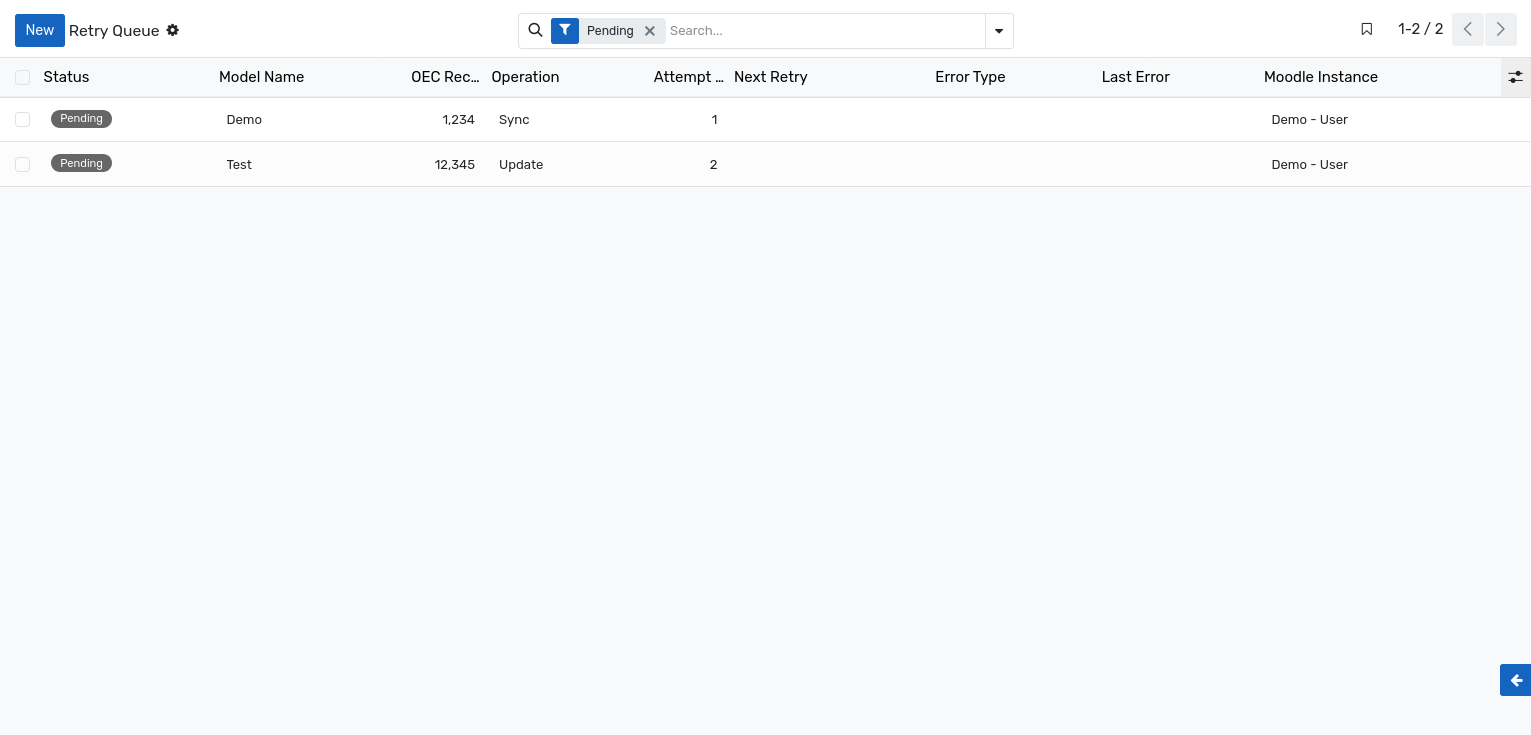
Field |
Description |
|---|---|
Status |
Pending, In Progress, Completed or Permanently Failed. |
Model / OEC Record |
What the queued operation applies to. |
Operation |
The operation that failed. |
Attempts / Max Attempts |
How many retries have been made, and the limit. |
Next Retry |
When the next attempt is due. |
Error Type / Last Error |
Why the last attempt failed. |
Retries follow an increasing delay — five minutes, thirty minutes, four hours, then daily. Once the maximum number of attempts is reached, the item is marked Permanently Failed and waits for a decision.
Two buttons are available on a queue item:
Retry Now — resets the item to pending and schedules it immediately, which is what you use after fixing the underlying cause.
Mark Resolved — closes the item without retrying, for problems that were corrected another way.
Health Alerts
The hourly Moodle: Health Check job tests every active instance. When an instance degrades or goes down, a Moodle: Health Alert message is sent with the status, the number of consecutive failures and the last successful sync time.
A healthy system shows a green health status, recent push and pull timestamps, zero consecutive failures, an empty retry queue and mostly success and skipped rows in the log.
Log Retention
The daily Moodle: Log Cleanup job removes sync log entries older than 90 days, so the table does not grow without bound. Adjust the interval from if your audit policy requires a longer history.