Attendance Sheet
An Attendance Sheet is created for a specific date or timetable session to collect and track student attendance. To manage attendance sheets, navigate to . Click on New to create a new attendance sheet manually.
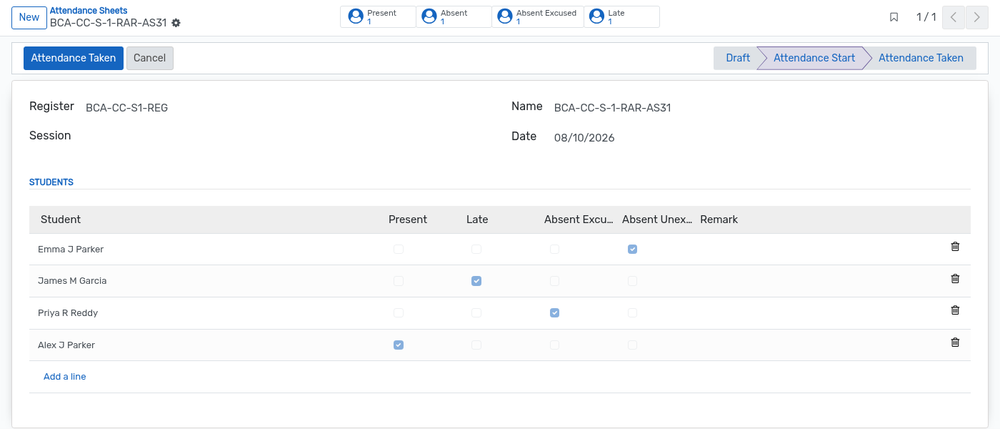
Details of Attendance Sheet Form
Register:-Create or Select the attendance register from the created attendance registers.
Name:-Set name of the attendance sheet here.
Date:-Set date of the attendance sheet.
Session :- Select the session for which the attendance is collected. The field is displayed when the attendance is collected subject wise.
Batch and Faculty :- Select the batch and the responsible faculty. These fields are displayed when the attendance is collected generically for the whole day.
Academic Plan :- Academic plan of the sheet. It is filled in automatically from the register and is displayed when the Academic Plan feature is enabled.
Student(s):-Select the list of absent students from the list here.
Company :- Company the sheet belongs to. The field is only displayed when several companies are managed.
Attendance Counters
Four counters are displayed on the top of the attendance sheet and are recalculated from the student lines :-
Present :- Number of students marked as present.
Absent :- Number of students marked as absent unexcused.
Absent Excused :- Number of students whose absence has been excused.
Late :- Number of students who arrived late.
Click on any of these counters to open the corresponding attendance lines, which is a quick way to review, for example, only the absent students of that day.
Workflow Of Attendance Sheet
When attendance sheet is created its in Draft state.
Click on the Attendance Start button to start the attendance. It changes the state from
DrafttoAttendance Start. All the students of the section, or of the course and batch, or of the subject of the register are added to the sheet, marked as present by default, and the Attendance Lines are opened so that the faculty can correct the status of every student, see Manage Attendance.Click on Attendance Taken button if the attendance is taken of that particular attendance sheet. It changes the state from
Attendance StarttoAttendance Taken. Once the sheet is in that state the status of the students can no longer be changed.Click on Cancel to cancel a sheet, and on Draft to set a cancelled or completed sheet back to draft.
Note
Only the sheets that are in the Attendance Start state are
proposed to the students in Kiosk Mode, so that they can sign in
themselves. See the Student Attendance Kiosk Mode documentation.
Attendance Sheet Dashboard
The Sheets menu opens in a Kanban view that lists, by default, the
sheets of the current day. Remove the Today filter of the search bar
to display all of them.

A
Doneribbon is displayed on the sheets whose attendance has been taken, and aCanceledribbon on the cancelled ones.view :- Opens the form of the attendance sheet.
start :- Starts the attendance of a draft sheet, exactly like the Attendance Start button.
reset :- Displayed on a sheet whose attendance has been started. It deletes all the student lines of the sheet and sets it back to
Draft, so the attendance can be taken again from scratch.
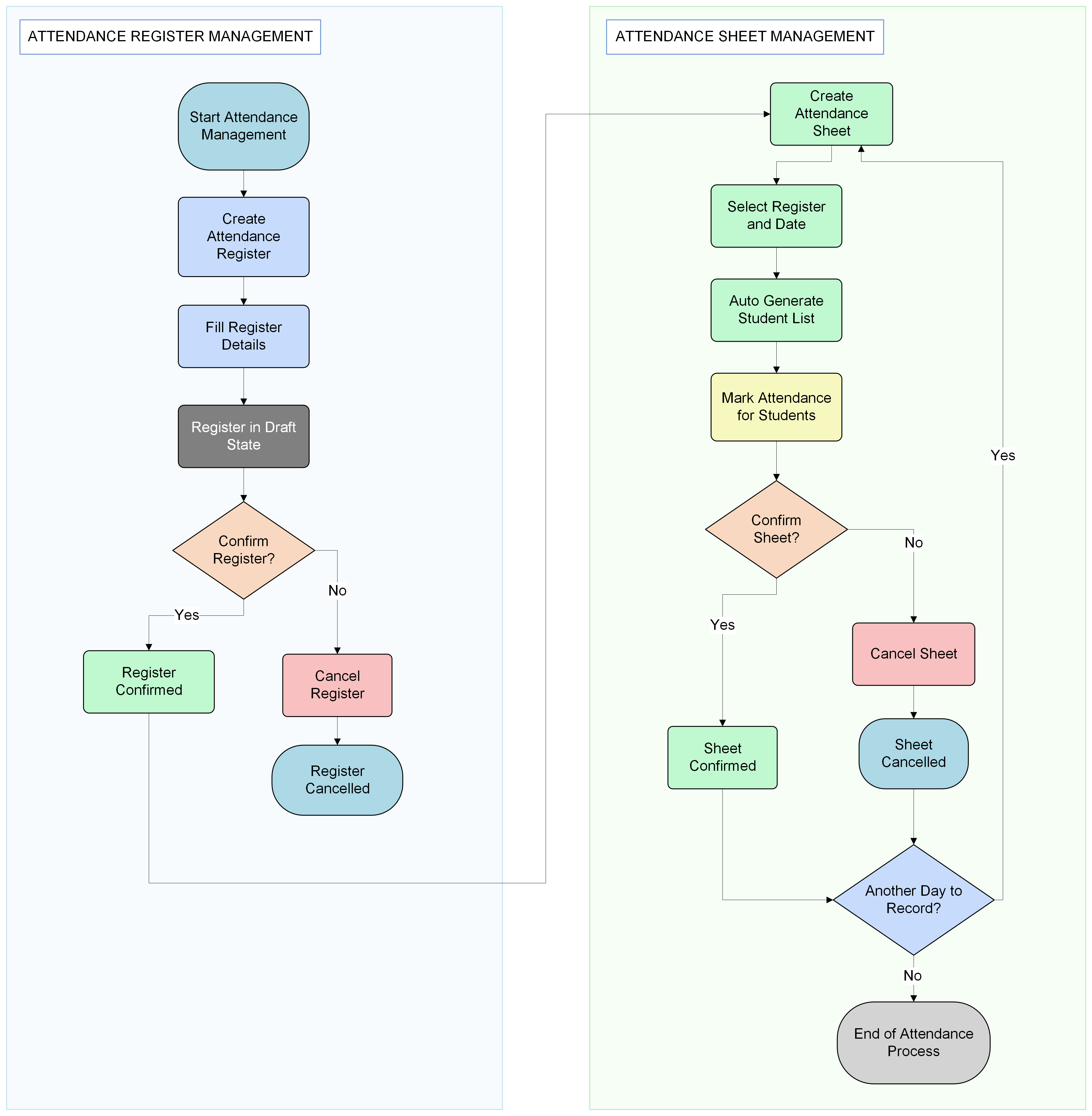
Activity Diagram