
Rubrics Template
Faculty can create Rubrics Template for the particular assignment.
To do that, Go to .
Click on New to create a new template.
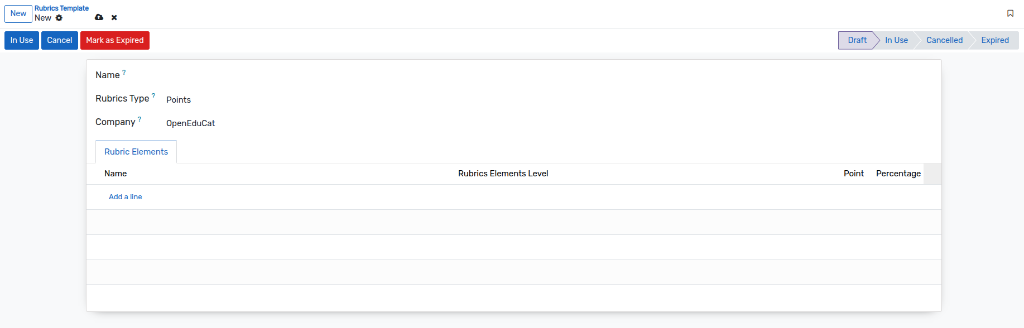
Name :- Specify the name of the template.
Rubrics type :- Select the rubrics type which is Points or Percent from the list.
Validation Status :- If ‘Percent’ is selected, a badge displays whether the total percentage is valid (should equal 100%).
Rubrics Elements
Faculty can create Elements of Rubrics Template in which they can define the criteria for grading the assignment based on points or percentage.
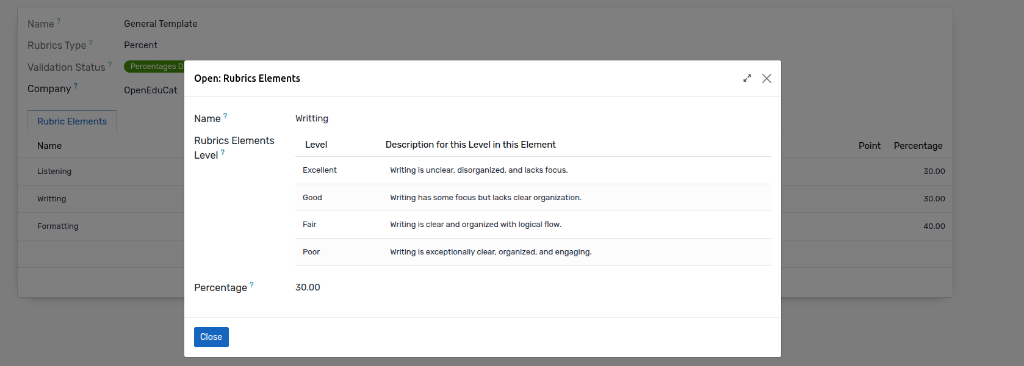
Name :- Specify the name of the element.
Percentage / Point :- Add a Percentage or Point for the particular rubrics element.
Rubrics Elements Level :- Define the levels (like Excellent, Good, Fair, Poor) with their respective descriptions and values.
In this way you can create multiple rubrics elements for a particular rubrics template.
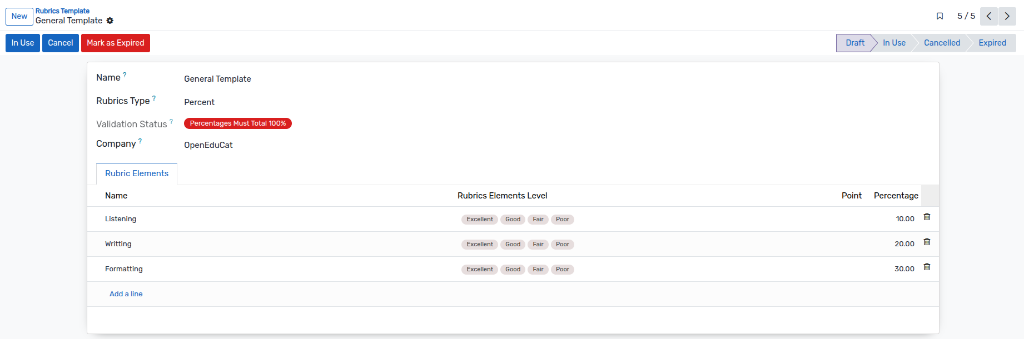
For using the created Rubrics template, the faculty have to change the state to ‘In Use’ by clicking on the In Use button.
Template Expiration
Once a template is no longer needed or out of date, it can be expired:
Click on the
Mark as Expiredbutton (available when the template is not already expired and is in Draft or Cancel state).The template state will change to Expired.
- A new section Rubrics Template Expiration Details will appear, displaying:
Template Expired: A checkbox indicating it is expired.
Template Expired By: The user who expired the template.
Template Expired Date: The timestamp of expiration.