
Activity Management
OpenEduCat Activity Enterprise allows educational institutes to track, manage, and analyze student co-curricular and extra-curricular activities. It integrates seamlessly with student profiles, student progression tracking, multi-company environments, portal views, and reporting analytics.
Configure Activity Types
Activity types define the categories of activities in which students can participate (e.g., Sports, Cultural, Academic Competitions, Social Service).
Go to Students ‣ Configuration ‣ Activity Types.
Details of Activity Types Form
Name :- Specify the name of the activity type. It is displayed throughout the system.
Activity Logs
Activity logs record the participation of individual students in specific activities.
Go to Students ‣ General ‣ Activity Logs, or click the Activity Log smart button on a student’s profile form.

Details of Activity Log Form
Student :- Select the student who participated in the activity.
Progression No :- Displays the student progression reference linked to the student. Automatically populated when a student is selected.
Faculty :- Select the faculty member supervising or coordinating the activity.
Activity Type :- Select the category of activity from the configured activity types.
Date :- Specify the date on which the activity took place (defaults to the current date).
Description :- Provide detailed notes or comments regarding the student’s participation.
Student Progression Integration
Activities can be linked directly to a student’s academic and extra-curricular progression tracking:
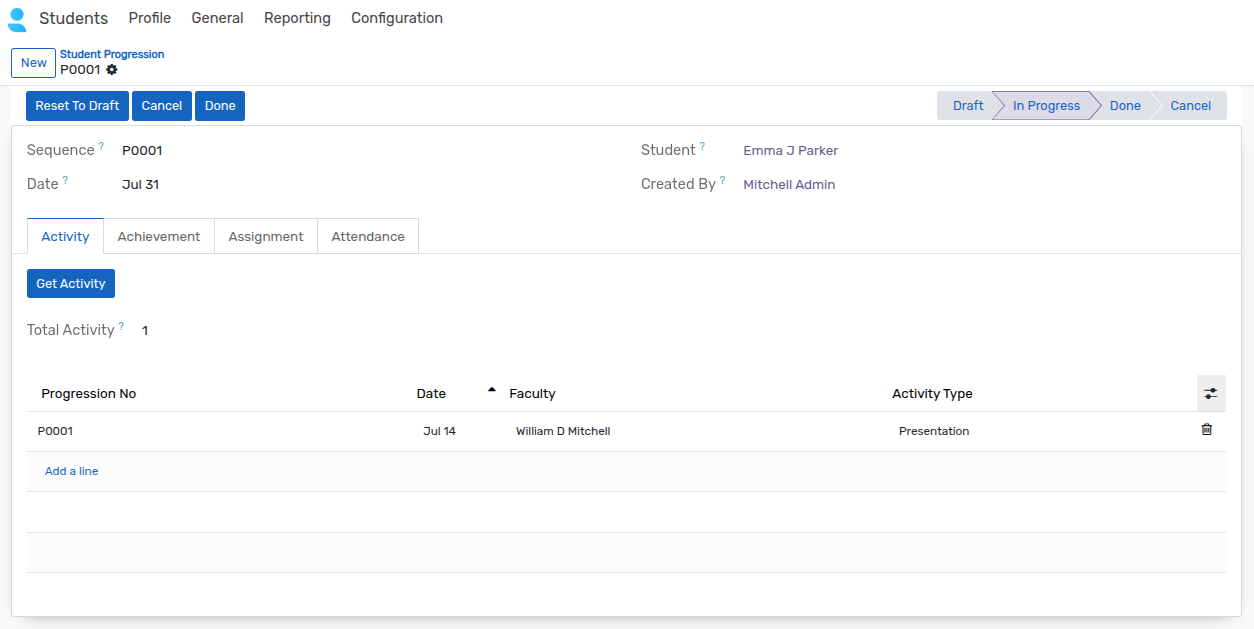
Go to Students ‣ General ‣ Student Progression and open or create a student progression record.
Navigate to the Activity tab.
Click the Get Activity button to launch the activity progression wizard.
Select the student’s activity records from the wizard list and confirm to attach them.
The Total Activity counter automatically calculates and displays the total number of activities linked to the progression record.
Activity Reporting & Analytics
OpenEduCat Activity Enterprise provides built-in analytical reports to evaluate student participation:
Activity Analysis
Go to Students ‣ Reporting ‣ Activity Analysis.
Provides an interactive Pivot View to analyze activity participation.
Allows grouping and filtering activities by student, activity type, date, faculty, and company.
Migration Report
Go to SIS ‣ Reporting ‣ Migration Report.
Displays a dedicated statistical pivot report specifically filtering activities categorized under Migration.
Helps administrators monitor student migration events, dates, and associated faculty contacts.
Portal Integration
When a student logs into the OpenEduCat portal, they can access their activity details in two locations:
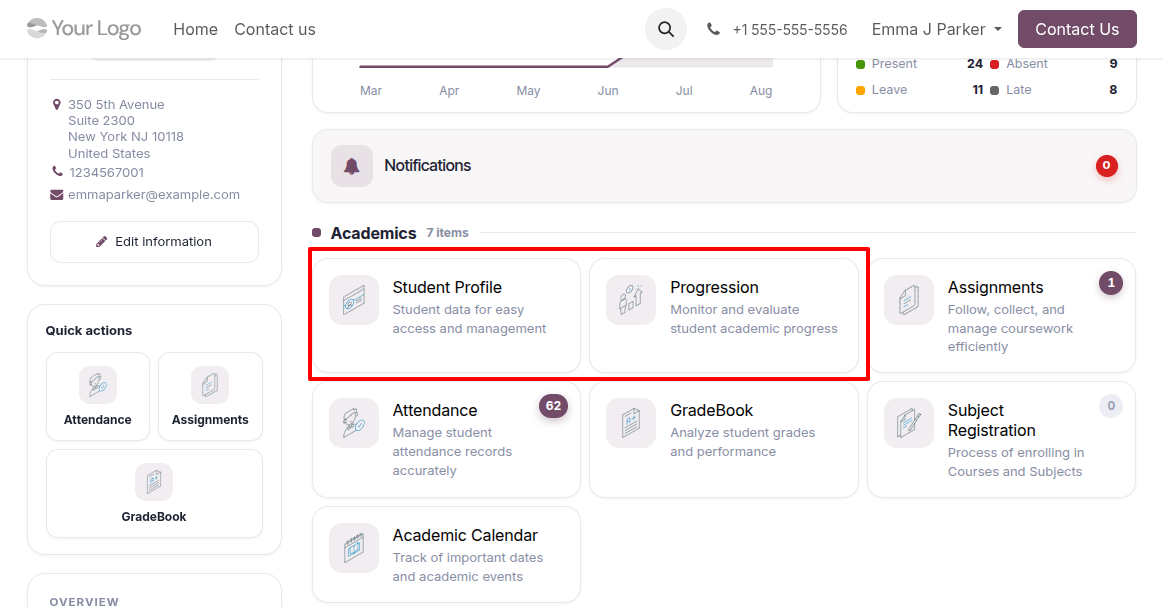
Student Profile: On the student profile page, click the Activity tab to view all recorded extra-curricular and co-curricular activities (including date, activity type, faculty, and description).
Student Progression: Under the Student Progression portal view, select the Activity tab to view all activities linked to the student’s progression tracking in a detailed chronological layout.