
Assignments on the Portal
Students follow their assignments and send their work from the portal, without any access to the back end. Parents connected to the portal see the same information for each of their children.
Assignments Card
After logging in, the student opens . The Assignments card gives access to the assignments and displays the number of assignments that are currently available.
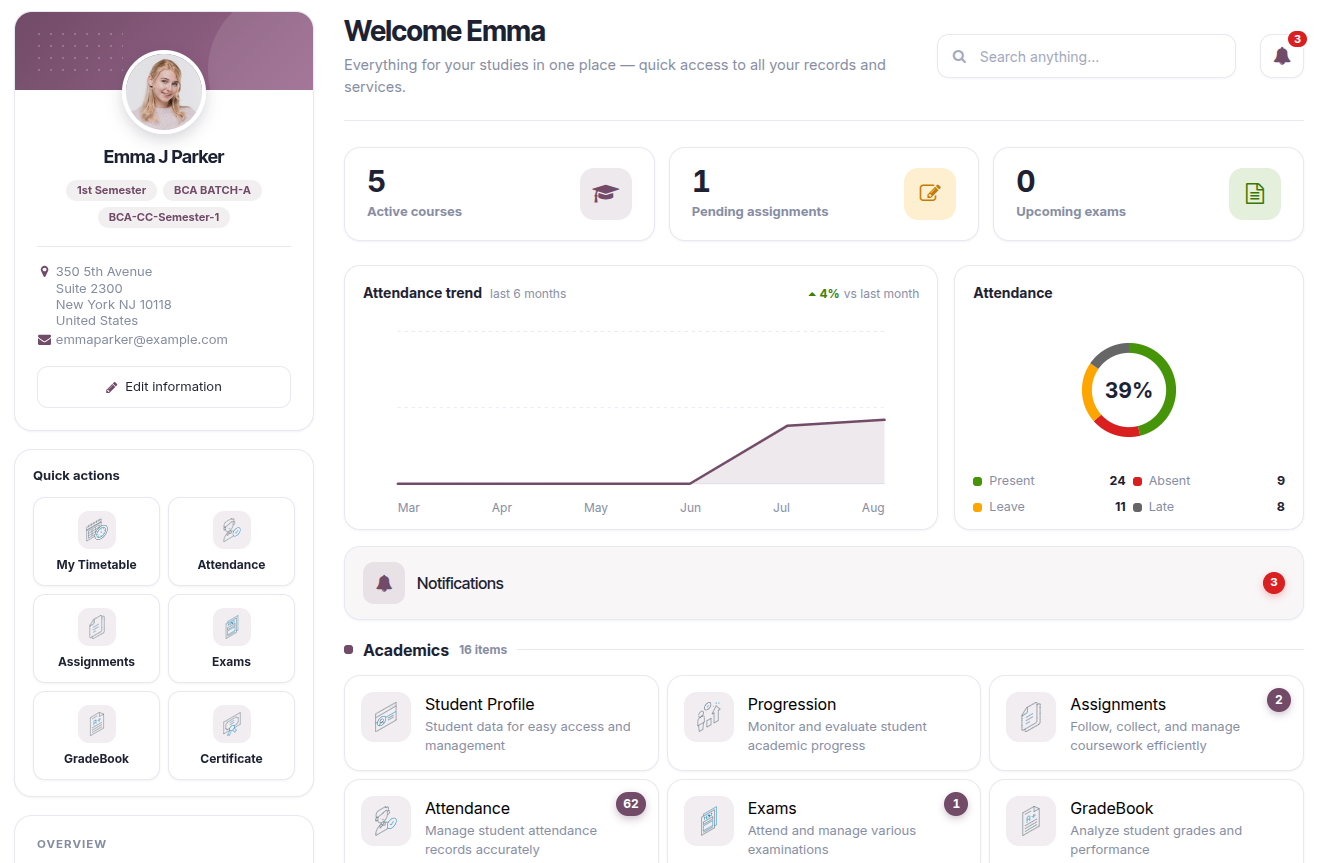
My Assignments
Click on the Assignments card to display the list of the assignments allocated to the student.
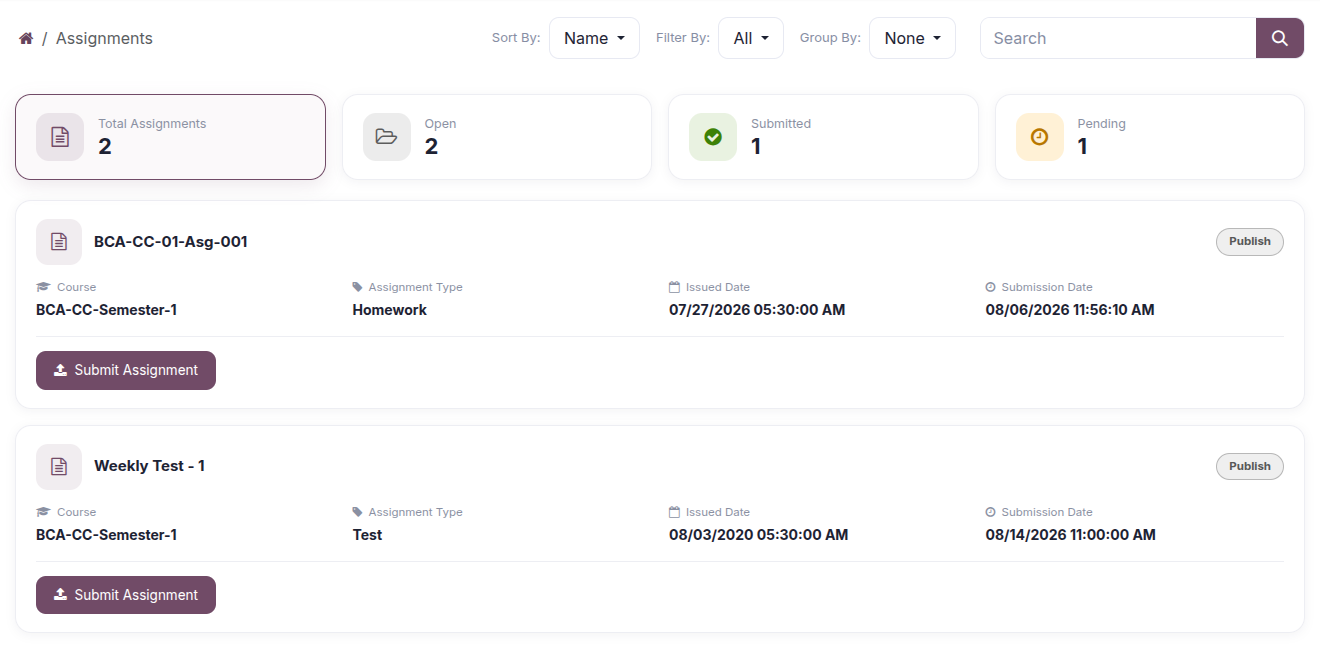
The list only shows the assignments that are published or finished and whose issued date has been reached, and displays for each of them the name, the course, the assignment type, the issued date, the submission date and the state.
The following tools are available on the top of the list :-
Sort By :- Sort the assignments by Name, Course, Batch, Marks, Submission Date, Issued Date or State.
Filter By :- Display
Allthe assignments, only thePublishones or only theFinishones.Group By :- Group the assignments by Course, or select
Noneto display a flat list.Search :- Search in the assignment name, and through the drop-down of the search box, in the Course, the Assignment Type, the Issued Date, the Submission Date, the State, or in all of them at once.
Assignment Details
Click on the name of an assignment to open its details.
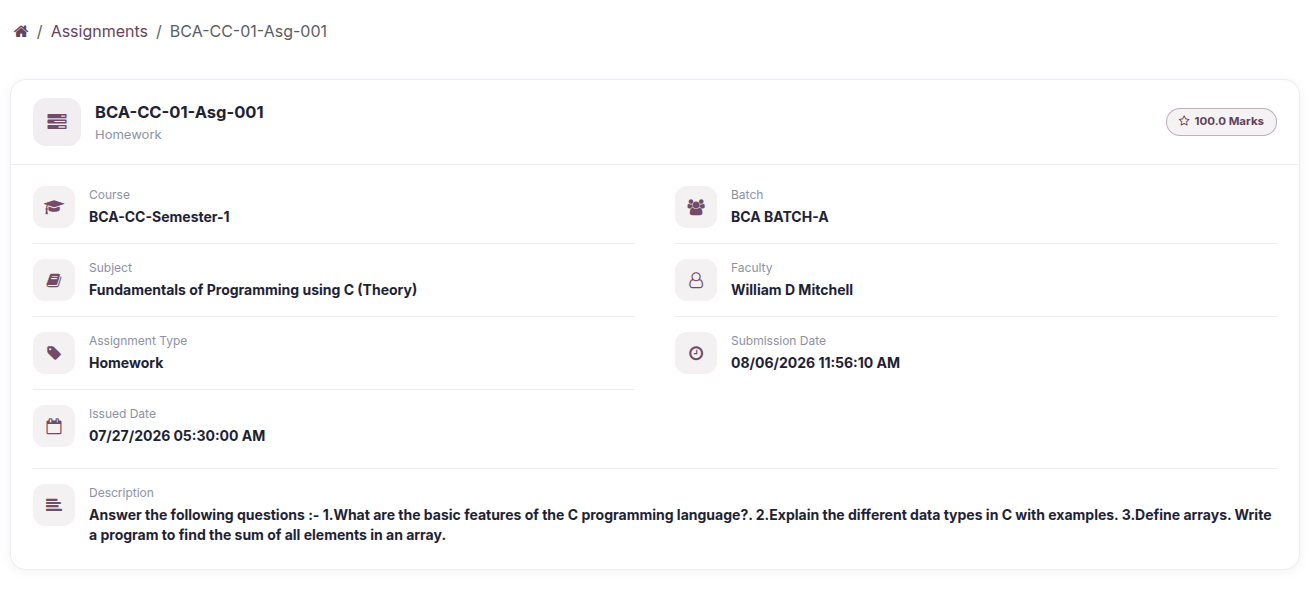
The page displays the course, the subject, the assignment type, the batch, the faculty, the reviewer, the issued date, the submission date, the marks and the description of the assignment. When the faculty has joined documents to the assignment, they are listed under Attachments and can be downloaded by clicking on their name.
Submit an Assignment
Click on the
Submit Assignmentbutton on the line of the assignment to open the submission form.
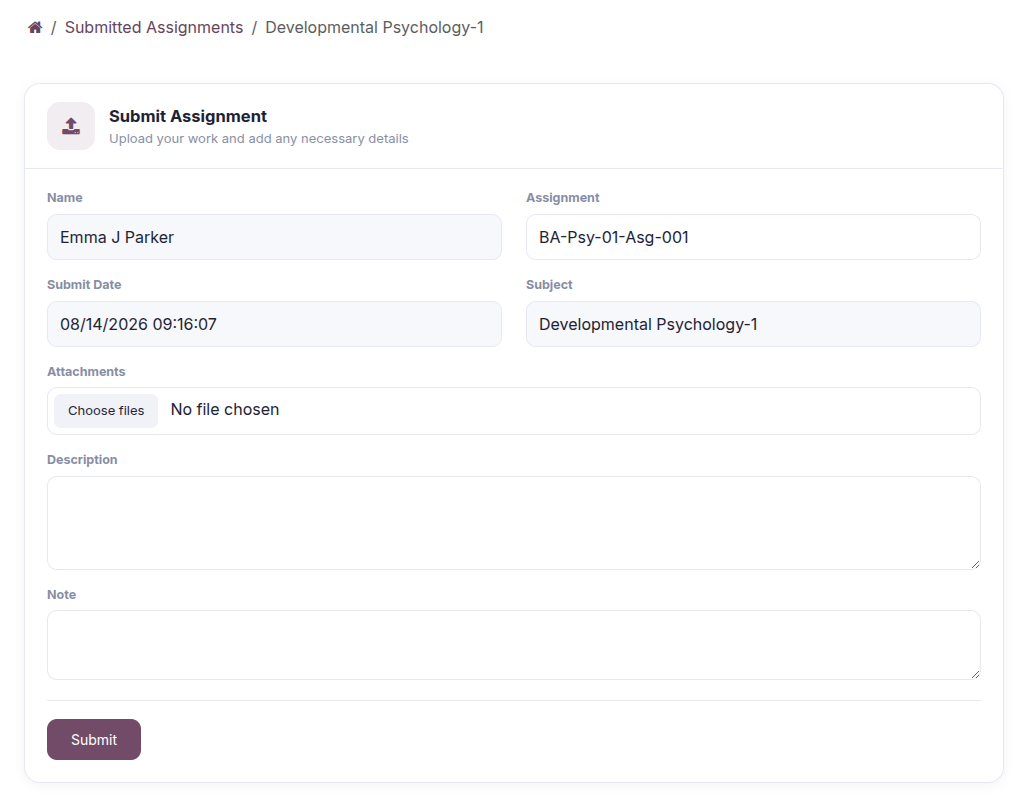
Name, Submit Date, Subject and Assignment are filled in automatically and cannot be modified.
Attachments :- Click on
Choose filesto join the work of the student. Several files can be selected at once. At least one file is required to be able to submit.Description :- Describe the work that is submitted.
Note :- Add any additional note for the faculty.
Click on
SUBMITto send the work. The submission is created and directly moved to theSubmittedstate, so it appears immediately for the faculty under .
Submitted Assignments
Once a submission has been sent, the Submit Assignment button is replaced by a link that opens the list of the submissions already made for that assignment.
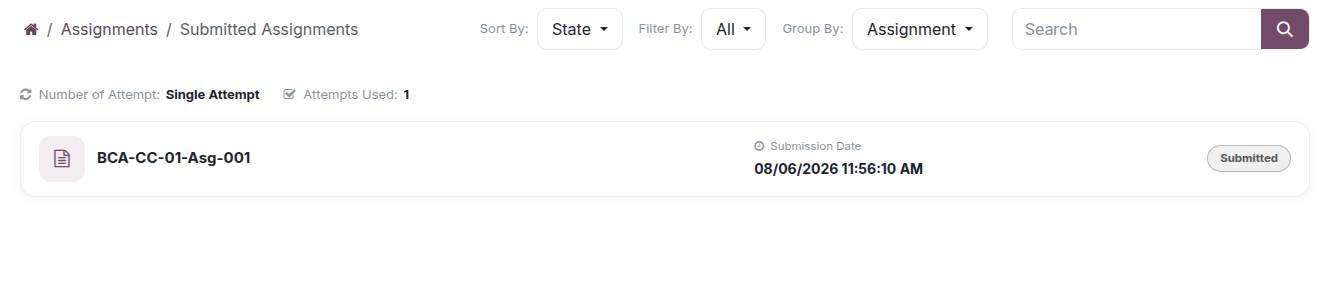
The Number of Attempt of the assignment is recalled on the top of the list, so the student knows whether another submission is still possible.
Each line displays the assignment, the submission date and the status of the submission.
Sort By :- Sort the submissions by Submission Date, Assignment or State.
Filter By :- Display
Allthe submissions, or only those which areSubmitted,Rejected,Change RequiredorAccepted.Group By :- Group the submissions by Assignment.
Search :- Search in the assignment, the submission date, the state, or in all of them at once.
Click on the assignment of a line to open the detail of that submission, where the description, the note and the attachments that were sent can be consulted and downloaded.
Note
When the faculty sends an assignment back with
Change Require, the student can submit again from the same screen.For an assignment configured with a single attempt, no new submission can be sent once the assignment has been submitted, unless the faculty clears the attempt or grants an additional attempt.
Assignments in the Student Progression
The assignments of a student are also published on the Student Progression page of the portal, under the Assignment tab, with the submission date, the assignment and the status of each submission. The same table is printed in the student progression report.
Parent Access
A parent connected to the portal reaches the same screens for each of their children. The Assignments card of the parent opens the assignments of the selected child, and the parent can consult the assignments, the submissions and the attachments of that child, but cannot submit an assignment or modify a submission.