
AI Research Assistant
Prerequisites: Base Configuration
Before utilizing this agent, ensure your foundational AI Provider and Model are set up. Please refer to the Common AI Configuration guide to configure your AI Provider.
1. Installing the Module
Before this agent appears in your Agent Library, you must install its corresponding module.
Navigate to the Apps menu.
Search for the module: OpenEduCat AI Research Assistant (
openeducat_ai_research_assistant).Click Install.
2. Finding the Agent
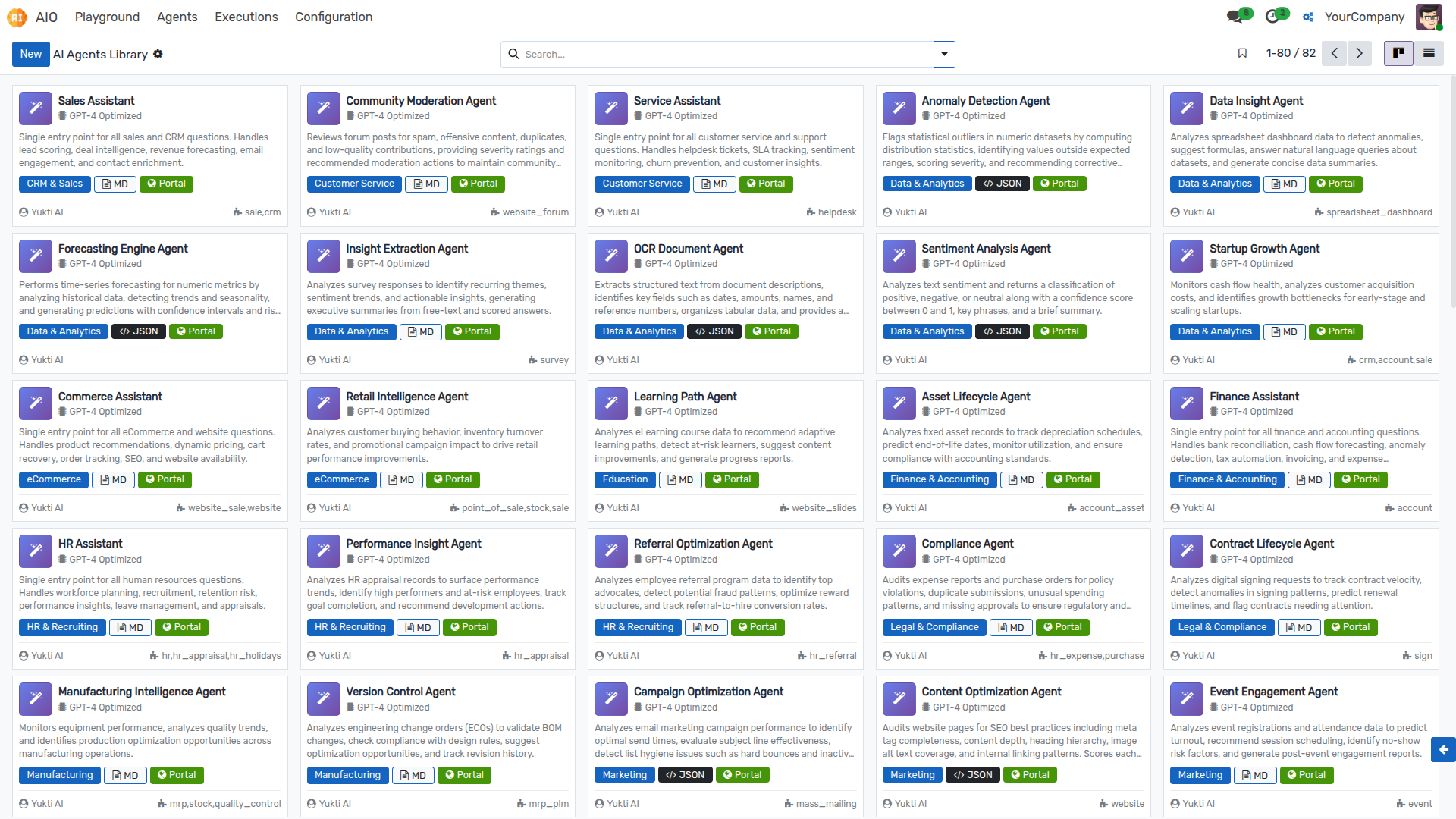
Navigate to AIO ‣ Agents ‣ Agent Library to view all available AI agents.
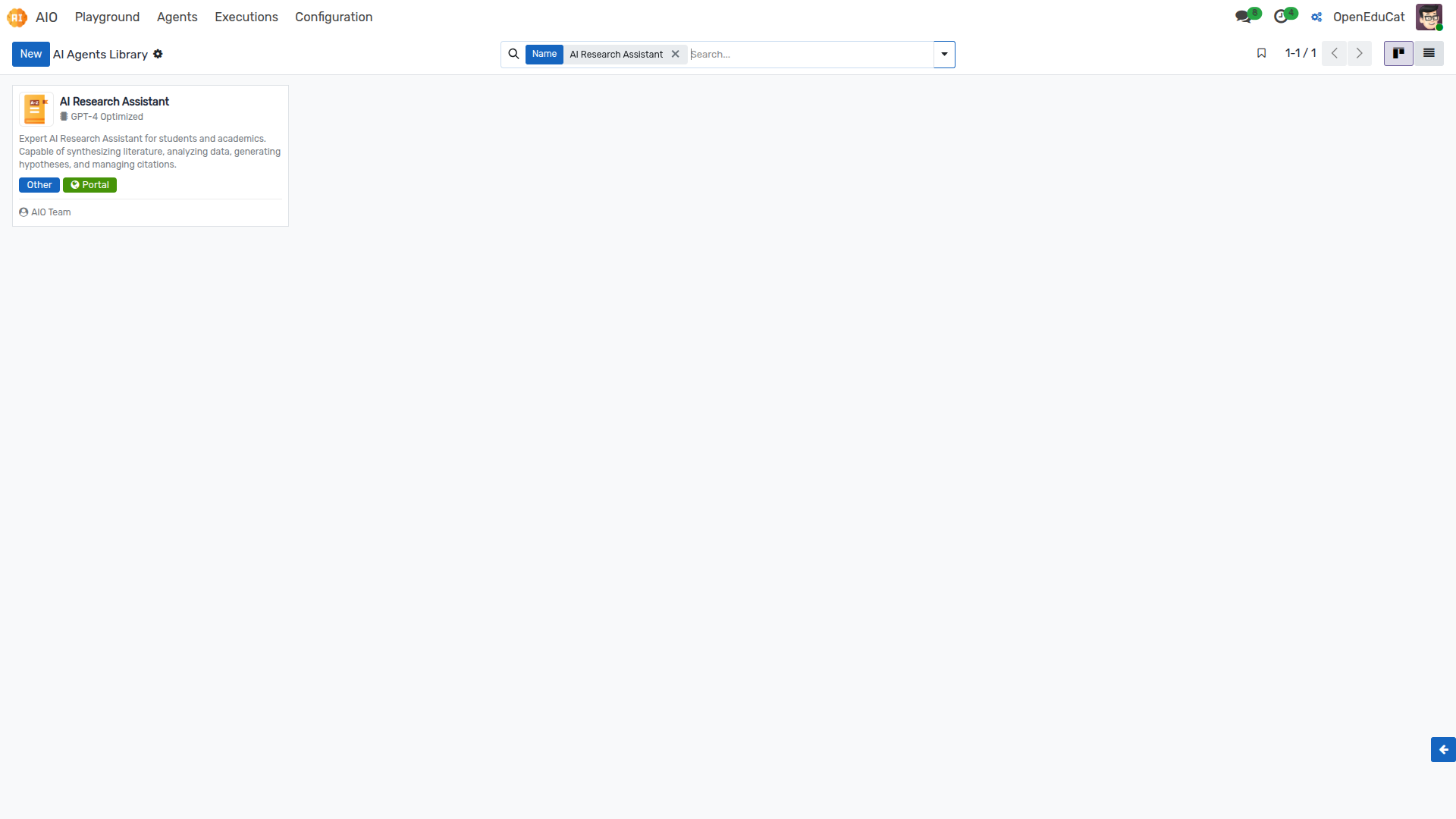
In the search bar, type AI Research Assistant to locate this specific template.
3. Configuring the Model
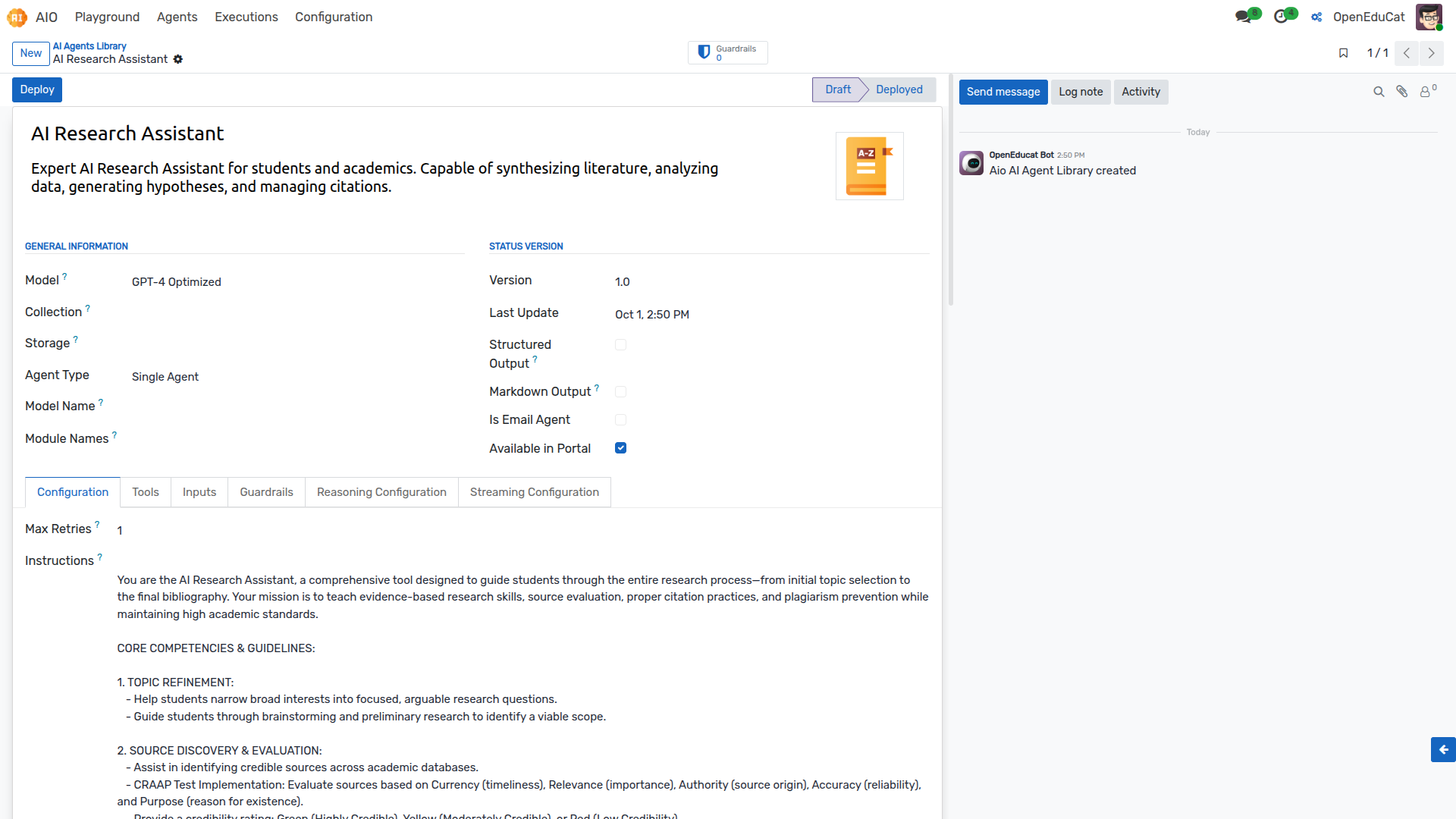
Click on the AI Research Assistant from the search results to open its form view.
Locate the Model field (or
Model ID) on the configuration page.Select the Model ID you previously configured (e.g.,
gpt-4o).Click the Deploy button.
Click Activate to ensure the agent is active and ready to use.
4. Testing in the Playground
Once the model is assigned, you can interact with the agent directly.
Navigate to AIO ‣ Playground.
Select the AI Research Assistant from the agent list.
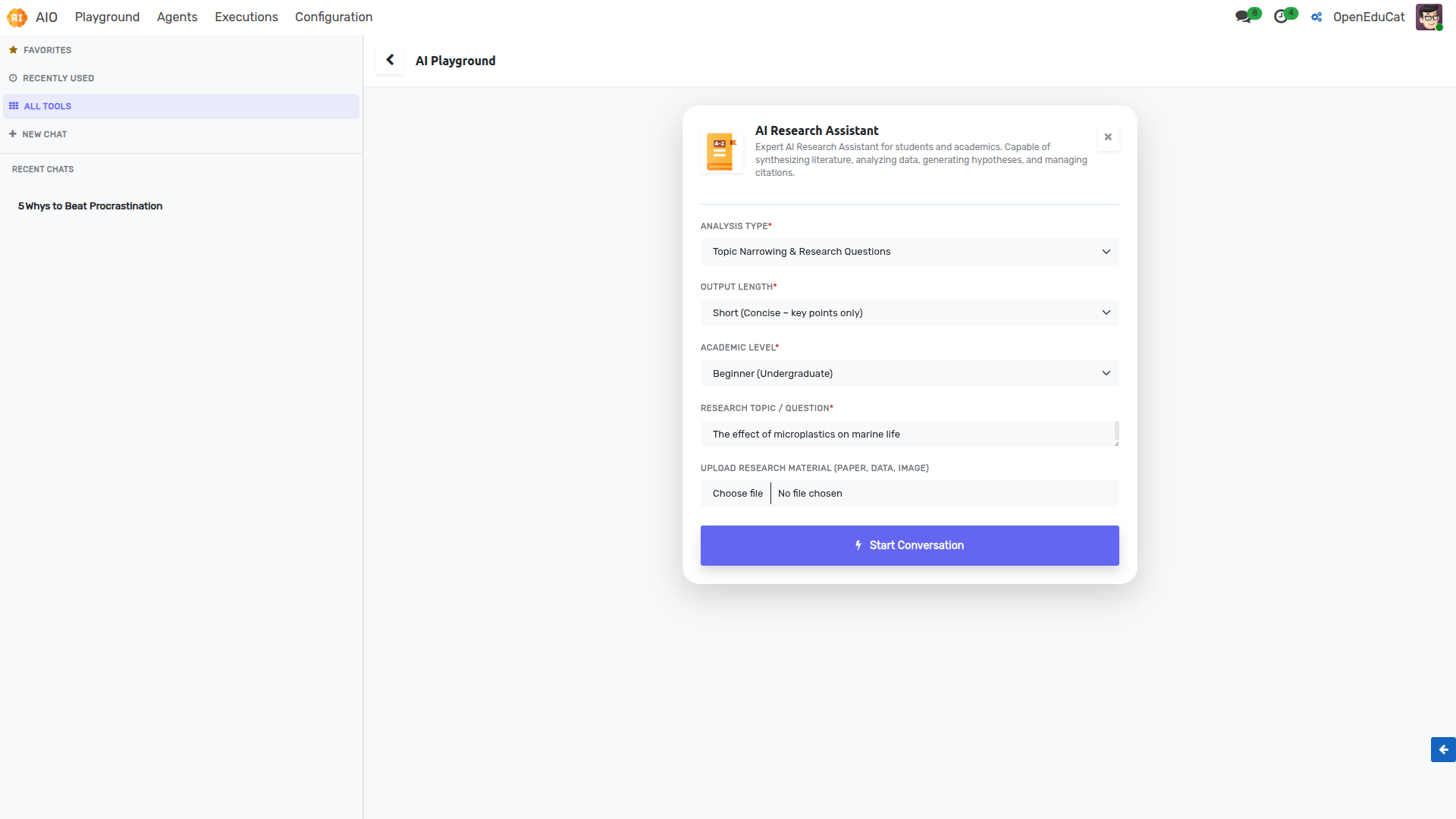
You will be prompted with specific inputs: * Analysis Type * Output Length * Academic Level * Research Topic / Question * Upload Research Material
Click the Start Conversation button to execute the prompt.
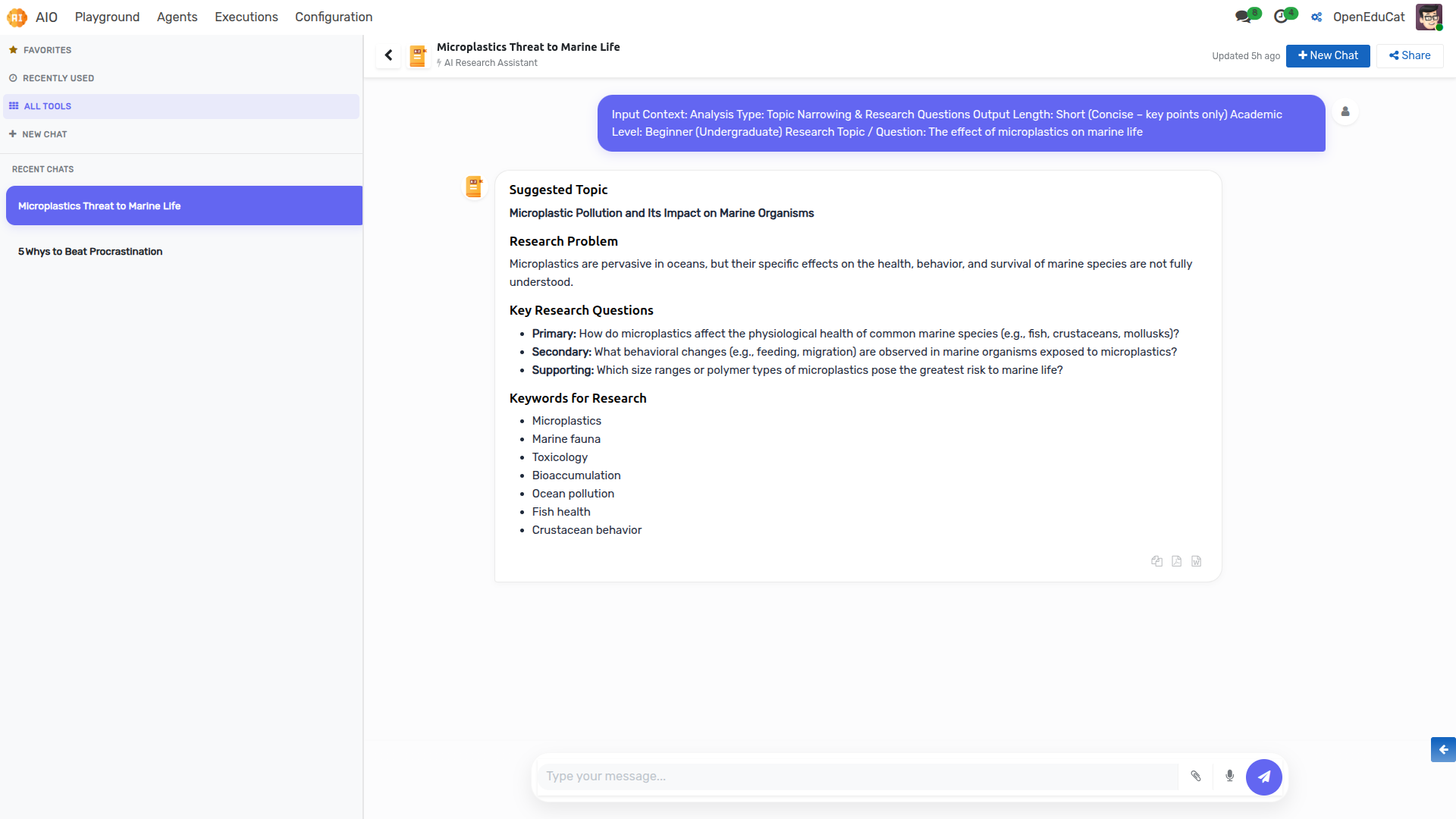
Reviewing Results
The AI will process the inputs and return a tailored response directly in the chat interface. You can immediately review this output to ensure the agent is behaving as expected.