
Trips
A Trip (Route Line) represents a single execution of a route on a specific date — either a Pickup or a Drop run. Each trip is linked to a route and auto-populates the stops and passengers from the route’s configuration.
Go to . Click on New to create a new trip.
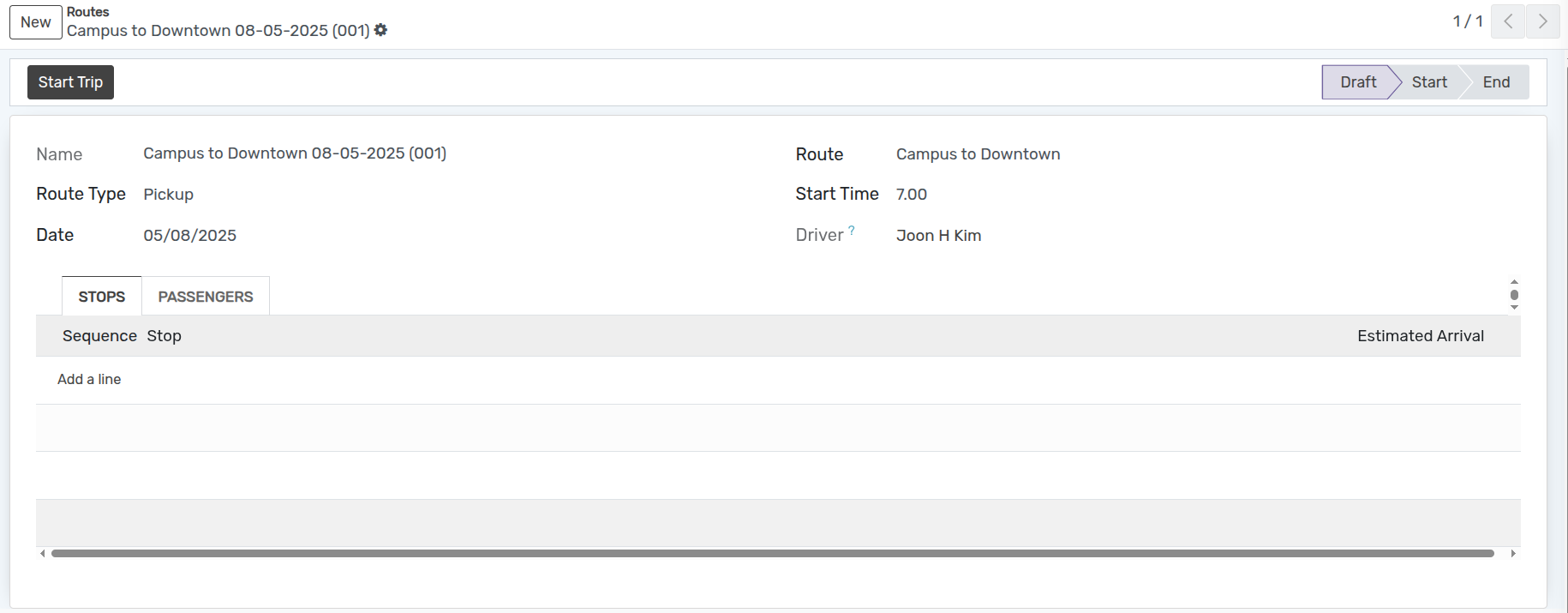
Details of Trip Form
Name :- Auto-generated by the system as Route Name + Date + Sequence (e.g.
Route A 12-08-2026 (001)). Read-only.Route :- Select the route for this trip. Selecting a route auto-populates the Stops and Passengers tabs.
Route Type :- Select whether this is a Pickup or Drop trip.
Date :- Set the date of the trip (defaults to today).
Start Time :- Set the trip start time (as a float: e.g.
8.5= 08:30).Driver :- Auto-filled from the vehicle’s assigned driver on the selected route. Read-only.
Pages in Trips
Stops
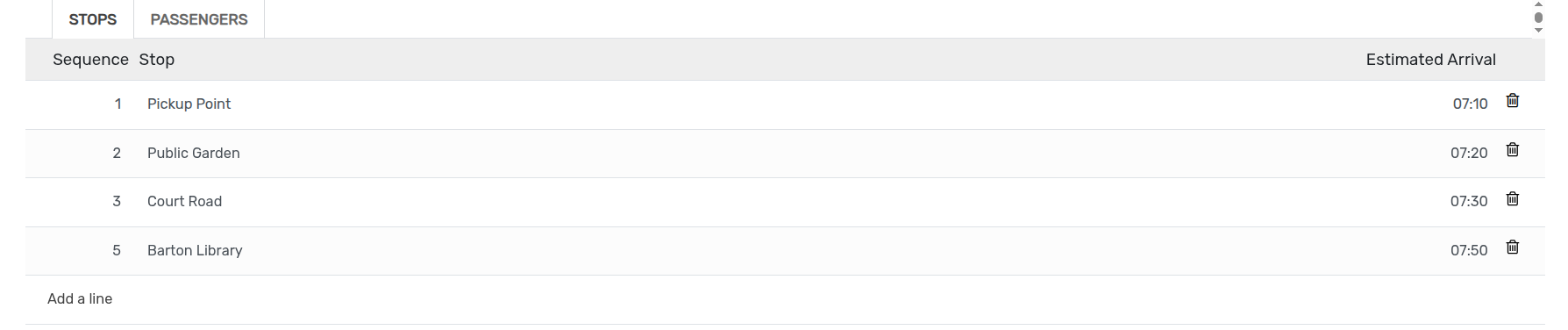
The Stops tab lists all stops for the trip, auto-populated when a route is selected.
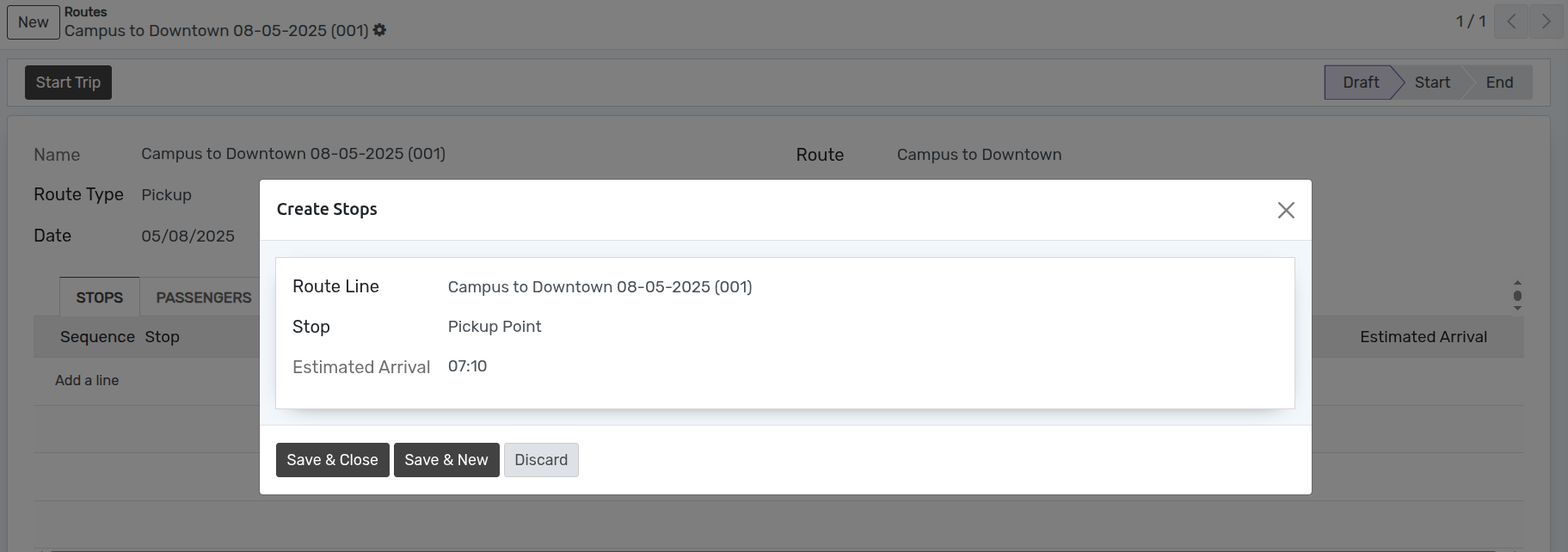
Each stop entry shows:
Sequence :- Order in which stops are visited.
Stop :- The stop name.
Estimated Arrival :- Computed as
Start Time + Stop's Estimated Arrival Time(e.g. if start time is 08:00 and a stop has 0.5h offset, estimated arrival = 08:30).
Passengers
The Passengers tab lists all passengers enrolled on the route’s stops, auto-populated when a route is selected.
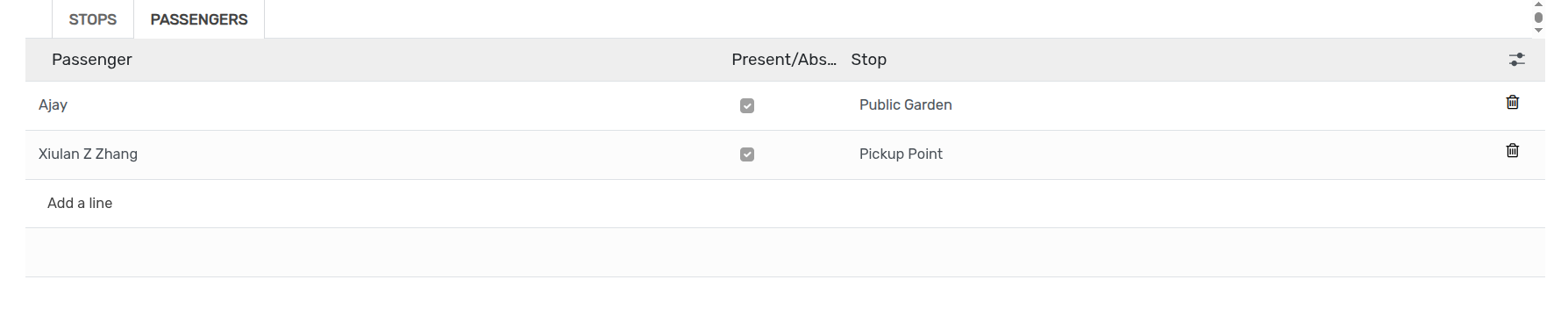
Each passenger row shows:
Person :- The passenger (student/faculty).
Present :- Checkbox to mark attendance for this trip.
Stop :- The stop where this passenger boards/alights.
Workflow of Trip
Draft
Once the details are filled in the trip form and saved, the state is Draft. The trip workflow starts here.

Start Trip
Click Start Trip to begin the trip. The state changes from Draft to Start.

End Trip
Click End Trip to complete the trip. The state changes from Start to End.

Additional Views for Trips
Trips support the following views in addition to list and form:
Pivot :- Analyse trips by name and route type.
Graph :- Bar chart view of trips by route type.
Search Panel :- Filter trips by route using the left-side search panel (shows a route icon).
Archived filter :- Display archived trips by using the Archived search filter.