
LMS Admission Integration
The OpenEduCat LMS Admission module bridges the Admission workflow with the LMS (eLearning) module. When a student is enrolled through the standard admissions process, the module can automatically create an LMS Course Enrollment record, giving the student immediate access to the linked online course.
This module adds configuration options to the SIS Course form and extends the Admission enrollment workflow.
End-to-End User Workflow
Step 1: Configure Course for Auto-Enrollment
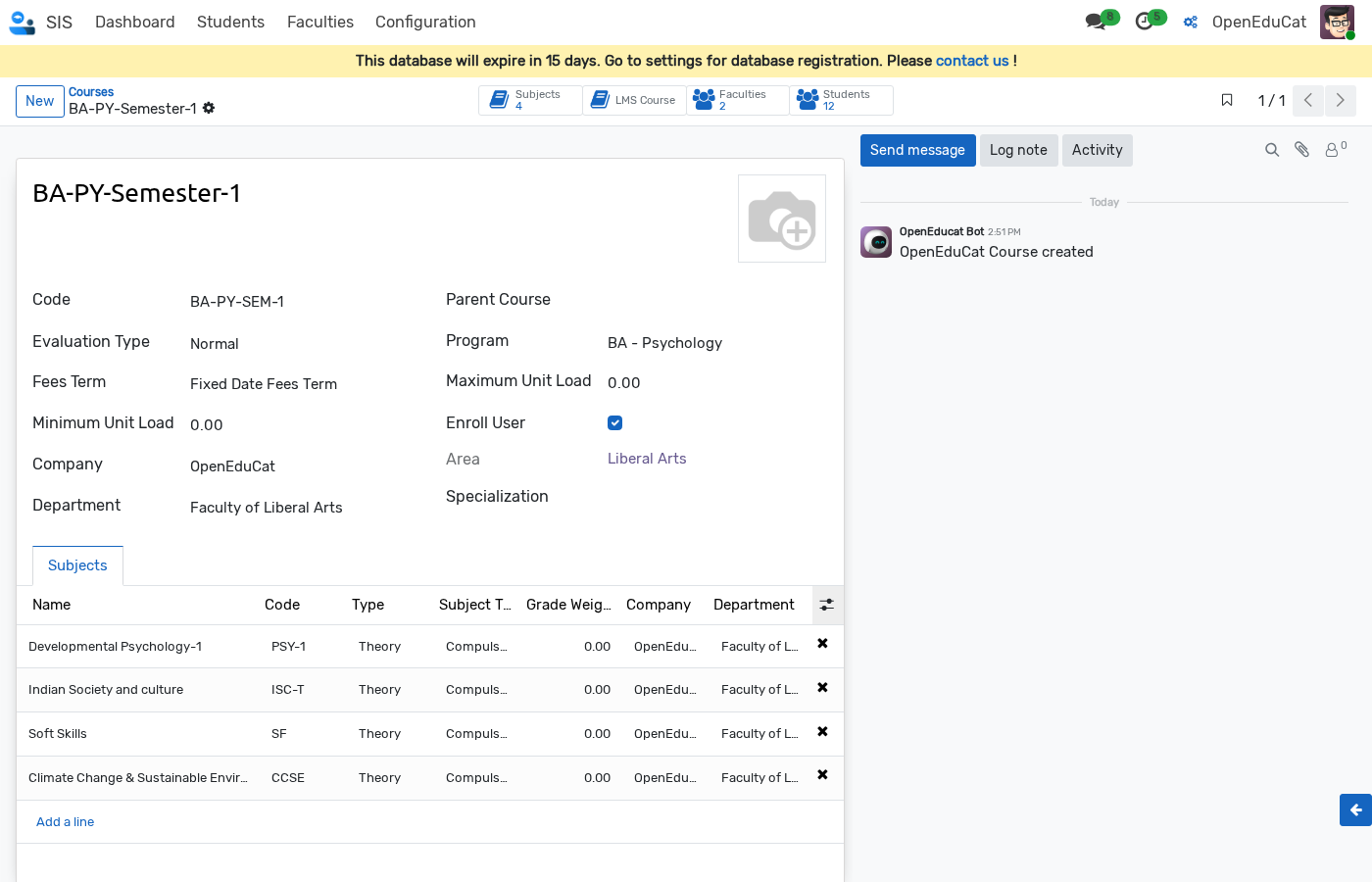
Go to and select a course (e.g., BA-PY-Semester-1).
Enable the Enroll User checkbox on the course form.
Ensure the course is linked to an LMS course via the Create Online Course header button (or LMS Course smart button).
Step 2: Admit and Enroll a Student
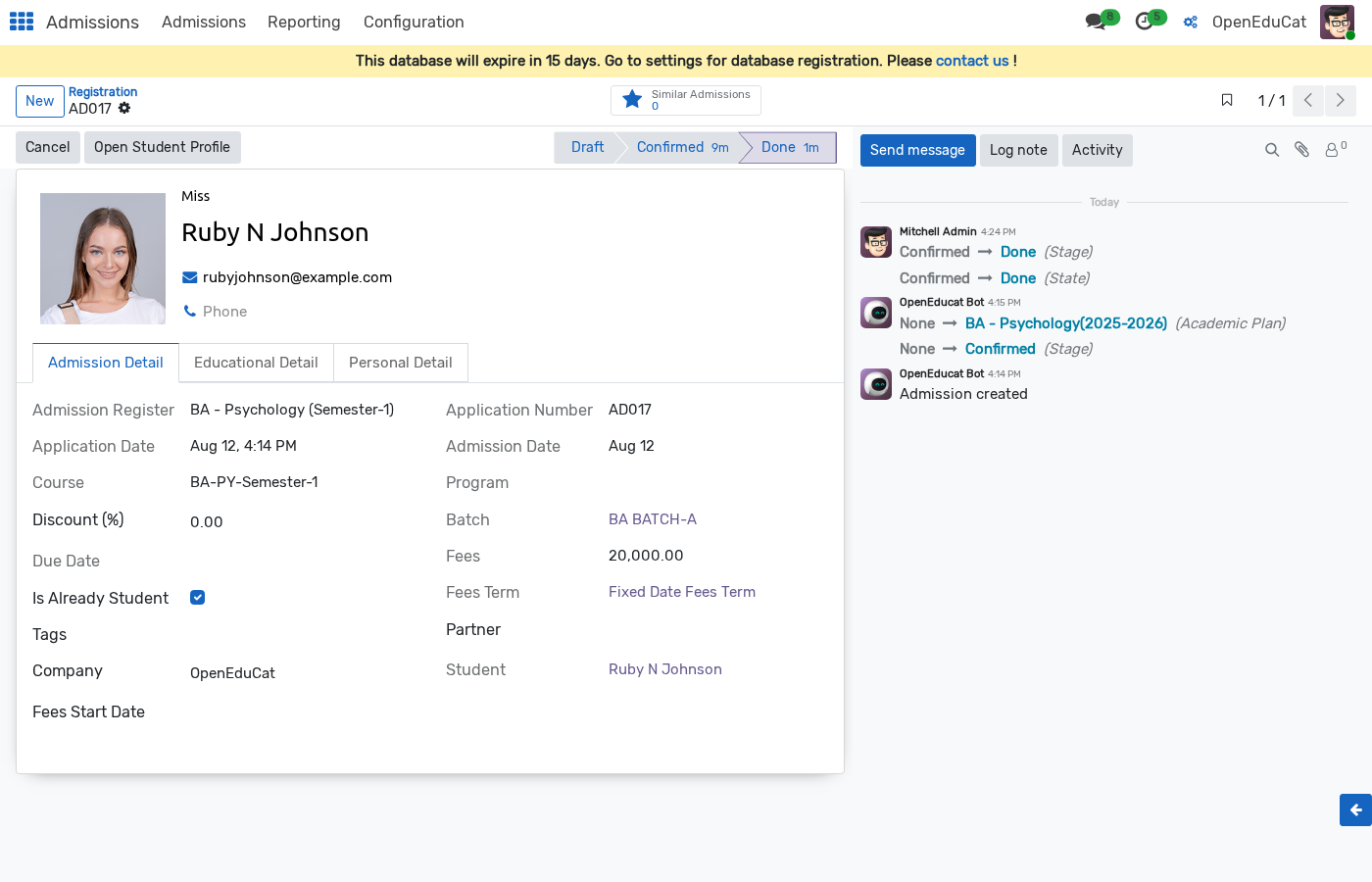
Go to and open an applicant record (e.g., Ruby N Johnson).
Move the application through the standard workflow stages (Draft –> Confirmed).
Click the Enroll button to finalize the student admission.
Step 3: Verification of Automatic LMS Course Enrollment
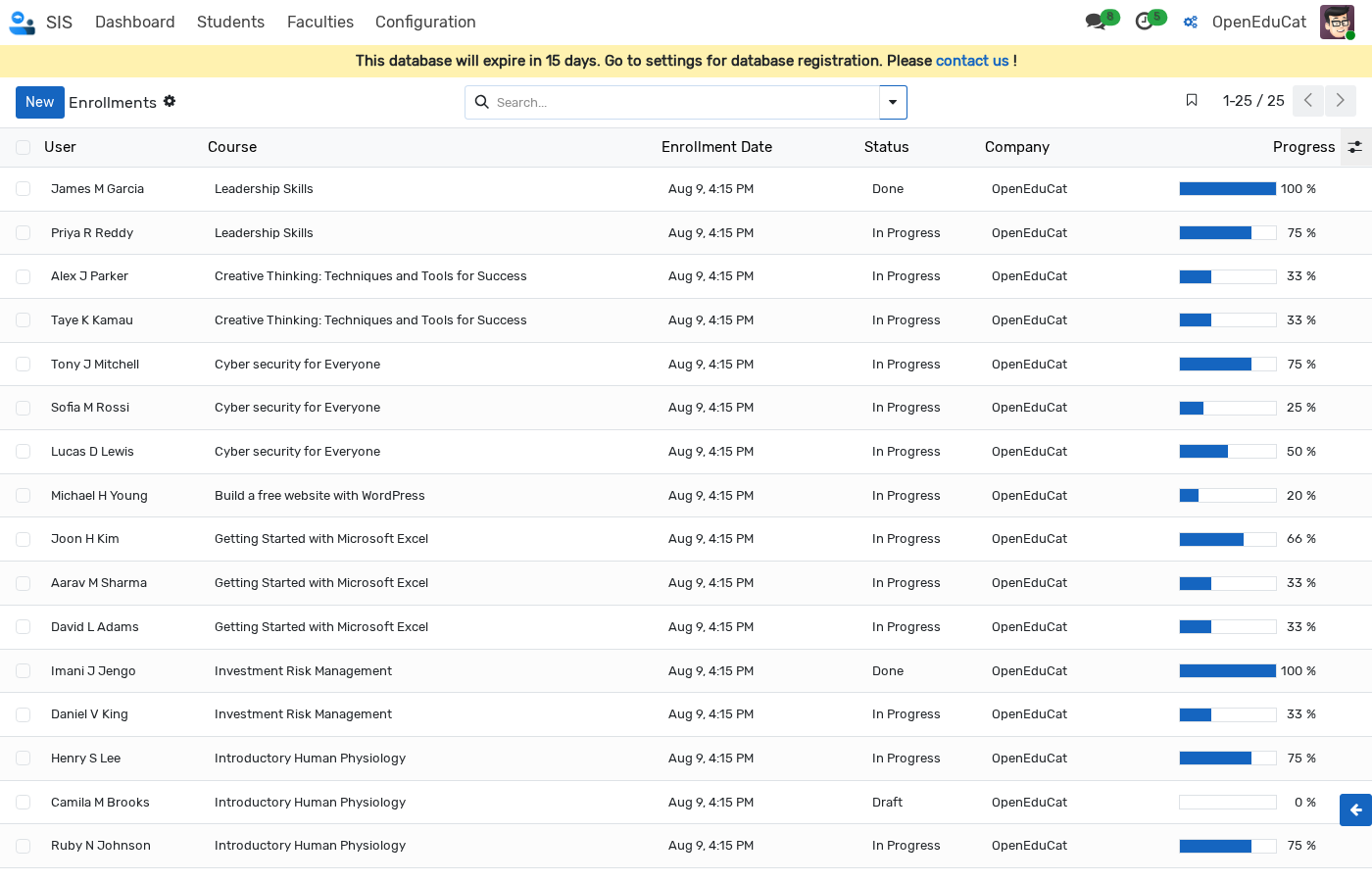
When the student is enrolled in Admission, the system automatically checks if is_enroll_user is enabled on the course. If enabled, it creates an active LMS Course Enrollment record for the student.
Go to (or ).
The newly admitted student (Ruby N Johnson) is automatically listed as an active enrolled user for the course (BA-PY-Semester-1) with status In Progress.
Configuration & Field Reference
Field / Action |
Description |
|---|---|
Enroll User ( |
When checked, students admitted to this course are automatically enrolled in the linked LMS online course upon approval/enrollment. |
Create Online Course |
Header action button (one-time action per course) that creates the linked LMS online course. |
LMS Course |
Stat/Smart button displaying the linked LMS course details once activated. |
LMS Courses List View Options
When openeducat_lms_admission is installed, two optional columns are available on the LMS Courses list view ( in list mode):
Online Course Created — Shows whether the SIS-LMS link has been created for this course.
Enroll User — Shows whether admitted students are auto-enrolled.