Student Feedback Management
The Student Feedback Management module lets an institution build feedback
templates on top of survey engine, send them to targeted groups of
students in bulk, collect responses through the student/parent portal, and
optionally gate the GradeBook until pending feedback has been submitted.
Feature Highlights
Feedback Templates — dedicated surveys flagged as
Is Student Feedback, restricted to the SIS Configuration menu so they never mix with regular surveys.Feedback Requests — a bulk-generation record with a full
Draft → Sent →
Completed
lifecycle, replacing the older per-student action.Two request modes — Course Based (with optional Batch) or Academic Plan Based (visible only when the Academic Plan group is enabled).
Automatic feedback records + email — creating a request generates one
op.student.feedbackper student and mails each one a unique submission link via theStudent Feedback Requestmail template.Portal experience — students (and parents, when authorised) see a dedicated Feedback card in the portal with summary stat boxes (Total, Submitted, Pending, Open now).
GradeBook guard — students with pending feedbacks are blocked from viewing or downloading the GradeBook until they submit.
Duplicate protection — a SQL constraint prevents duplicate feedback per
(student, course, subject, survey).
Configuration
Feedback Template
A Feedback Template is a Survey with the flag Is Student Feedback set to
True. It is only reachable from the SIS Feedback menu; the standard Survey
menu is filtered to hide it.
Go to SIS ‣ Configuration ‣ Feedback ‣ Feedback Templates and click
New.

Template fields
Title — name shown to the student on the portal and in the submission page.
Responsible — user who owns the template.
Start Date / End Date — window during which the template is active (End Date is required; End Date cannot be earlier than Start Date).
Is Course Base — mark the template as course-specific; controls which fields the feedback form exposes.
Course / Subject / Faculty — scope the template.
Subjectis limited to the subjects of the selected Course, andFacultyis validated against the subjects taught by that faculty.Questions — build the questionnaire using standard Survey question types (text, choice, matrix, numeric, date, etc.).
Note
Once at least one participant has answered the template, the core survey fields (Title, Type, Questions, Layout, Progression Mode, etc.) become read-only to protect the integrity of already submitted responses.
Question configuration
For each question, standard survey options are available:
Show Comments Field — allow a free-text comment alongside the answer.
Conditional Display / Triggering Answers — show the question only when a previous answer matches.
Mandatory Answer / Error Message — enforce a response and customise the validation message.
Constraints — numeric limits, regex patterns, min/max length, etc.
Live Sessions / Time Limits — available when the survey is run as a live session.
Feedback Requests
The Feedback Request is the primary way to send a template to a batch of
students. Go to SIS ‣ General ‣ Feedback Requests and click New.
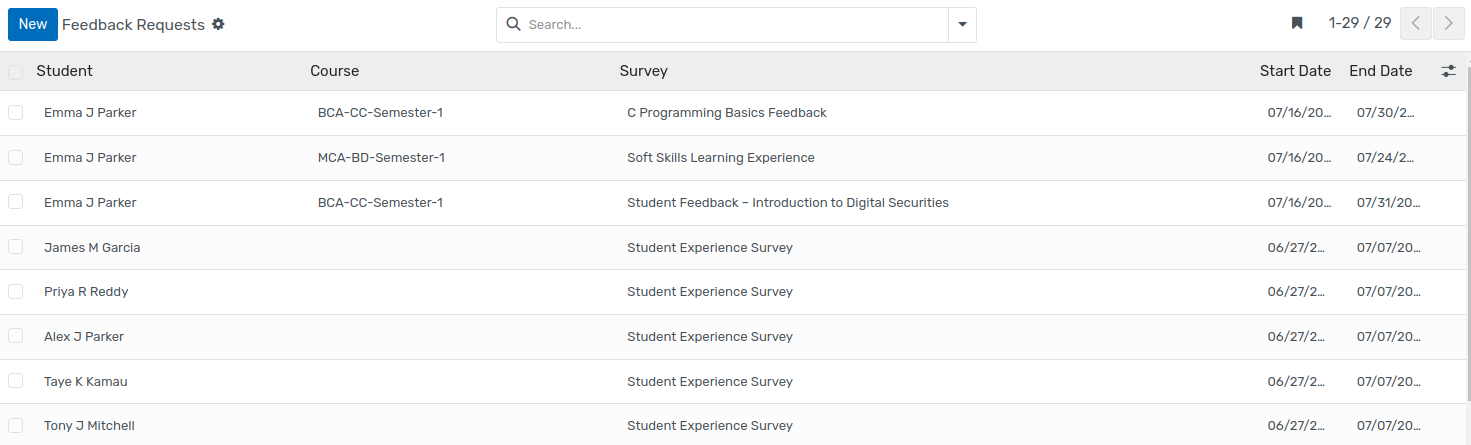
Creating a Feedback Request
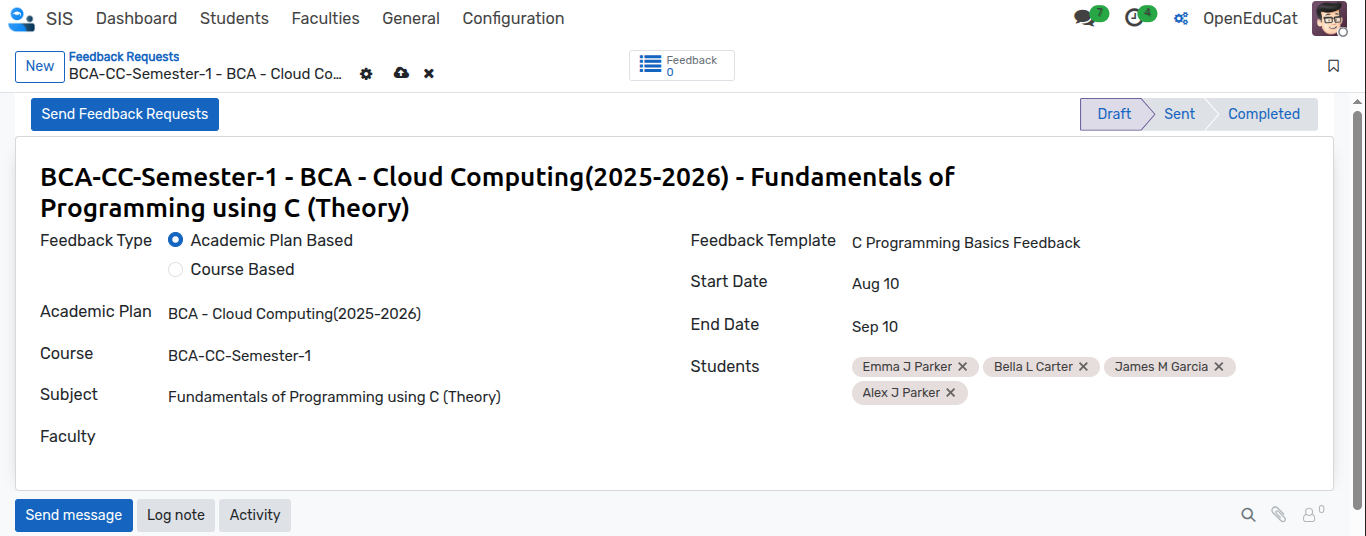
Fill the following fields:
Feedback Type
Course Based — target students of a Course/Batch/Subject.
Academic Plan Based — target students enrolled in a specific Academic Plan. This option is only visible when the group
Use Academic Planis enabled on the user.
Academic Plan (Academic Plan mode only) — restricts Courses and Subjects to the ones defined on the plan.
Course — required; filtered to the courses of the selected Academic Plan when applicable.
Batch (Course Based mode) — optional; narrows the student pool to a specific batch of the Course.
Subject — optional; when set, only students whose enrolment includes this subject are loaded.
Faculty — informational; used to link the request to a teacher.
Feedback Template — the survey to send. The dropdown only lists surveys flagged
is_student_feedback.Start Date / End Date — request window (End Date defaults to one month from today).
Students — automatically populated from the criteria above; students in
draftorcancelstate on their student.course are excluded. The list can still be adjusted manually before sending.
The Name field is auto-computed as a hyphen-joined summary of the scope
(e.g. BBA - 2025-2026 - Marketing).
Lifecycle
A Feedback Request moves through three states, visible in the status bar:
Draft — editable; nothing has been sent.
Sent — pressing
Send Feedback Requestscreates oneIndividual Feedbackrecord per student and emails each of them a unique submission link. All configuration fields become read-only.Completed — pressing
Mark as Completedafter every targeted student has submitted their response. If any student is still pending, the button raises a validation with the list of missing names.
At any non-draft state, Back to Draft is available. It deletes the
generated feedbacks and returns the request to Draft (a confirmation dialog
is shown because the operation is destructive).
The form also exposes a smart button showing the number of Feedback
responses collected.
Email notification
When a Feedback Request is sent, the Student Feedback Request mail
template is dispatched from the company address to each student’s e-mail.
The message includes a Submit Feedback button pointing to the survey
start URL, pre-filled with subject_id, student_id and feedback_id
so the response is linked back to the correct student and request.

Individual Feedbacks
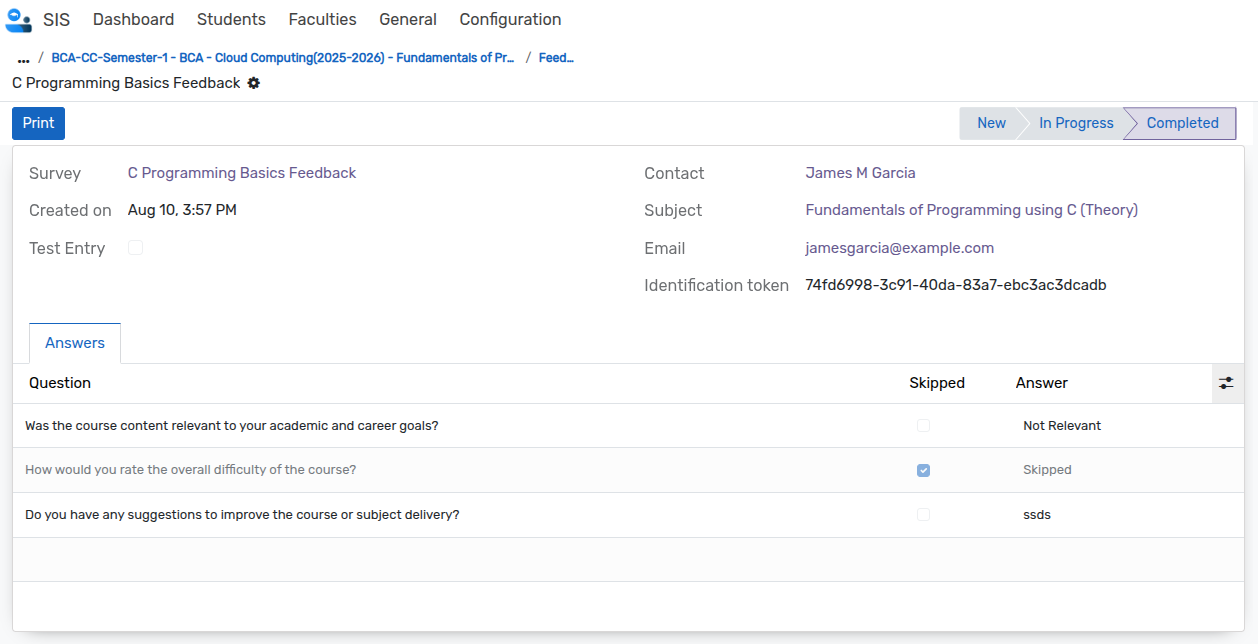
Every row in SIS ‣ General ‣ Individual Feedbacks represents one
op.student.feedback — the pairing of a student, course/subject, survey,
and request that produced the submission link.
Individual Feedback records are created automatically by the Feedback Request action. They can also be created manually from this menu when you need to send a template to a specific student outside of a bulk request; creating a record fires the same mail template and generates a personal survey link.
Key constraints:
Unique per
(student, course, subject, survey)— the database rejects duplicates and returns the message “Feedback already exists for this student, course, subject, and survey!”.End Date, if provided, must be on or after Start Date.
Is Course Baseis derived from the linked template and controls the visibility of the Course and Subject fields on the form.
Student Portal Experience
Portal home
Students and parents see a Feedback entry under the OpenEduCat portal
category, with an unread counter that increments for every new feedback they
haven’t opened yet (the counter is tracked per audience — student vs.
parent — through the is_read / is_read_by_parent flags).
Feedback list (/my/feedback)

The portal page shows summary stat cards at the top:
Total Feedbacks — every feedback assigned to the student.
Submitted — feedbacks with a completed survey response.
Pending — total minus submitted.
Open now — feedbacks whose window is currently open and that have not yet been submitted.
Clicking a card filters the list to that subset.
Each card in the list shows the template, subject (if any), course and the
active date window. A Submit Feedback button opens the survey in a new
tab as long as the student hasn’t already answered; once done, the button
is replaced by a green Submitted pill and a link to the printable
response.
Parents whose account is flagged is_parent can browse a specific child’s
feedback list at /my/feedback/<student_id>.
Submitting a feedback


The custom controller performs a strict eligibility check when the survey starts:
The URL must include
student_idmatching a real student owned by the logged-in user.If a
subject_idis passed, the student must not already have a submitted response for that subject.A matching
op.student.feedbackrecord must exist for the student and survey.
When the check fails, an Access Denied — you are not eligible to access this Feedback link page is shown instead of the survey. Back-office admins bypass this check so they can preview any template.
On submission, the resulting survey.user_input is tagged with
is_student = True, linked to the originating subject_id and to the
feedback_request_id, so that Feedback Requests and Individual Feedbacks
can display accurate counters.
GradeBook Guard
The module extends the GradeBook controller. When a student (or their
parent) opens /grade-book or tries to download the GradeBook PDF, the
system checks whether any linked feedback is still pending. If so, the
GradeBook is blocked and a warning page lists the outstanding feedbacks
with a shortcut back to Feedback.

This provides a soft enforcement mechanism: students receive their grades only after completing the requested evaluations.
Back-office View of Responses
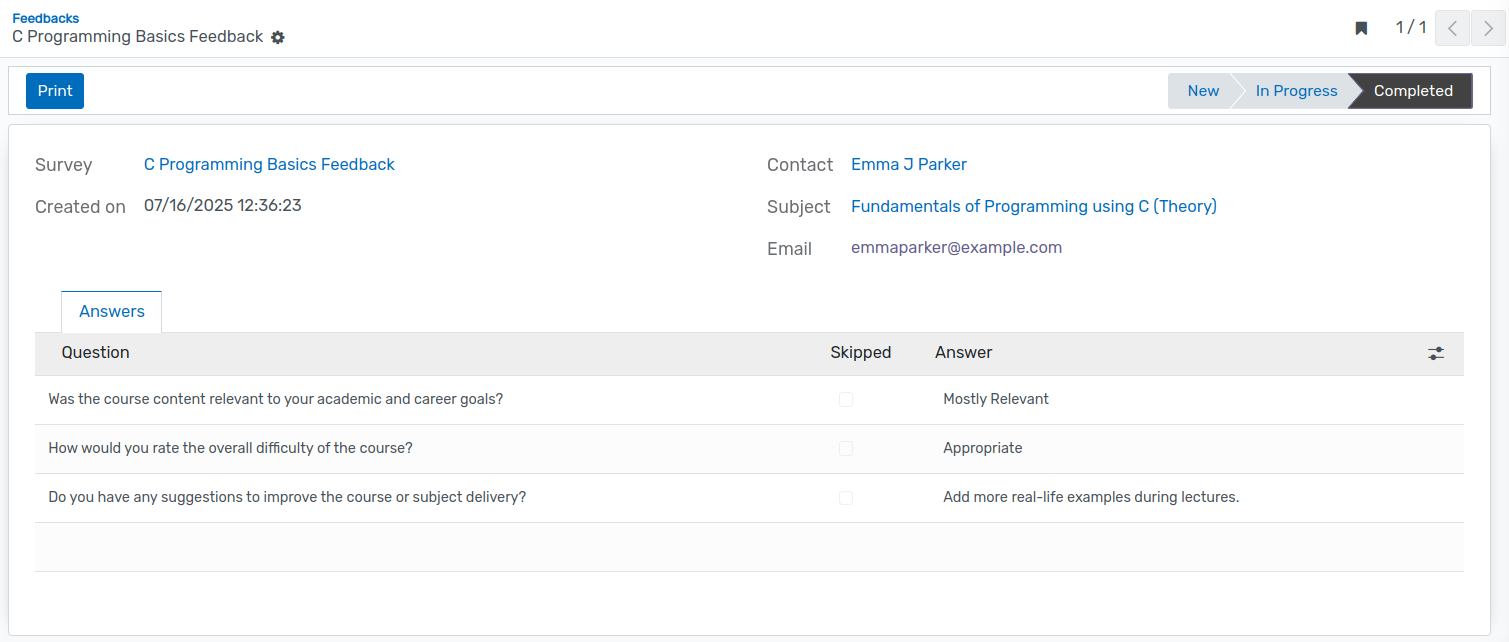
Go to SIS ‣ General ‣ Feedbacks to view all submitted responses. The
action is filtered on is_student = True and reuses the standard
survey.user_input list, extended with the Subject column.
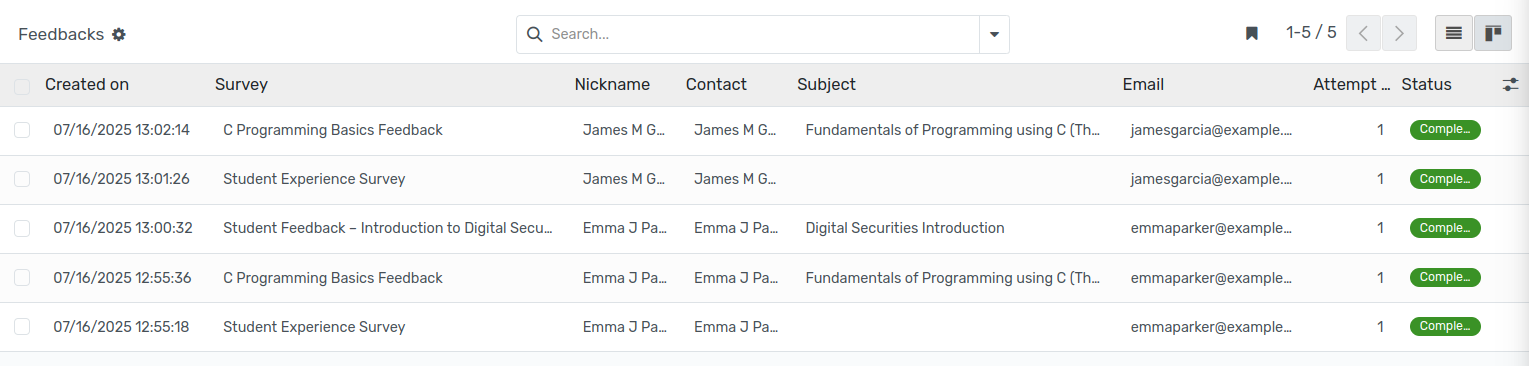
Open any row to see the full answer sheet, chatter, and the request the feedback belongs to.