Timetable Time Off
The Timetable Time Off module bridges OpenEduCat’s timetable with Odoo’s core Time Off (hr_holidays) application. It seamlessly integrates faculty leave data directly into the timetable calendar view, helping institutions avoid scheduling conflicts.
This module is automatically installed when both openeducat_timetable_enterprise and hr_holidays are present in the database.
Key Features
Leave Overlays: Approved faculty time-off requests are rendered as all-day bars on the timetable calendar. Each leave type is color-coded. Clicking on an overlay opens a popover with specific leave details.
Mandatory Days & Holidays: The calendar visually highlights mandatory working days and public holidays. Weekend and public holiday shading is automatically applied to easily identify unusual days.
Extended Calendar Sidebar: The calendar view includes a new sidebar section that lists Mandatory Days, Public Holidays, and My Time Off. It also provides per-type Leave Type filter checkboxes, allowing you to easily toggle the visibility of different leave categories.
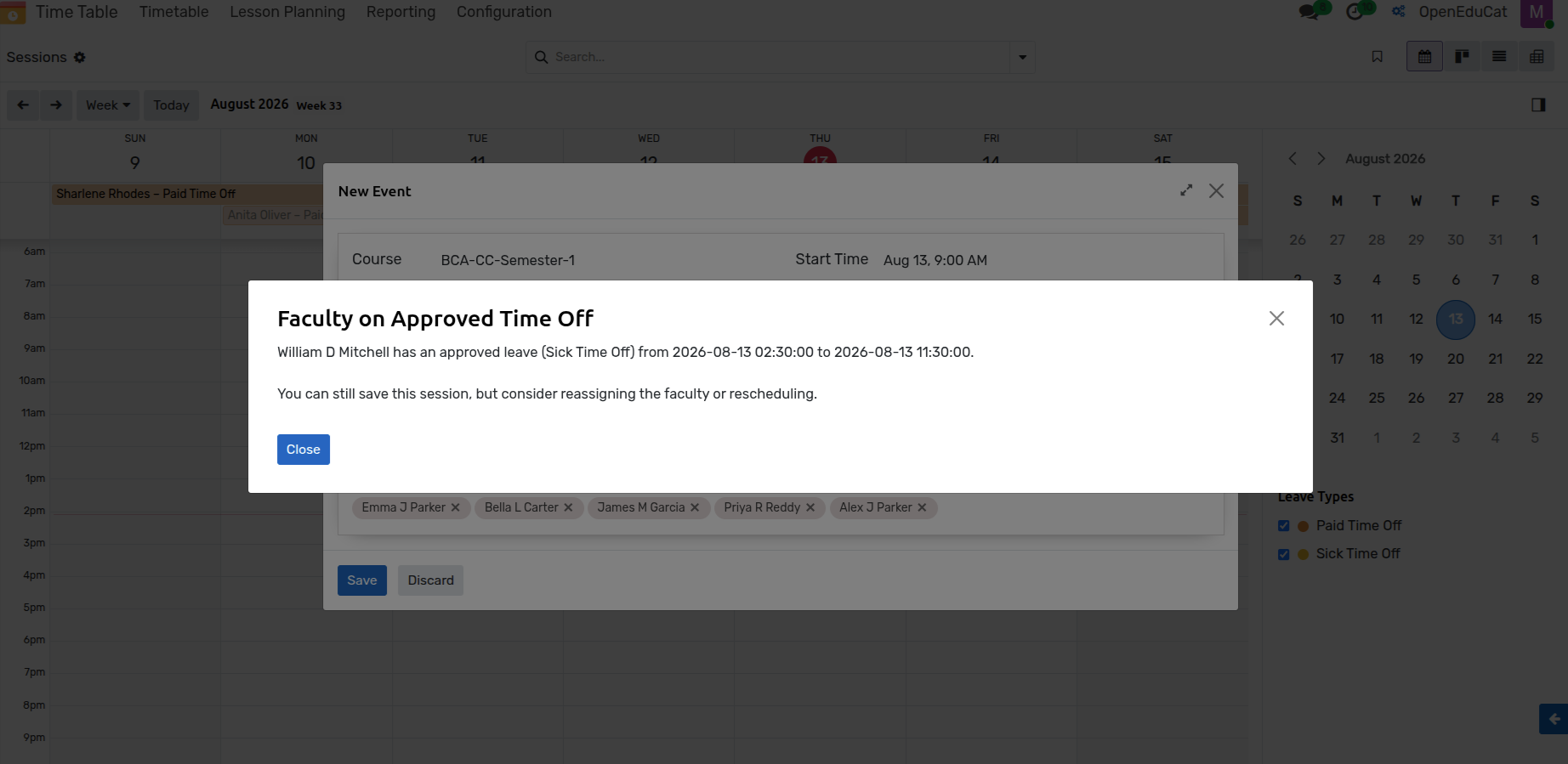
Smart Scheduling Warnings: When creating or updating a session, the system provides warnings if a session is scheduled on a mandatory day or if the selected faculty member is on an approved leave. This helps prevent accidental scheduling conflicts without strictly blocking the action.
How to Use
Navigate to the Timetable Calendar: Go to . You will see the standard timetable calendar view.
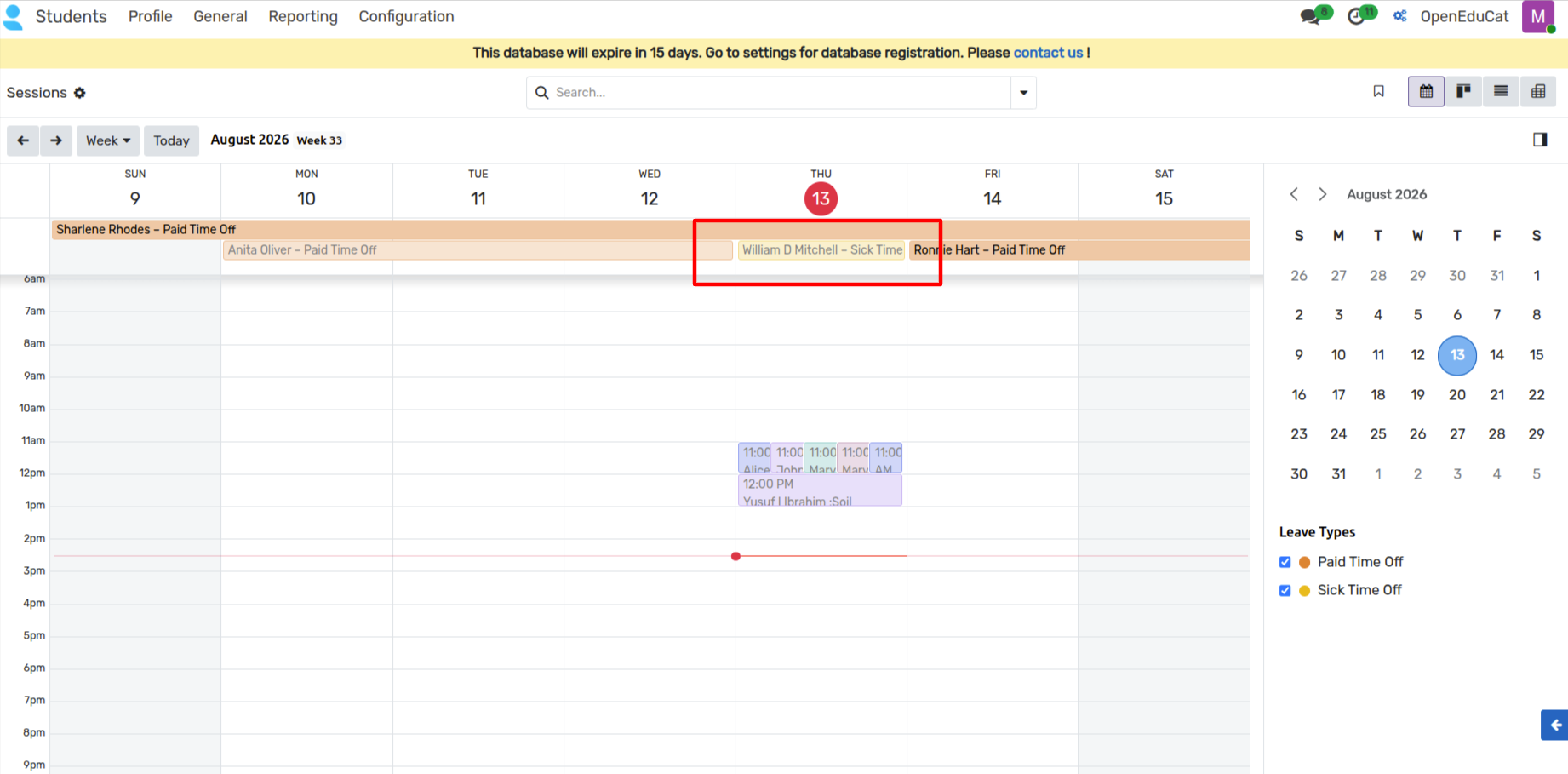
View Faculty Time Off: Any approved leave requests for faculty members will automatically appear as all-day bars on the calendar. You can click on any of these leave overlays to view more details in a popover.
Use Sidebar Filters: On the right side of the calendar, you will find an extended sidebar. You can use the checkboxes under the time-off sections (e.g., Mandatory Days, Public Holidays, Leave Types) to toggle the visibility of different categories.
Schedule Sessions with Warnings: When you create a new session, select a faculty member. If the chosen faculty member has an approved leave during the selected time, or if the session falls on a mandatory day, the system will display a warning to alert you of the conflict.