
Question Bank
Question Bank is a collection of different questions and answers.
You can go to Quiz ‣ Question Bank ‣ Question Bank

Question Bank Type
User can go to Quiz ‣ Configuration ‣ Question Bank Type

Faculty can add multiple Question Bank Type.
Grades
Faculty can add grades, which are used for Quiz answers configuration.

Create Question Bank
Once you click on New button you can create ‘Questions’ and ‘Answers’.

For any question you can create answers and their grades.
Grades indicate the weightage of the answer. For Example:

Quiz / Exams
Quiz Categories
User can add multiple categories for Quiz / Exam.

Create Quiz
Faculty can create an exam/quiz; for quiz, faculty can go to Quiz ‣ Quiz ‣ Quiz.

Once you click on New button you can see the configuration field in quiz.
Configuration
Faculty have three choices
Manual
Quiz Bank with selected questions
Quiz Bank with random questions
Manual
Faculty can enter any question under ‘Questions’ Tab.
Quiz Bank with selected questions
Faculty can select different questions from different ‘Question Bank’ using the Fetch Questions wizard.

Quiz Bank with random questions
Faculty can assign the number of questions and select Question Bank. It will generate random questions of exam for all attendees.
Configurations
You can see various tabs in quiz form view
Questions
Result Message
Configuration
Starting Page
Description
Challenges
Questions
User can enter questions based on selection of configuration field as above.
Result Message
User can enter ‘Result From’ to ‘Result To’ and message. Here ‘Result From’ to ‘Result To’ is a percentage range.
If user get result from this percentage range, it will display the same message which is configured for that percentage range.

Configuration
In configuration tab user can configure the exam rules and regulations.

Single Question Per Page
If this boolean field is set, It will reflect on exam page, per page single question.
Previous Question Allowed
If this boolean is set, user can move back while exam.
Only One Time Answer
If this boolean is set, user can give answer only once.
Allow Shuffle
If enabled, question options are shuffled randomly for each participant.
Allow Attached Reference Material
If enabled, students can view attached reference study materials during the exam.
No of Attempt
User can define that single user attempt this exam.
All Questions are Required
If this boolean is set, user will have to give all the questions and answers while attempting exam.
Allow Exit
If this boolean is set, user can allow to exit exam.
Manual
If this boolean is set, user can check exam manually.
Display Result
If this boolean is set, After attempting exam user can see their results.
Display On Portal
If this boolean is set, User can see result on portal.
Time Configuration
If this boolean is set, User can set exam timings.
Starting Page
Under starting page user can design exam starting page.

Under starting page user can see the configuration of ‘Starting View’.
Starting views
HTML ( User can design page using HTML)
Audio ( User can add audio file )
Video (User can add Video file )
As mentioned above if user configures any of the starting views, It will reflect on Quiz / Exam starting page.
Description
User can set description under ‘Description’ tab. That description will reflect on exam website view.
Challenges
User can define challenges under ‘Challenges’ tab.
You can define different Challenges and their badges inside the Challenges.
Once user achieves that Goal/Challenge user will get those badges as per challenges.

Questions Types
In the Quiz Module there are different types of Question Types:
Optional :- OpenEduCat Quiz provides optional (single-choice) questions in the question paper. It gives examinees the choice to select a single correct option from radio buttons.

Fill in the Blank :- A Fill in the Blank question consists of a phrase, sentence, or paragraph with a blank space where a student provides or selects the missing word or words.

Descriptive :- Descriptive questions require descriptive, essay-type or short paragraph responses typed directly into the provided text area.

Drag into Text :- Drag and drop into text questions require students to drag and drop text answer chips from a bank into blank placeholders inside the question sentence.

Match Following :- In Match the Following, candidates match items between two columns to form corresponding pairs.

Numeric :- A numerical question requires a specific numeric response with support for tolerance ranges and multiplier unit conversions.

Sort the Paragraphs :- Students drag and reorder items or paragraphs into the defined sequential order.

Match the Images :- Asks learners to compare and pair matching image items (such as animals, objects, diagrams, or structures).

MathJax (Mathematical Equations) :- Enables instructors to author questions containing complex mathematical formulas, scientific notations, LaTeX/TeX syntax, and MathML equations. It features:
Live MathJax Editor Widget :- A split-screen interface with LaTeX code input on the left and real-time rendered mathematical equation preview on the right.
Online Student Exam Rendering :- Students view fully rendered equations on the portal exam screen and can submit answers using mathematical notations with real-time typesetting.
Result Analysis :- Student formula submissions and model answers are rendered cleanly in MathJax format across backend and website result views.

Quiz / Exam Attempt
User can attempt any exam from: Home ‣ Exams

If user want to see their total attempt overview, User can click on
Results
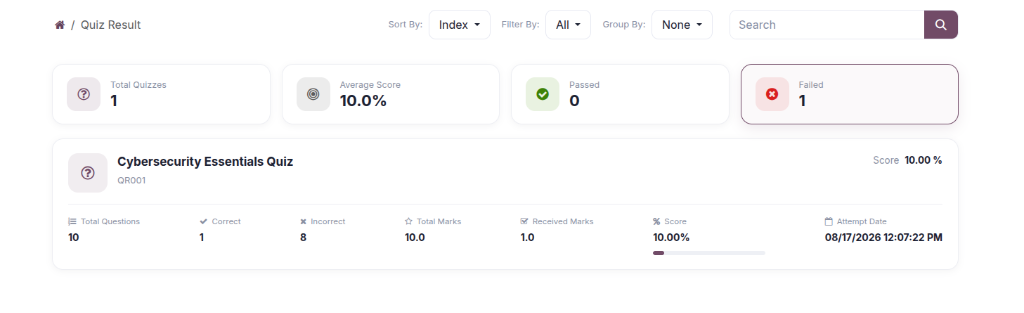
User can start attempt exam, Using button
Start ExamIf Quiz is configured as single page single question

If Quiz is not configured as single page single question

Once quiz is finished user can see their result if faculty configured ‘show result’ in quiz.
Results
Faculty can see the list of all student attempts from Quiz ‣ Quiz ‣ Results.

Clicking on any result record opens the detailed assessment form view displaying student answers, marks obtained, percentage score, and submission timestamps.

Reporting
Quiz Result Analysis
To analyze the performance of students across different quizzes, you can use the Quiz Result Analysis feature.
Go to Quiz ‣ Reporting ‣ Quiz Result Analysis.

This opens a pivot table view of the quiz results.
By default, it allows you to analyze metrics such as Total Questions, Total Correct, Total Incorrect, and overall Score.
You can group the data by Quiz, User, or Category to get insights into performance trends and compare results across different cohorts or subjects.
Use the pivot table’s built-in options to export the data or switch to graph views for visual analysis.
Anti Cheating
OpenEduCat Anti Cheating module provides facility to conduct online exam platform with Anti Cheating Feature.
Configuration
You can go to Quiz ‣ Quiz ‣ Quiz
Select the quiz where you can see the anti cheating section at the bottom of the configuration page.

Warning Limit: Set warning limit that triggers during face tracking.
Warning State: Select the warning state action (In Progress After Warning, Permission from Admin, or Submit).
Copy/Paste Allow: If enabled, users can copy-paste text during the exam.
Question Time Out: Set the question timeout in minutes.
Take Screenshot: Select screenshot capture type (Random or Time Interval). - Random: Set the time range in start and end minute fields. - Time Interval: Set fixed recurring interval minutes.
Exam view
User can attempt exam from: Home ‣ Exams

When the user grants camera access, live face tracking is initiated. If camera access is denied or disabled, the exam will not proceed.

The user’s face is continuously monitored. If any cheating behavior or external person is detected, warning alerts are triggered and logged.

After the warning limit is exceeded, the exam is placed into a held state. To re-open the exam, students must contact administration.

Results
Go to Quiz ‣ Quiz ‣ Results
Faculty can review warning counts, timestamps, detailed reasons for triggered warnings, and captured proctoring attachments, with the ability to re-open held exams.

