
Moodle Instance Set-up
A Moodle Instance record holds the connection details of one Moodle site, together with its synchronization settings and health information. Institutions running more than one Moodle site create one record per site.
Creating an Instance
Go to and click New.

Fill in the Connection section:
Name :- A label for the site, for example Main Campus Moodle.
Moodle URL :- The base URL of the Moodle site, for example
https://moodle.example.com. Do not add a trailing slash and do not include/webservice/rest/server.php.API Token :- The token generated in Moodle. The value is masked on screen and is stored as a system parameter rather than on the instance table.
Active :- Untick to stop every scheduled job for this site without deleting its configuration and mappings.

Click Save.
Testing the Connection
Click Test Connection in the form header. OpenEduCat calls the Moodle site information
service and displays a notification containing:
the Moodle site name, version and the user the token belongs to,
the number of available web service functions against the number required,
a warning listing any missing functions that still have to be added to the
openeducat_integrationexternal service in Moodle.
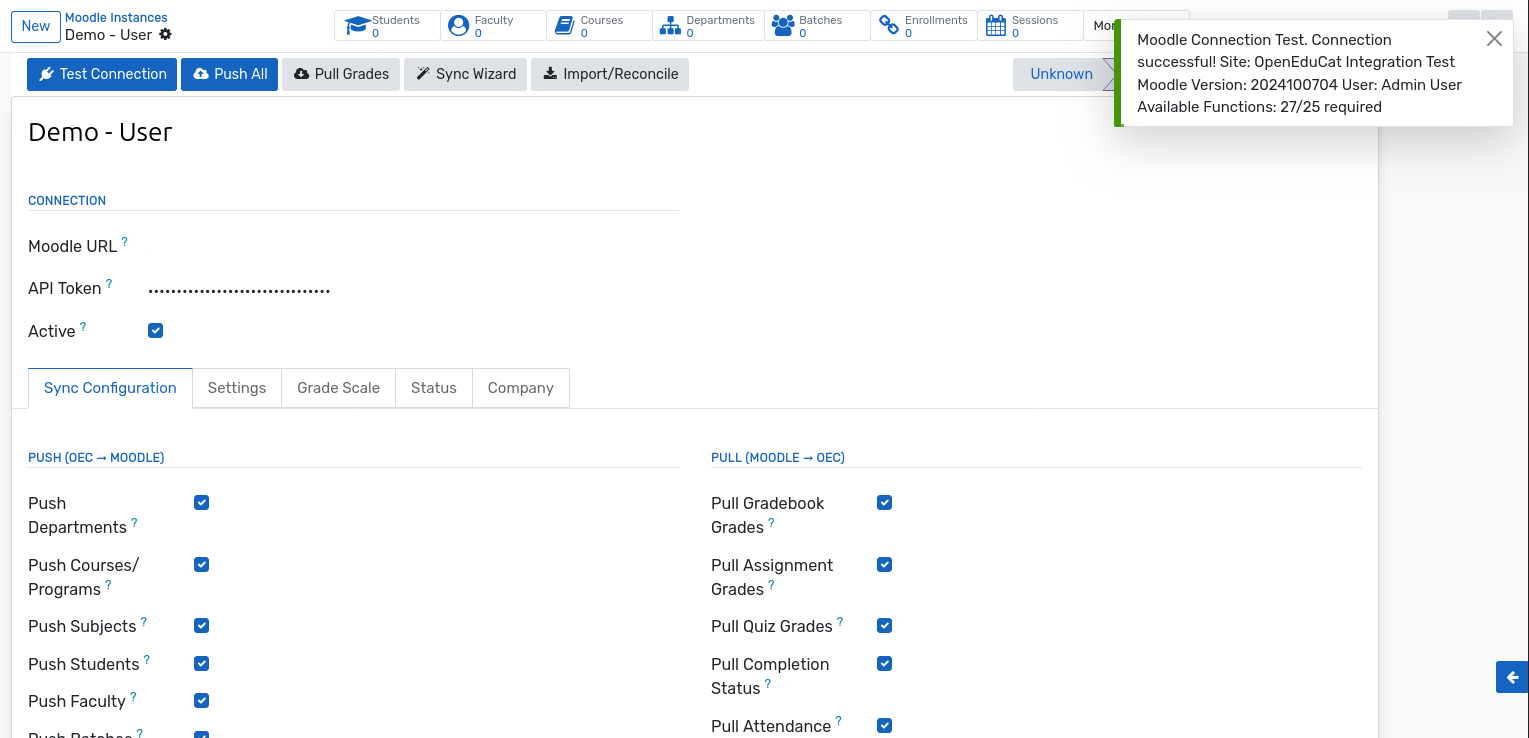
A successful test also resets the failure counter and stamps the last successful sync time, which turns the instance’s health status green.
Tip
Always run Test Connection after saving a new token, and again after any change to the external service in Moodle.
Health Status
The status bar at the top-right of the form shows the current health of the connection. It is recalculated continuously and by the hourly health-check job.
Status |
Meaning |
|---|---|
Unknown |
The instance has never completed a successful sync. |
Healthy |
Fewer than two consecutive failures and a successful sync within the stale threshold. |
Degraded |
Two to four consecutive failures, or no successful sync within the stale threshold (four hours by default). |
Down |
Five or more consecutive failures. Check the token, the network and the Moodle site. |
When an instance becomes degraded or goes down, a Moodle: Health Alert notification is sent, listing the status, the number of consecutive failures and the last successful sync.
Instance Dashboard
The default kanban view of presents each site as a card with a coloured health stripe, the last push and pull timestamps, and an Auto badge when scheduled synchronization is enabled.
When errors occurred in the last 24 hours, a red band shows the count and opens the filtered error log when clicked. Each card also carries Sync to Moodle, Pull Grades and Logs buttons for quick operations.

Multi-Company
In a multi-company database, the Company tab links the instance to one company. Users only see the instances of the companies they are allowed to access, and instances without a company are visible to everyone.