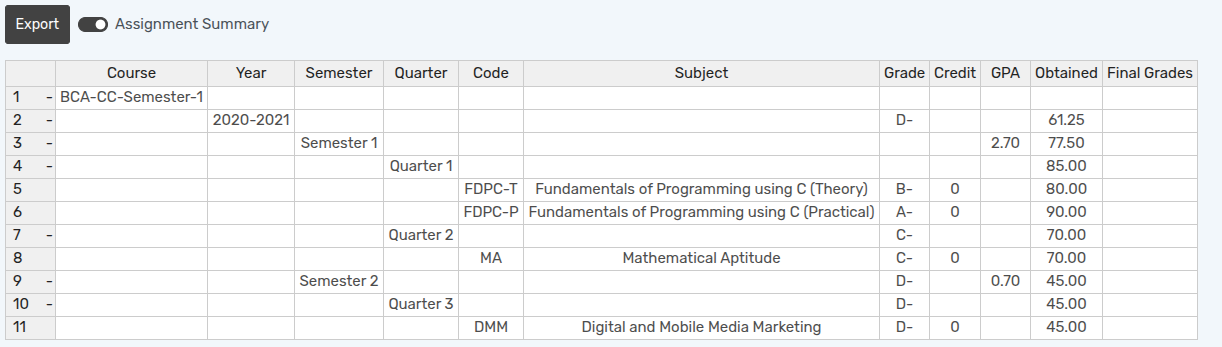
How to create Grading Assignment
Grading Assignment is created for a particular subject of a course based on which student grades are calculated.
Go to .
Click on New to create a new Grading Assignment.
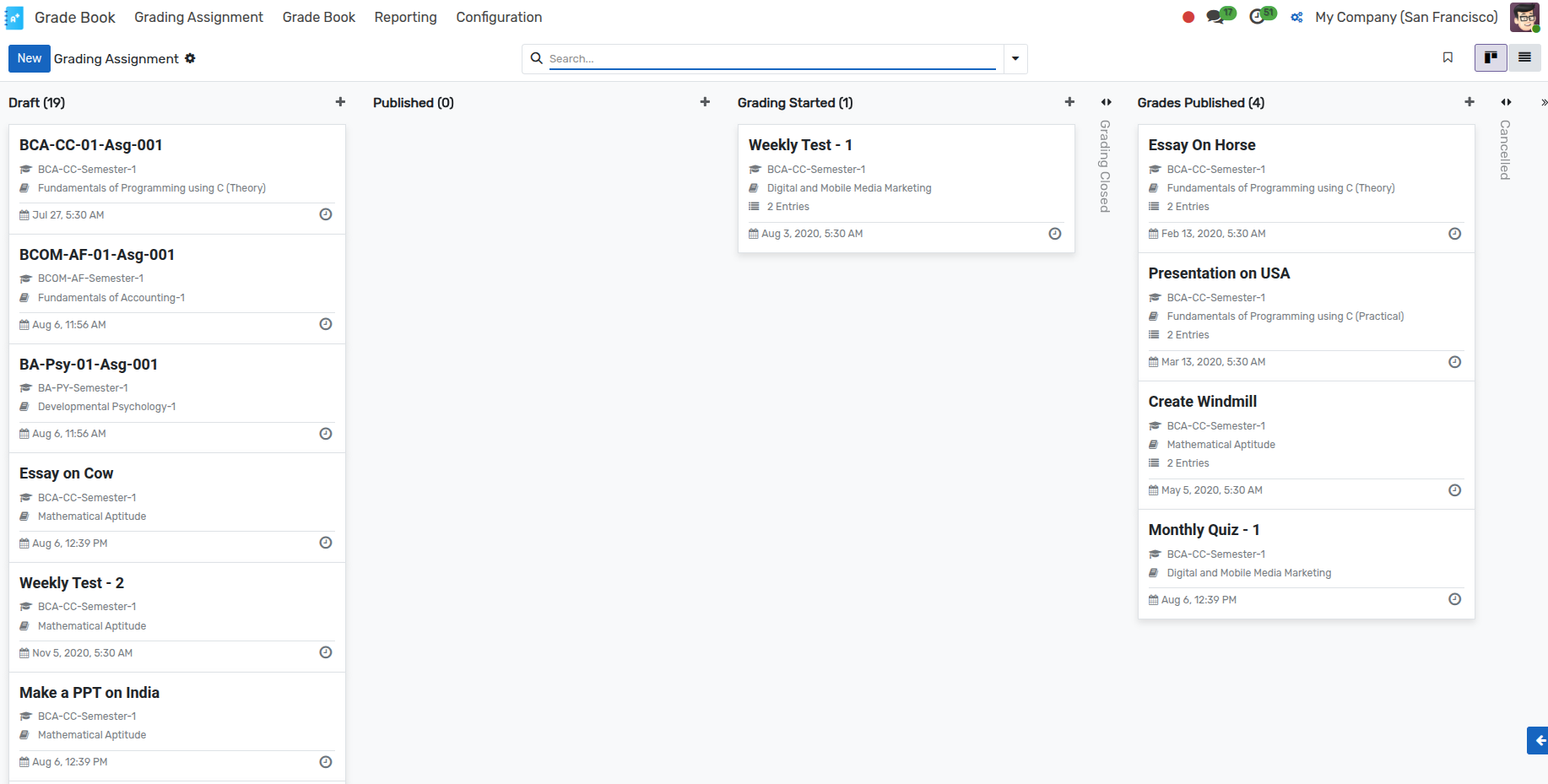
Details of Grading Assignment
Index :- Index is the unique number assigned to the grading assignment.
Name :- Specify the name of the grading assignment.
User :- User who created the assignment.
Academic Year :- Specify the academic year of the grading assignment being created.
Course :- Select a Course from the list.
Grade :- Select a Grade scale from the list.
Issued Date :- Issued Date is the date on which the grading assignment is issued.
Assignment Type :- Specify the type of the grading assignment being created.
Faculty :- Specify a faculty from the list.
Term :- Specify the term of the grading assignment being created.
Subject :- Select a Subject from the list.
Workflow of Assignment Grading
Draft
When an assignment is created, it is in
Draftstate.
Published
Click on the Publish button to Publish the assignment. It changes the state from
DrafttoPublished.

Grading Started
Click on the Grading Started button to Start the Grading. It changes the state from
PublishedtoGrading Started.

Start Grading
Click on the Start Grading button to Start the Grading. It will redirect you to Grade Book Line view.

Here you will find a list of students enrolled in the selected academic year.
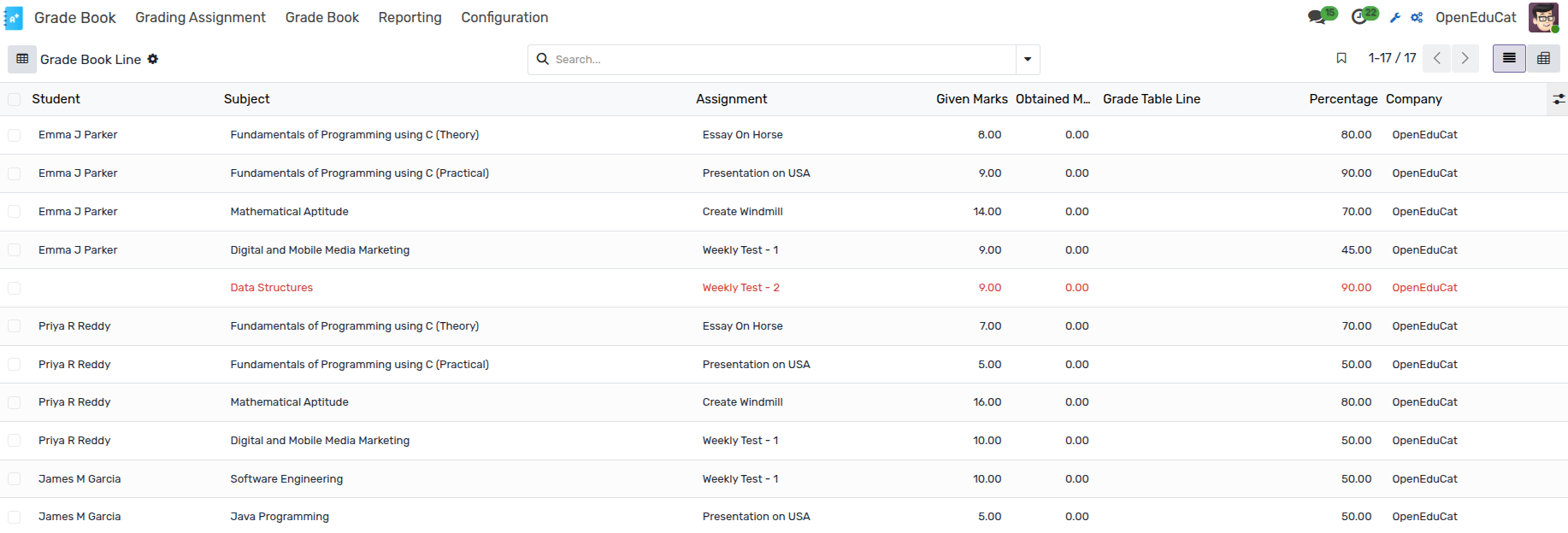
Here you can enter the assignment marks for each student.
Grading Closed
Click on the Grading Closed button to Close the Grading. It changes the state from
Grading StartedtoGrading Closed.

Grades Published
Click on the Grades Published button to Publish the Grades. It changes the state from
Grading ClosedtoGrades Published.

Go to . Here you can select the student whose Grade Book you wish to view.
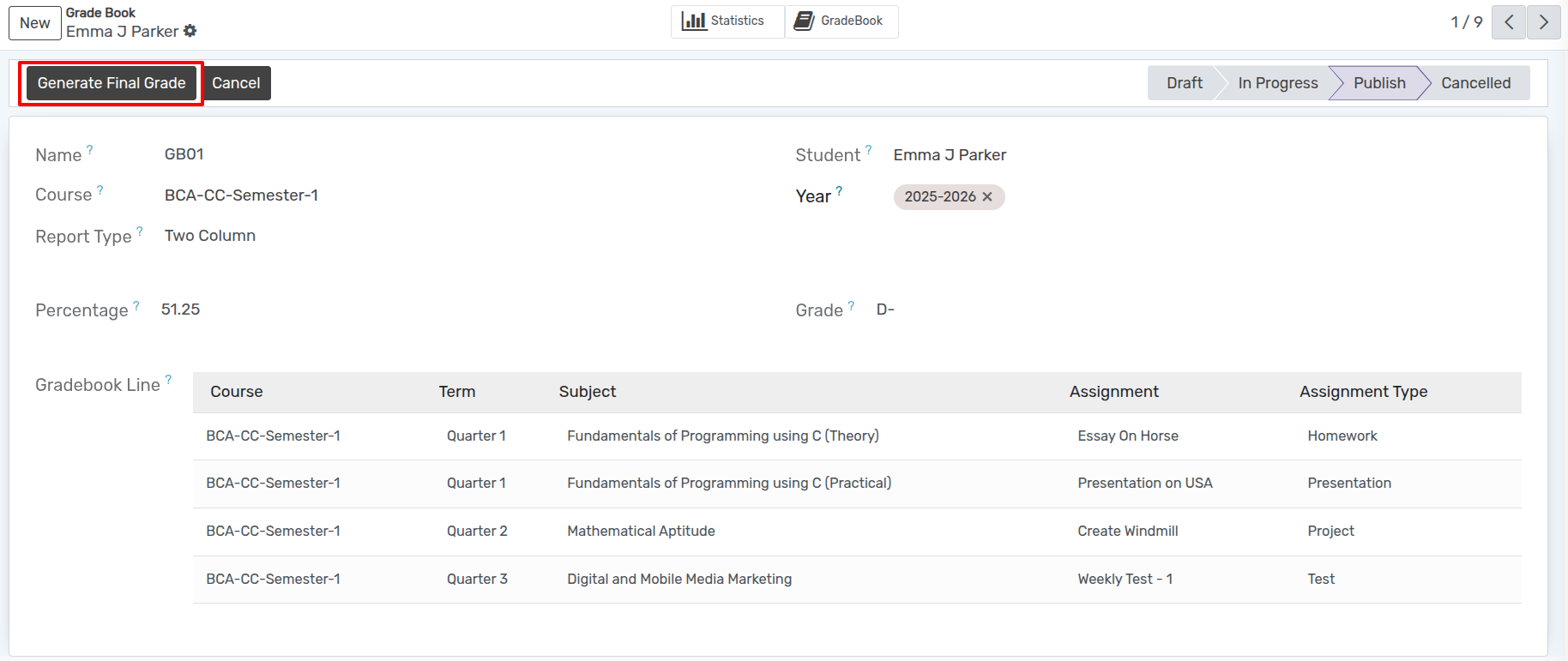
Generate Final Grade
Click on Generate Final Grade to generate final grading.
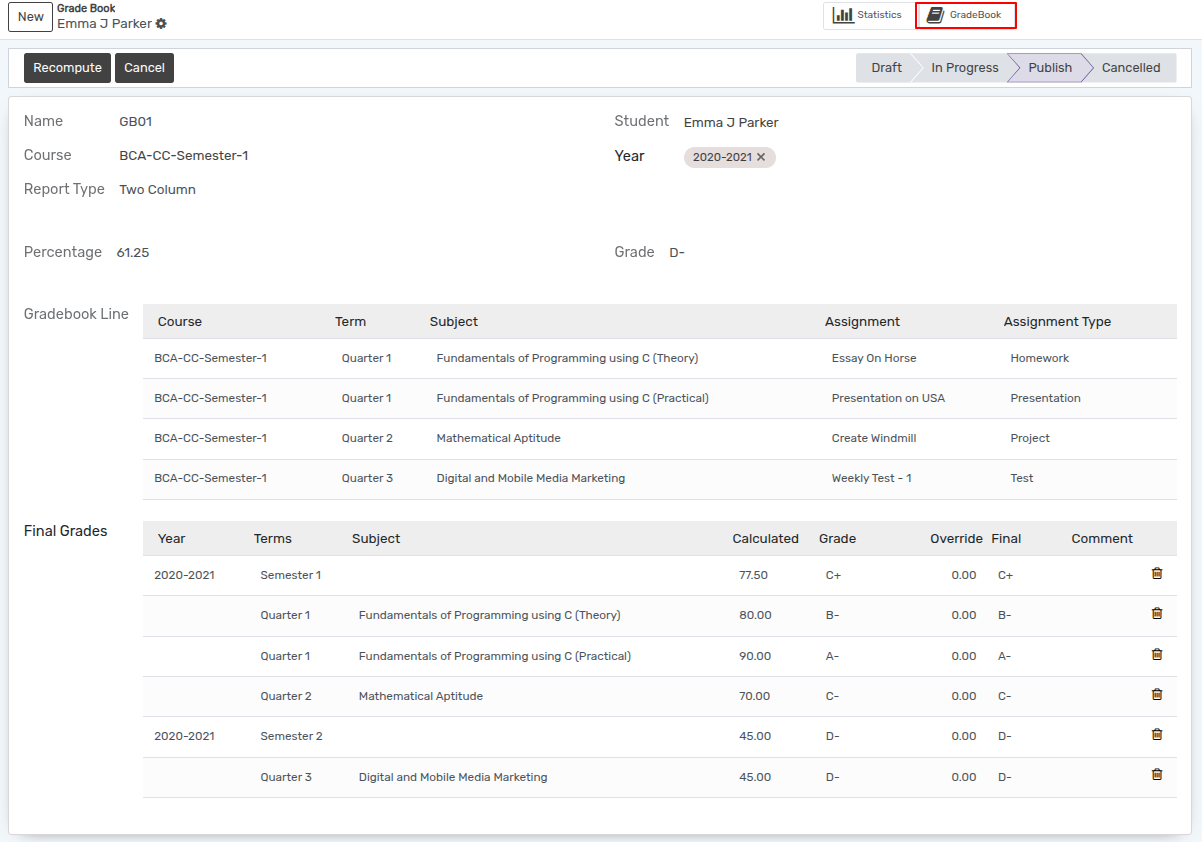
Click on the GradeBook to view the Grade Book.